
Forgot Password
Guide to resetting your Password and Creating a new one.
- On the login page, click "Forgot your password?" — it's located next to the Login button.

- You'll be redirected to the Password Reset page.
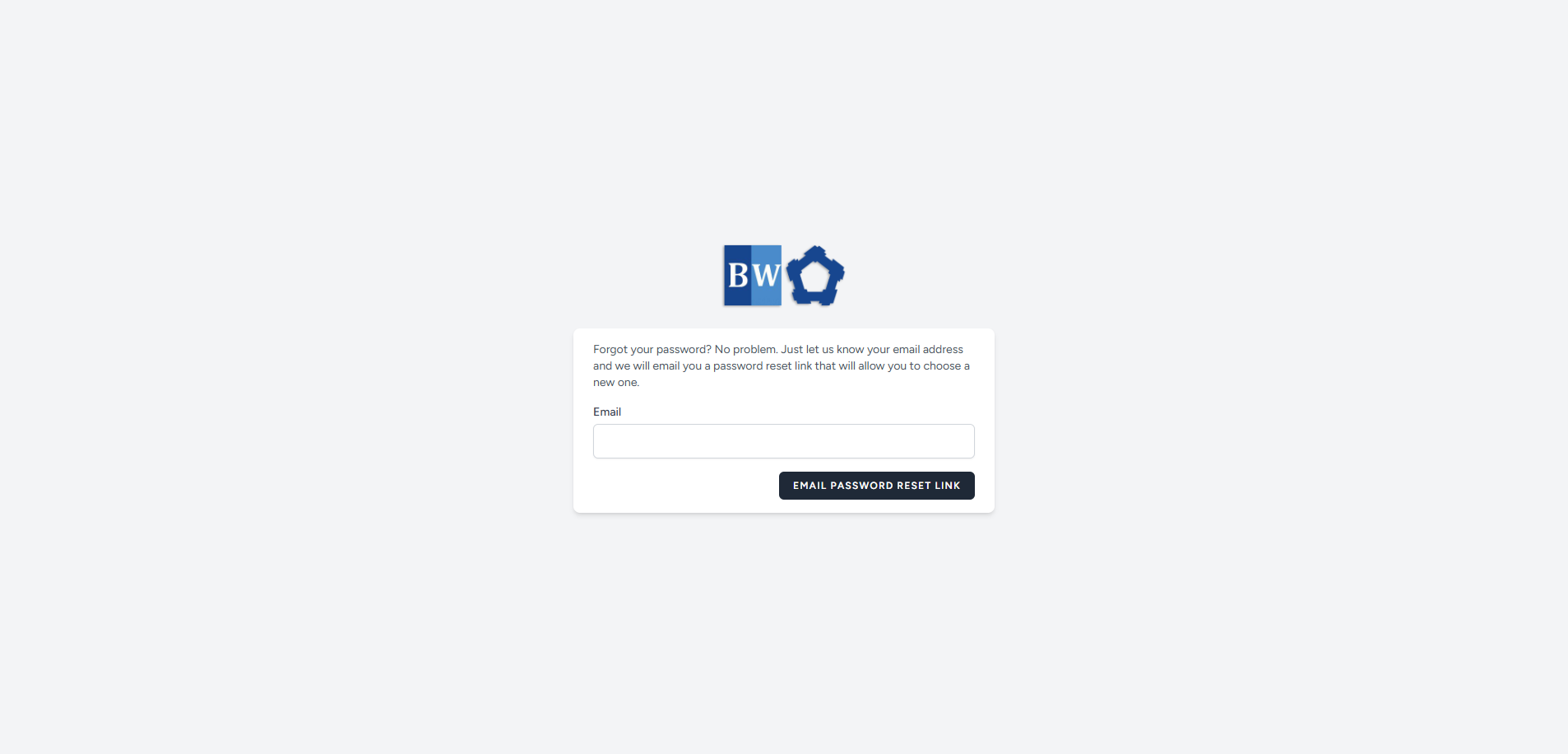
- Enter the email address you used to register in the system, then click the "Email Password Reset Link" button.
- Wait for the page to load. Once it's done, you’ll see a message saying: “We have emailed your password reset link.”
- Check your email for password reset link.
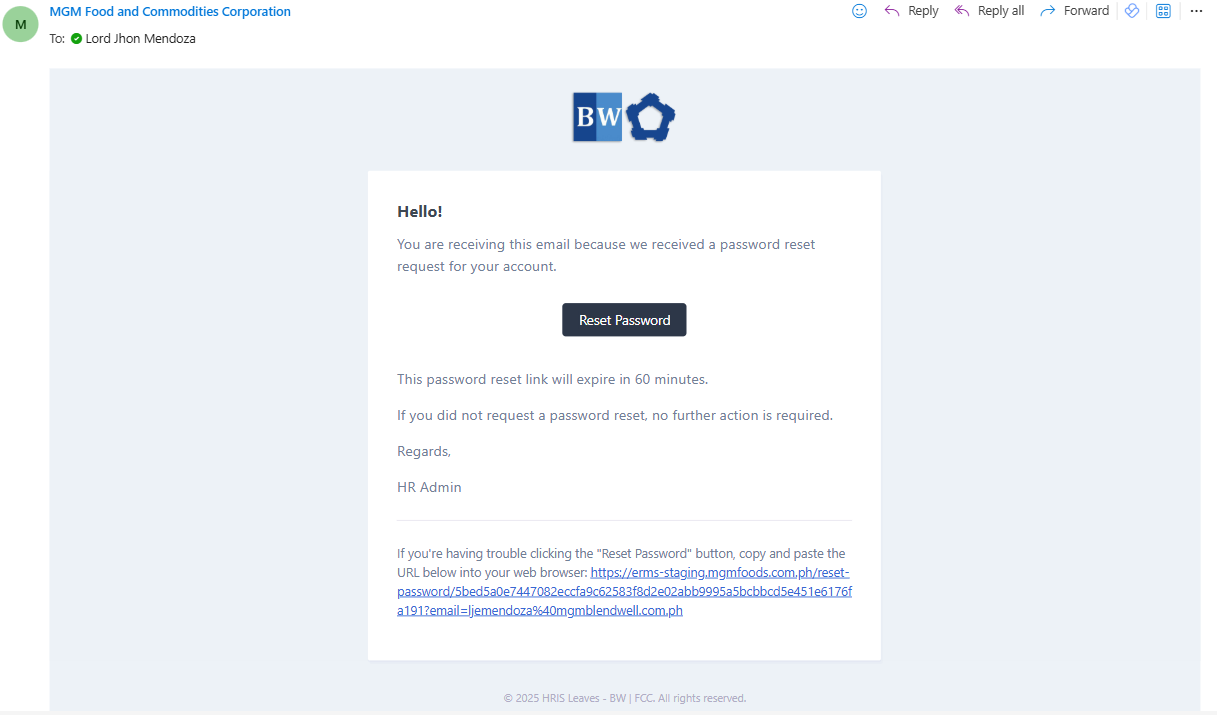
- Open the email that was sent to you and click the "Reset Password" button.
- You’ll be taken to a page where you can set a new password for your account.
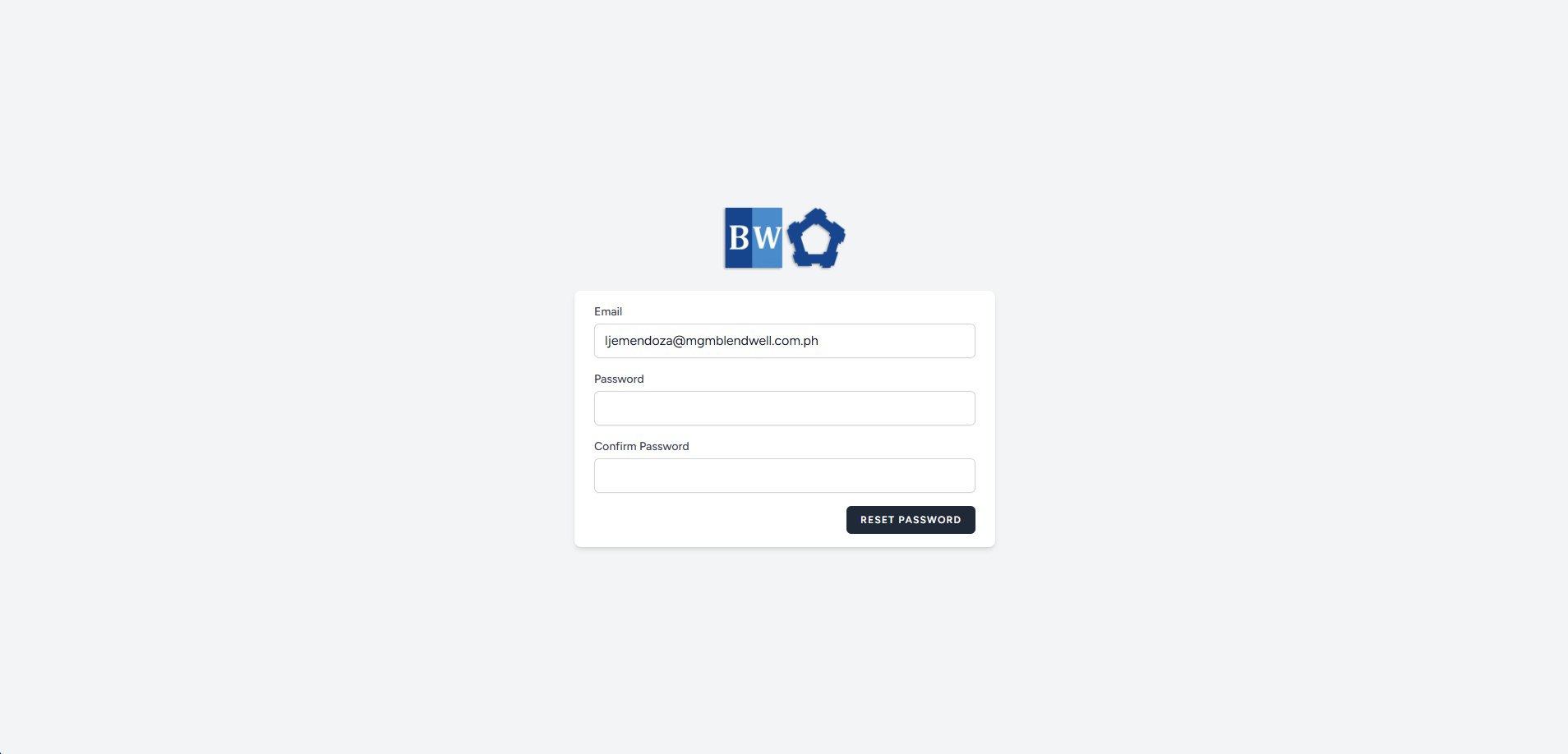
- Enter your new password and confirm it by typing it again in the Confirm Password field.
- Click the "Reset Password" button to complete the process.
- After resetting your password, you’ll be redirected back to the Login page.
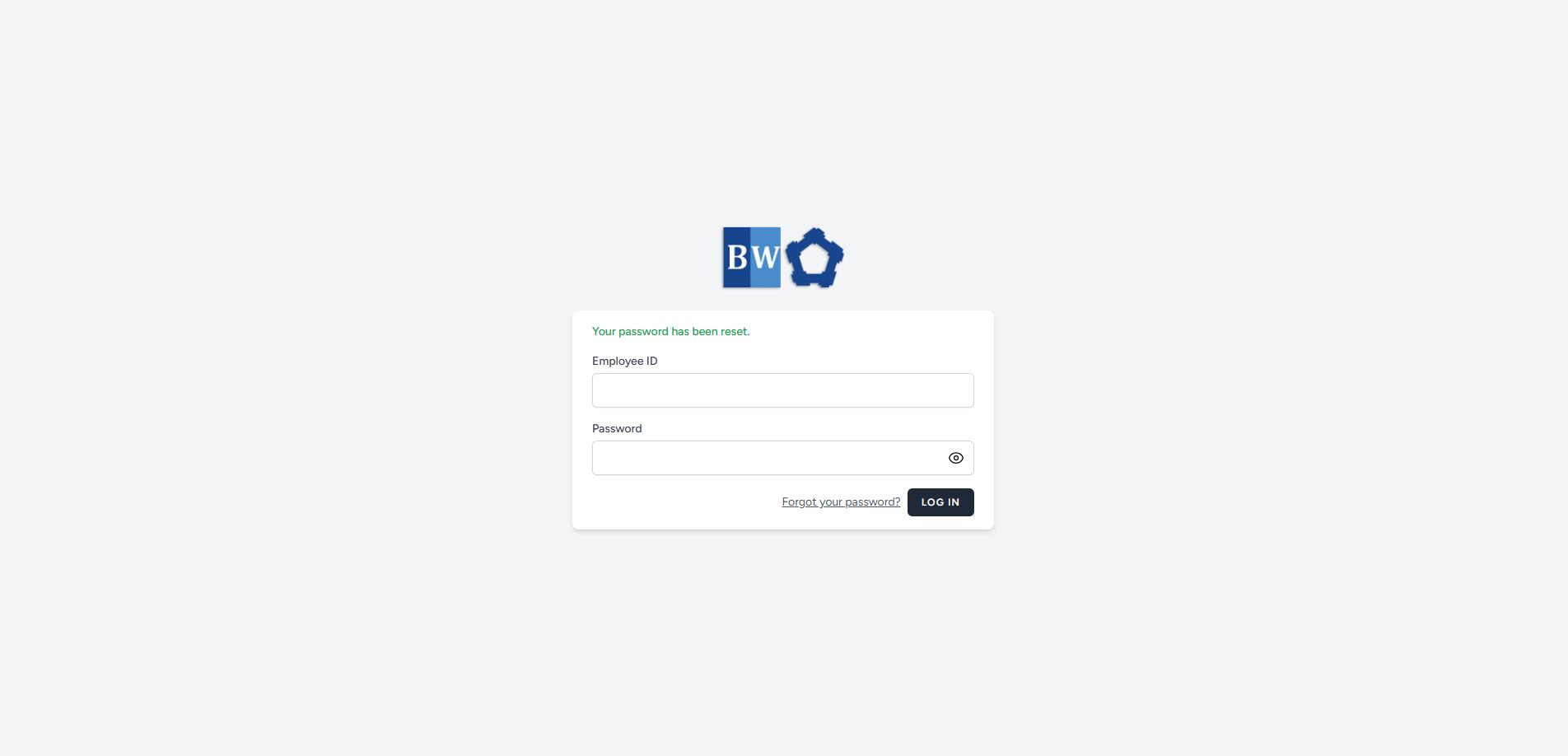
- Enter your Employee ID and your new password to log in.
No Comments