
User Management
This section provides a clear and complete guide on how to access Position Management as a HRIS Admin, outlining the steps and responsibilities involved.
To access the PositionUser Management page:
-
OnClick yourDashboard,nameclickatPositiontheManagementtoppanel.right corner of the screen.

- A dropdown will appear, where you can find the User Management option. Click it.
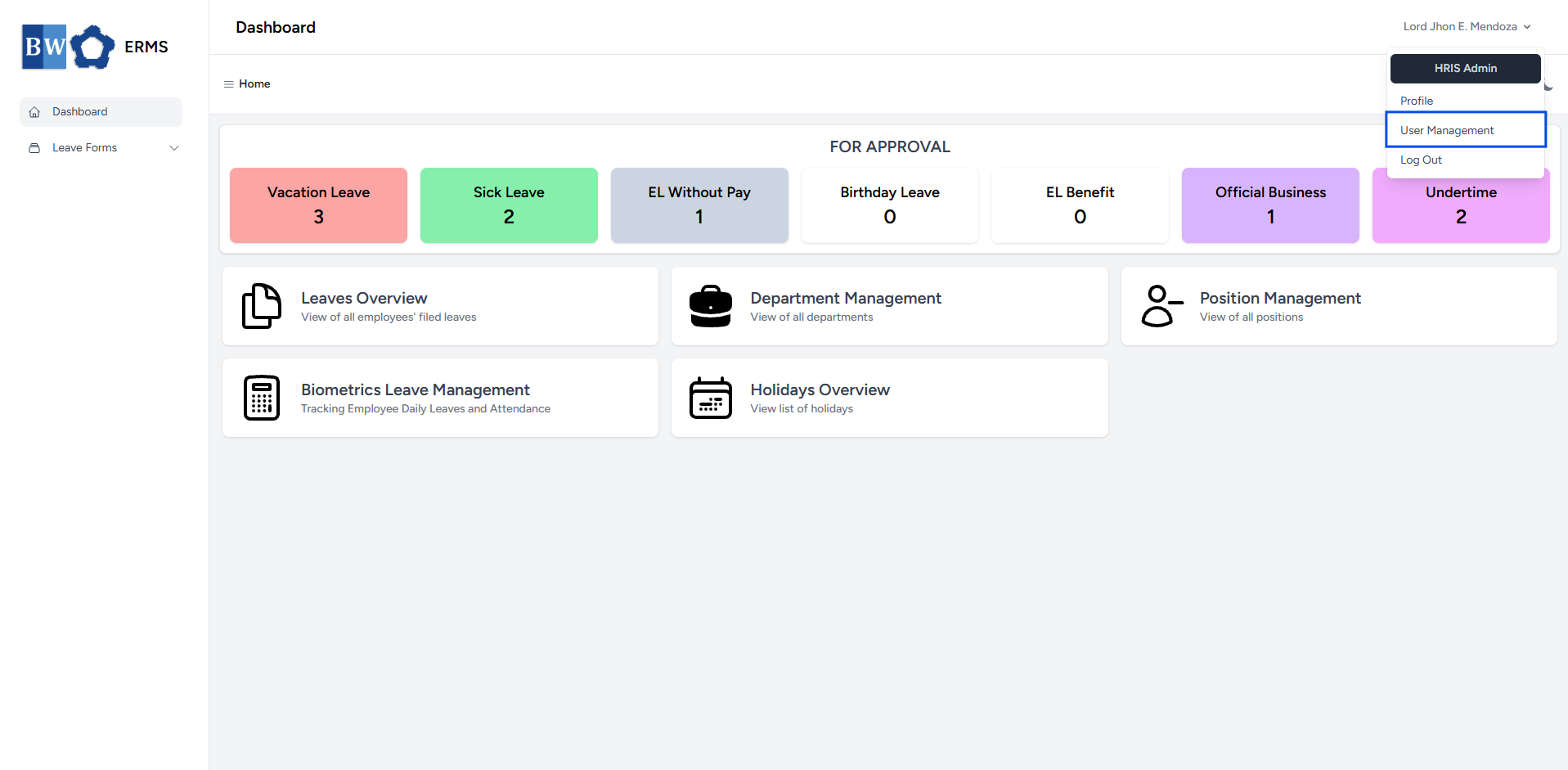
- It will open the
PositionUser Management page.

- On the
PositionUser Management page, click theCreateAddPositionEmployee button to open the form.
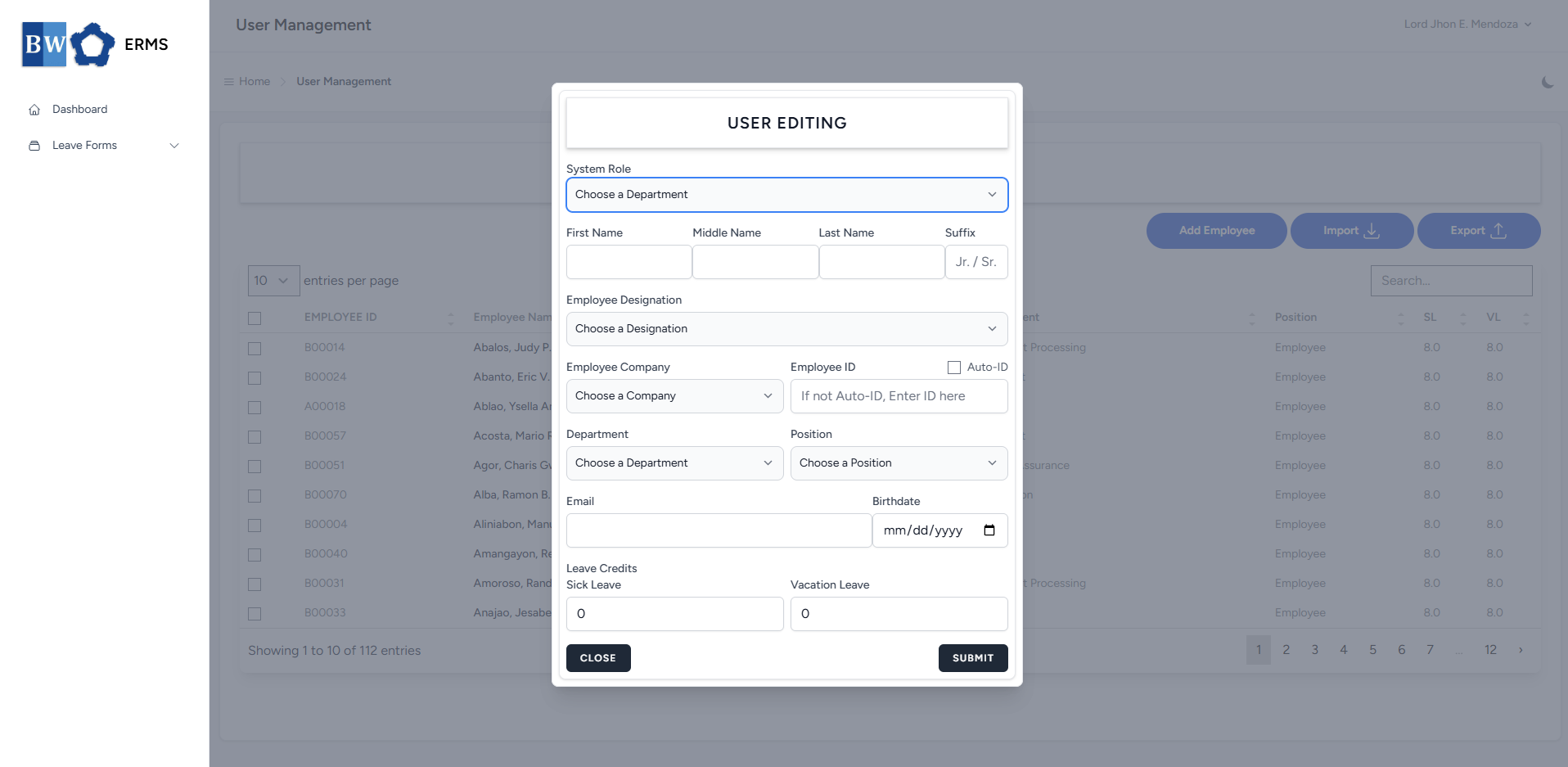
- Fill out the required fields, then click Submit.
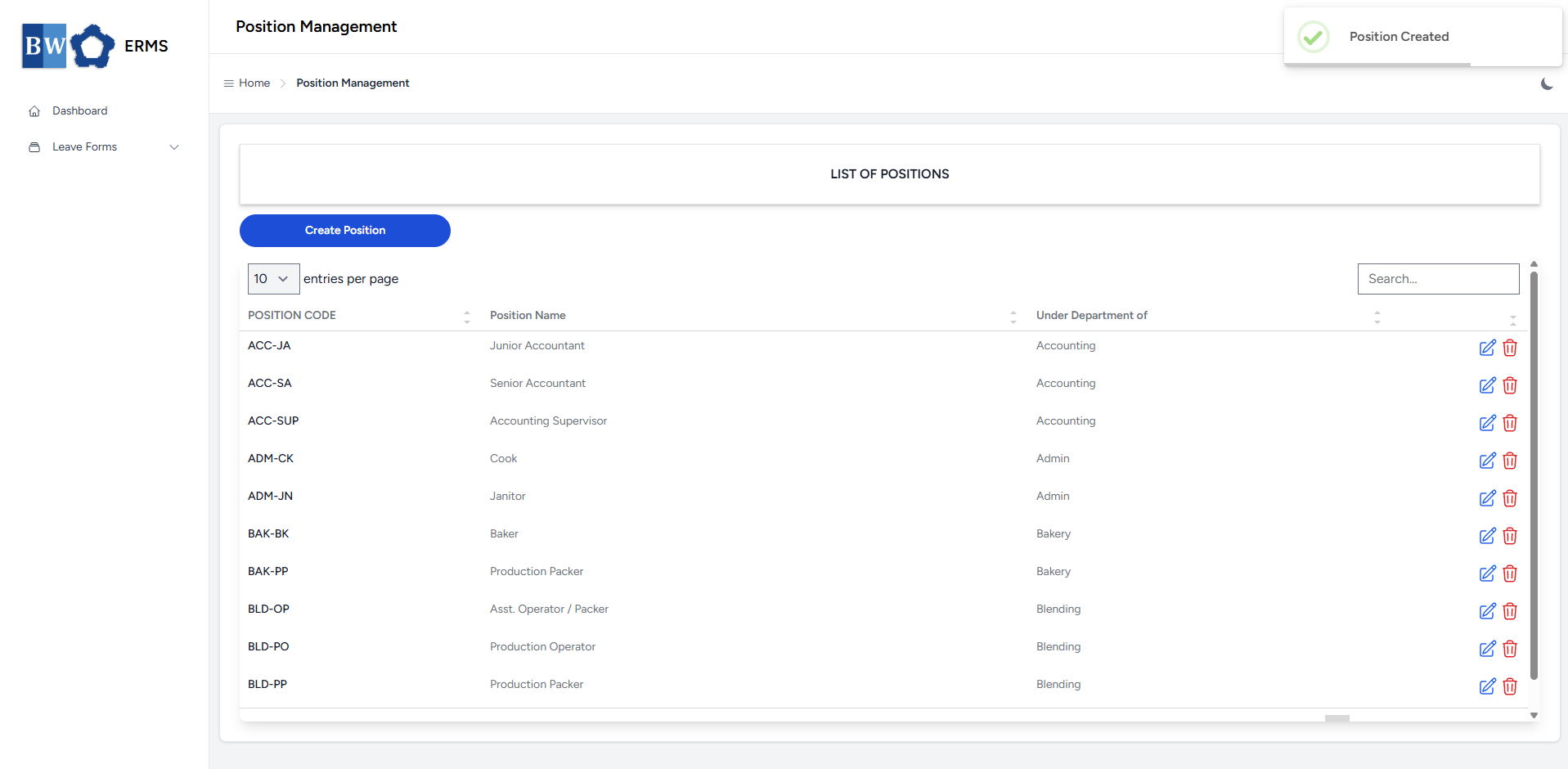
- After submitting, a notification will appear saying that the
PositionUser has been created. The createdpositionuser will be added to the list.
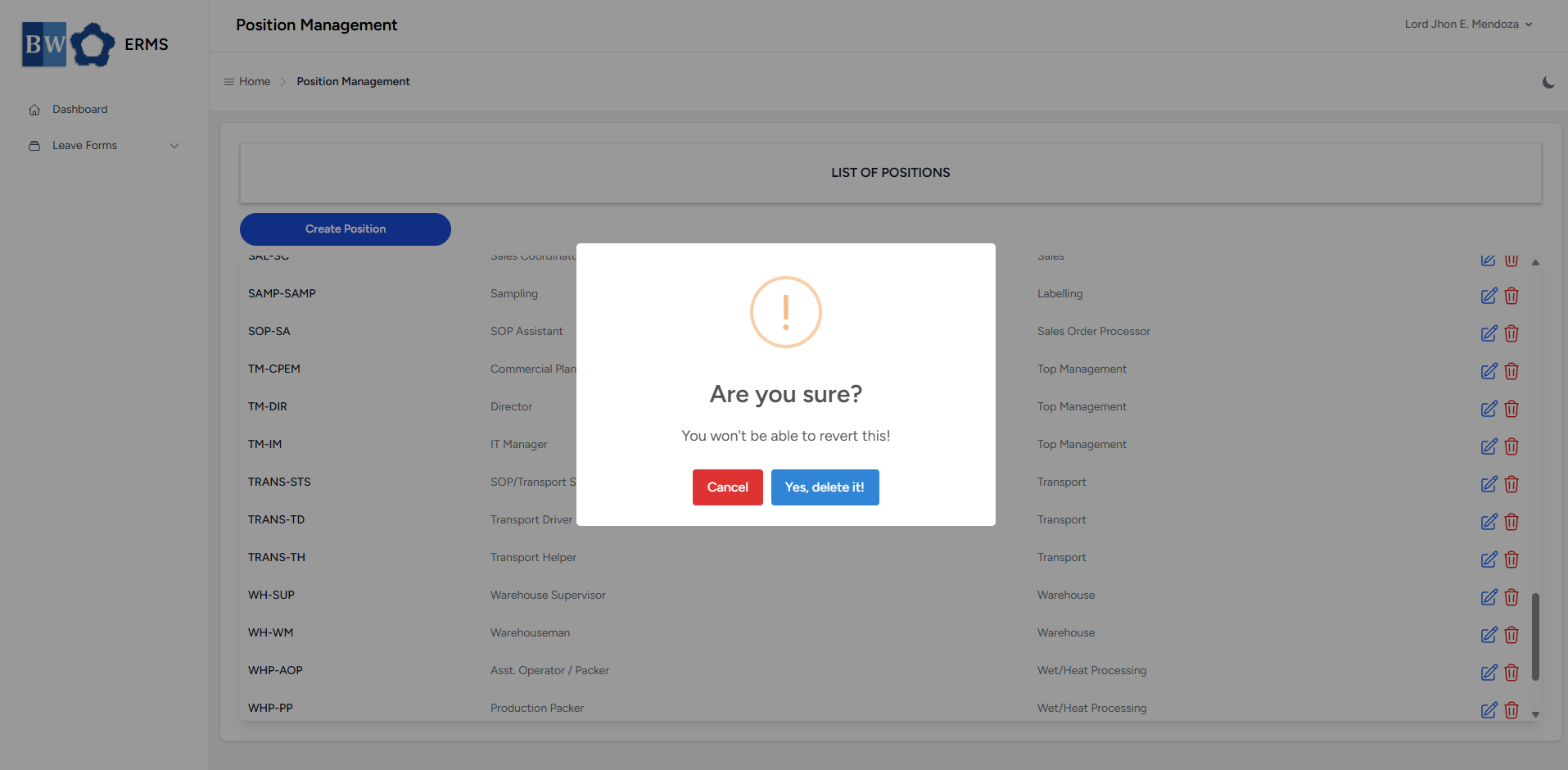
Todeletea position, click thered deleteicon in the row of the position you wish to remove.
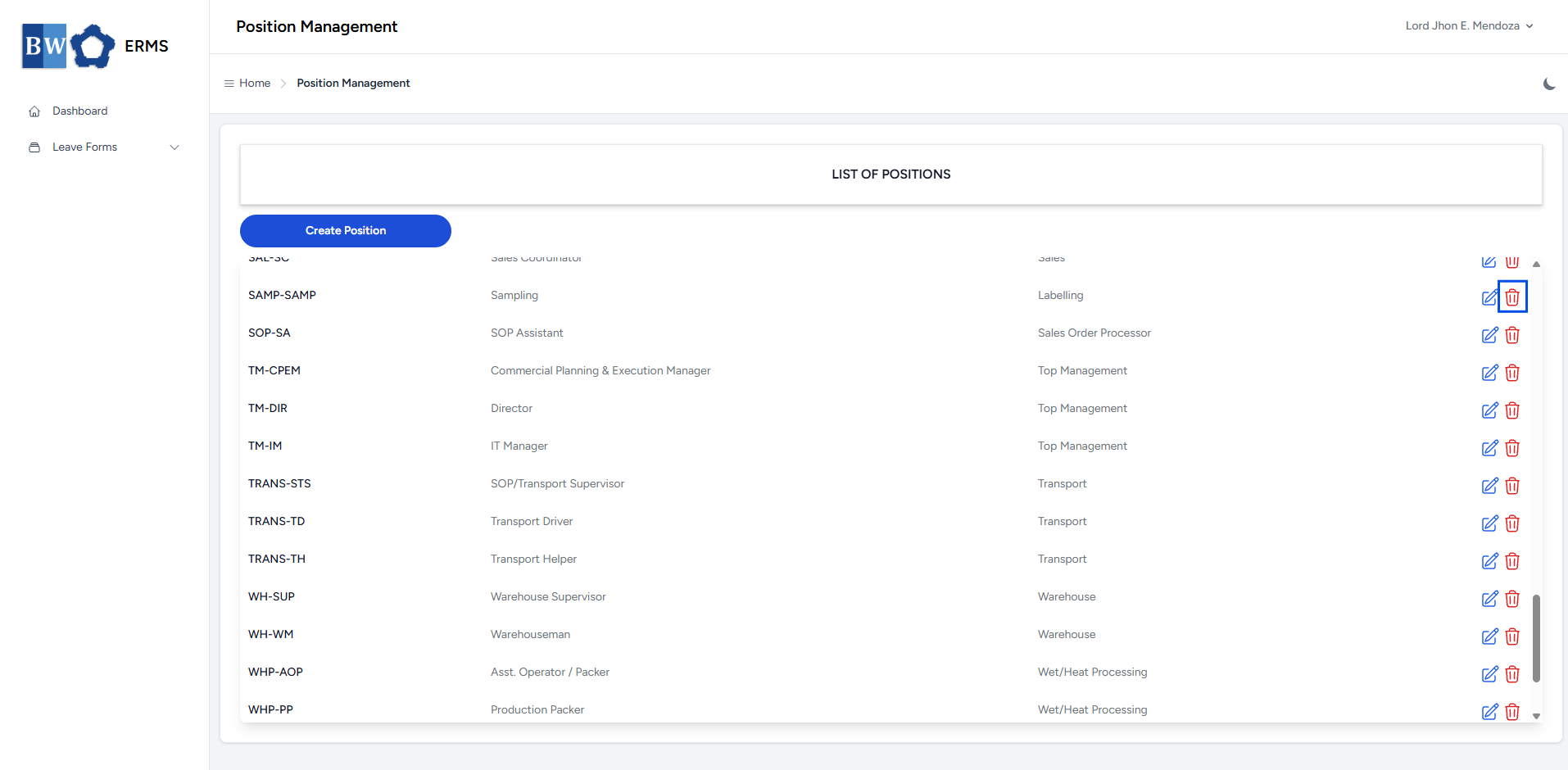
A confirmation prompt will appear asking if you want to proceed with the deletion.ClickYes, delete it!button to completely delete the department.
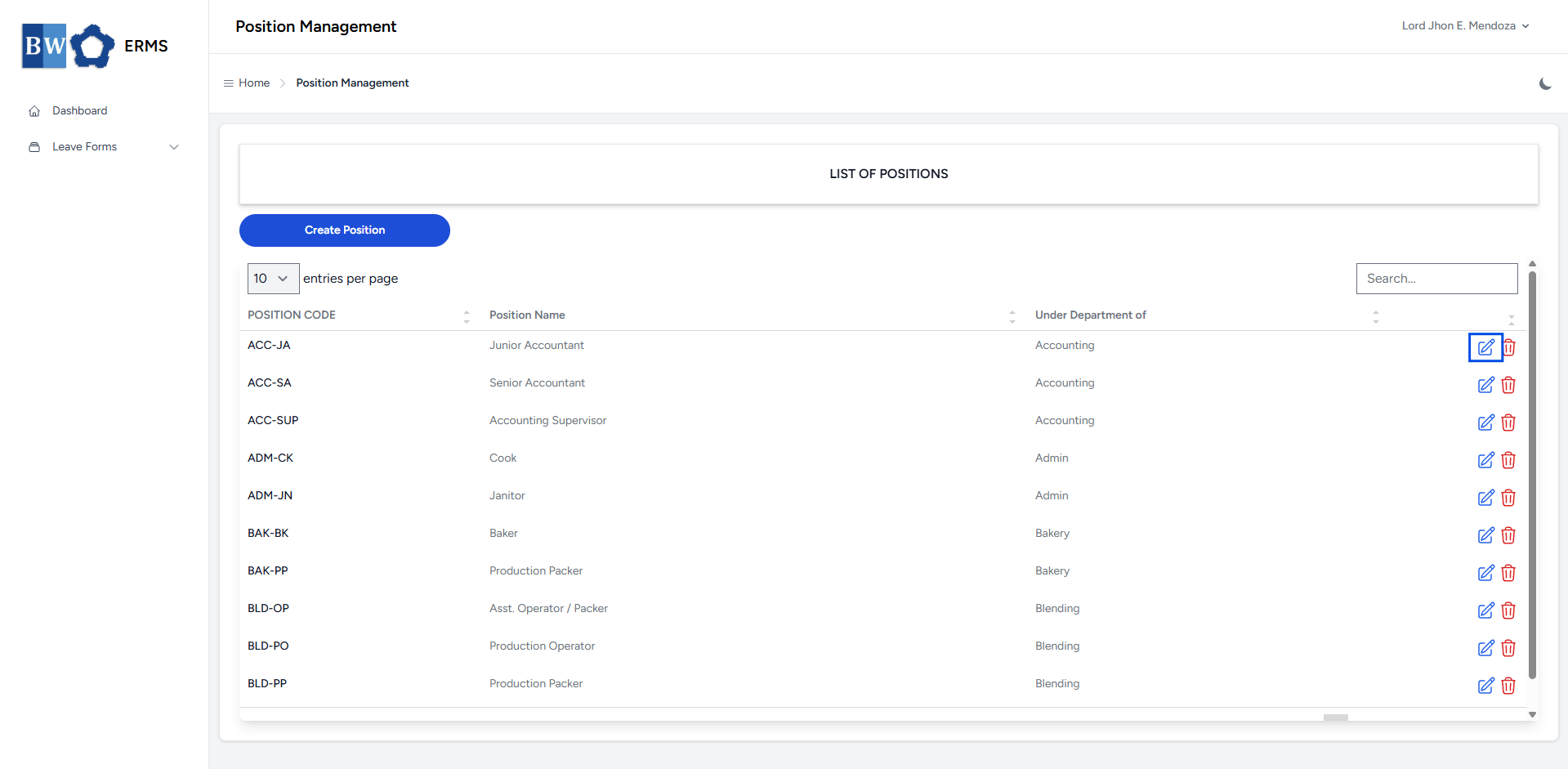
Toedita position, click theblue editicon in the row of the position you wish to edit.
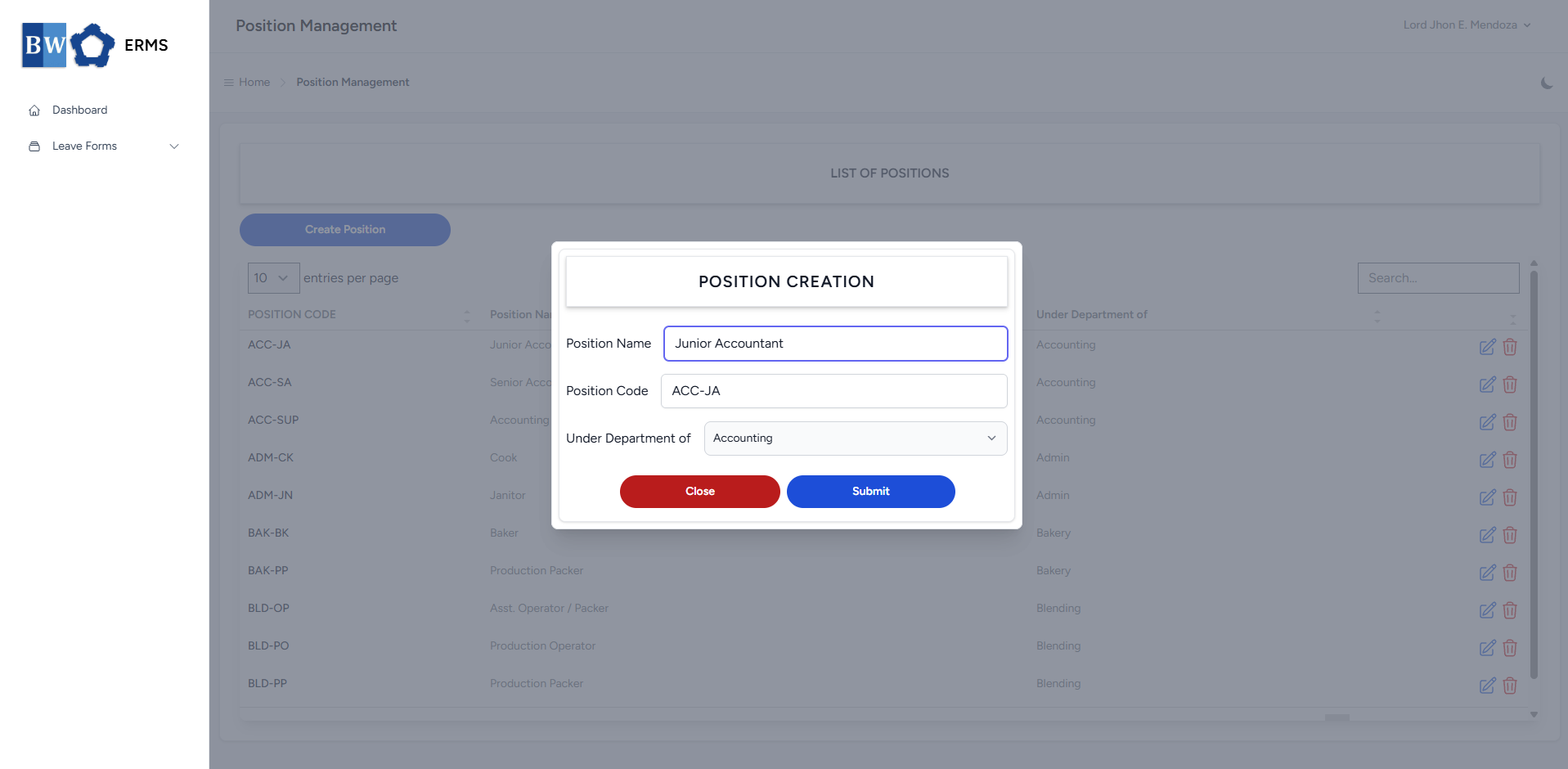
After editing the Position Name, Code, and Under Department of, click the Submit button to save the changes.