
HRIS Admin
This section provides a clear and complete guide on how to decline requests as a HRIS Admin, outlining the steps and responsibilities involved.
To access the For Approval page of specific Leave, you can do either of the following:
-
On your Dashboard, click desired Filed Leave under the For Approval section.
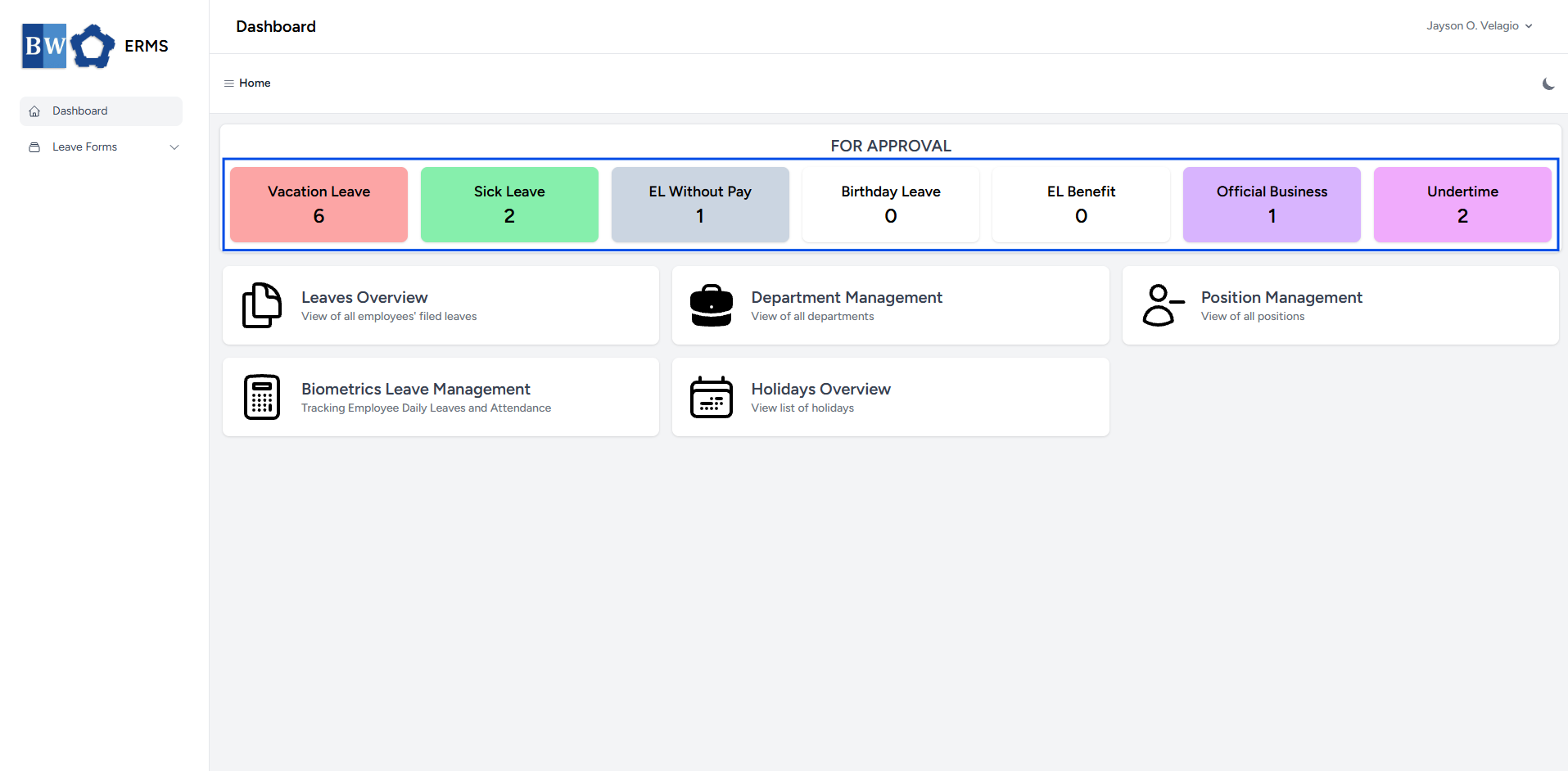
-
Or, in the Sidebar, click the Leave Forms dropdown.
- From the list that appears, select desired Filed Leave.
- Then, click For Approval to view your employee's Filed Leave.
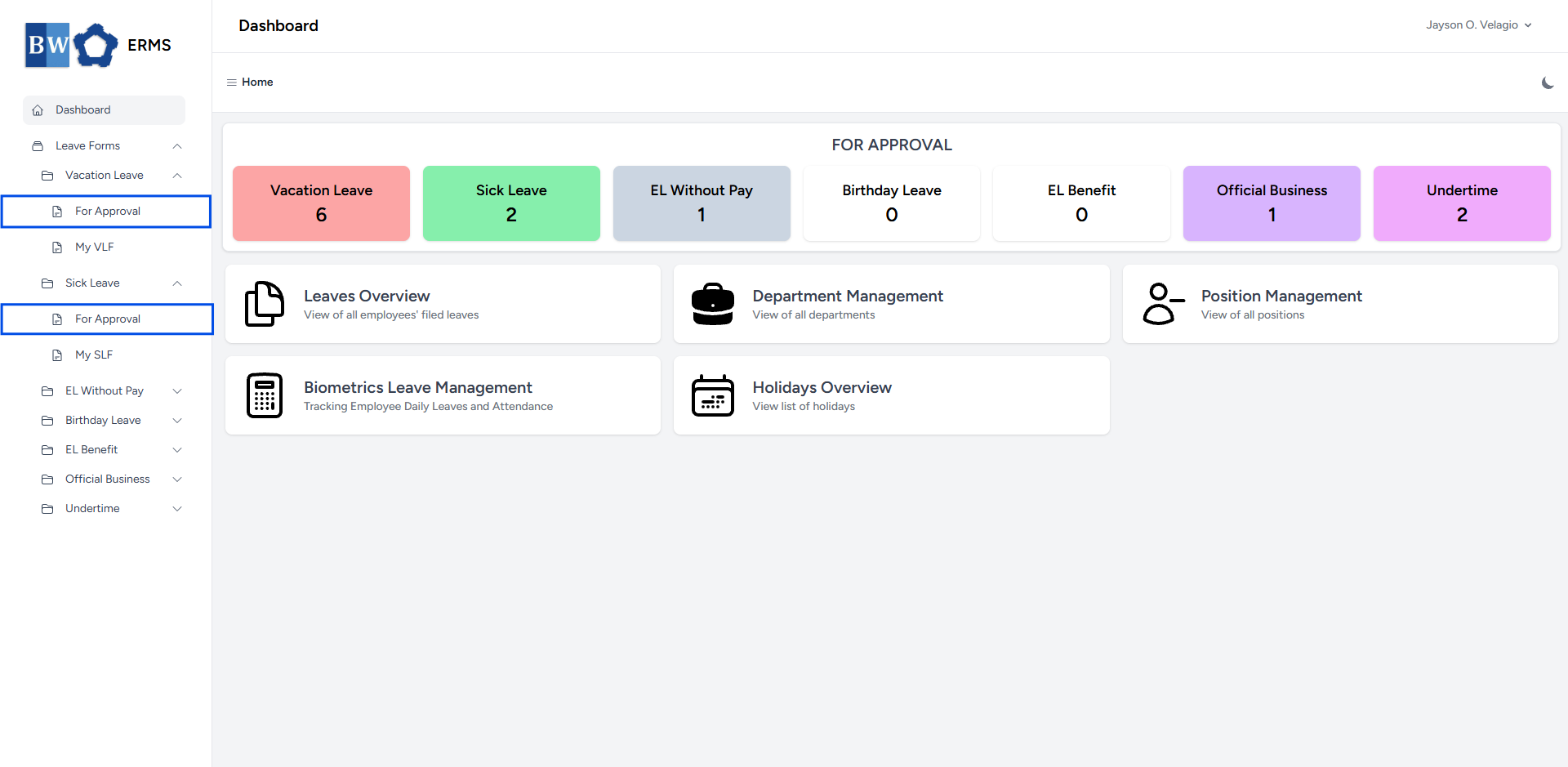
- It will open the specific Leave page you clicked.
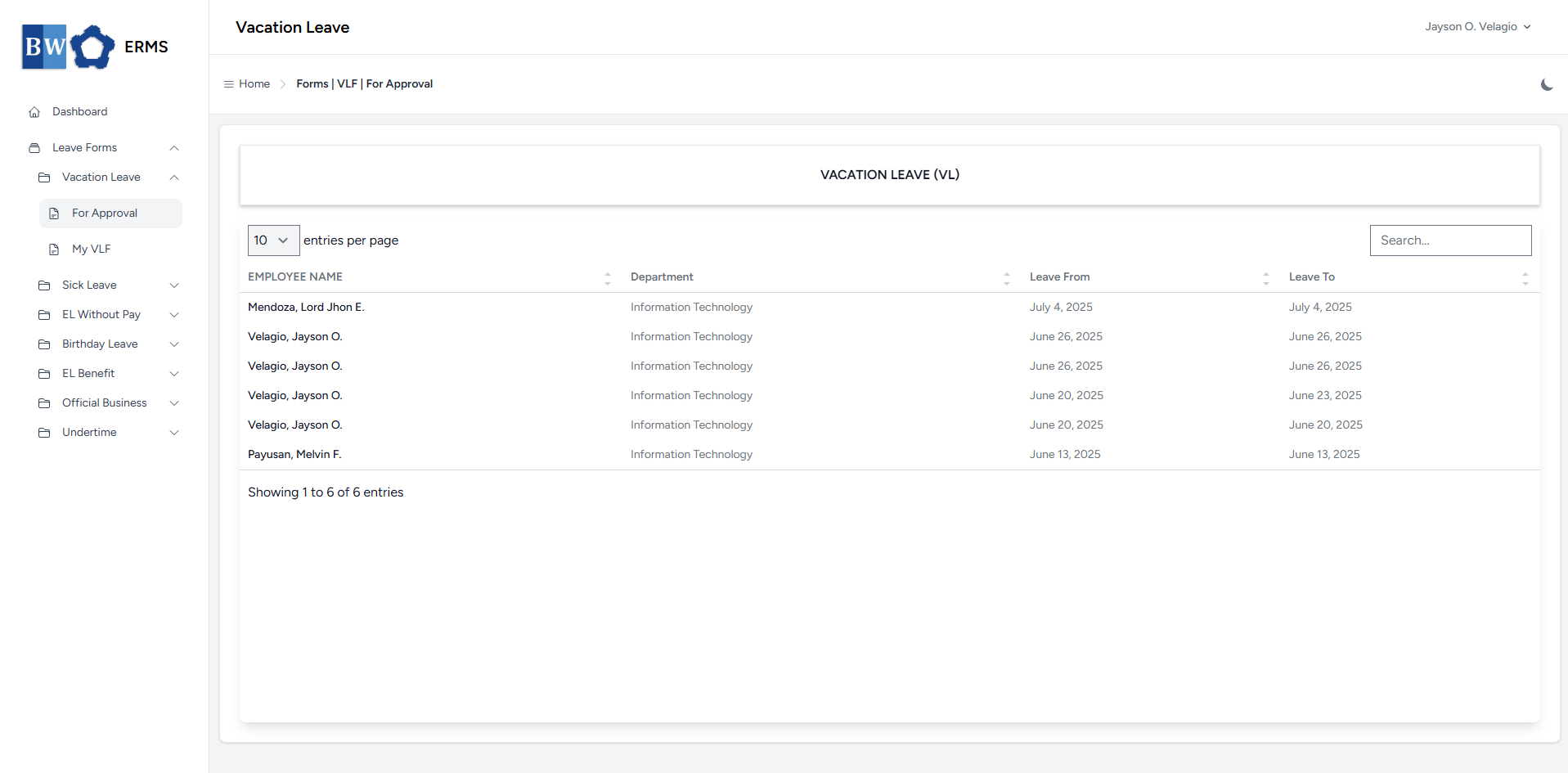
- On the specific Leave (For Approval) page, select the leave request you want to decline.
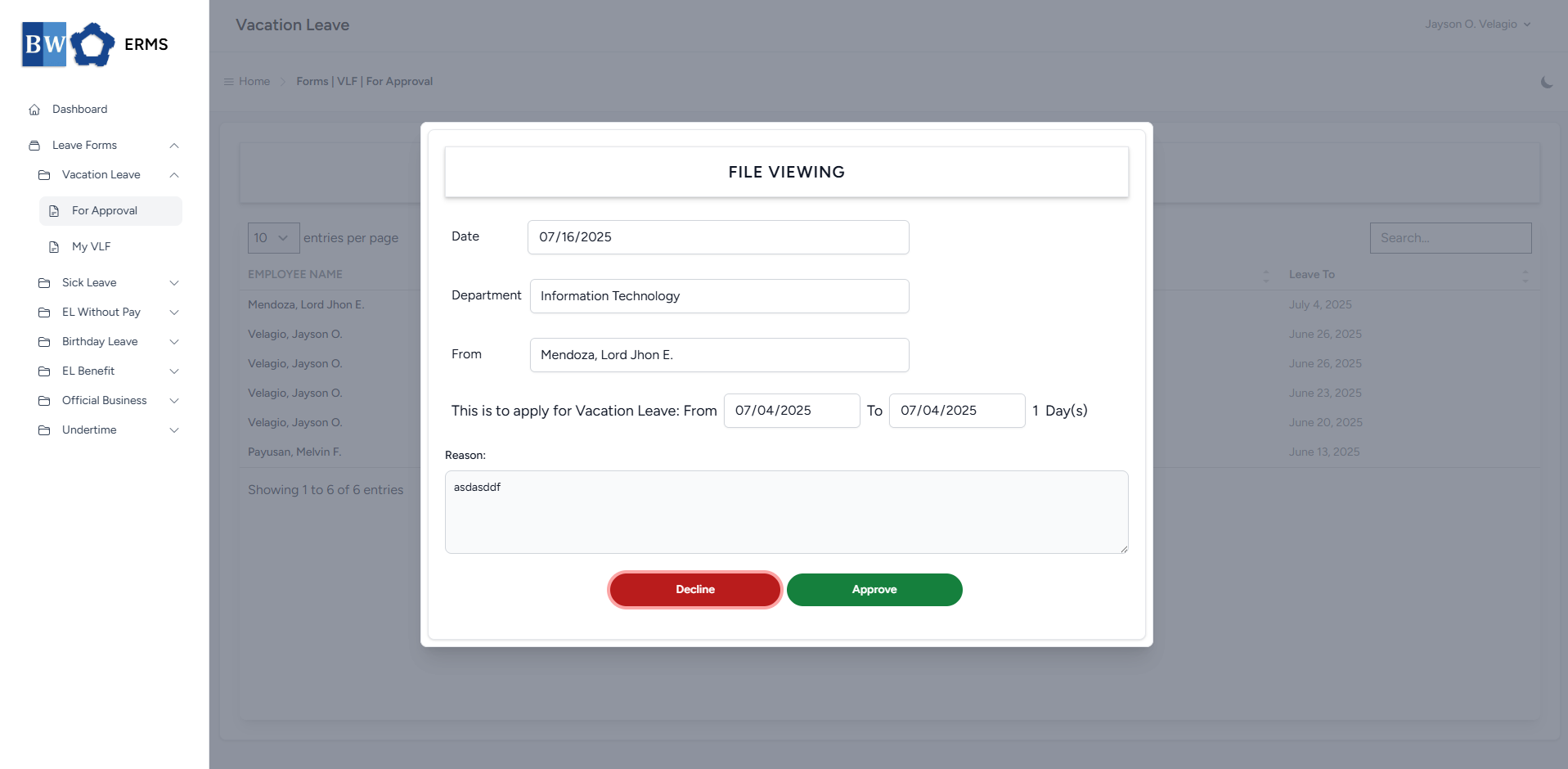
- Click the Decline button, it will show a modal for Decline Reason.
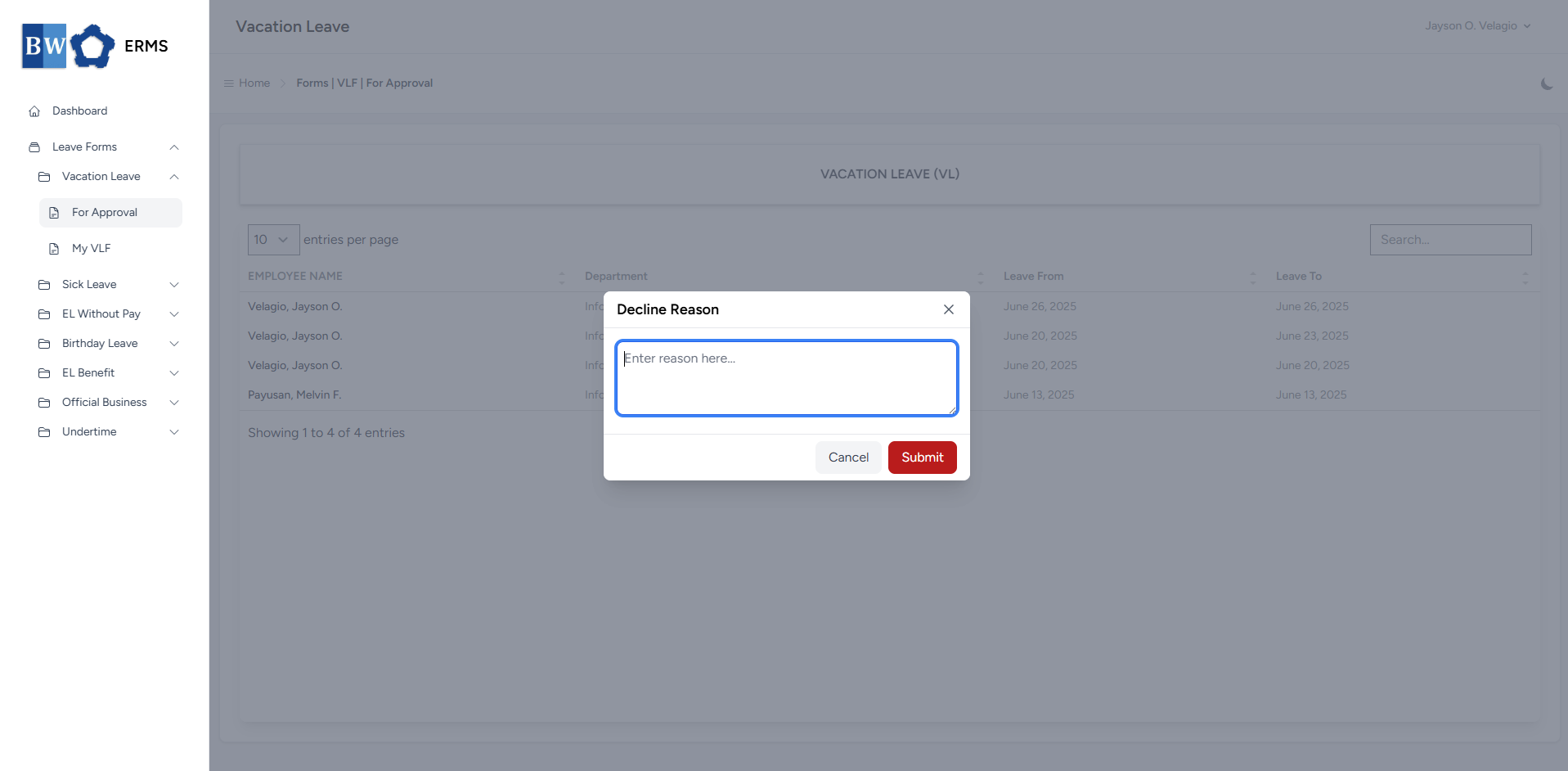
- Enter your decline reason, then click the Submit button to decline the employee’s leave request.
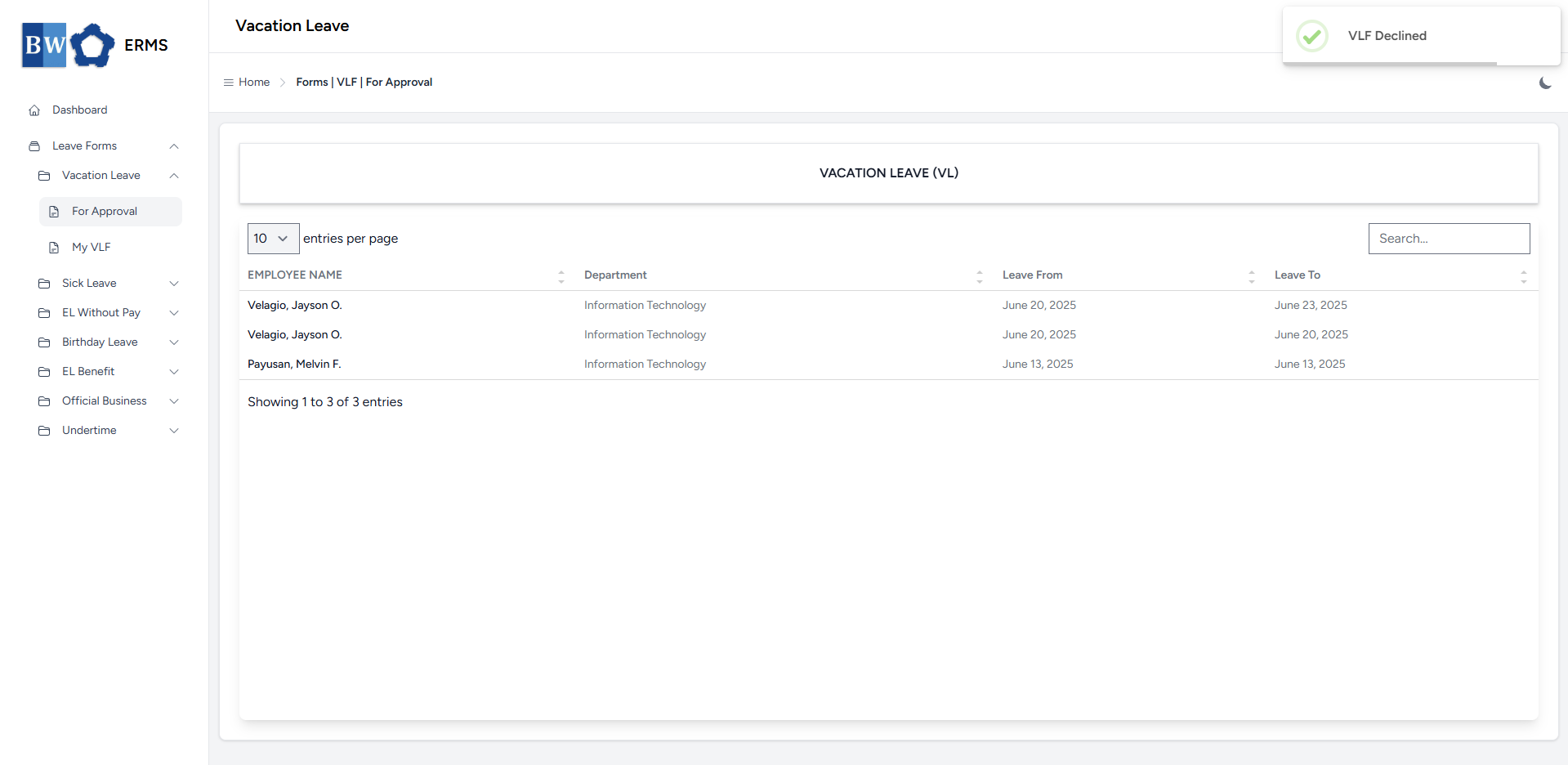
- After declining, a notification will appear saying that the specific Leave has been declined.
- The declined leave request will be removed in your For Approval list.
No Comments