**Here's a general guide:**
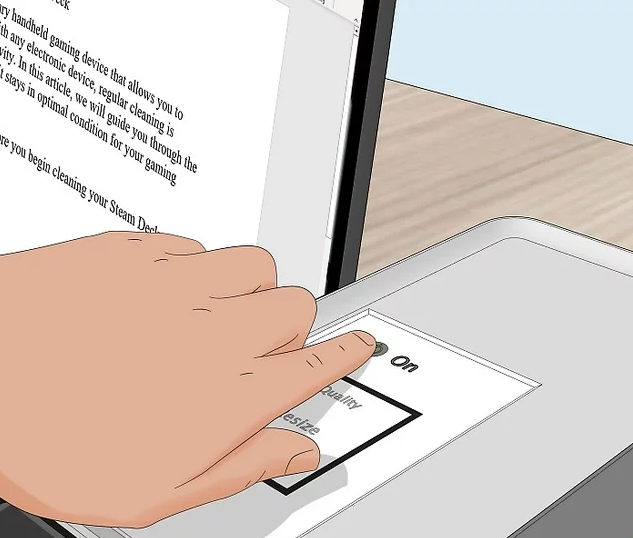
**Make sure that your printer is connected and turned on.** If your printer connects over WI-FI, this will mean making sure that you're on the same Internet network as your printer; otherwise, you'll need to plug your printer's USB cable into your computer or Laptop.
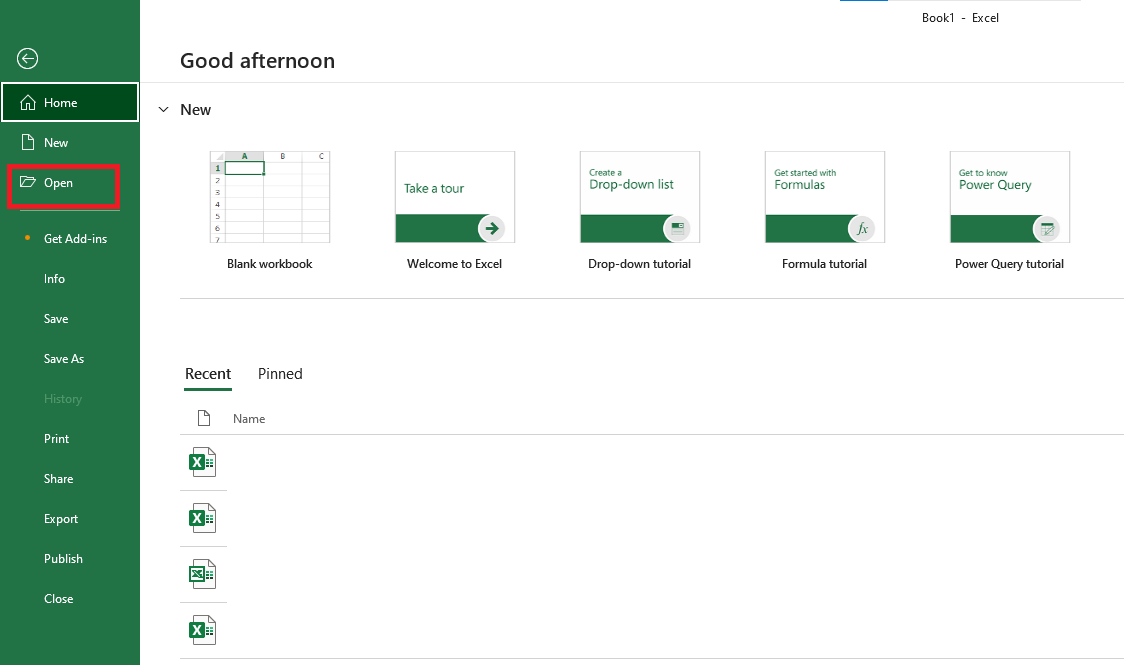
[](https://kb.mgmfoods.com.ph/uploads/images/gallery/2024-06/6xTimage.png) ---**Open the document you want to print.** This could be a PDF, Word document, Excel spreadsheet, or even photos. Note: Use the File Explorer to find the file if needed.
[](https://kb.mgmfoods.com.ph/uploads/images/gallery/2024-06/excel.png) ---**On your keyboard, press **Ctrl+P**.** This is the keyboard shortcut to open the print menu.
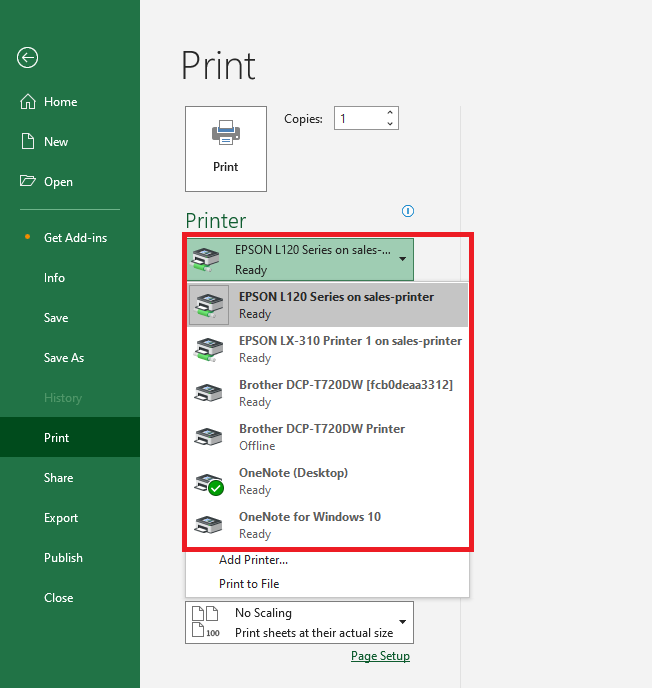
- You can also manually open the print menu by clicking the printer icon. - In some apps, you'll need to click **File** and then **Print**. - The print menu may look different depending on the application used to open your file. [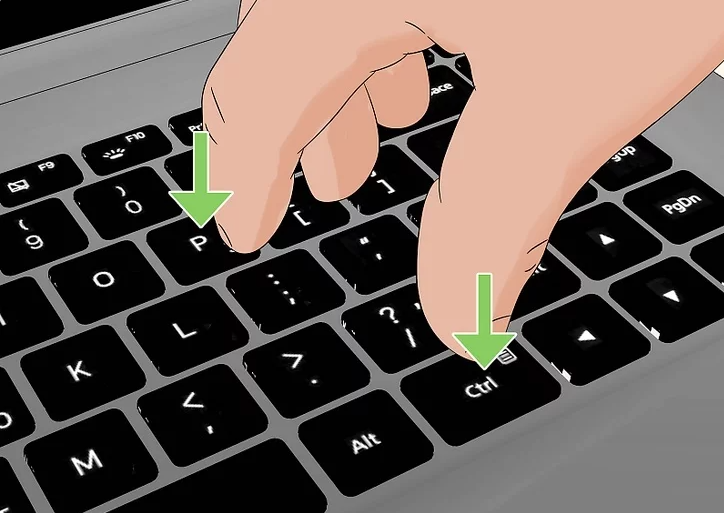](https://kb.mgmfoods.com.ph/uploads/images/gallery/2024-06/Gjximage.png) ---**Select your printer.** Click the "Printer" drop-down box, then click your printer's name.
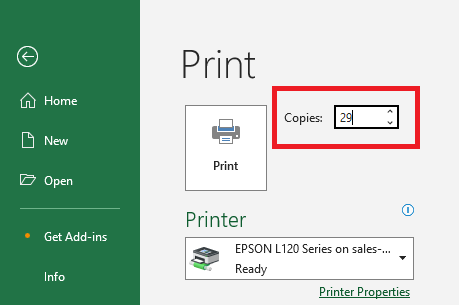
[](https://kb.mgmfoods.com.ph/uploads/images/gallery/2024-06/FyRexcel.png) ---**Select a number of copies.** In the "Copies" box, type in the number of copies of the document that you'd like to print. Note: This is different than the number of pages.
[](https://kb.mgmfoods.com.ph/uploads/images/gallery/2024-06/P6Cexcel.png) --- # Microsoft Word Microsoft Word is a widely used word processing program developed by Microsoft.**Here's a general guide:**
**Make sure that your printer is connected and turned on.** If your printer connects over WI-FI, this will mean making sure that you're on the same Internet network as your printer; otherwise, you'll need to plug your printer's USB cable into your computer or Laptop.
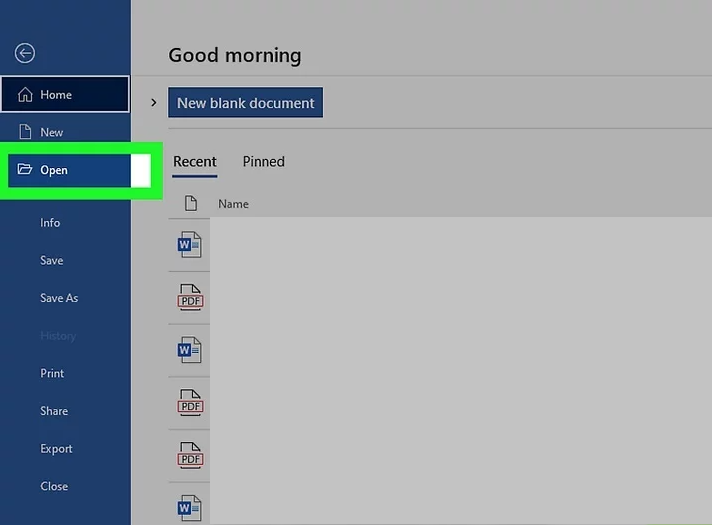
[](https://kb.mgmfoods.com.ph/uploads/images/gallery/2024-06/6xTimage.png) ---**Open the document you want to print.** This could be a PDF, Word document, Excel spreadsheet, or even photos. Note: Use the File Explorer to find the file if needed.
[](https://kb.mgmfoods.com.ph/uploads/images/gallery/2024-06/R5rms.png) ---**On your keyboard, press **Ctrl+P**.** This is the keyboard shortcut to open the print menu.
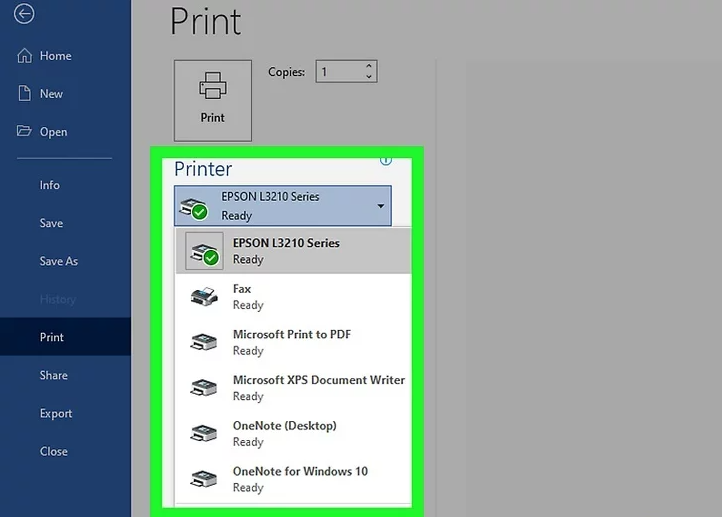
- You can also manually open the print menu by clicking the printer icon. - In some apps, you'll need to click **File** and then **Print**. - The print menu may look different depending on the application used to open your file. [](https://kb.mgmfoods.com.ph/uploads/images/gallery/2024-06/Gjximage.png) ---**Select your printer.** Click the "Printer" drop-down box, then click your printer's name.
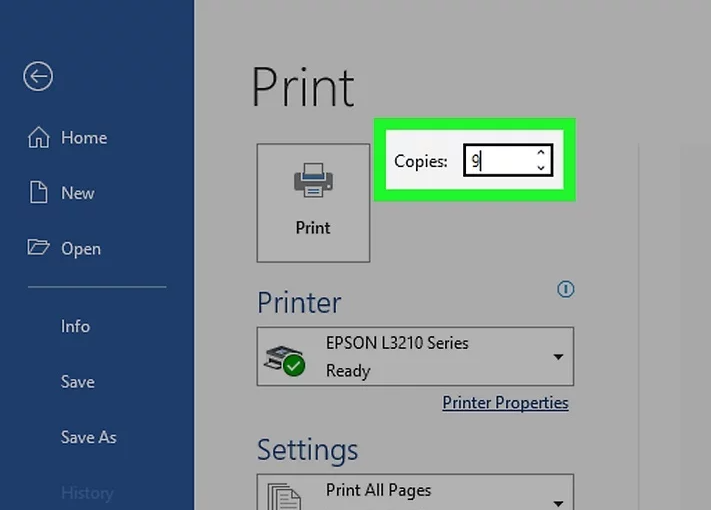
[](https://kb.mgmfoods.com.ph/uploads/images/gallery/2024-06/VBsimage.png) ---**Select a number of copies.** In the "Copies" box, type in the number of copies of the document that you'd like to print. Note: This is different than the number of pages.
[](https://kb.mgmfoods.com.ph/uploads/images/gallery/2024-06/e6Vimage.png) --- # Portable Document Format ( PDF ) **PDF** (Portable Document Format) is a file format developed by Adobe that preserves the layout and formatting of documents, making them easily viewable and printable across different platforms and devices.**Here's a general guide:**
**Open the PDF**: Double-click the PDF file you want to print. It should open in your default PDF viewer. If you don't have one installed, you can download Adobe Acrobat Reader or another PDF viewer from the internet. Note: Use the File Explorer to find the file if needed.
[](https://kb.mgmfoods.com.ph/uploads/images/gallery/2024-06/untitled-design-1.gif) ---**Select Print**: Once the PDF is open, you can typically find the print option in the menu bar at the top. Click on "Printer logo" in the menu bar and then select "Print." Alternatively, you can use the keyboard shortcut `Ctrl + P`. Note: A document can be printed using a different interface browser, such as **Google Chrome** or **Microsoft Edge**.
**Select Printer**: In the print dialog, select the printer you want to use from the "Destination" section. Make sure the correct printer is selected.
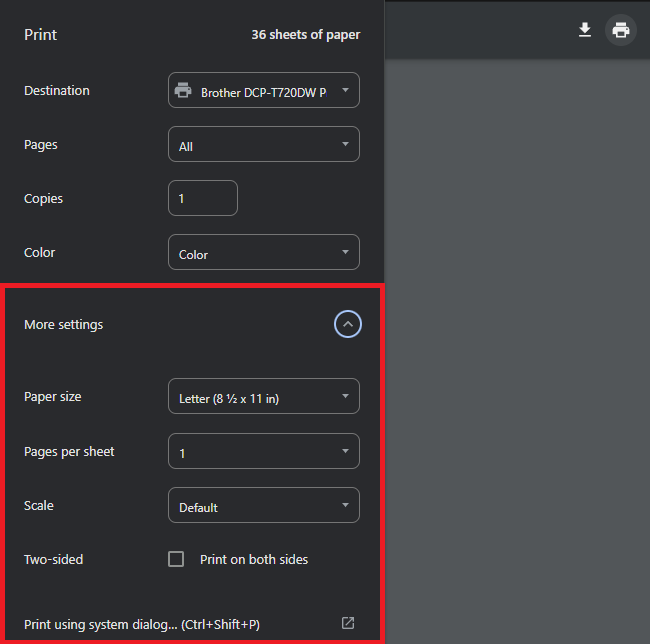
[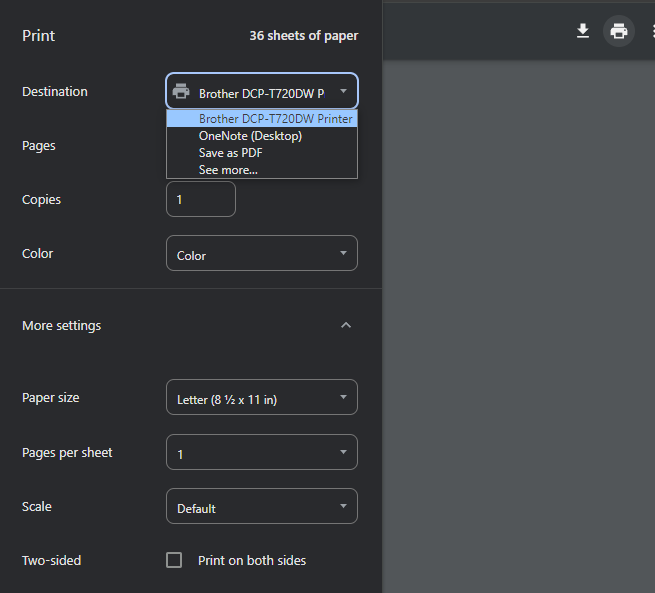](https://kb.mgmfoods.com.ph/uploads/images/gallery/2024-06/8bFimage.png) ---**Adjust print settings (optional)**: A print dialog box will appear, allowing you to adjust various print settings such as the printer you want to use, the number of copies, page range, orientation (portrait or landscape), and paper size. Make sure these settings match your preferences.
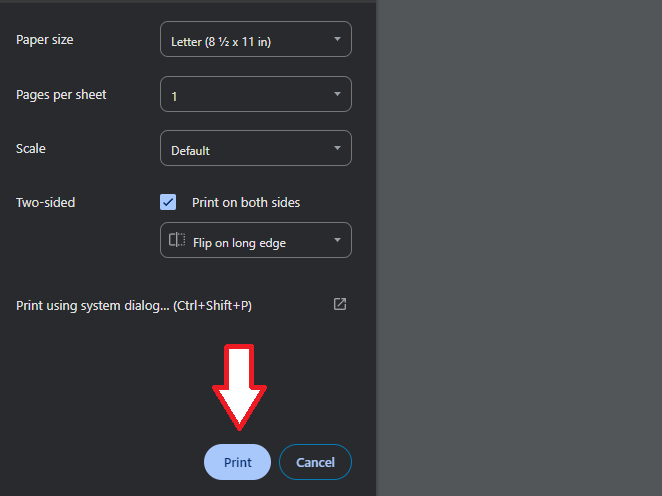
[](https://kb.mgmfoods.com.ph/uploads/images/gallery/2024-06/mb5excel.png) ---**Print**: Once you've adjusted the settings to your liking, click the "Print" button in the print dialog box to start printing. The printer will then begin processing the document and printing it according to your specified settings.
[](https://kb.mgmfoods.com.ph/uploads/images/gallery/2024-06/9s5excel.png) ---