OneDrive
- INTRODUCTION TO ONEDRIVE
- Login to OneDrive
- Back up your files to OneDrive
- Checking if your file is saved on OneDrive Cloud
INTRODUCTION TO ONEDRIVE
What is OneDrive?

OneDrive is a service provided by Microsoft that lets you store your files online. Think of it as a big, secure storage space on the internet where you can keep your photos, documents, videos, and other important files.
Why Use OneDrive?
-
Access Anywhere: You can access your files from any device that can connect to the internet—your computer, smartphone, or tablet. This means you don't have to be at home or in the office to get to your important documents; you can reach them from anywhere.
-
Backup: OneDrive automatically backs up your files. If your computer crashes or you lose your phone, your files are still safe and can be accessed from another device.
-
Share Easily: You can easily share files with others. Instead of emailing large files, you can send a link to the file stored in OneDrive. This is handy for sharing photos with family or collaborating on documents with colleagues.
-
Free Storage: OneDrive offers some free storage space, so you can start using it without paying anything. If you need more space, you can purchase additional storage.
-
Organized and Searchable: You can organize your files into folders and use the search function to quickly find what you're looking for.
Use of OneDrive?
- Upload Files: You can drag and drop files from your computer to OneDrive, or use the upload button.
- Sync: If you install the OneDrive app on your devices, it can automatically sync files between your devices and OneDrive. This means any changes you make to a file on your computer will be updated on your OneDrive account, and vice versa.
- Share Links: Right-click on a file in OneDrive, choose "Share," and you can send a link to anyone you want to share the file with.
In summary, OneDrive helps you store your files securely online, access them from any device, share them easily, and ensure they are backed up. It's a convenient tool for managing your digital life!
Login to OneDrive
-
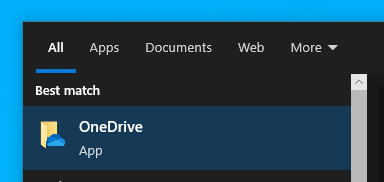
First Search OneDrive on your windows search bar.

-
"CLICK" on the OneDrive application that appears on the result.

-
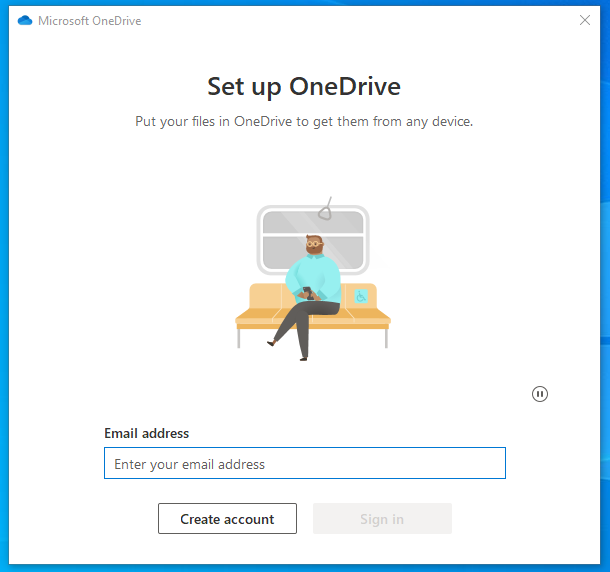
OneDrive login page will appear. Now you need to enter your company email address and password.

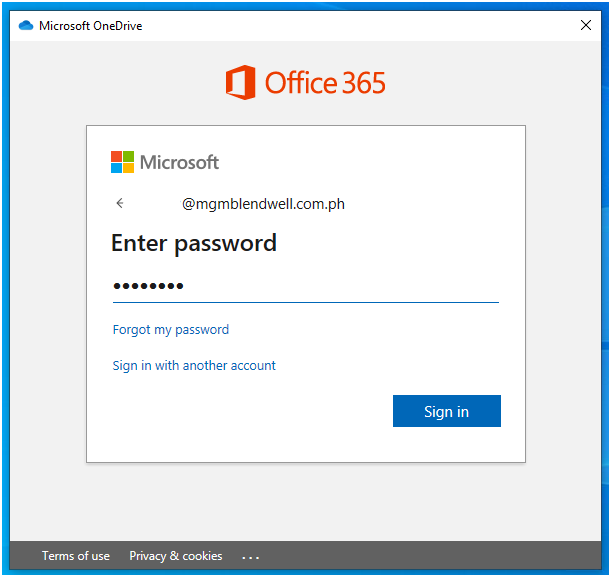
Enter your password
Then "CLICK" Next

-
Make sure you selected these three folders for your backup. All the files you save inside these folders will be automatically backed up to your OneDrive cloud. Then Click Start Backup.

-
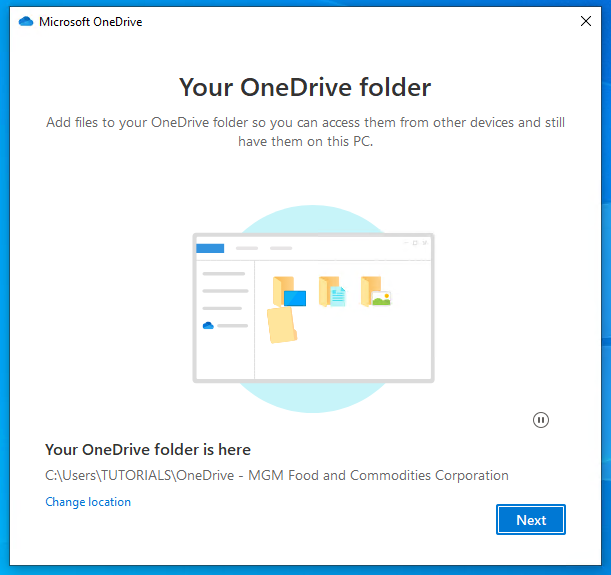
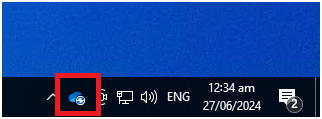
Your OneDrive is now active. You will see its blue icon in the lower right side of your desktop, and it will begin syncing.



Back up your files to OneDrive
First, check if your OneDrive is active. You will see a blue cloud icon on the lower right side of your desktop when your OneDrive is active.

If your OneDrive icon is grey or you are not logged in, please proceed to the How to Login to OneDrive Section.
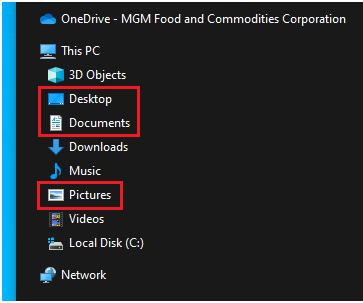
Your files will be automatically backed up if you save them in the following locations: Desktop, Documents and Picture folder.
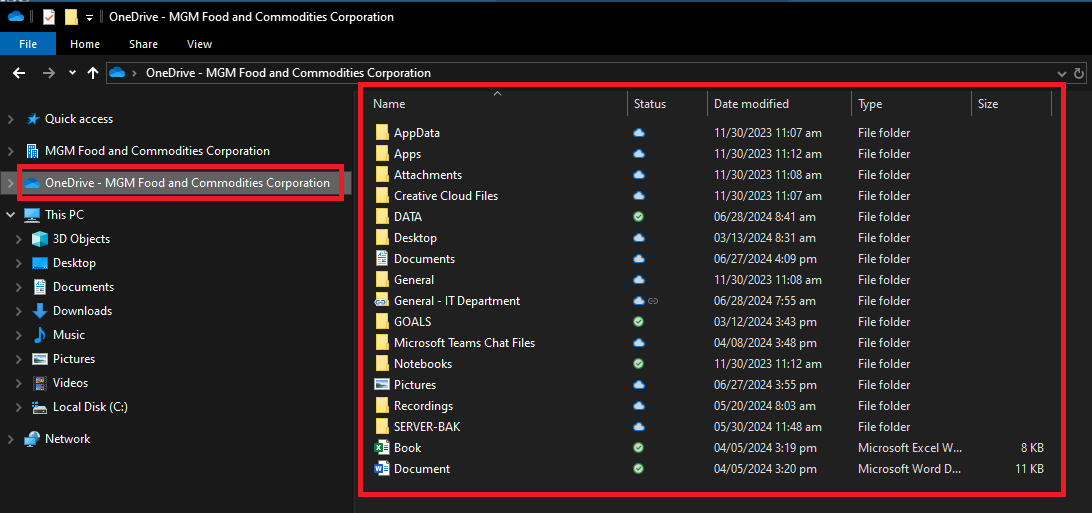
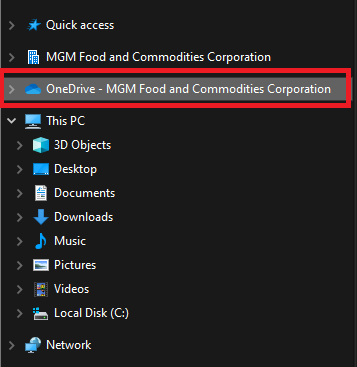
You can also save your files here on your local OneDrive folder.
Saved Documents on the sync'd OneDrive files/folders will have a status icons highlighted below.
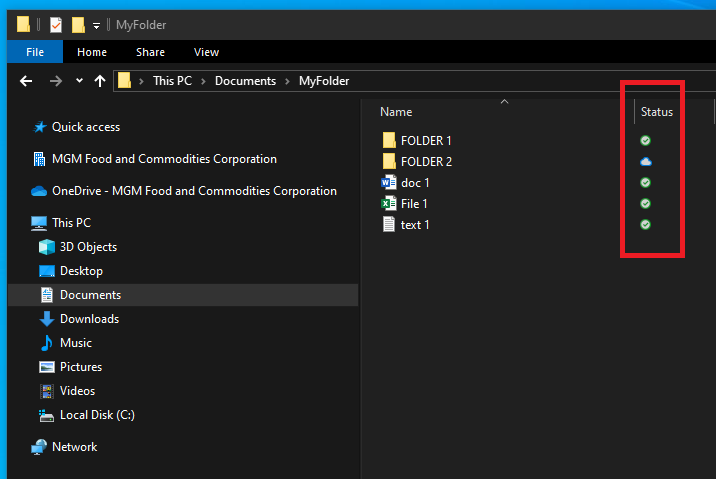
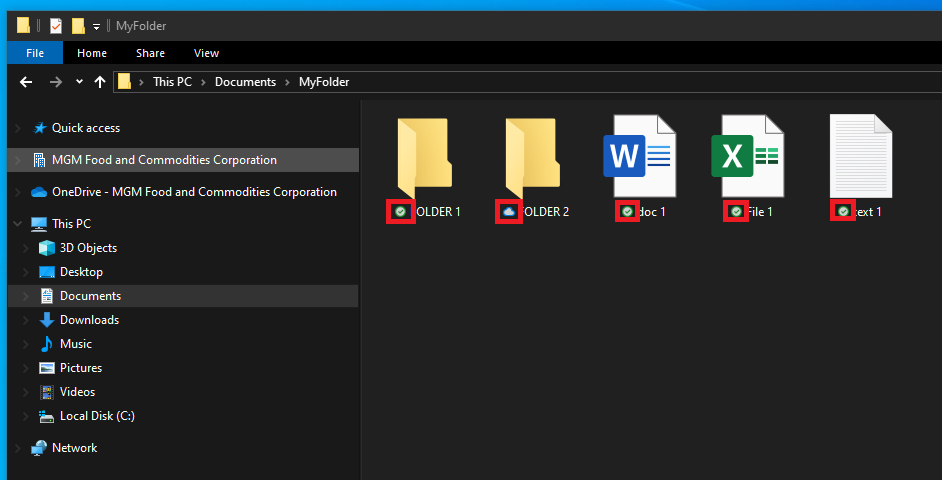
All files that has the Status icons are files that are sync'd or backed up on OneDrive.
 Your File is copied and sync'd on OneDrive Cloud

 This File is already in the cloud

 The File is currently uploading or syncing on OneDrive cloud

Checking if your file is saved on OneDrive Cloud
If you want to check your OneDrive file online, Just click this blue cloud icon on the bottom right side of your desktop

If your OneDrive icon is grey or you are not logged in, please proceed to the How to Login to OneDrive Section.
This box will appear, showing the status of what is happening in your OneDrive app.
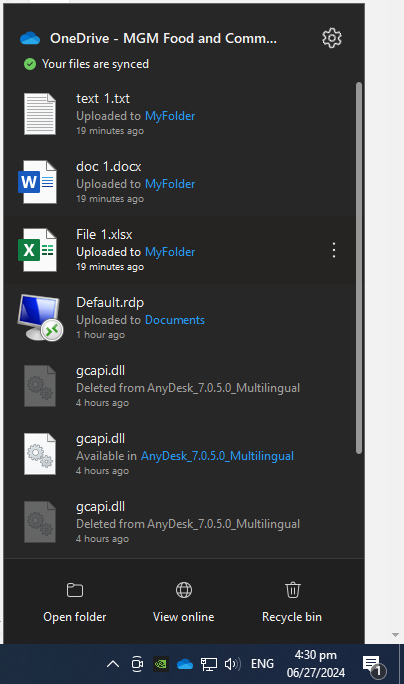
To View your files online copy or back up. Simply click on the View Online icon

and it will automatically opens up your browser and redirect you to your portal account where you can access and view your files online
Your OneDrive Online file copies will be look like or similar to this
Cloud Version: The version stored online in the OneDrive cloud.
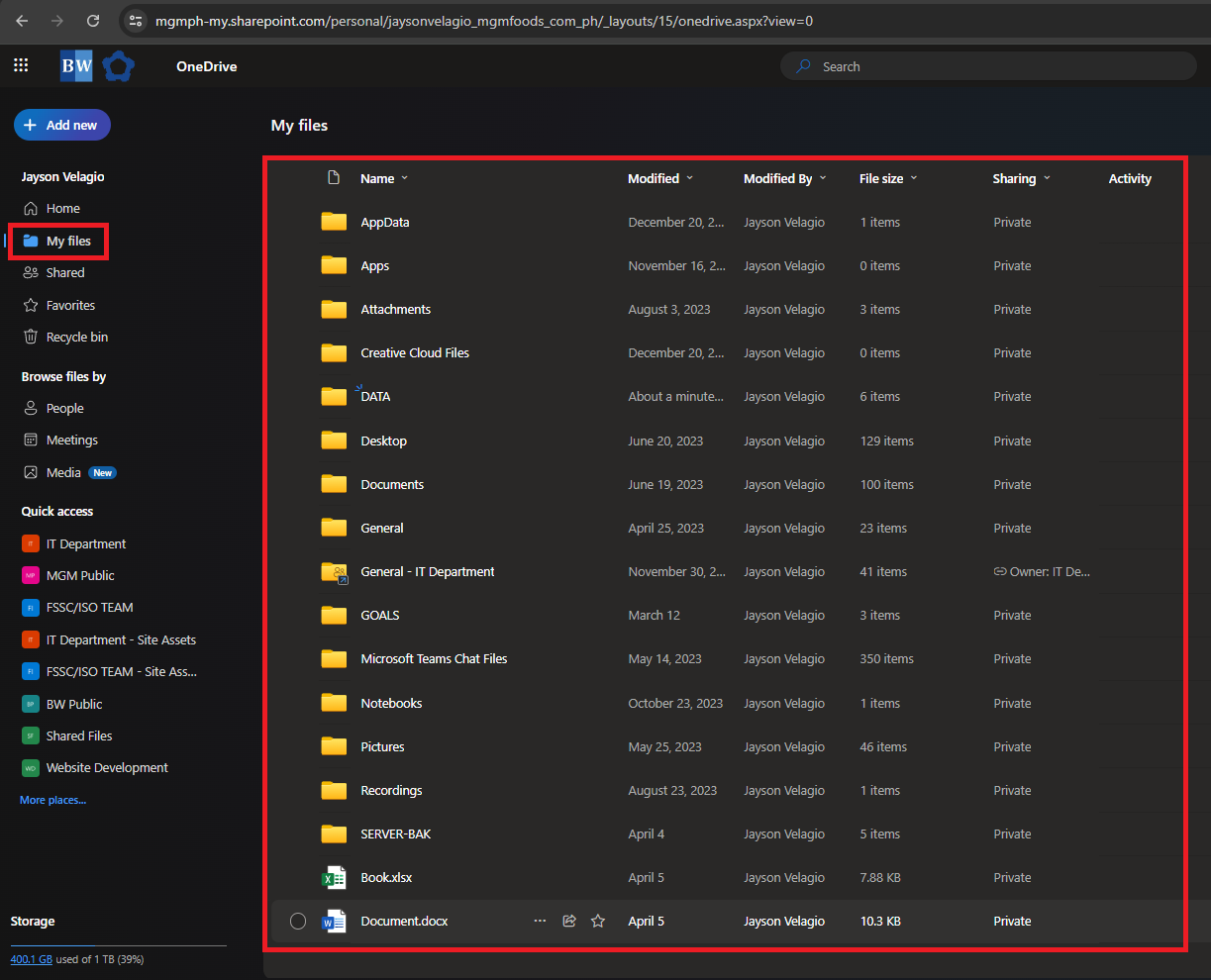
You can compare it to your local OneDrive folder if your files are on the cloud versus your local copies.
Local Version: The version stored on your computer's hard drive.