**Step 1**
1. Please contact HR to obtain your Employee ID. 2. Once you have your Employee ID, use it as your username to log in. 3. Your default password is your surname, with the **first letter capitalized** and the **remaining letters in lowercase**. [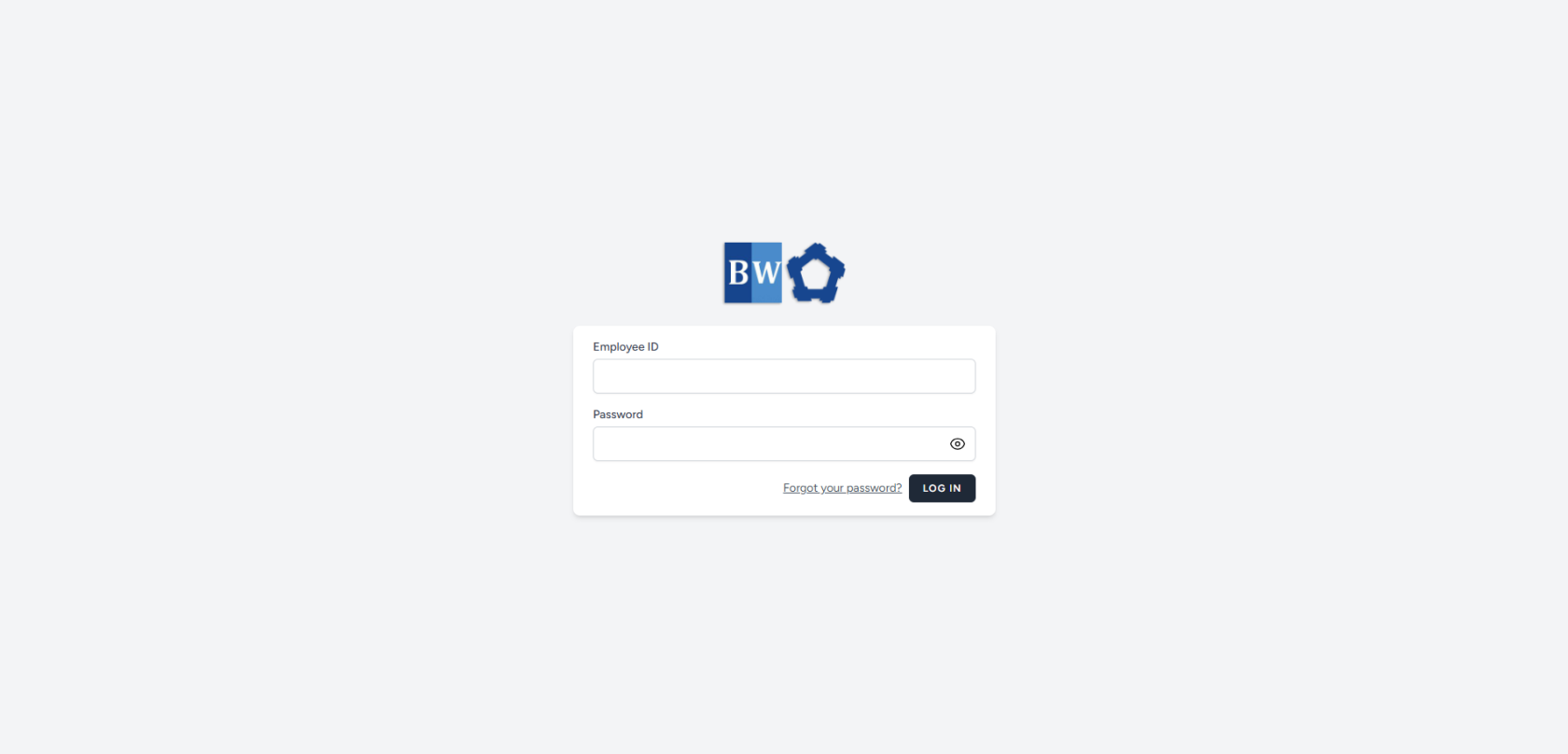](https://kb.mgmfoods.com.ph/uploads/images/gallery/2025-06/rGfimage.png)**Step 2**
1. Once you entered your correct **Employee ID** and **Password**, you will be redirected to a page where your information is pre-filled. 2. Provide your accurate **Email**, **Date of Birth**, and choose your **preferred Password**. 3. After completing all the required fields, click the **Update** button to save your information. [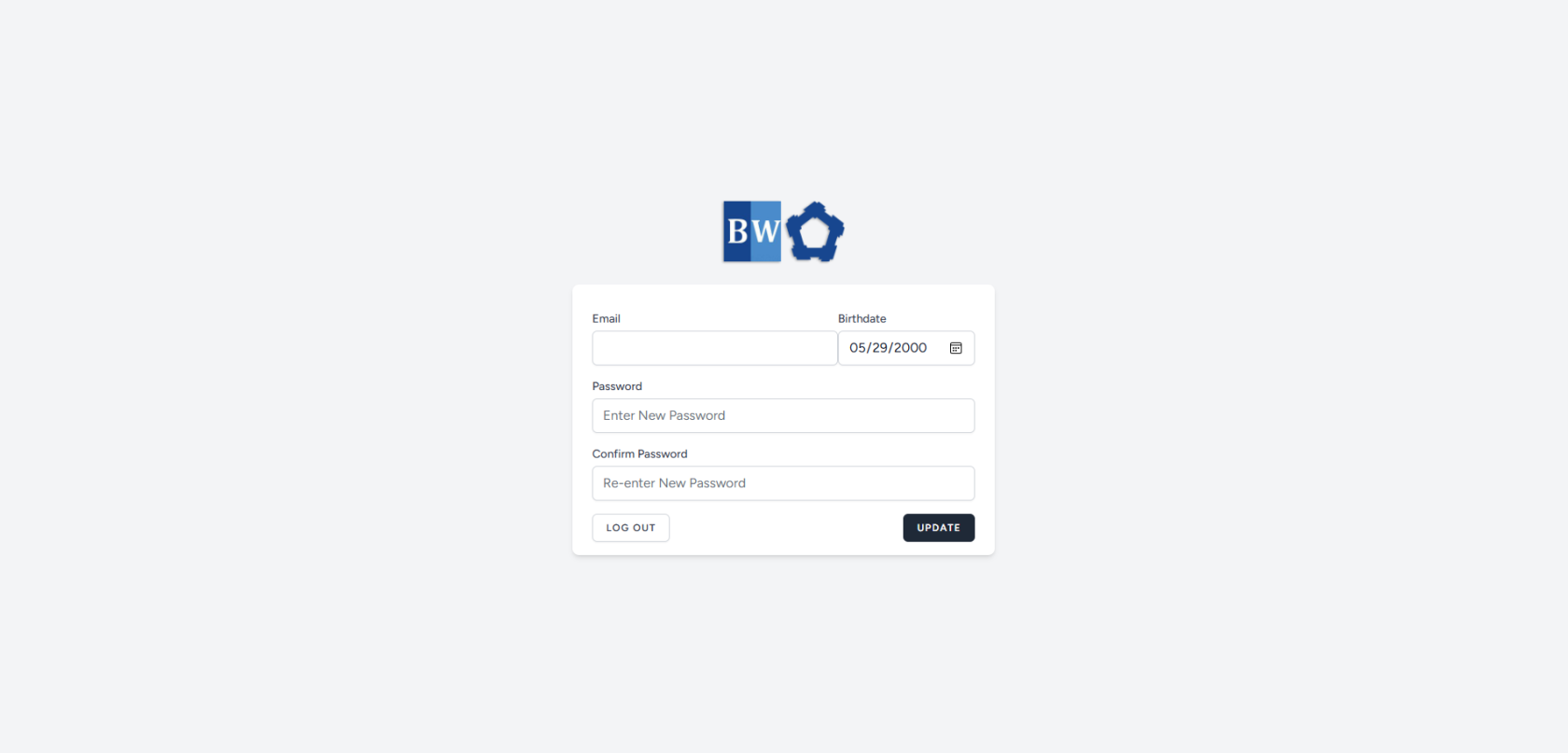](https://kb.mgmfoods.com.ph/uploads/images/gallery/2025-06/7AJimage.png)**Step 3**
- Once the fields are filled up and clicks update, you will be asked to verify your email. [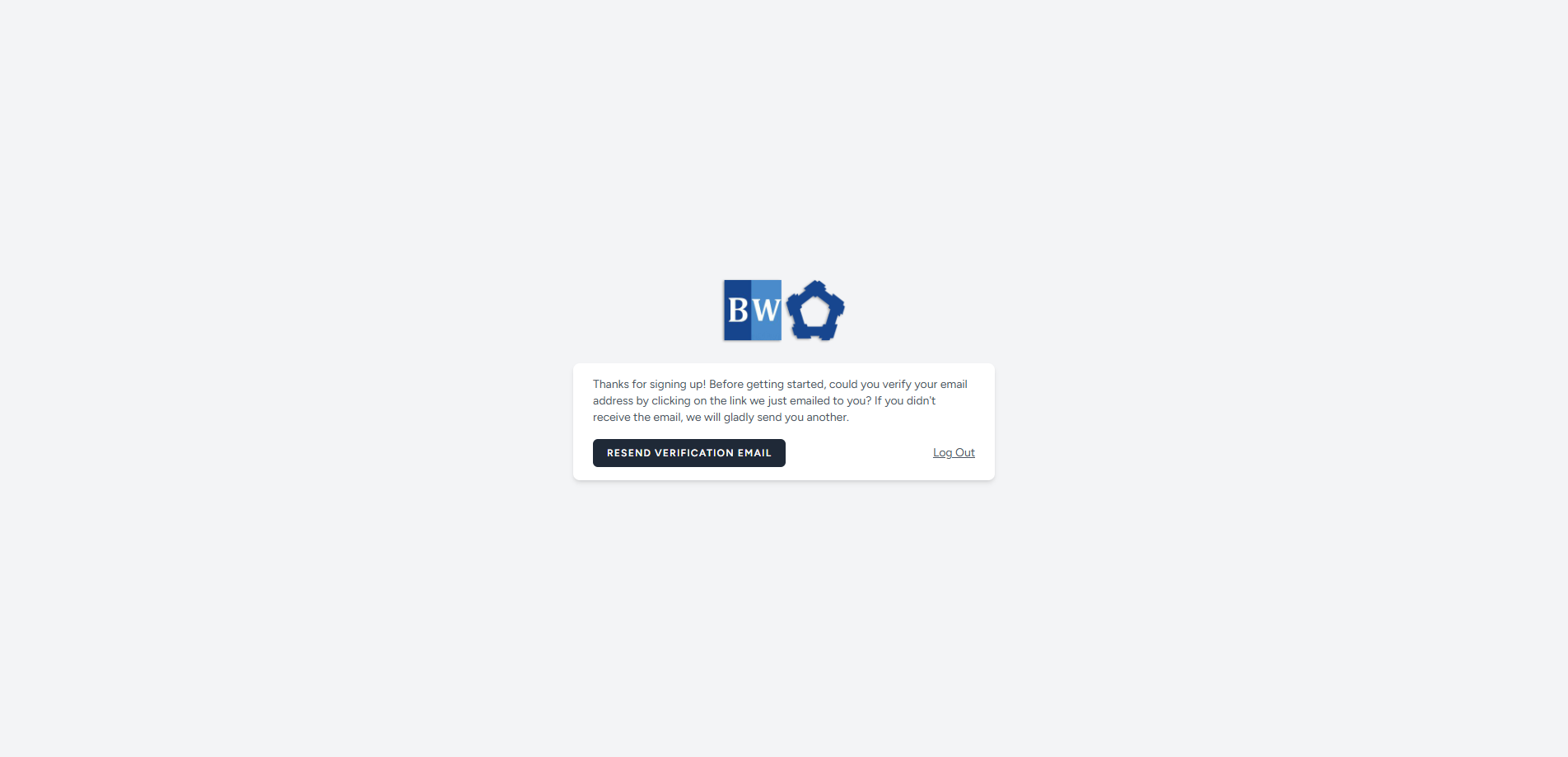](https://kb.mgmfoods.com.ph/uploads/images/gallery/2025-06/4mPimage.png) - Check your email inbox for verification of your email address. [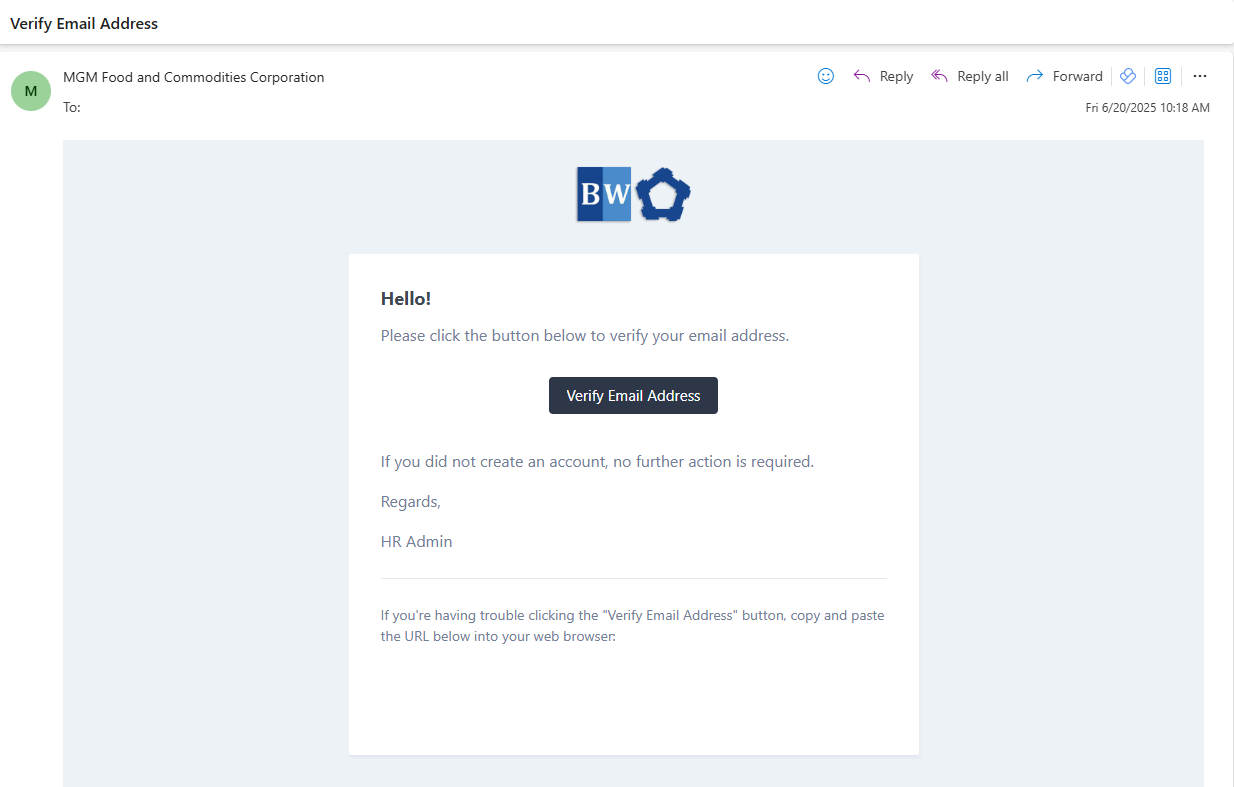](https://kb.mgmfoods.com.ph/uploads/images/gallery/2025-06/35Himage.png) - If no email received, click the **Resend Verification Email.****Step 4**
1. Once you receive the email verification, click the **Verify Email Address** button in the email. 2. You will be redirected to system's Dashboard. [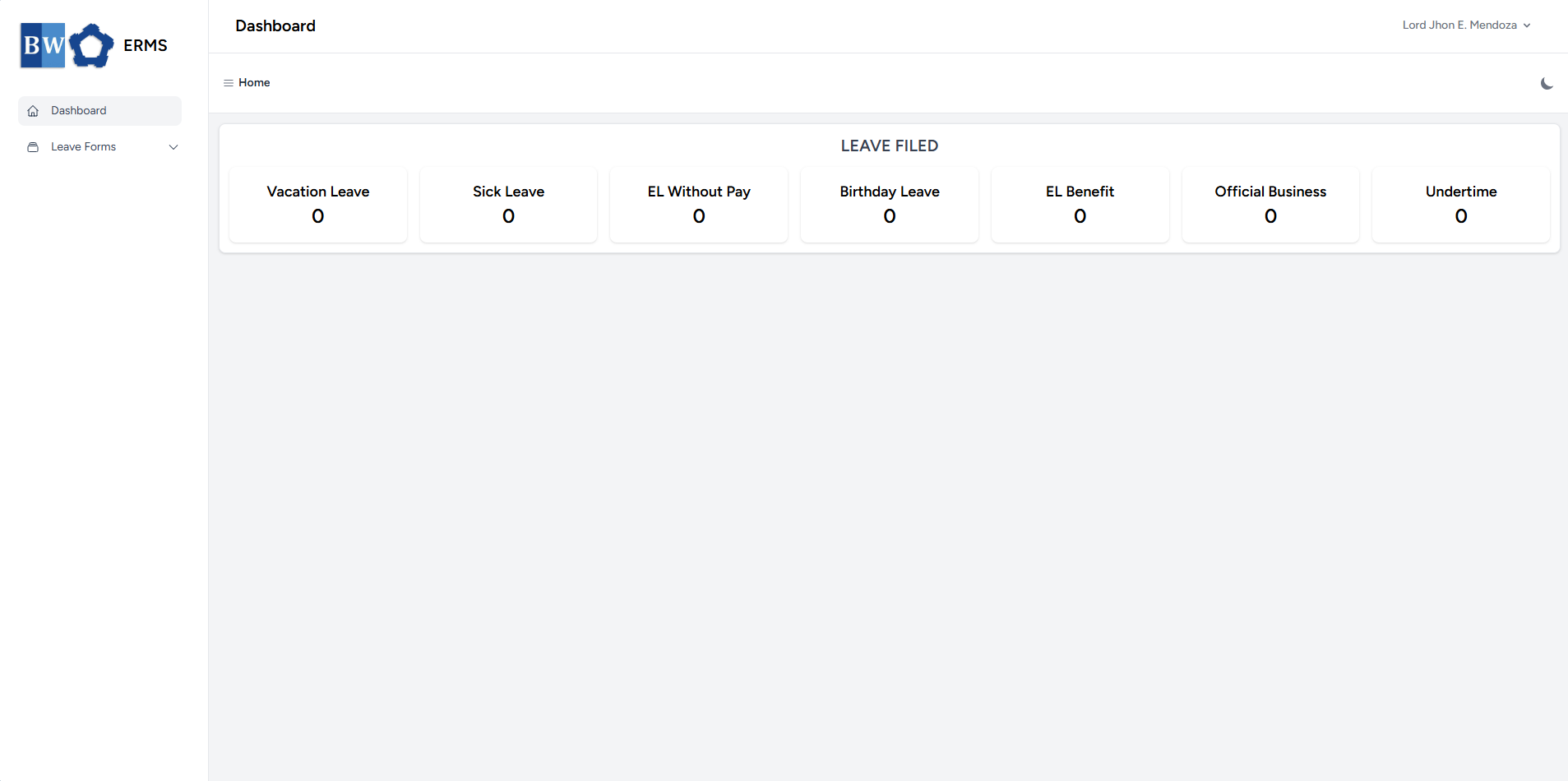](https://kb.mgmfoods.com.ph/uploads/images/gallery/2025-07/image.png) # How to Login Steps to Log in to Your Account. - Go to the ERMS website. [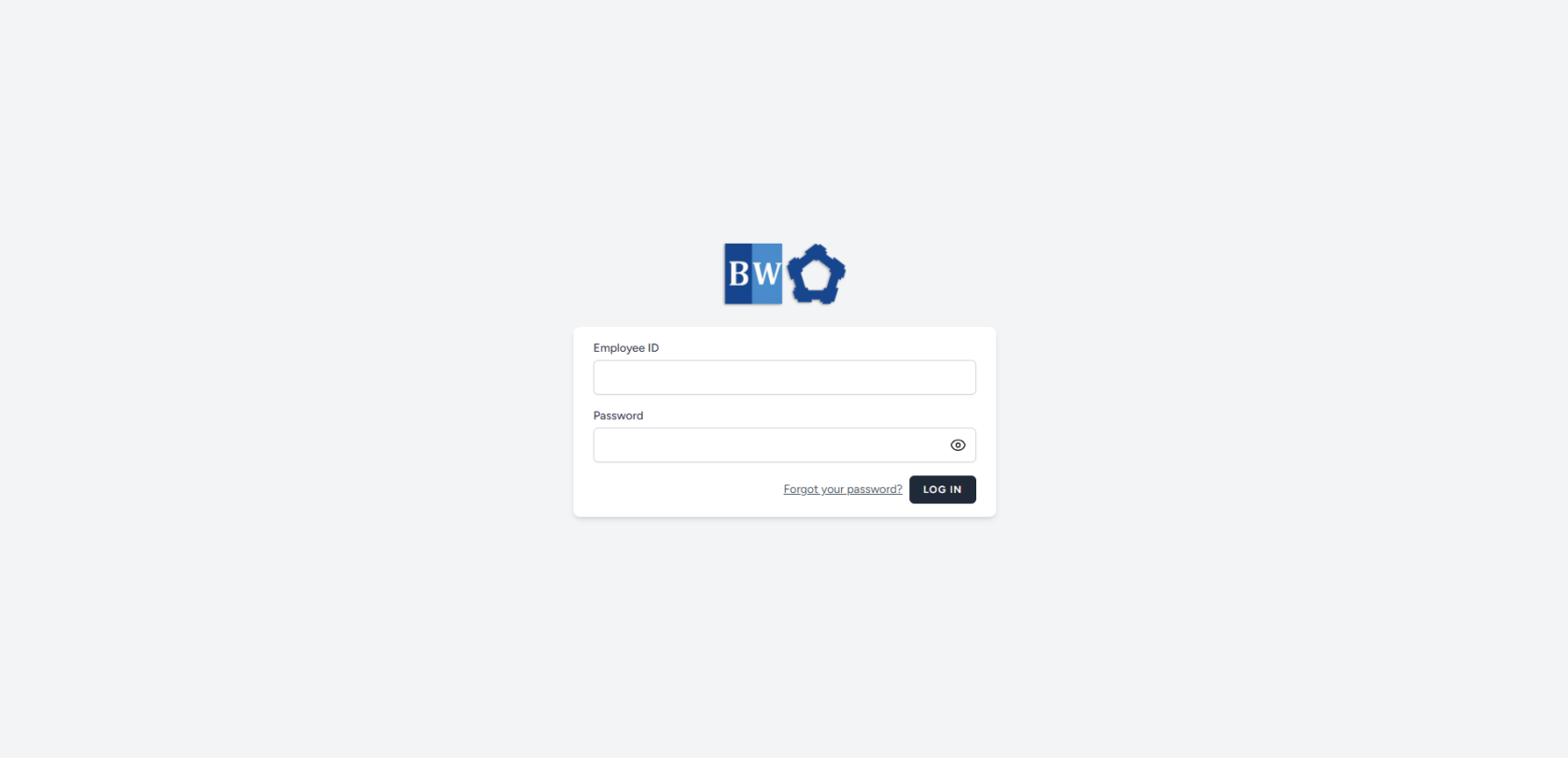](https://kb.mgmfoods.com.ph/uploads/images/gallery/2025-07/o3uimage.png) - Enter your **Employee ID** and **Password** correctly. - Click the **Login** button. - You will be taken to the system dashboard. [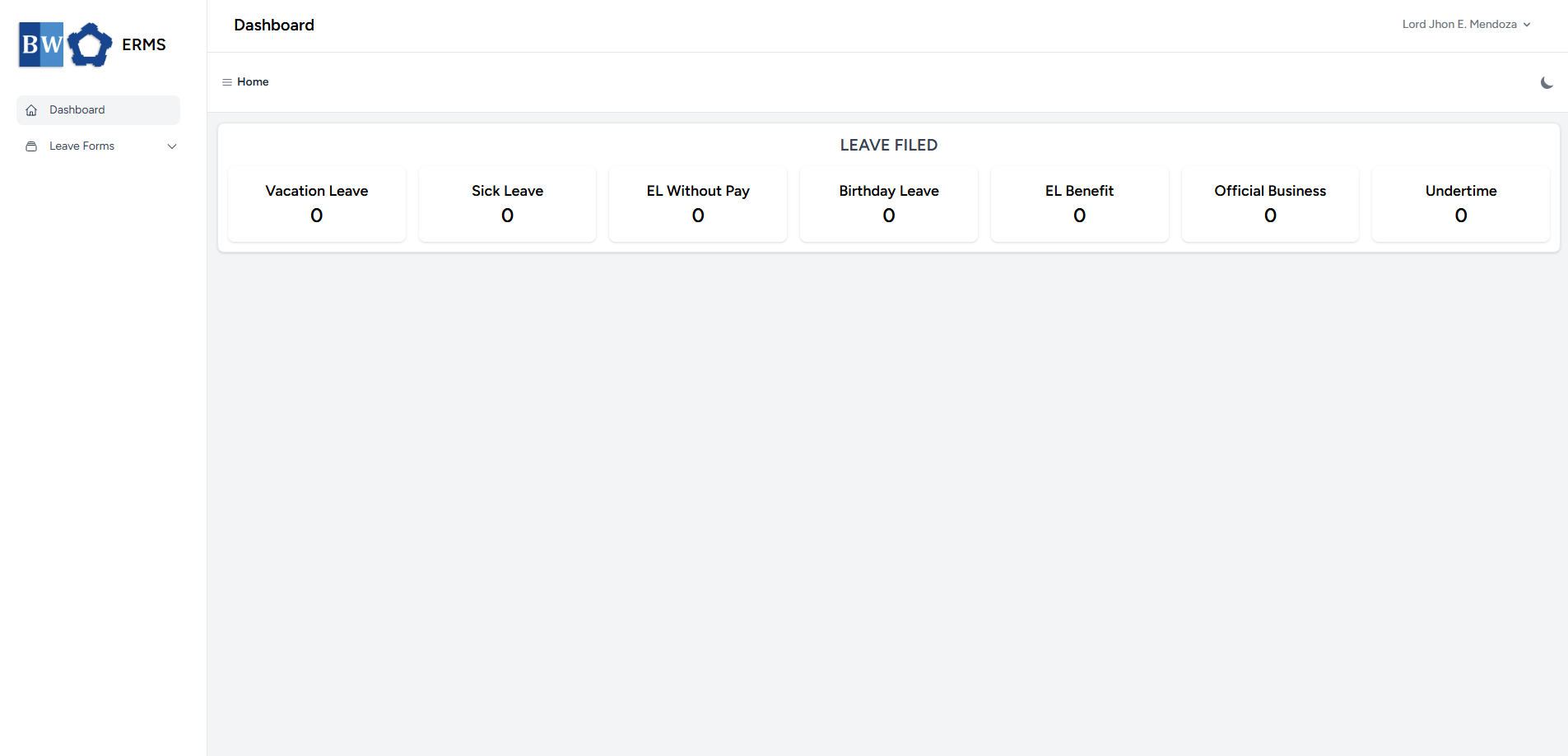](https://kb.mgmfoods.com.ph/uploads/images/gallery/2025-07/ct2image.png) # Forgot Password Guide to resetting your Password and Creating a new one. - **On the login page**, click **"Forgot your password?"** — it's located next to the **Login** button. [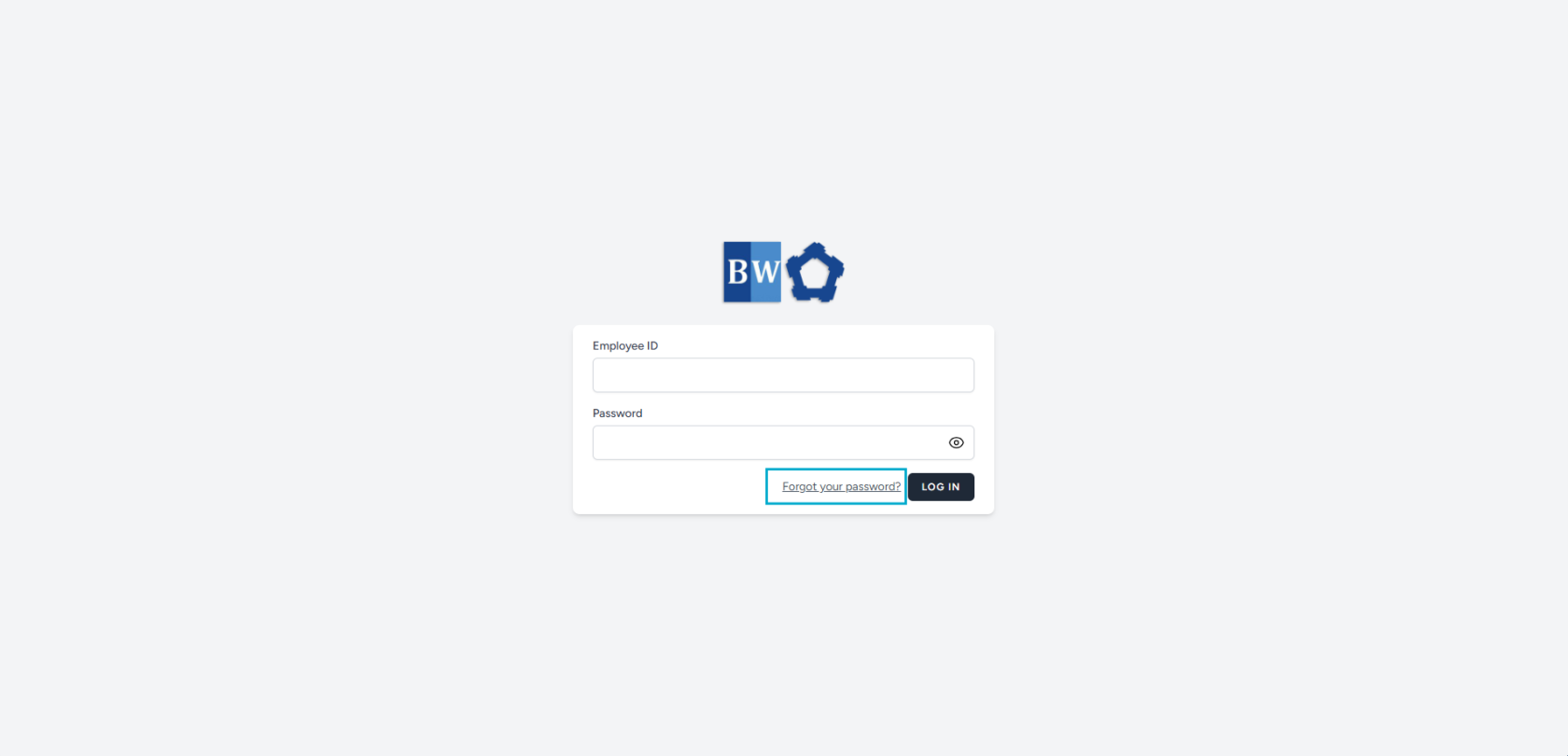](https://kb.mgmfoods.com.ph/uploads/images/gallery/2025-07/pVKimage.png) - You'll be redirected to the **Password Reset** page. [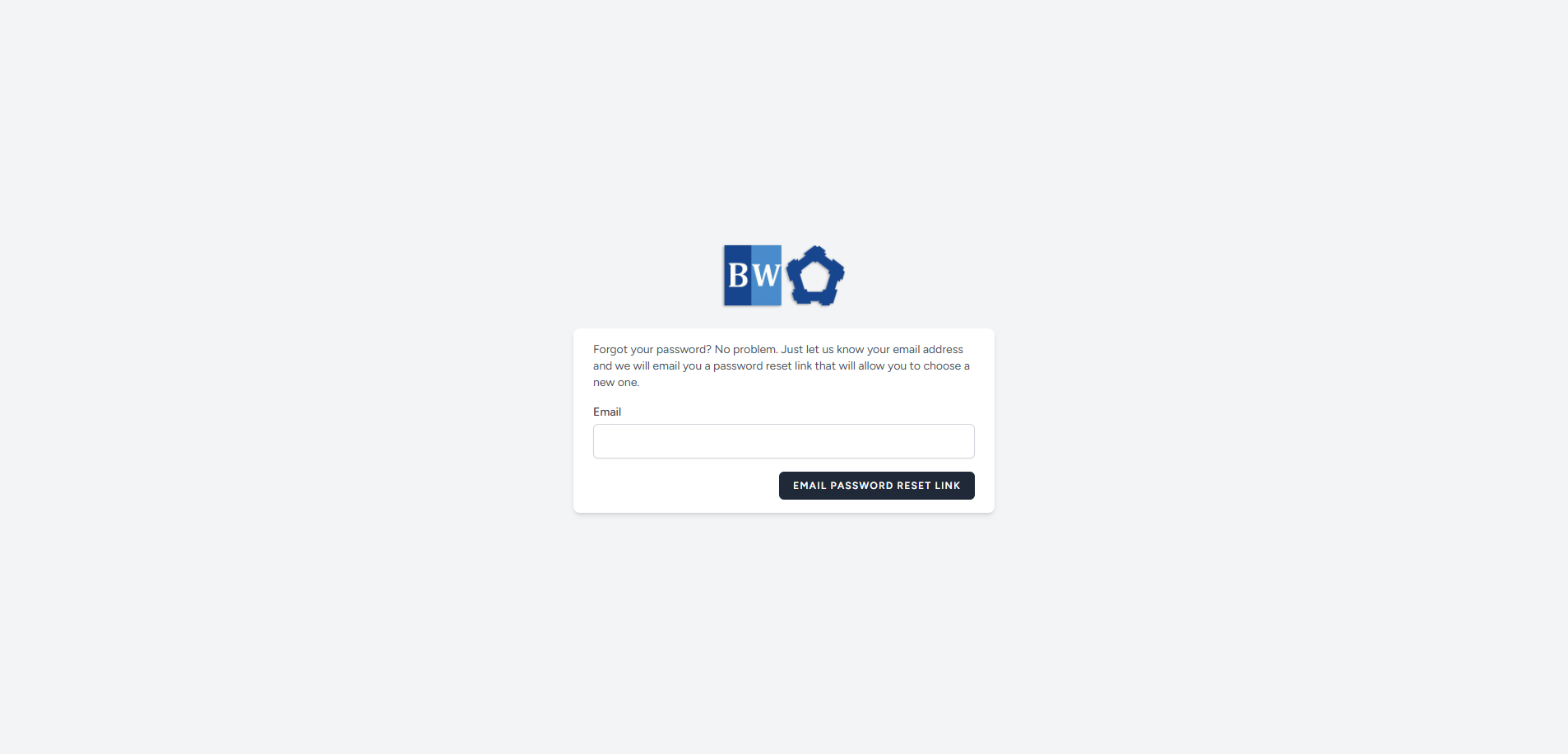](https://kb.mgmfoods.com.ph/uploads/images/gallery/2025-07/Rudimage.png) - Enter the **email address** you used to register in the system, then click the **"Email Password Reset Link"** button. - Wait for the page to load. Once it's done, you’ll see a message saying: **“We have emailed your password reset link.”** - Check your email for **password reset link**. [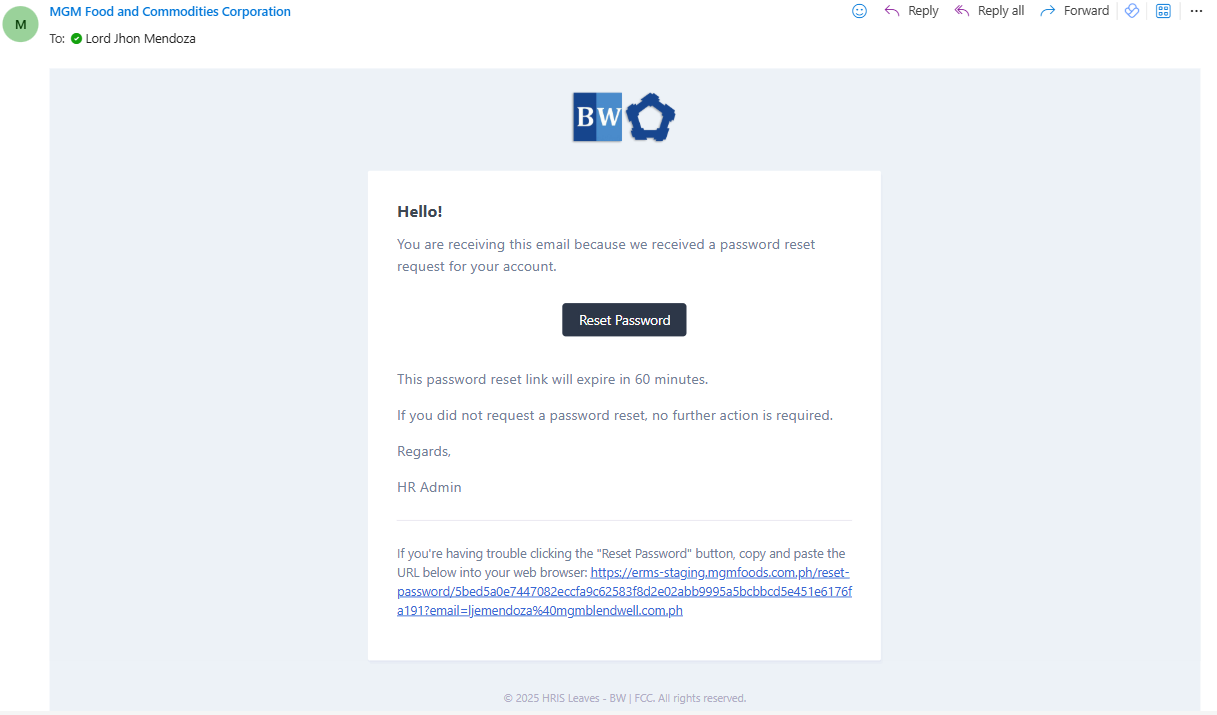](https://kb.mgmfoods.com.ph/uploads/images/gallery/2025-07/qi9image.png) - Open the email that was sent to you and click the **"Reset Password"** button. - You’ll be taken to a page where you can set a **new password** for your account. [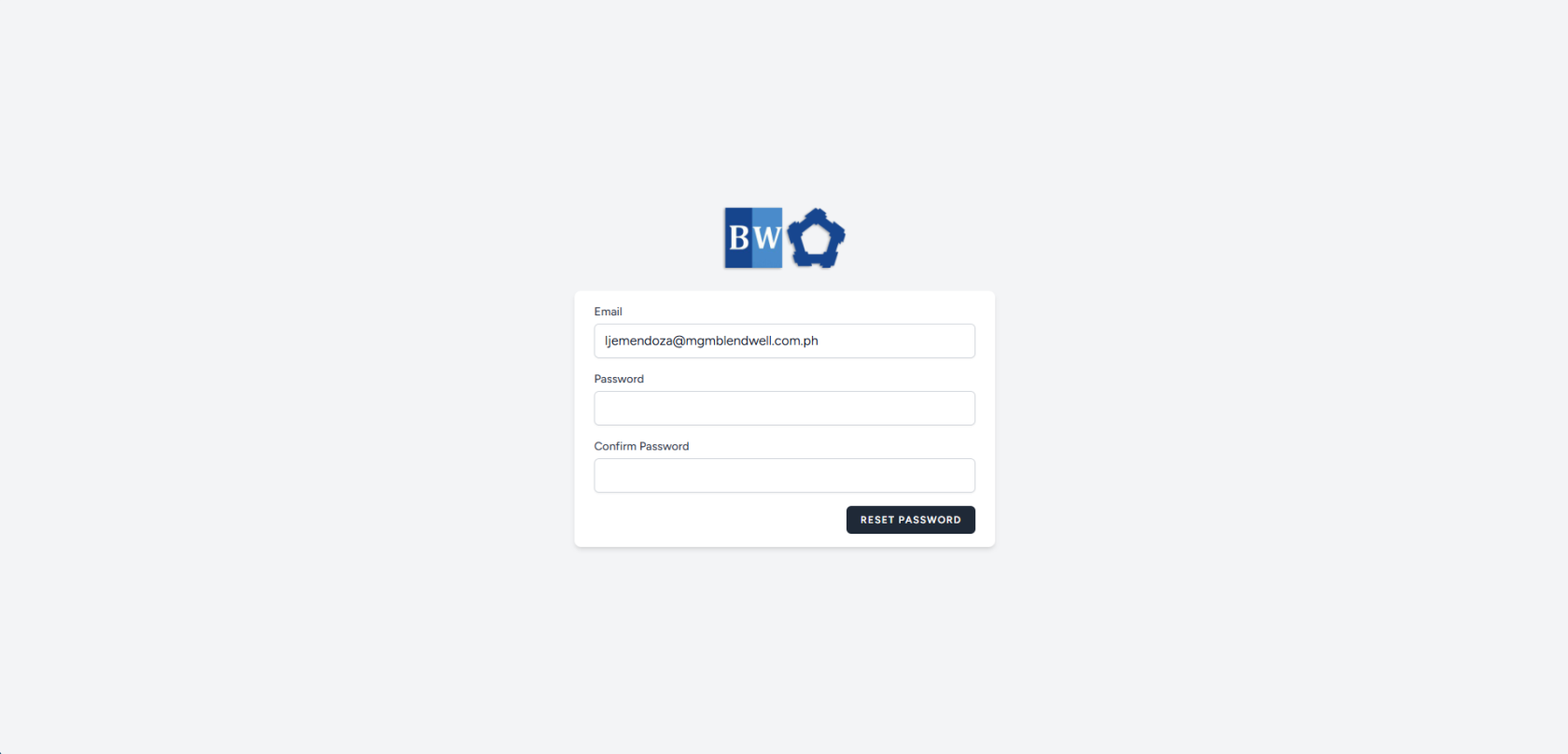](https://kb.mgmfoods.com.ph/uploads/images/gallery/2025-07/Gi6image.png) - Enter your **new password** and confirm it by typing it again in the **Confirm Password** field. - Click the **"Reset Password"** button to complete the process. - After resetting your password, you’ll be redirected back to the **Login page**. [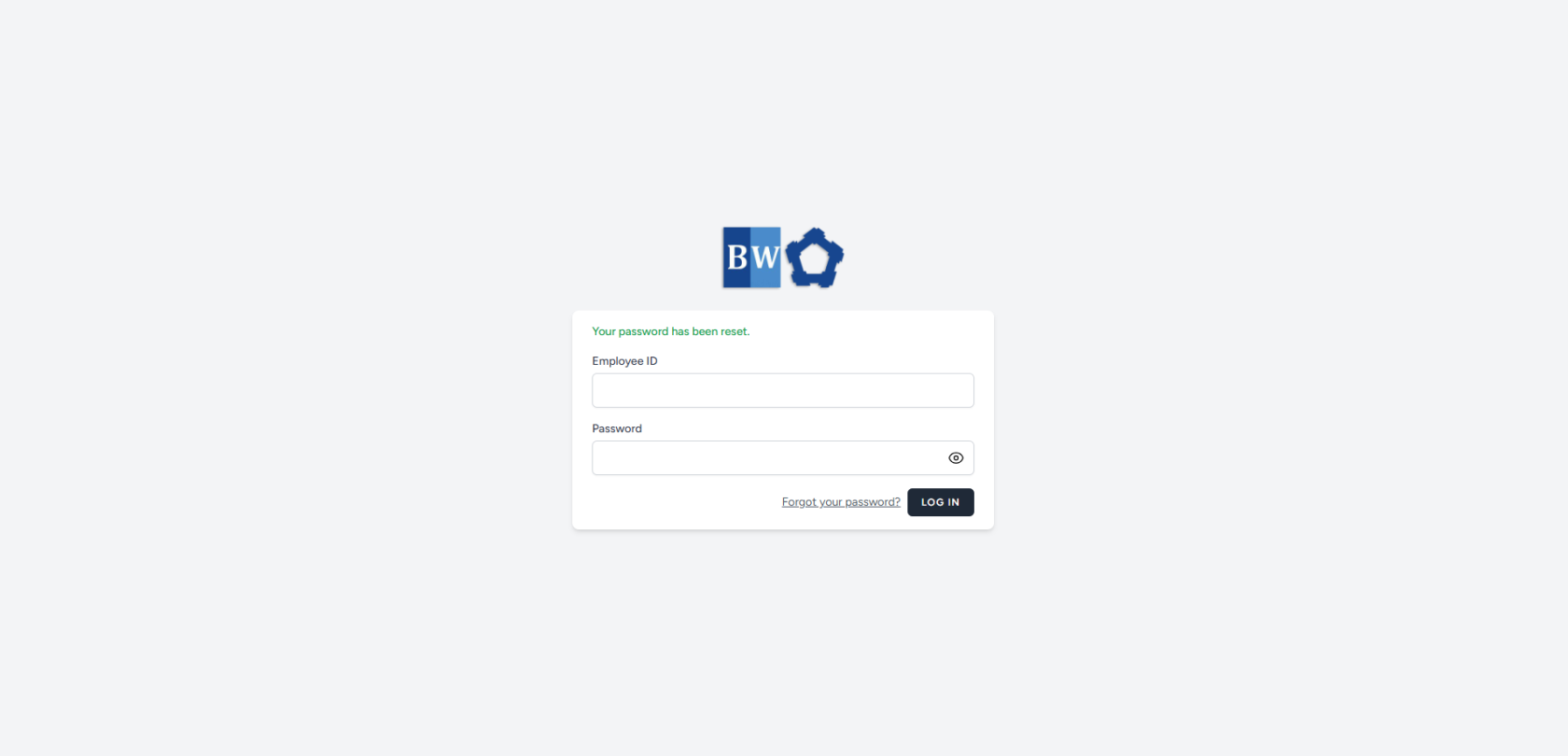](https://kb.mgmfoods.com.ph/uploads/images/gallery/2025-07/YNLimage.png) - Enter your **Employee ID** and your **new password** to log in.