IT Ticketing System
An IT Ticketing System is a structured platform used to log, track, prioritize, and manage IT-related requests, incidents, and service issues. It enables users to submit support tickets while allowing IT teams to monitor progress, assign tasks, and ensure timely resolution based on defined service levels. The system improves communication, accountability, and workflow efficiency, helping reduce response times, enhance service quality, and maintain organized records of IT support activities.
Introduction
Welcome to the IT Ticketing System
Our comprehensive solution for managing and resolving IT-related issues efficiently and effectively. This system is designed to streamline the process of reporting, tracking, and resolving technical problems, ensuring a seamless and productive experience for all MGM Food and Blendwell employees.
The IT Ticketing System can be accessed directly from your workstation computer upon logging into your account. An icon named "IT Ticketing System" or similar is included among your desktop items.
If you cannot find the icon, you can simply proceed to the url https://itsupport.mgmfoods.com.ph.
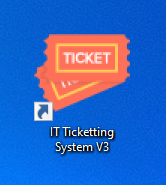
IT ticketing System shortcut on your desktop computer
Login Page
To access the login page, you need to locate the "IT Ticketing System" icon on your desktop and double-click it or access it via web browser at this link https://itsupport.mgmfoods.com.ph/
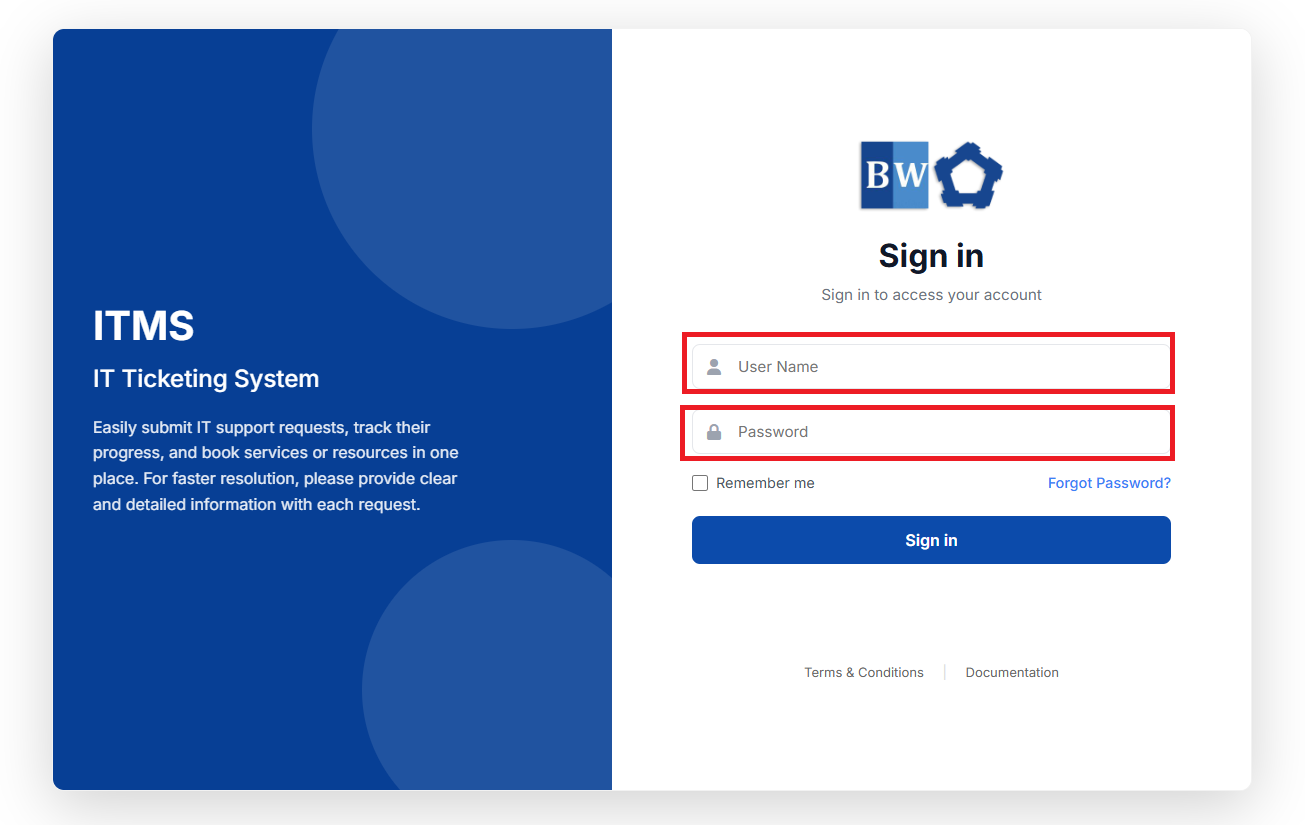
The login page will appear exactly as the image below. Users must enter their credentials to log in to their respective accounts.
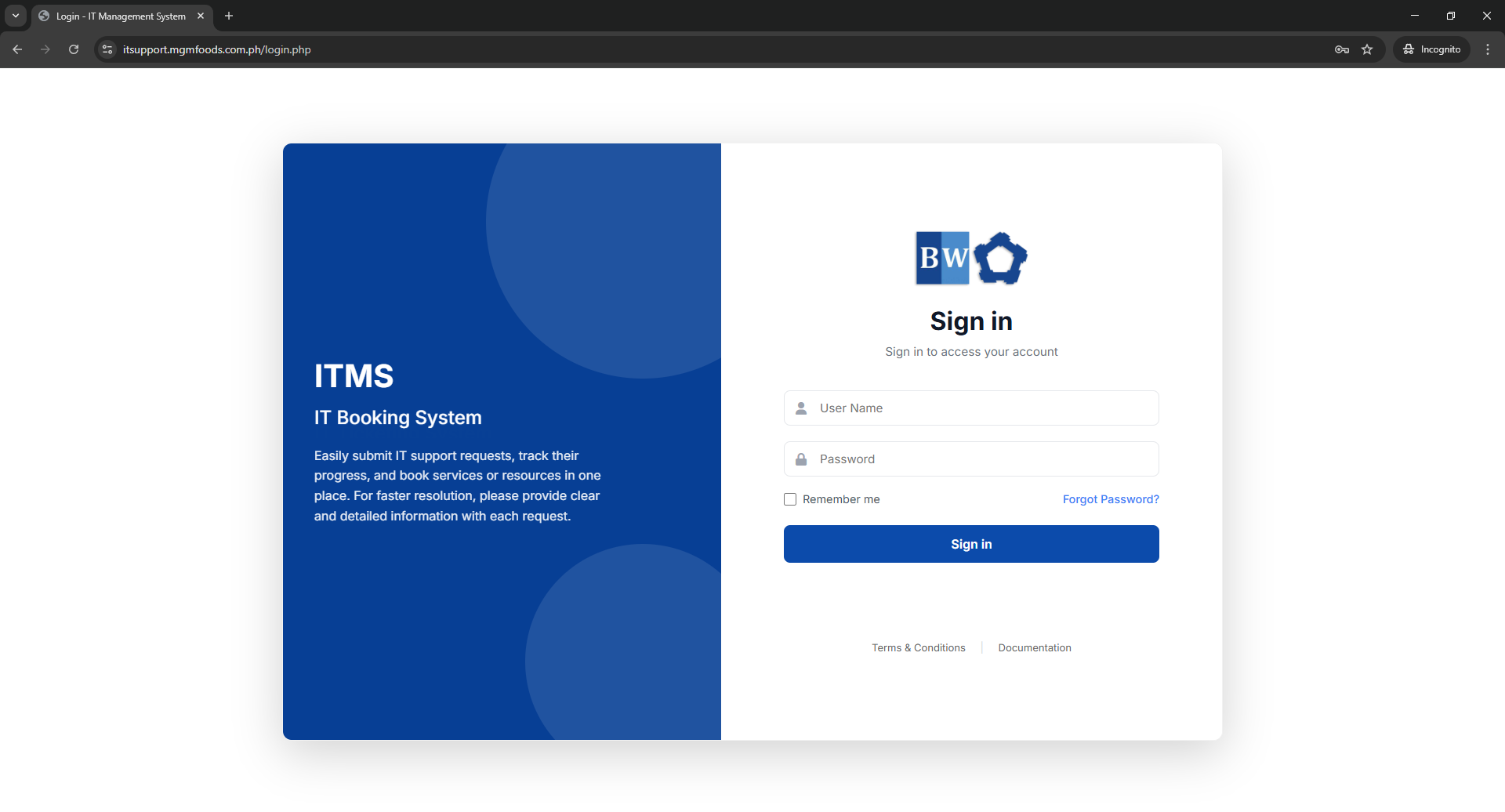
IT Ticketing system login page
Account Registration
As part of your company’s onboarding process, a member of our IT staff will reach out to you directly to assist with setting up your user account. You do not need to take any action at this time—your account will be created for you, and you will receive the necessary login details and instructions once the setup is complete.
Forgot Password
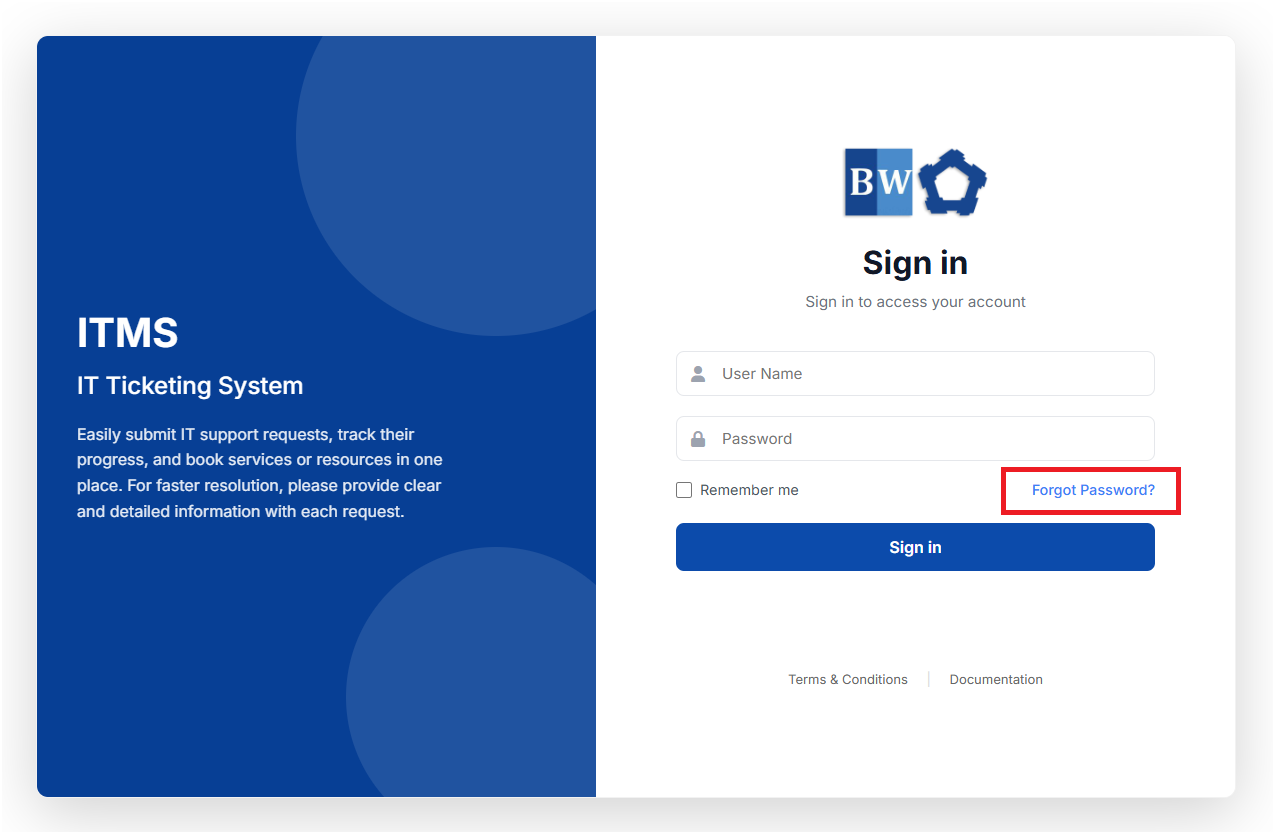
If you forget your password, you can reset it by clicking the "Forgot Password?" link on the login page and following the instructions provided.
- Click on the "Forgot Password?" link

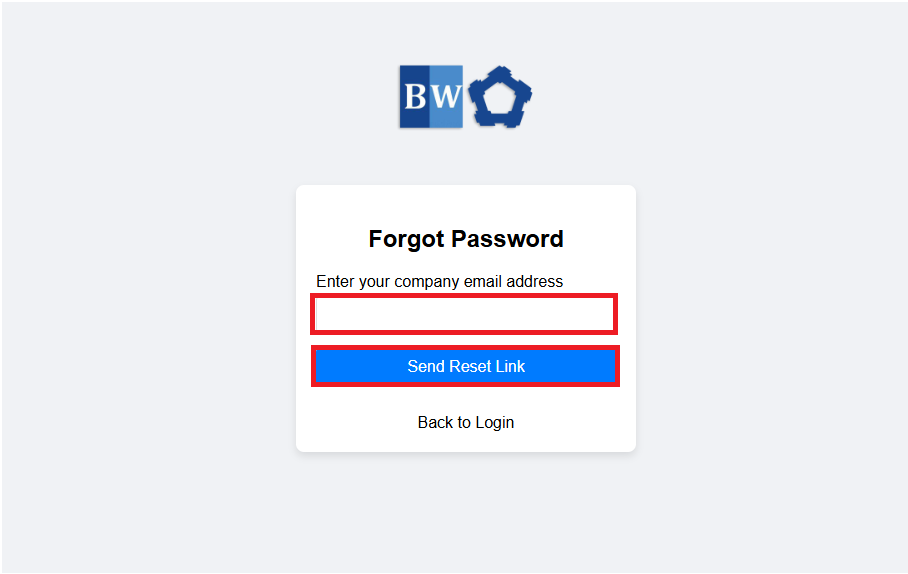
- After that, you will be redirected to the next page as shown below. You will need to enter the company email address provided to you. and click "Send Reset Link"

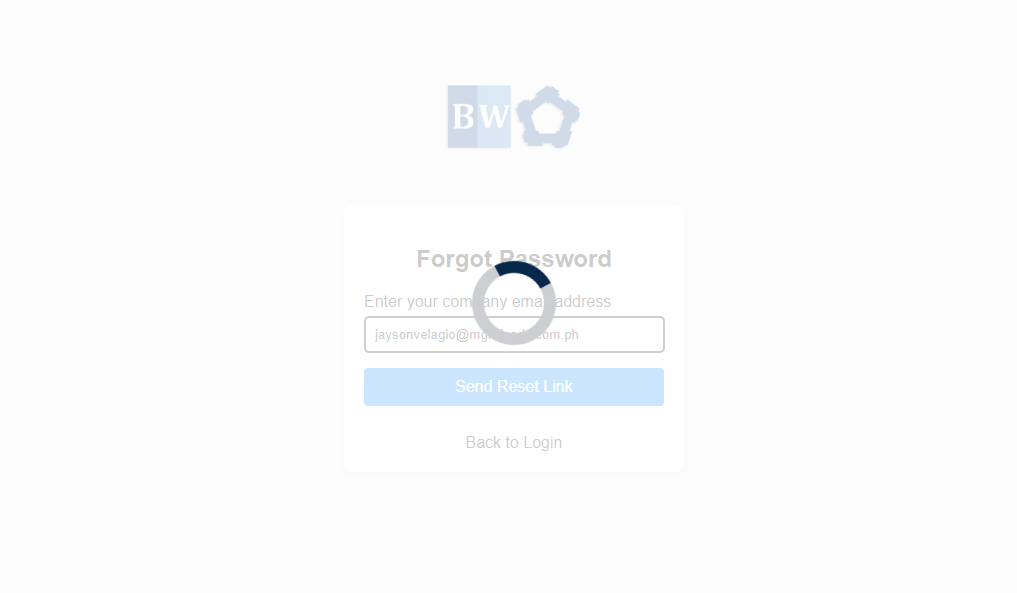
- After hitting the Send Reset Link Button. The page will load for a while to process the password reset link as shown on the image below.

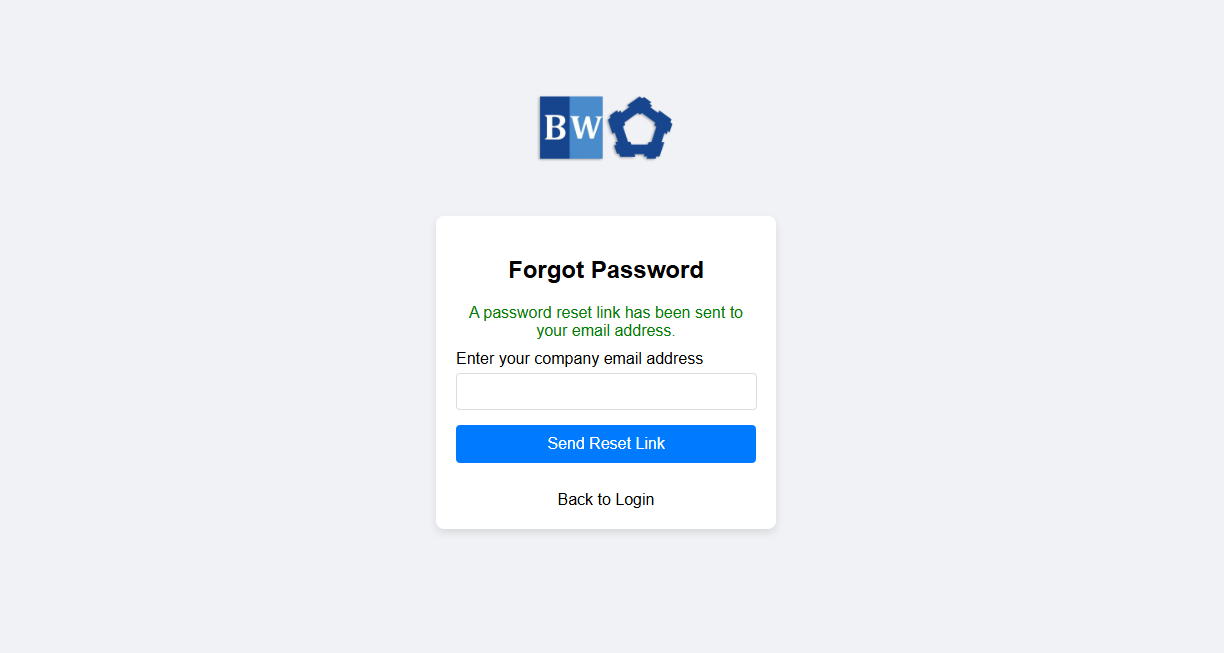
- Then you will receive a notification that "A password reset link has been sent to your email address."

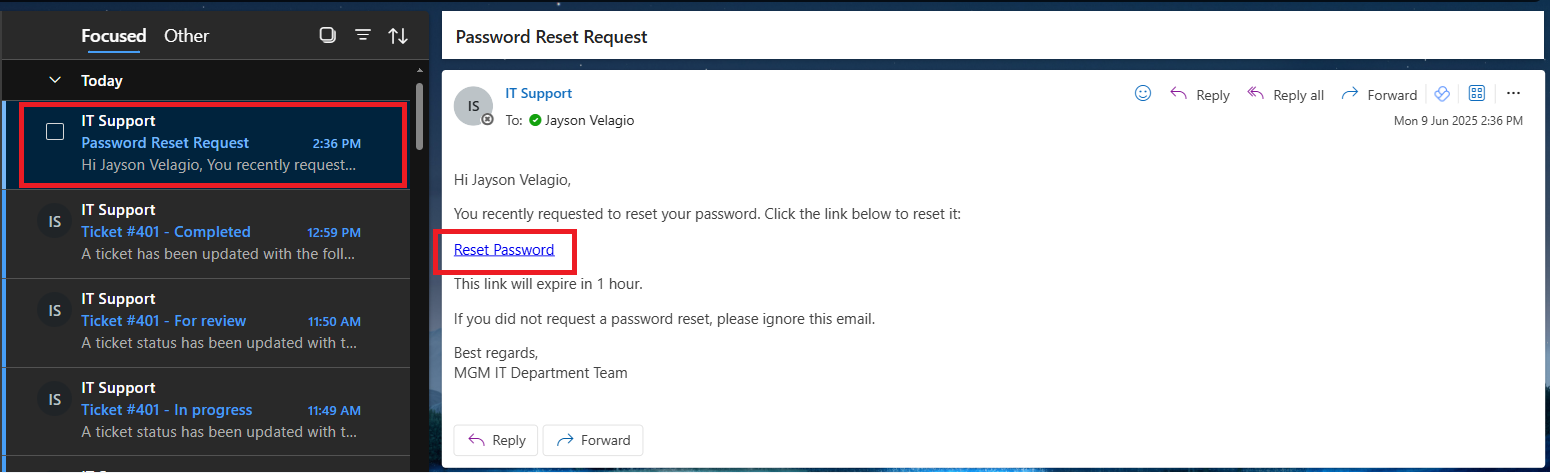
- After that you need to open your email address to check the email reset link and click the "reset password" link.

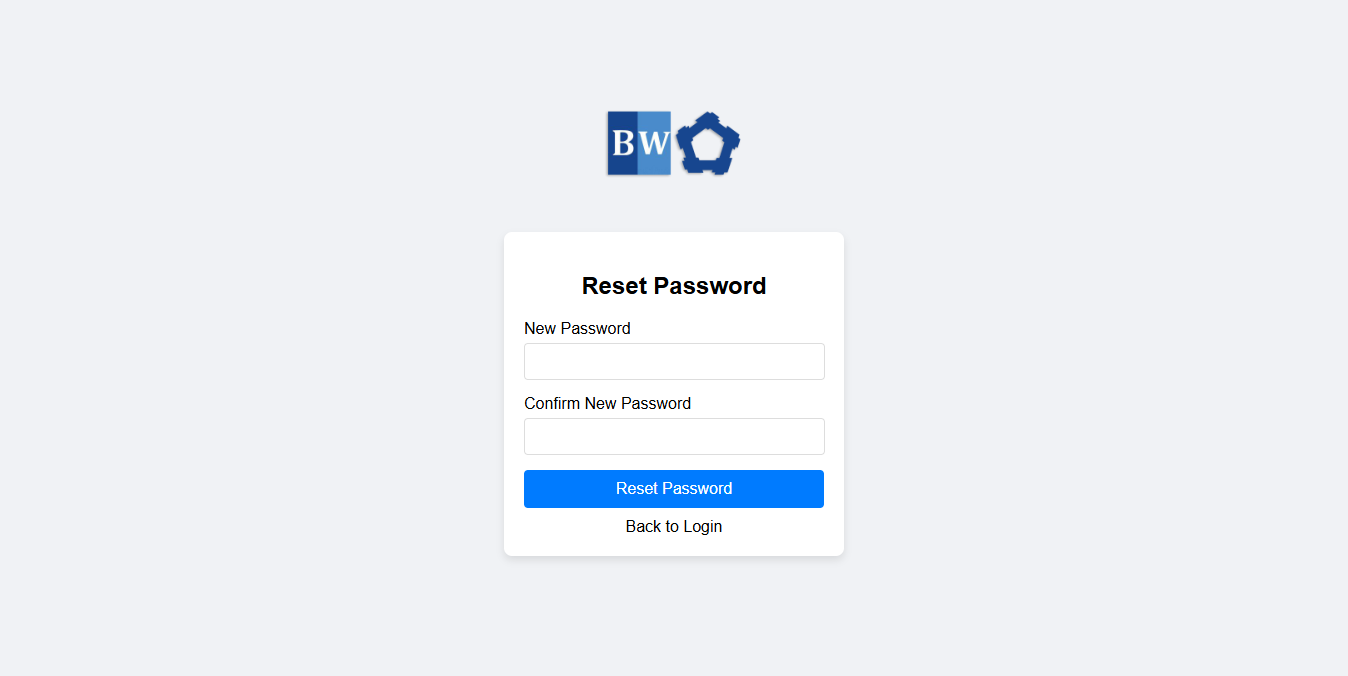
- You will be redirected in to this page where you should provide and fill out for your new password and click Reset Password Button.

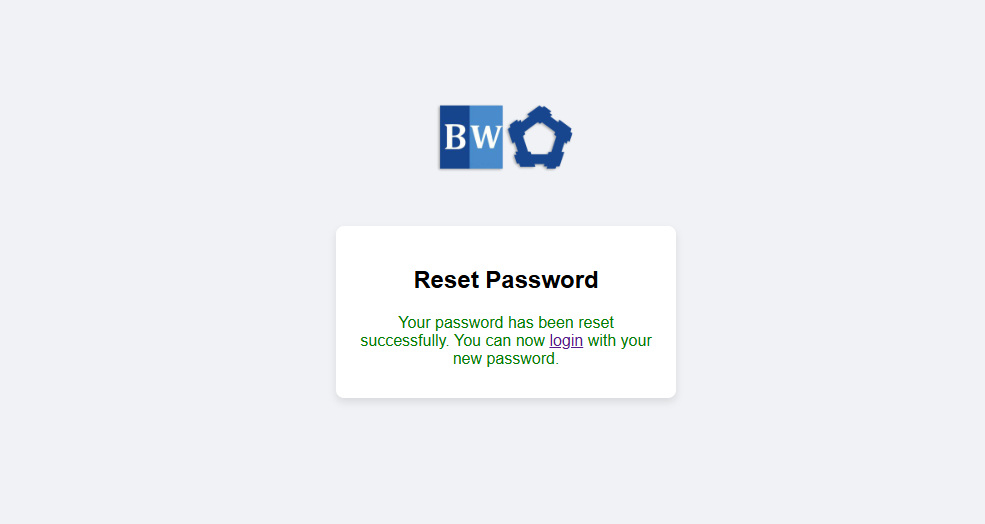
- After successfully provided the correct password for your account you will be redirected to this page confirming your password is now changed and you are now ready to logged in.

Log-in to the System
You can log-in to the IT Ticketing system by by locating the login interface shown in this link login page.
1. Fill out the user name and password field correctly.
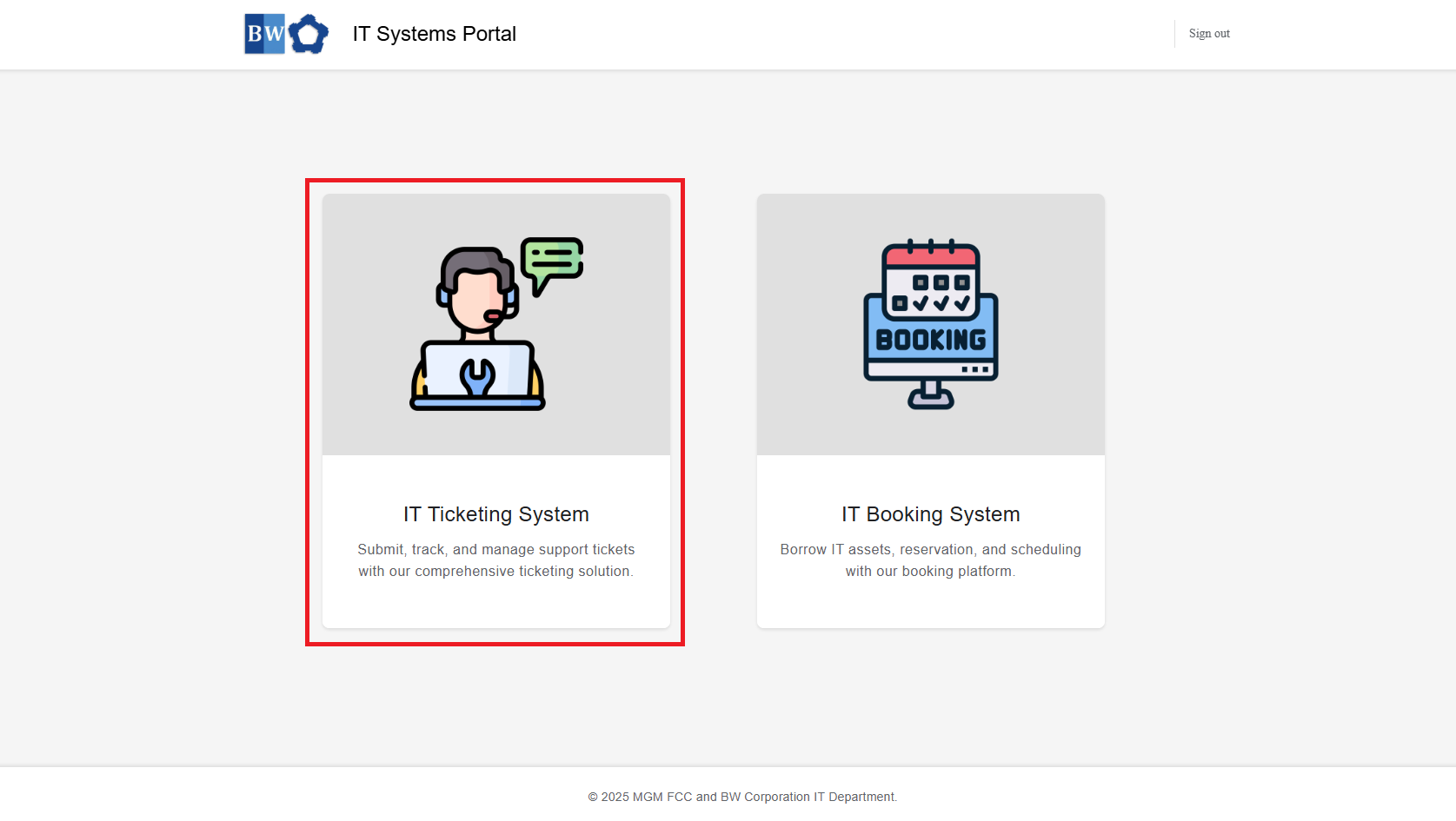
2. Upon successful login. You will be redirected into this portal and select IT Ticketing System.
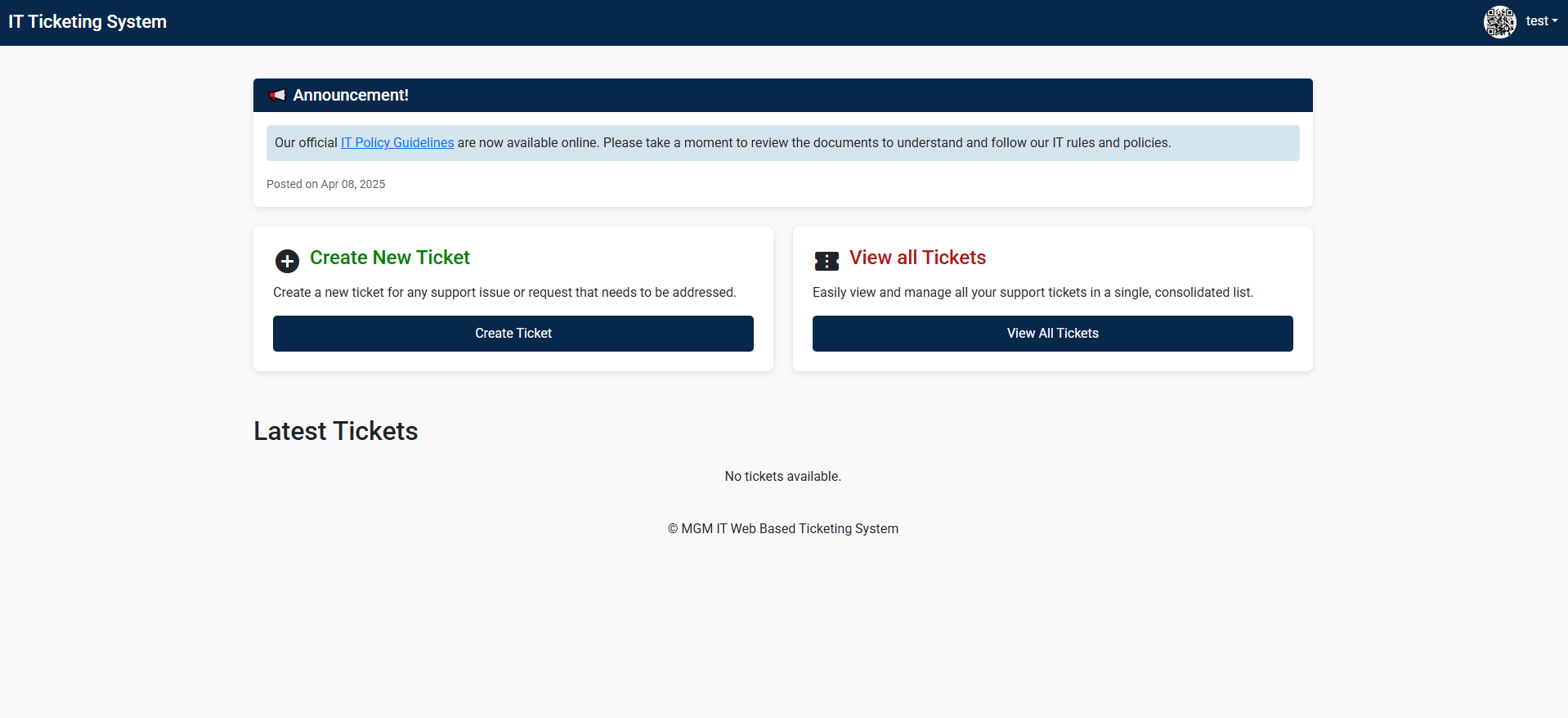
3. After selecting IT Ticketing System thru the portal. you will now be redirected to the IT Ticketing System show below.
Creating a Ticket
1. Creating a ticket is simple. At your dashboard you will see this button below "Create Ticket"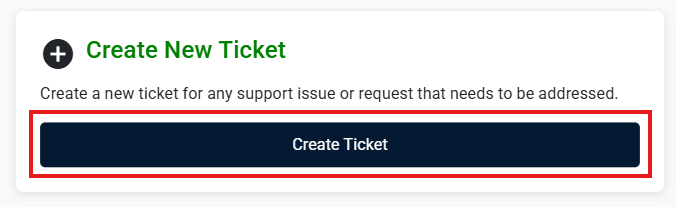
2. Fill up all the information needed on the form.
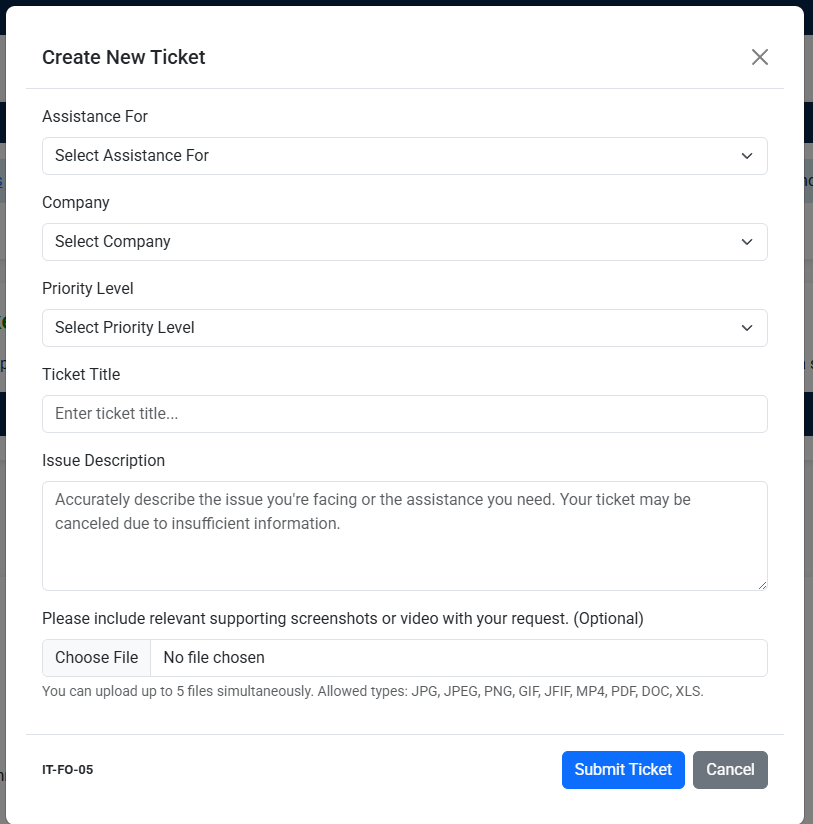
3. Then hit submit ticket or cancel if you wish not to proceed.

4. You will received a confirmation email of the success ticket creation and a Ticket number then kindly wait for the IT Team to accept your ticket.