**This section provides a clear and complete guide on how to access Department Management as a HRIS Admin, outlining the steps and responsibilities involved.**
To access the Department Management page: - On your Dashboard, click **Department Management** panel. [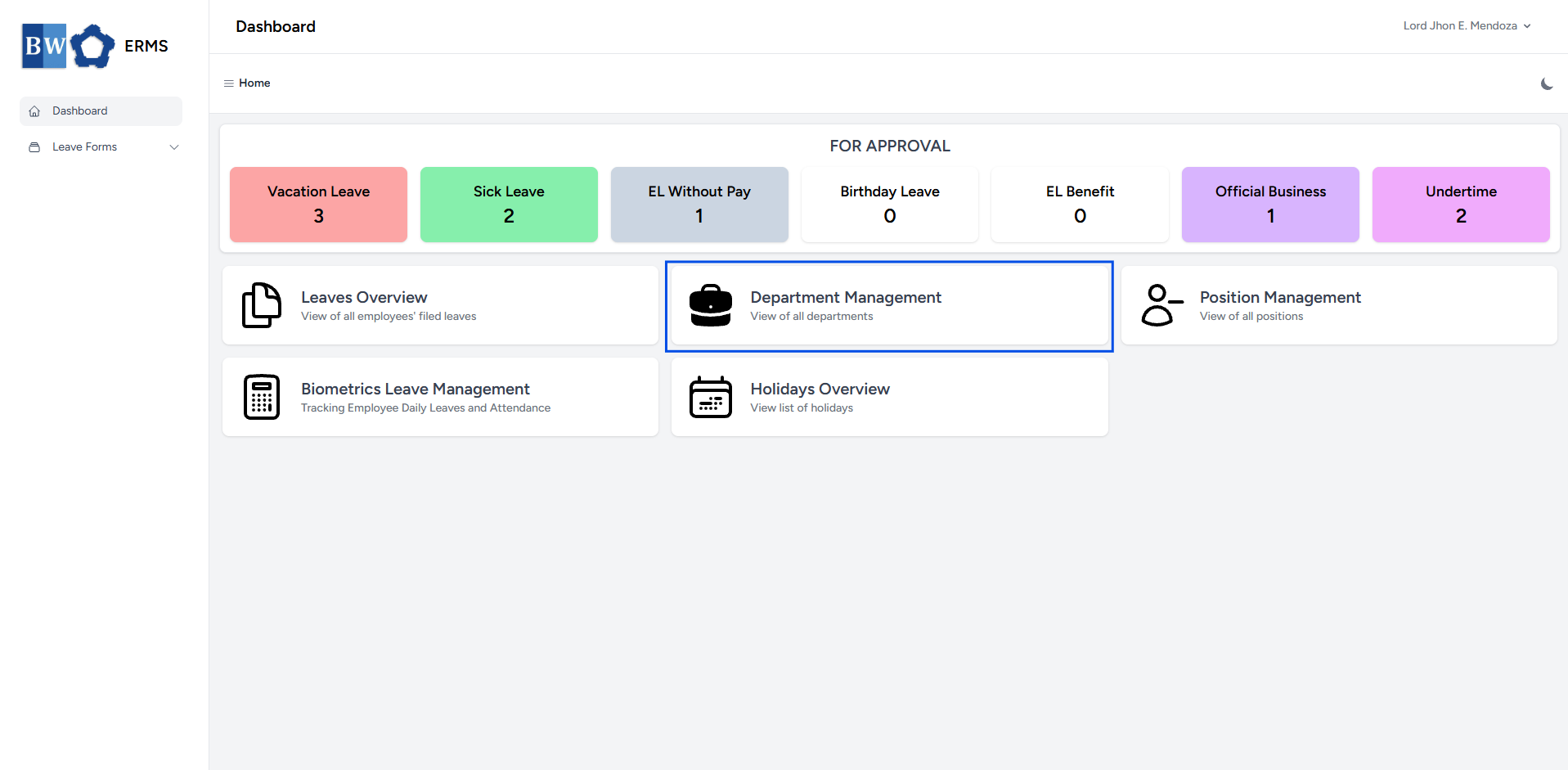](https://kb.mgmfoods.com.ph/uploads/images/gallery/2025-07/9drimage.png) - It will open the **Department Management** page. [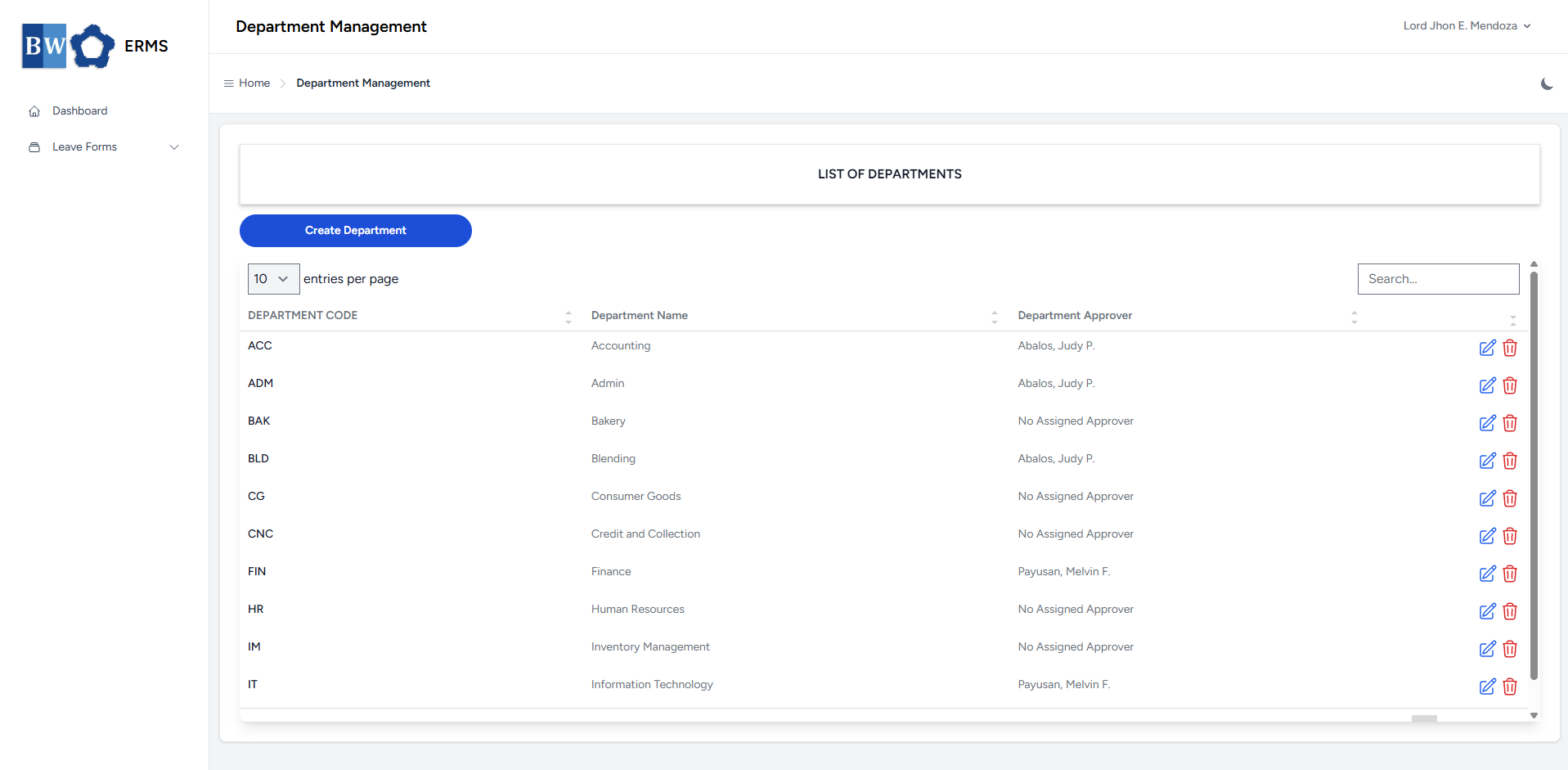](https://kb.mgmfoods.com.ph/uploads/images/gallery/2025-07/FRbimage.png) - On the **Department Management page, click the **Create Department** button to open the form. [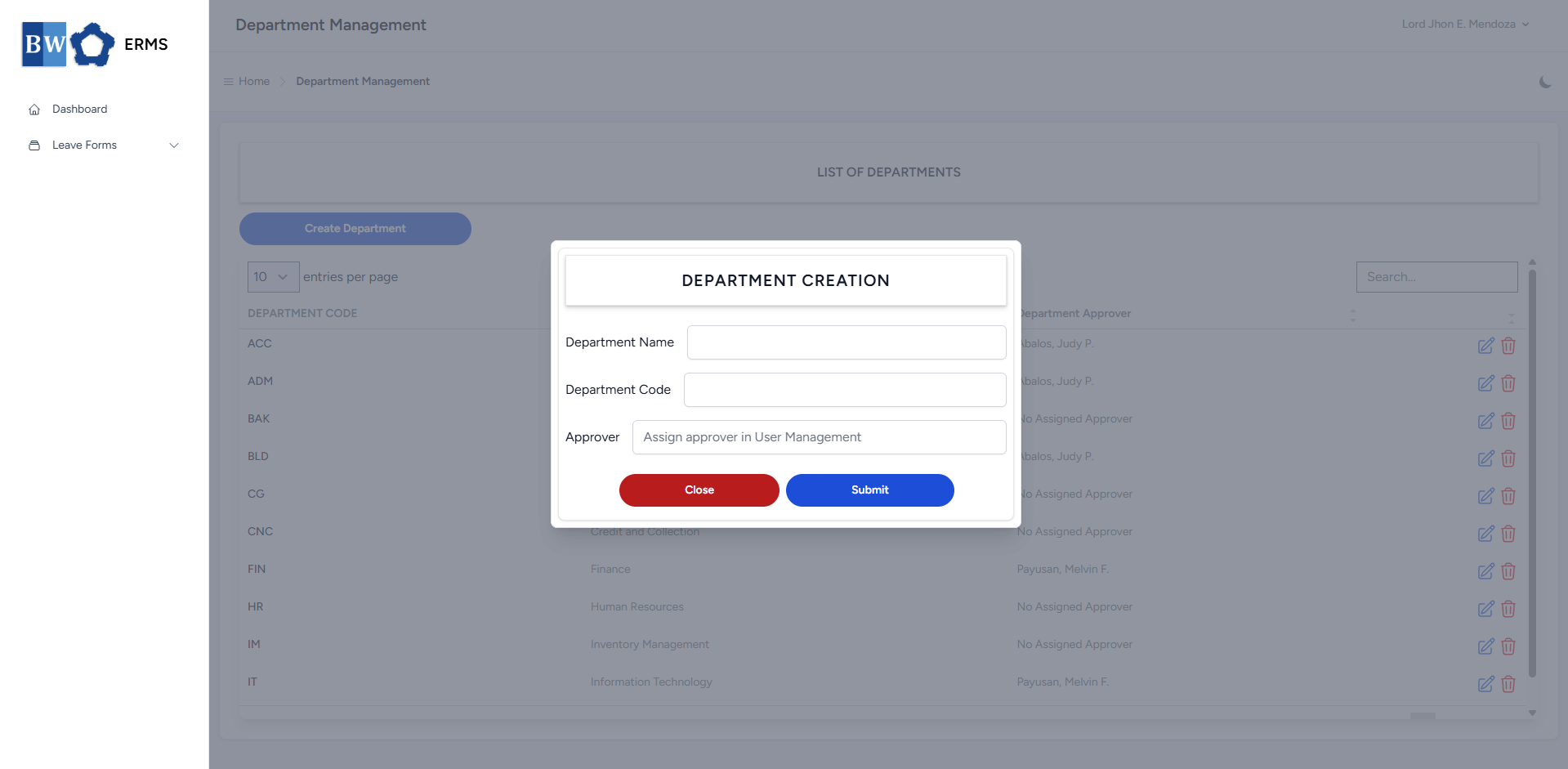](https://kb.mgmfoods.com.ph/uploads/images/gallery/2025-07/s1Uimage.png) - Fill out the required fields, then click **Submit**. - After submitting, a notification will appear saying that the Department has been created. The created department will be added to the list. [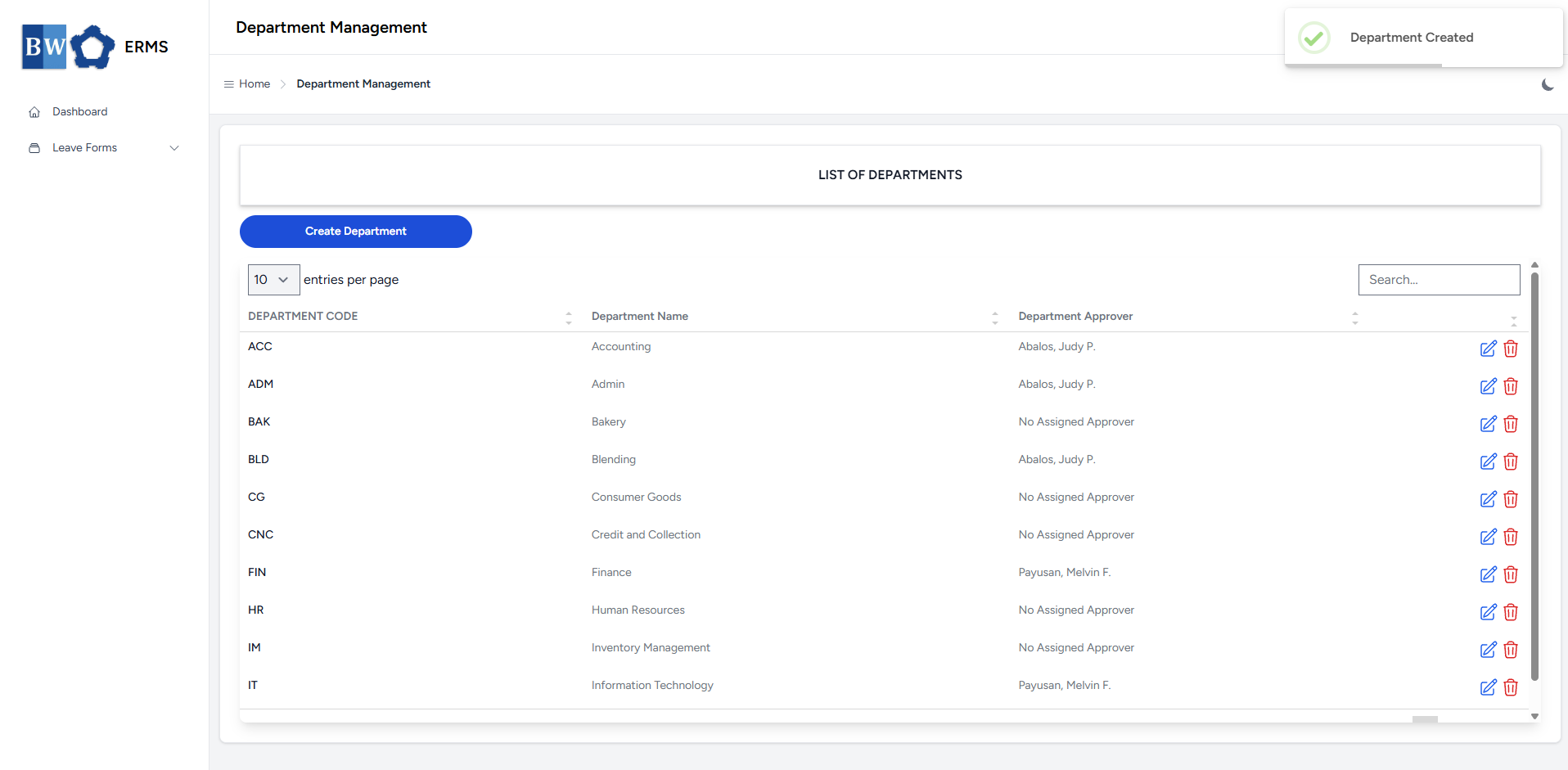](https://kb.mgmfoods.com.ph/uploads/images/gallery/2025-07/qRGimage.png) - To **delete** a department, click the red delete icon in the row of the department you wish to remove. [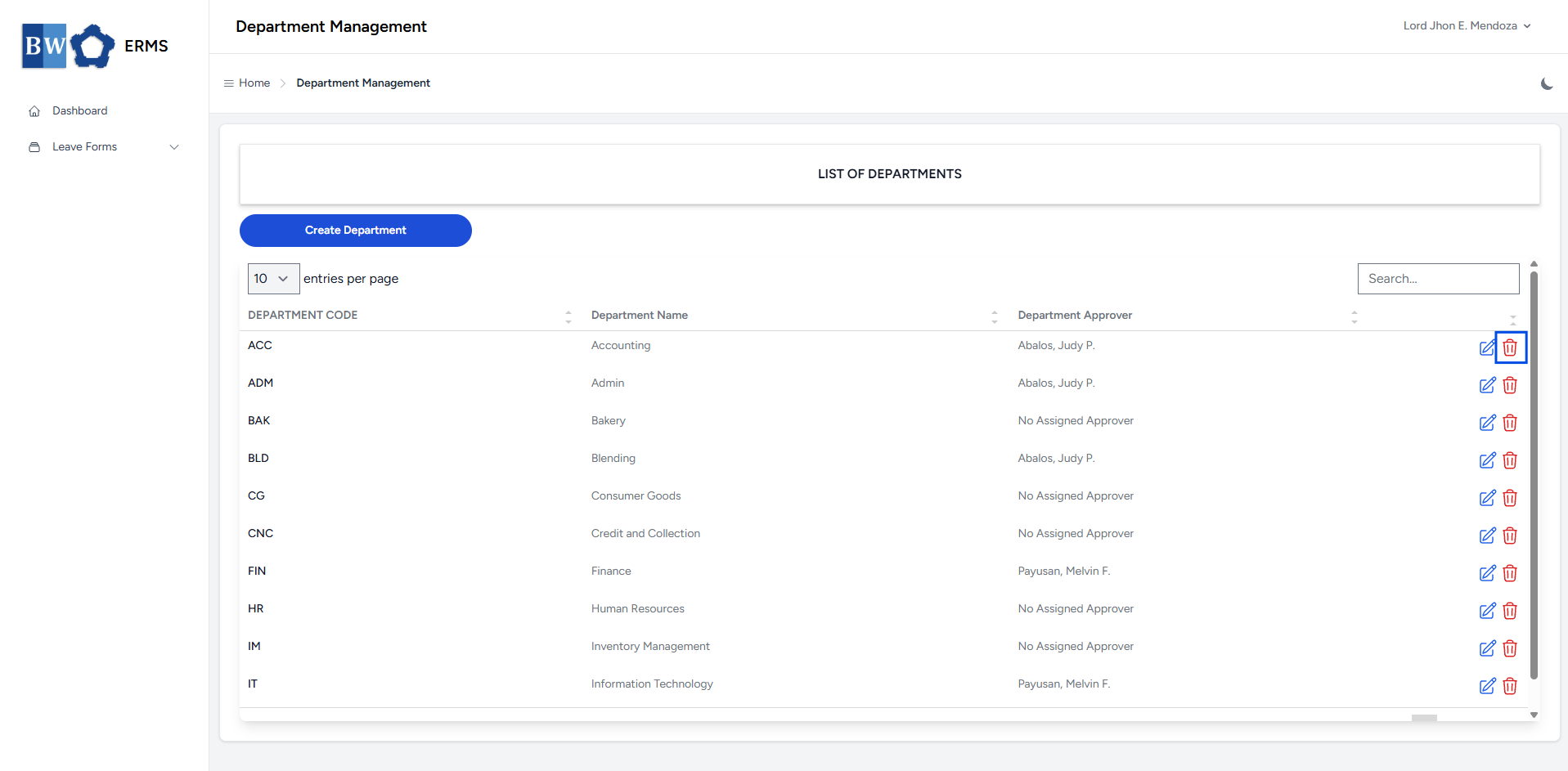](https://kb.mgmfoods.com.ph/uploads/images/gallery/2025-07/EyGimage.png) - A confirmation prompt will appear asking if you want to proceed with the deletion. - Click **Yes, delete it!** button to completely delete the department. [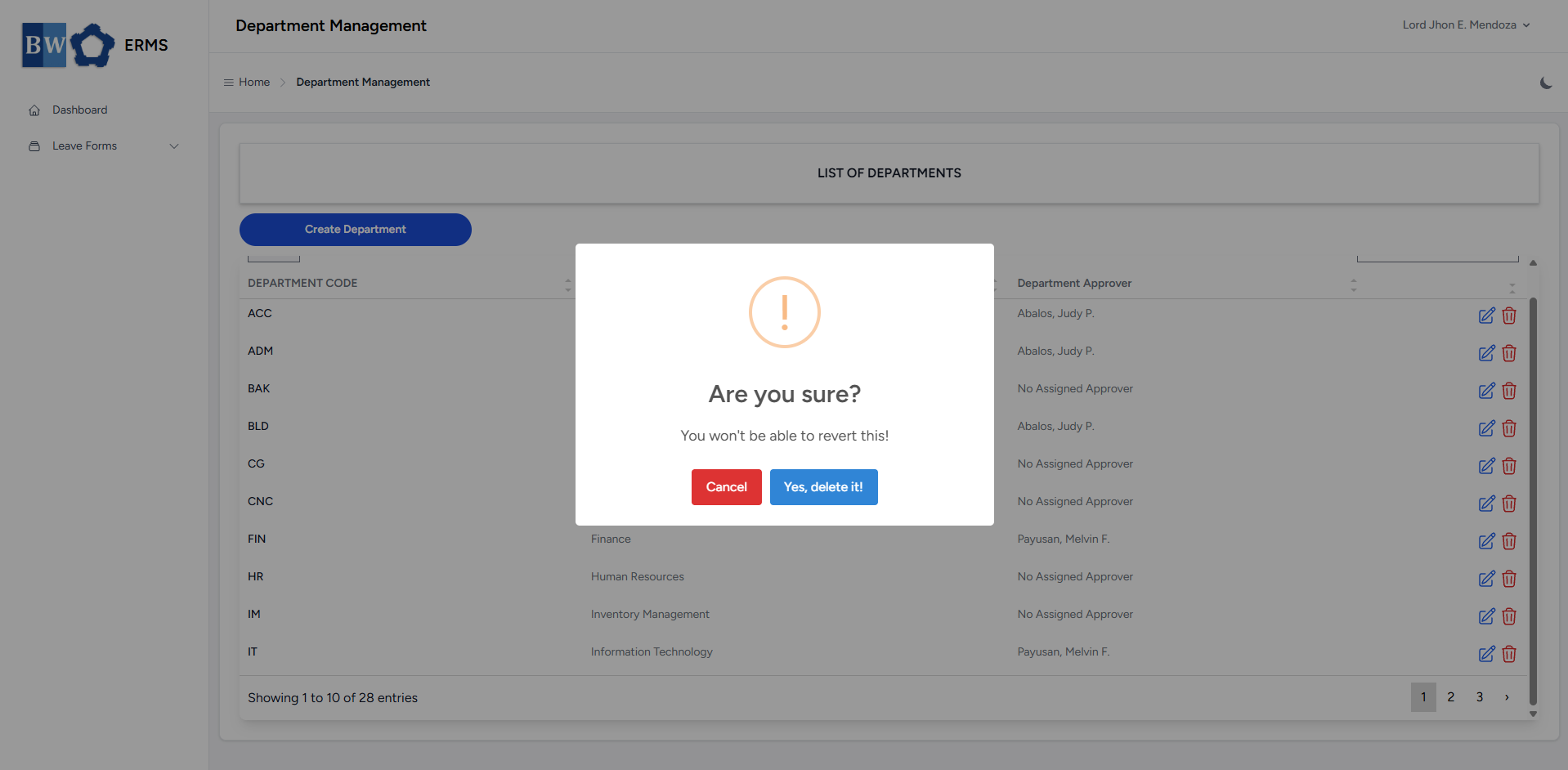](https://kb.mgmfoods.com.ph/uploads/images/gallery/2025-07/b06image.png) - To **edit** a department, click the blue edit icon in the row of the department you wish to edit. [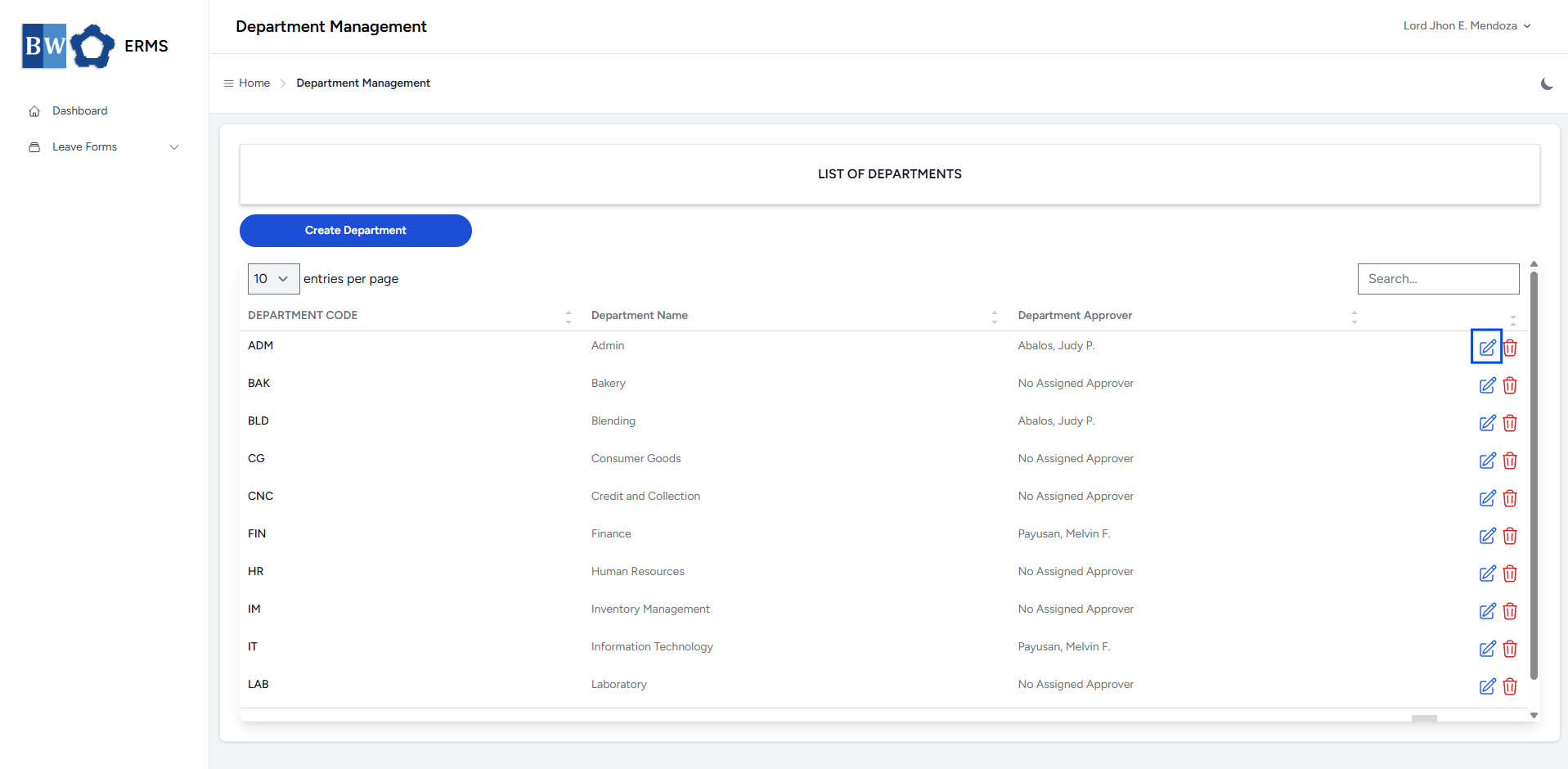](https://kb.mgmfoods.com.ph/uploads/images/gallery/2025-07/otQimage.png) [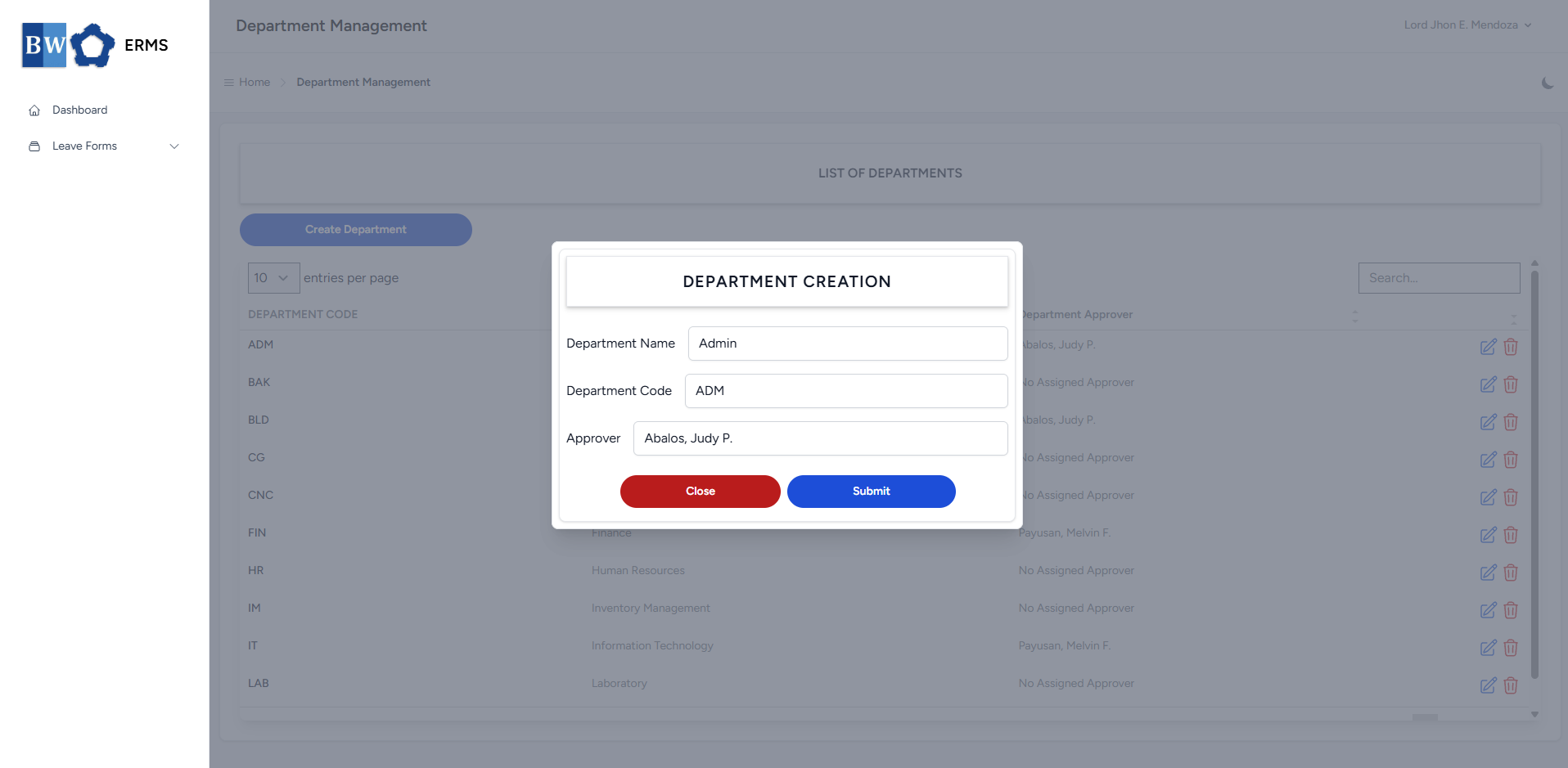](https://kb.mgmfoods.com.ph/uploads/images/gallery/2025-07/yUeimage.png) - After editing the Department Name and Code, click the Submit button to save the changes. - **Note:** You can change the **Approver** of department in **User Management**.