# Filing a Leave
# Vacation Leave
This section offers a clear and complete guide on how to properly file for Vacation Leave, outlining the necessary steps to ensure a smooth and accurate application process.
# Employees & Non-Approver Managers/Supervisors Application
To access the Vacation Leave page, you can do either of the following:
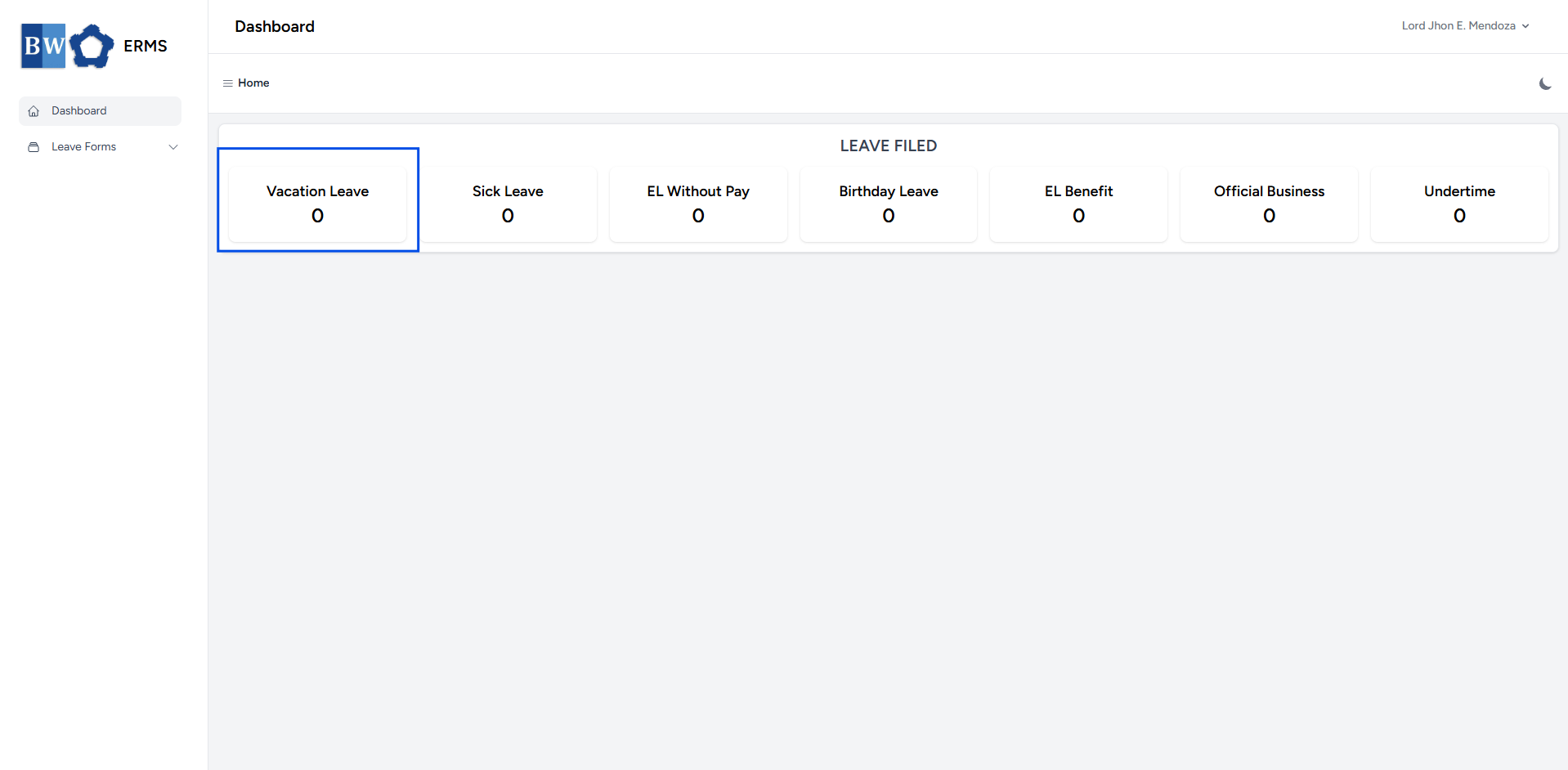
- On your Dashboard, click **Vacation Leave** under the **Leave Filed** section.
[](https://kb.mgmfoods.com.ph/uploads/images/gallery/2025-07/lHZimage.png)
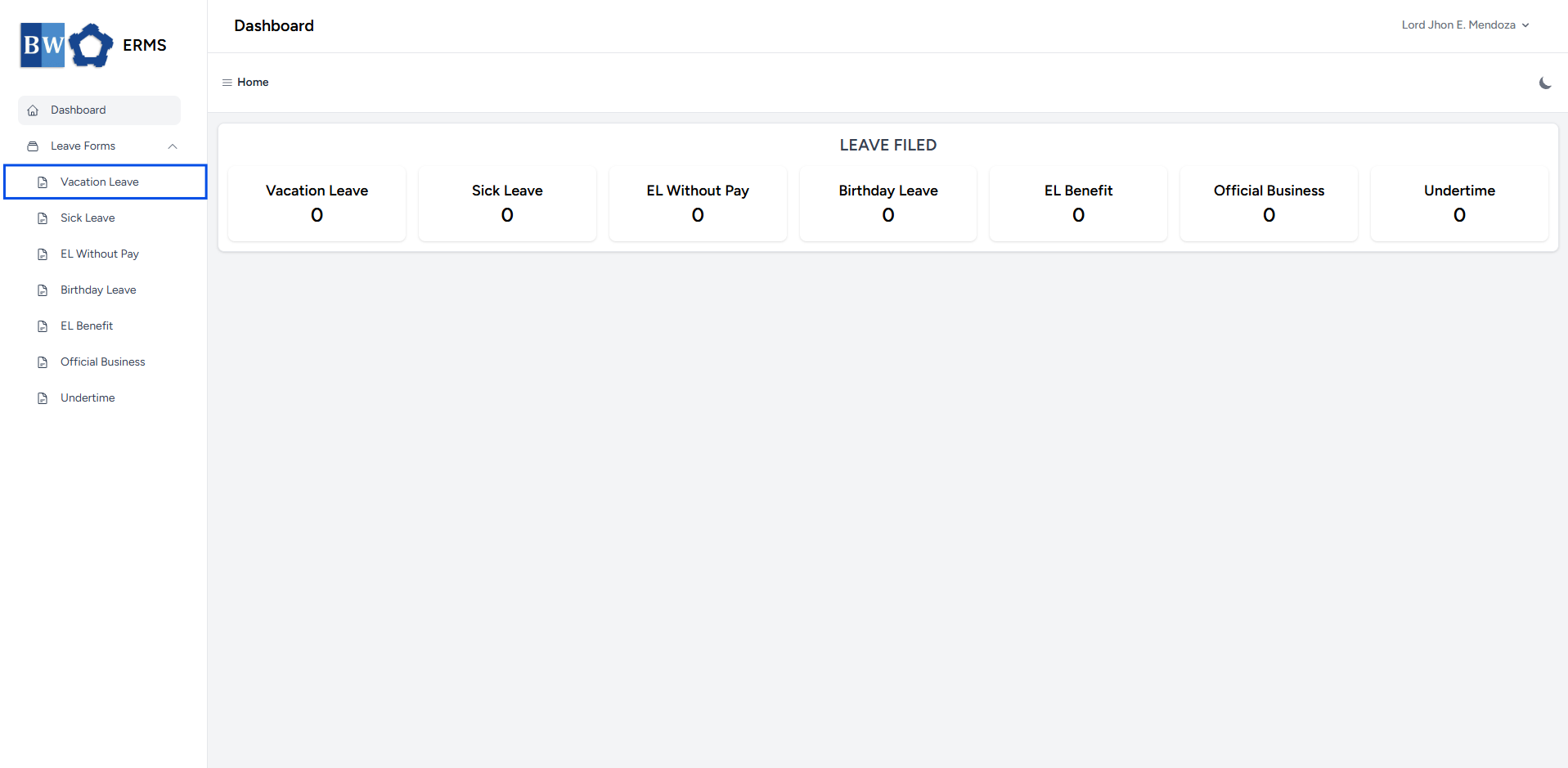
- Or, click the **Leave Forms** dropdown in the sidebar, then select **Vacation Leave**.
[](https://kb.mgmfoods.com.ph/uploads/images/gallery/2025-07/MDtimage.png)
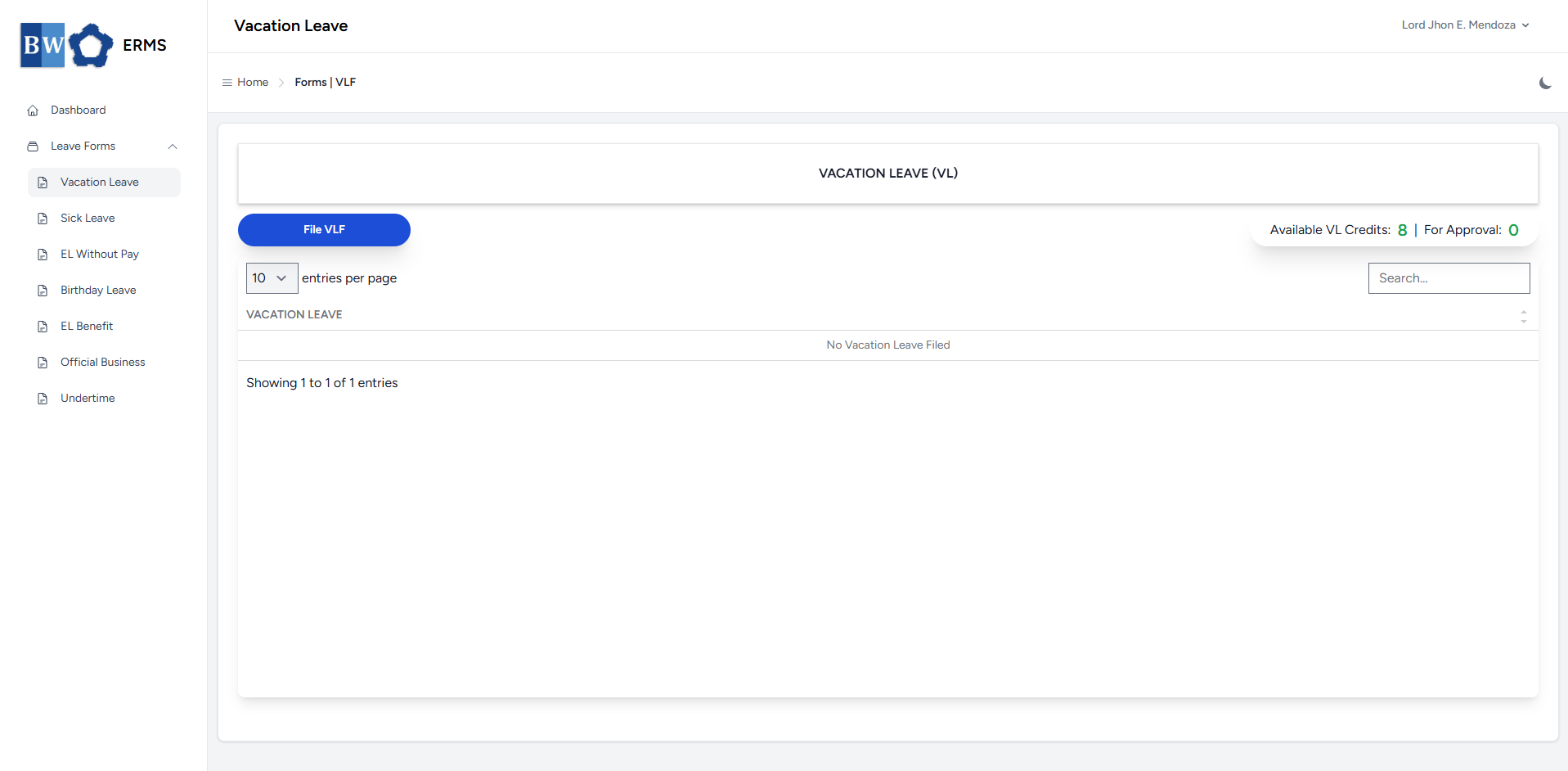
- It will open the **Vacation Leave** page.
[](https://kb.mgmfoods.com.ph/uploads/images/gallery/2025-07/iFnimage.png)
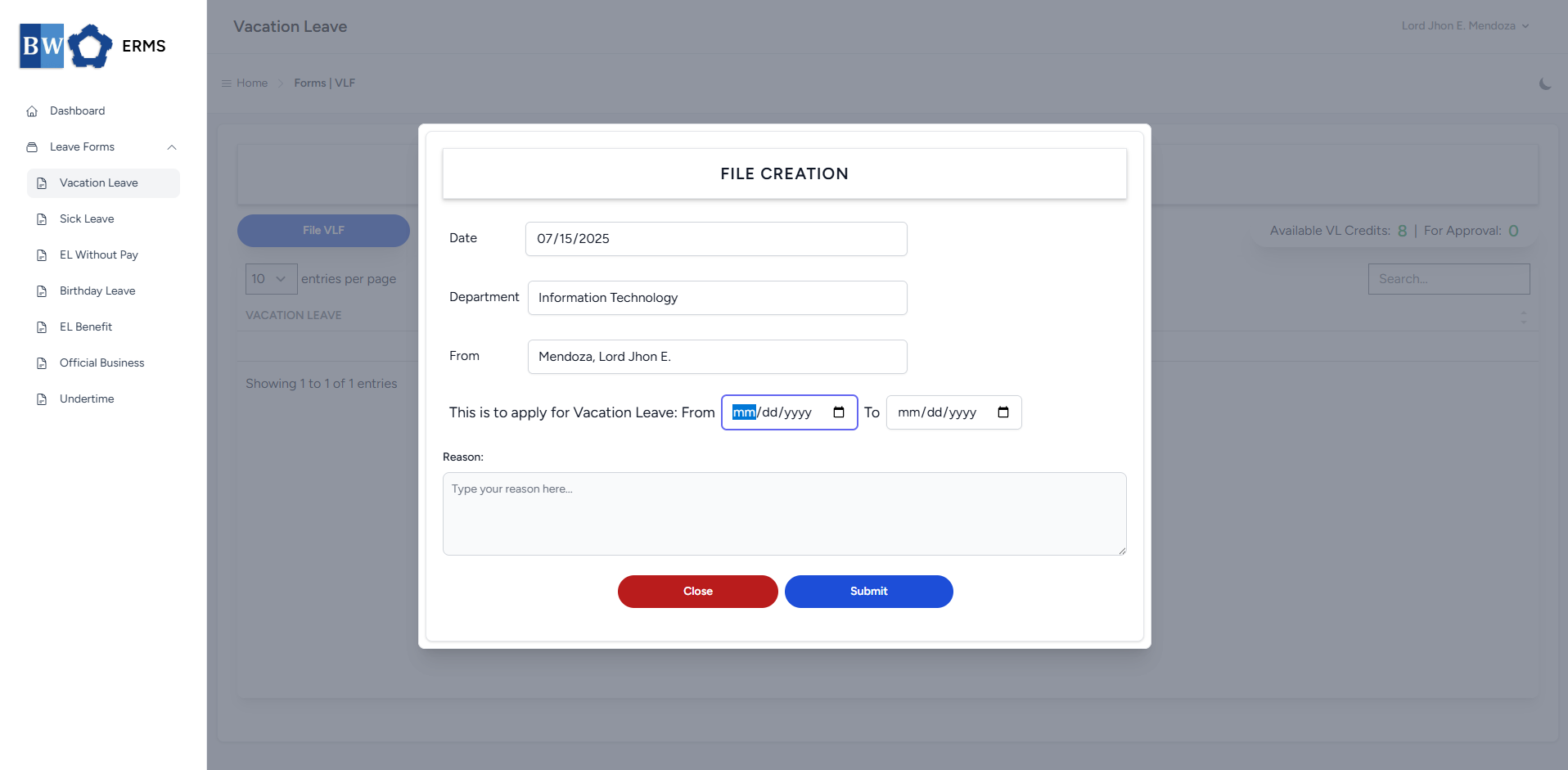
- On the **Vacation Leave** page, click the **File VLF** button to open the form.
[](https://kb.mgmfoods.com.ph/uploads/images/gallery/2025-07/8Yzimage.png)
- Fill out the required fields, then click **Submit**.
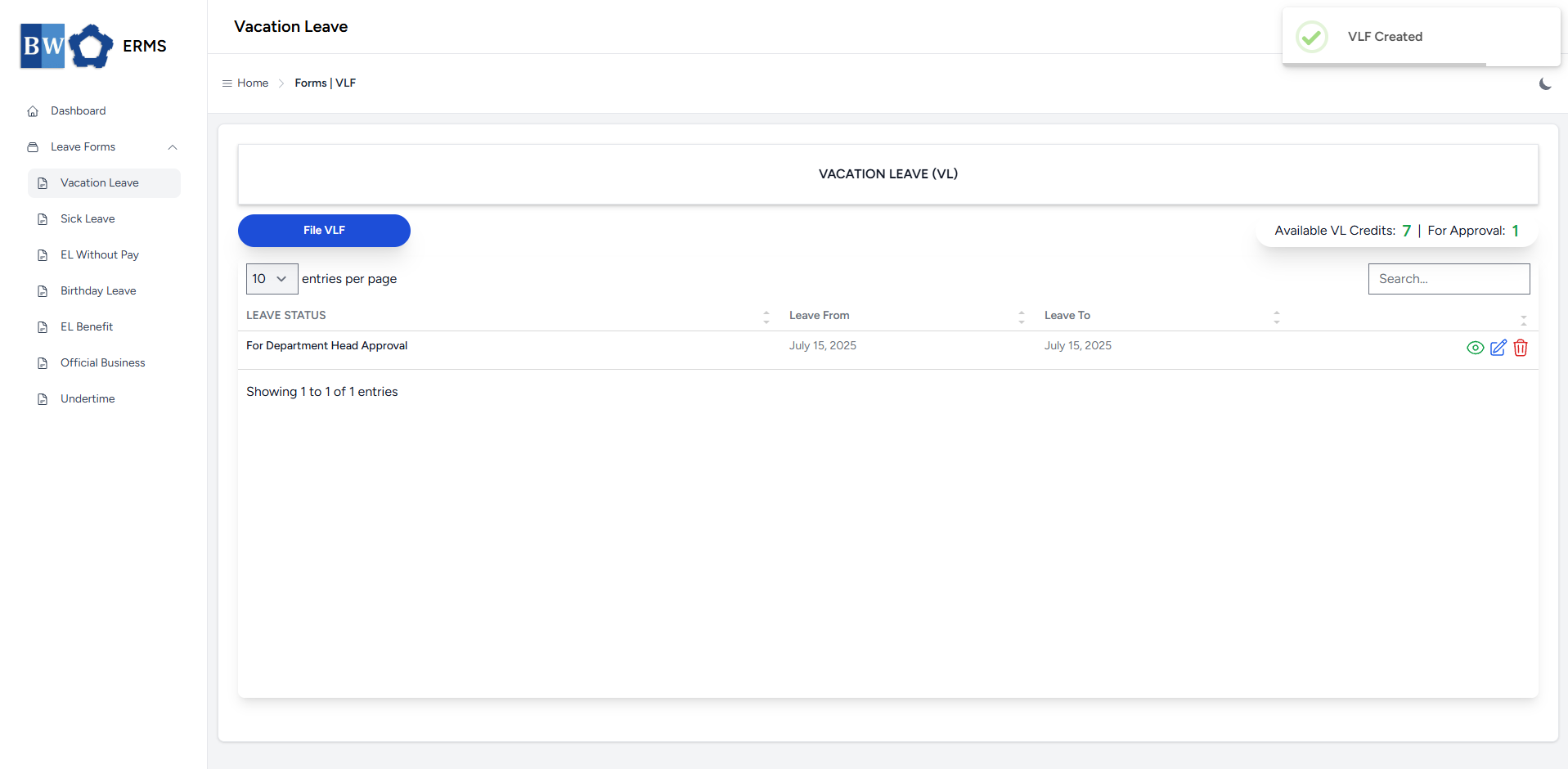
- After submitting, a notification will appear saying that the VLF has been created. The filed leave will be added to the list, and your **VL Credits** will be reduced based on the number of leave days you filed.
[](https://kb.mgmfoods.com.ph/uploads/images/gallery/2025-07/Xzsimage.png)
- You can also use this page to check the status of your leave.
# Approver Managers/Supervisors Application
To access the Vacation Leave page:
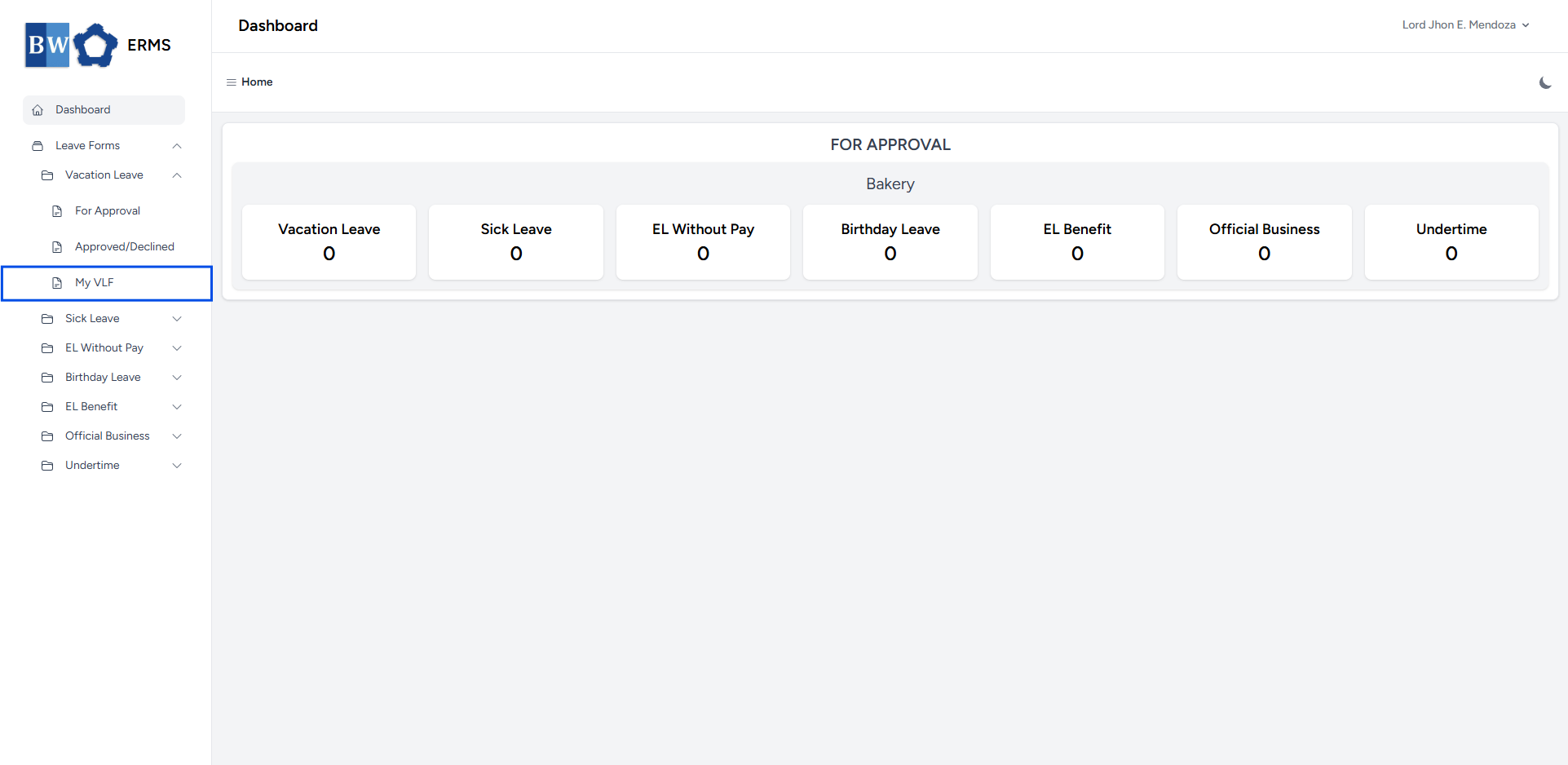
- In the **Sidebar**, click the **Leave Forms** dropdown.
- From the list that appears, select **Vacation Leave**.
- Then, click **My VLF** to view your filed vacation leaves.
[](https://kb.mgmfoods.com.ph/uploads/images/gallery/2025-07/5Iximage.png)
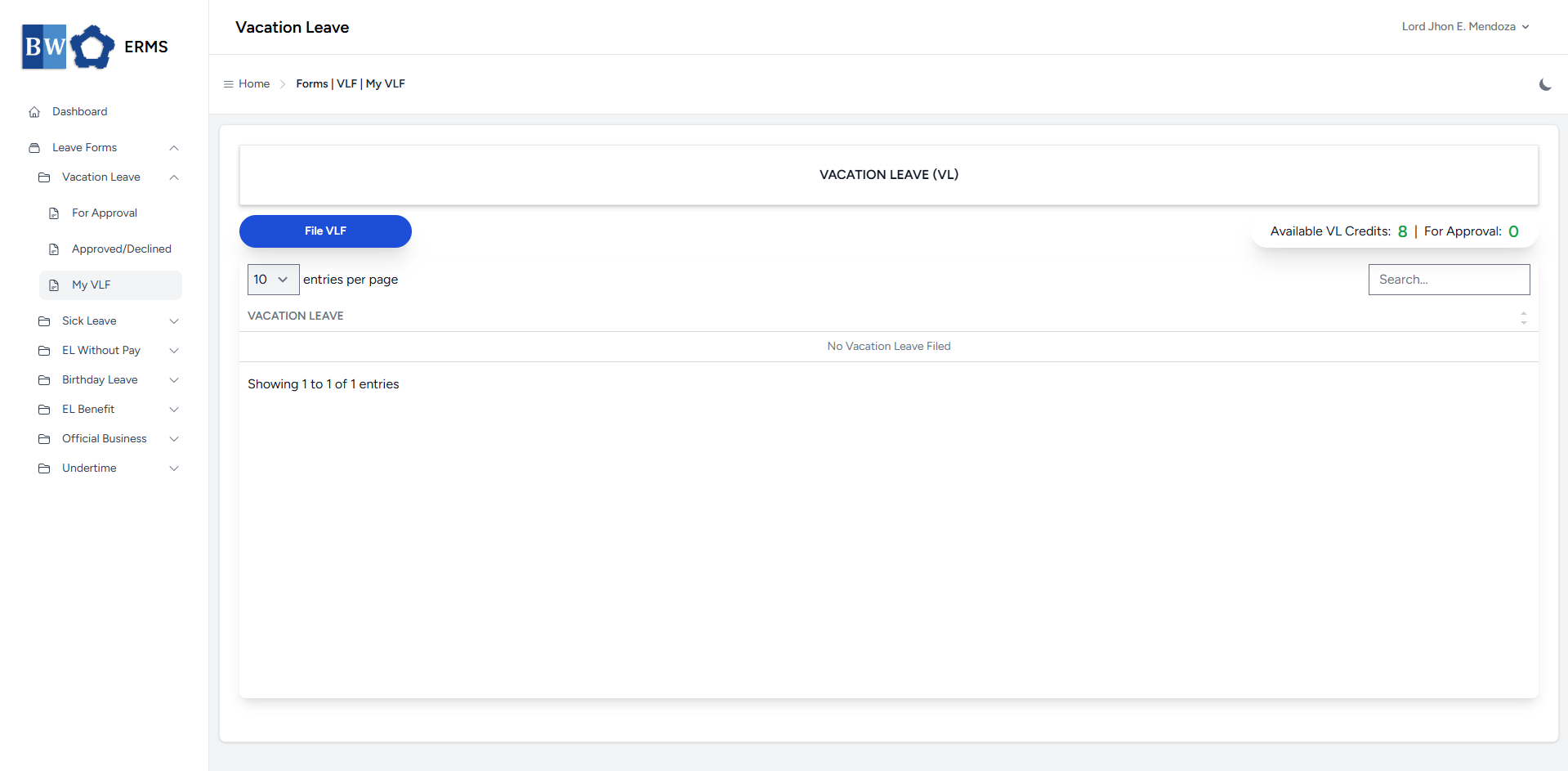
- It will open the **Vacation Leave** **(My VLF)** page.
[](https://kb.mgmfoods.com.ph/uploads/images/gallery/2025-07/lGIimage.png)
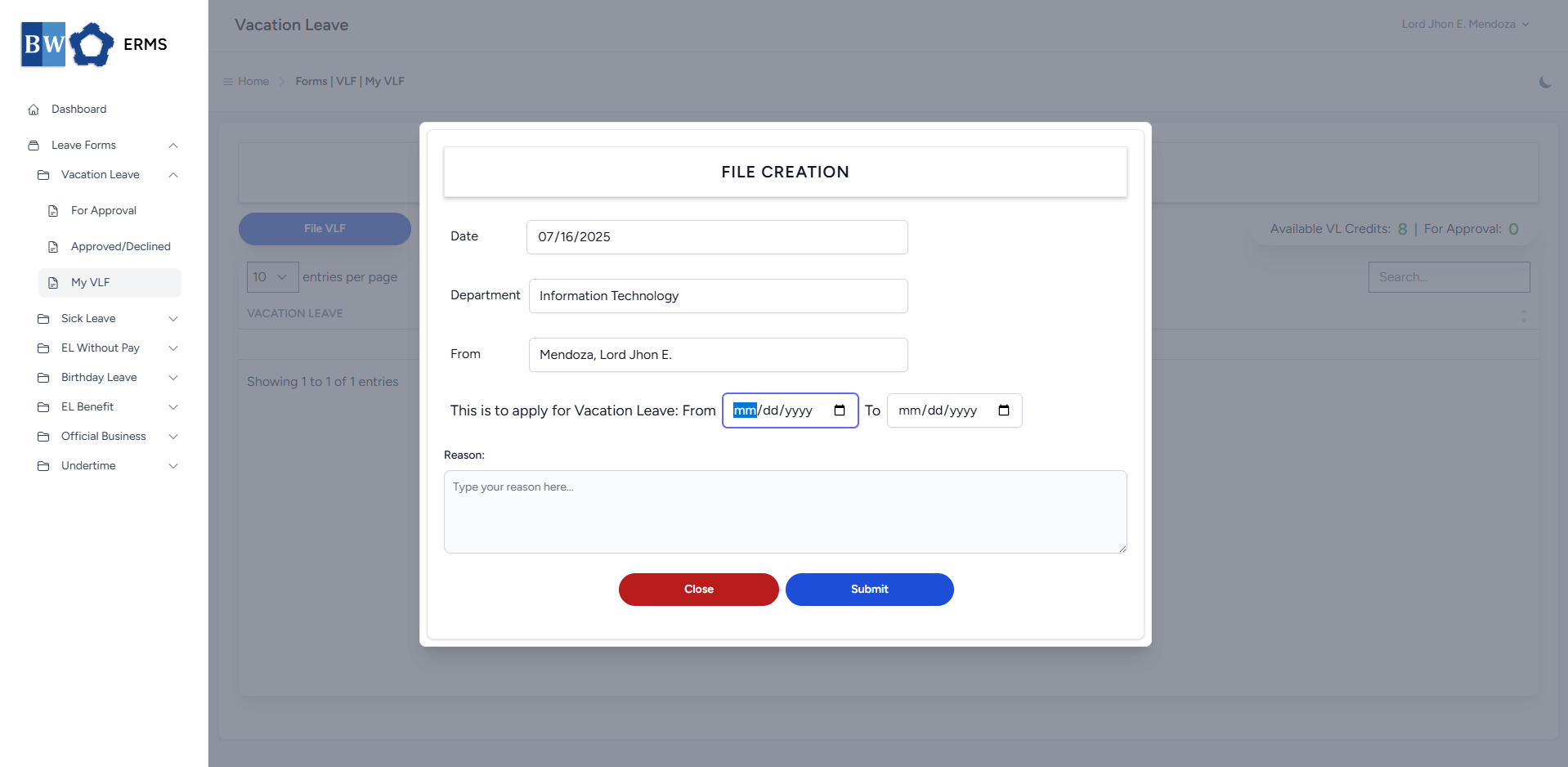
- On the **Vacation Leave** **(My VLF)** page, click the **File VLF** button to open the form.
[](https://kb.mgmfoods.com.ph/uploads/images/gallery/2025-07/TgRimage.png)
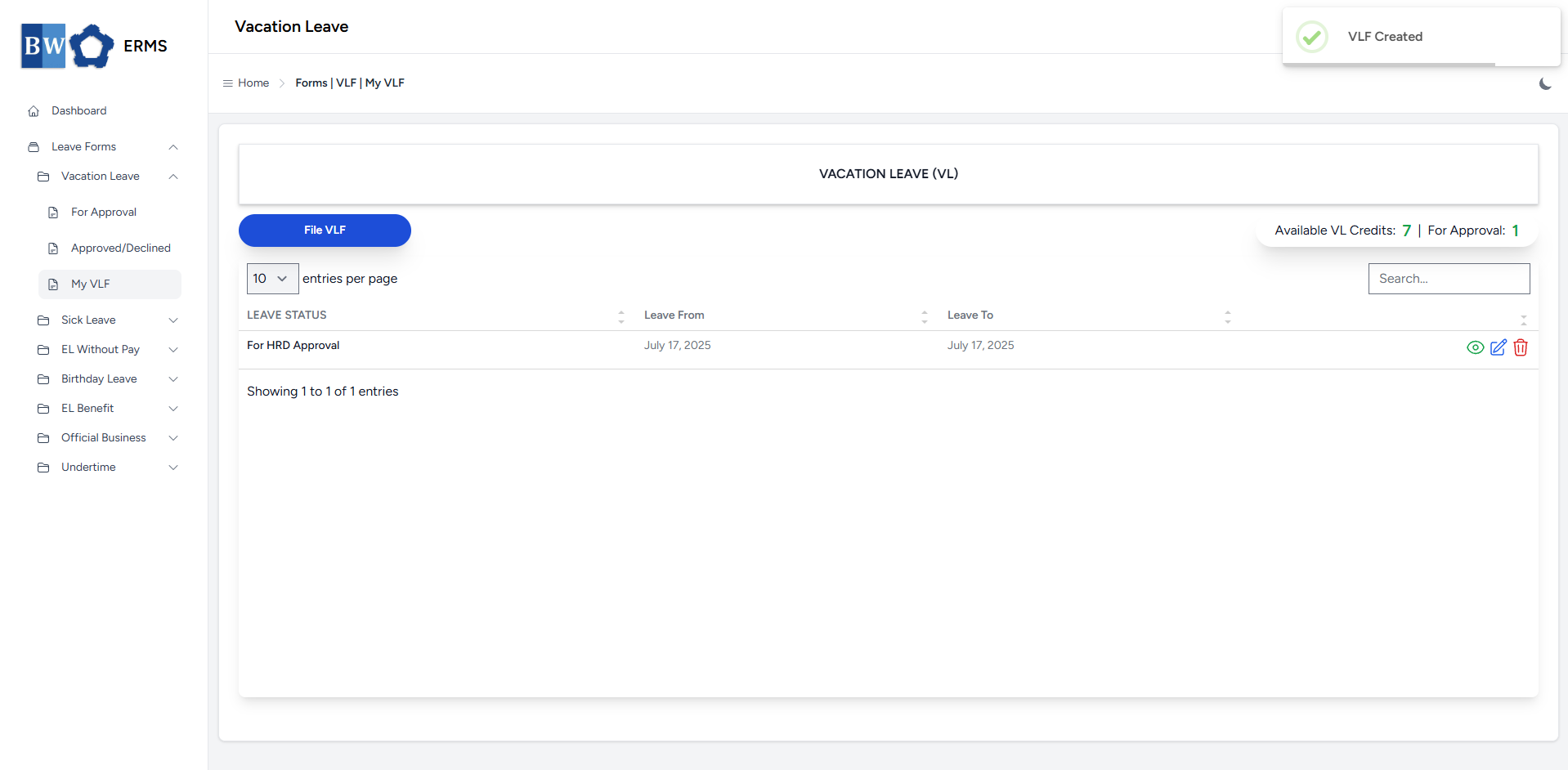
- Fill out the required fields, then click **Submit**.
- After submitting, a notification will appear saying that the VLF has been created. The filed leave will be added to the list, and your **VL Credits** will be reduced based on the number of leave days you filed.
[](https://kb.mgmfoods.com.ph/uploads/images/gallery/2025-07/pG7image.png)
- You can also use this page to check the status of your leave.
# Sick Leave
This section provides a clear and complete guide on how to properly file for Sick Leave, including the necessary steps and requirements.
# Employees & Non-Approver Managers/Supervisors Application
To access the Sick Leave page, you can do either of the following:
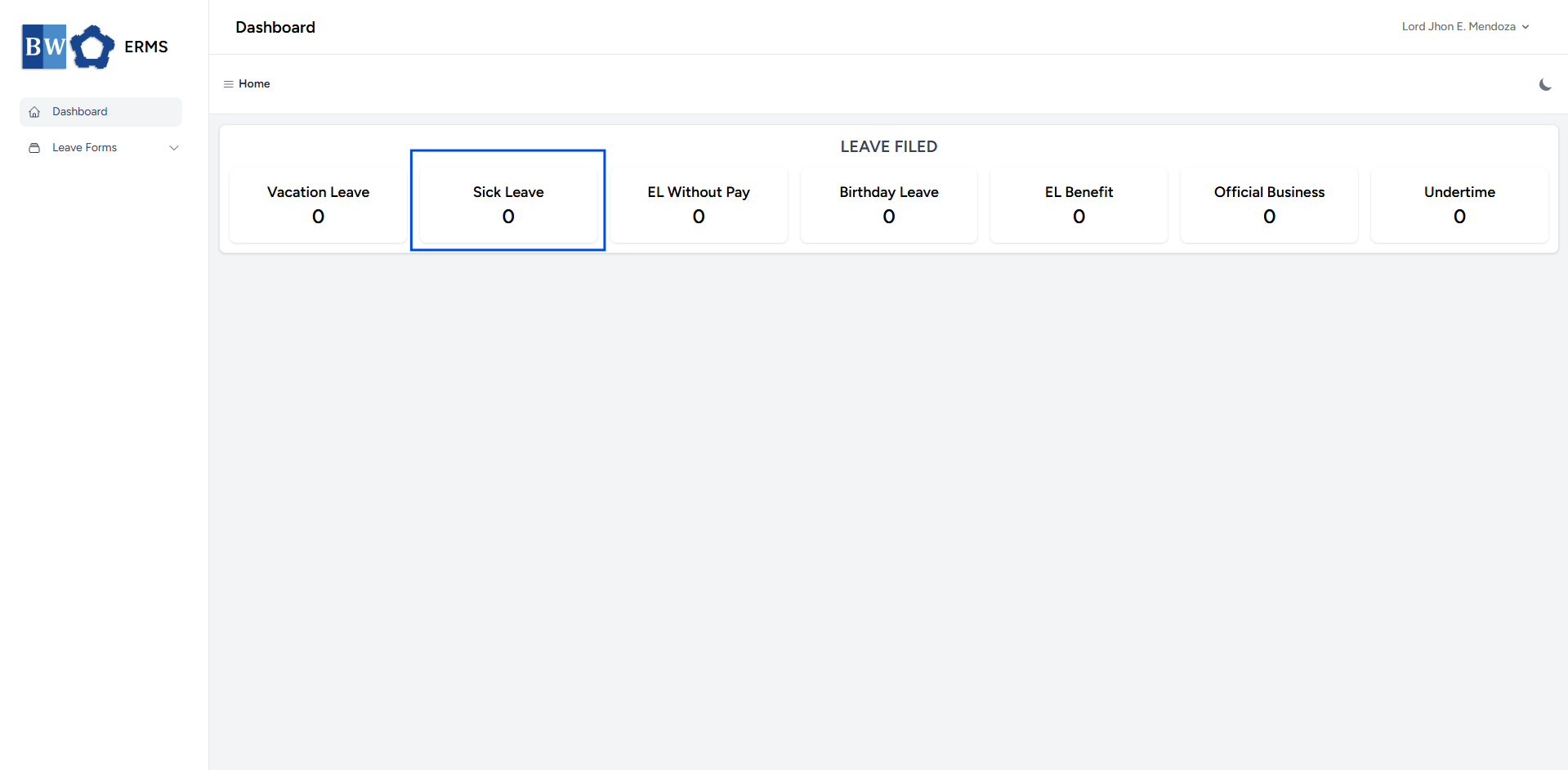
- On your Dashboard, click **Sick Leave** under the **Leave Filed** section.
[](https://kb.mgmfoods.com.ph/uploads/images/gallery/2025-07/MZQimage.png)
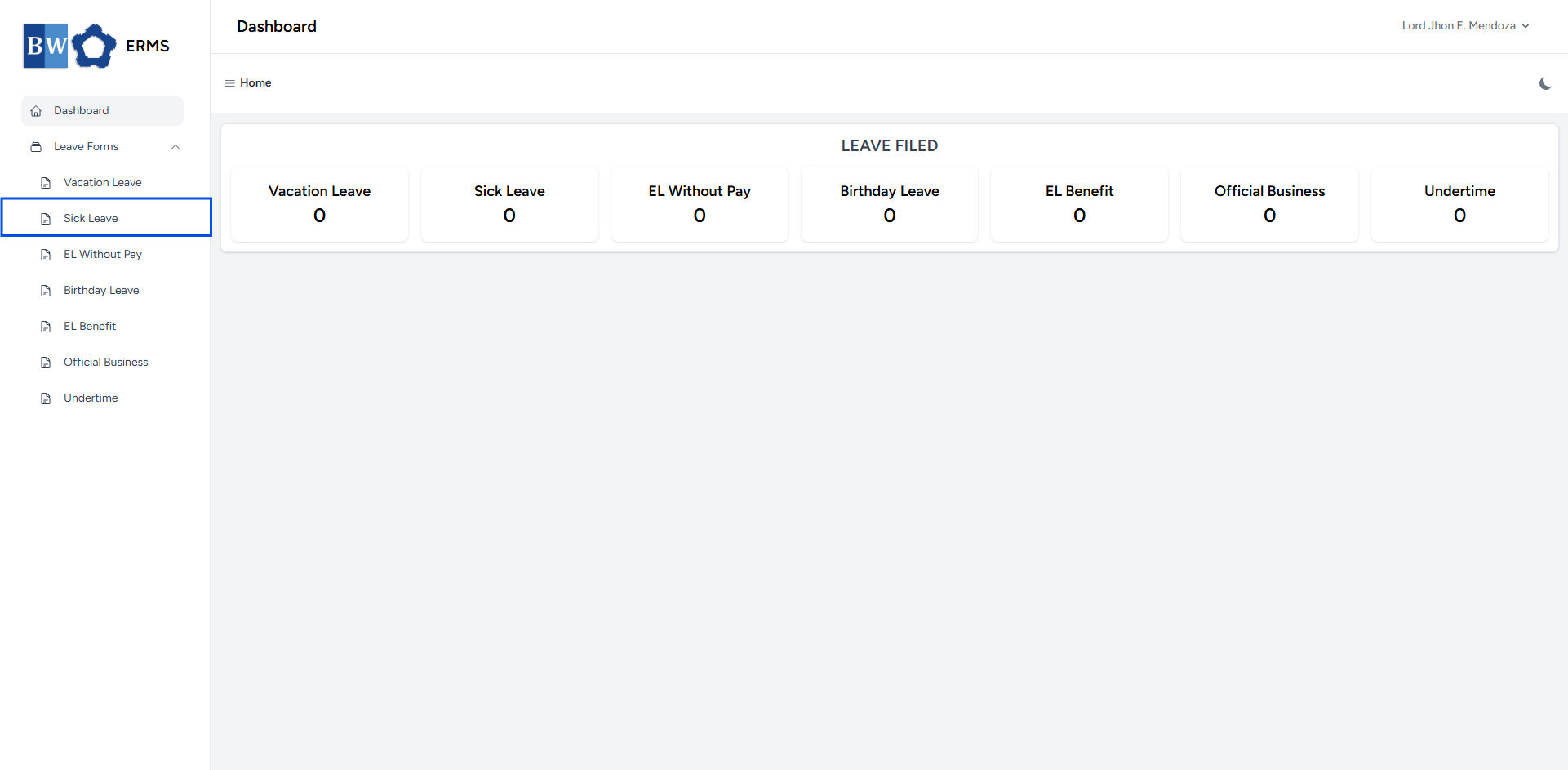
- Or, click the **Leave Forms** dropdown in the sidebar, then select **Sick Leave**.
[](https://kb.mgmfoods.com.ph/uploads/images/gallery/2025-07/ZB2image.png)
- It will open the **Sick Leave** page.
[](https://kb.mgmfoods.com.ph/uploads/images/gallery/2025-07/iFnimage.png)
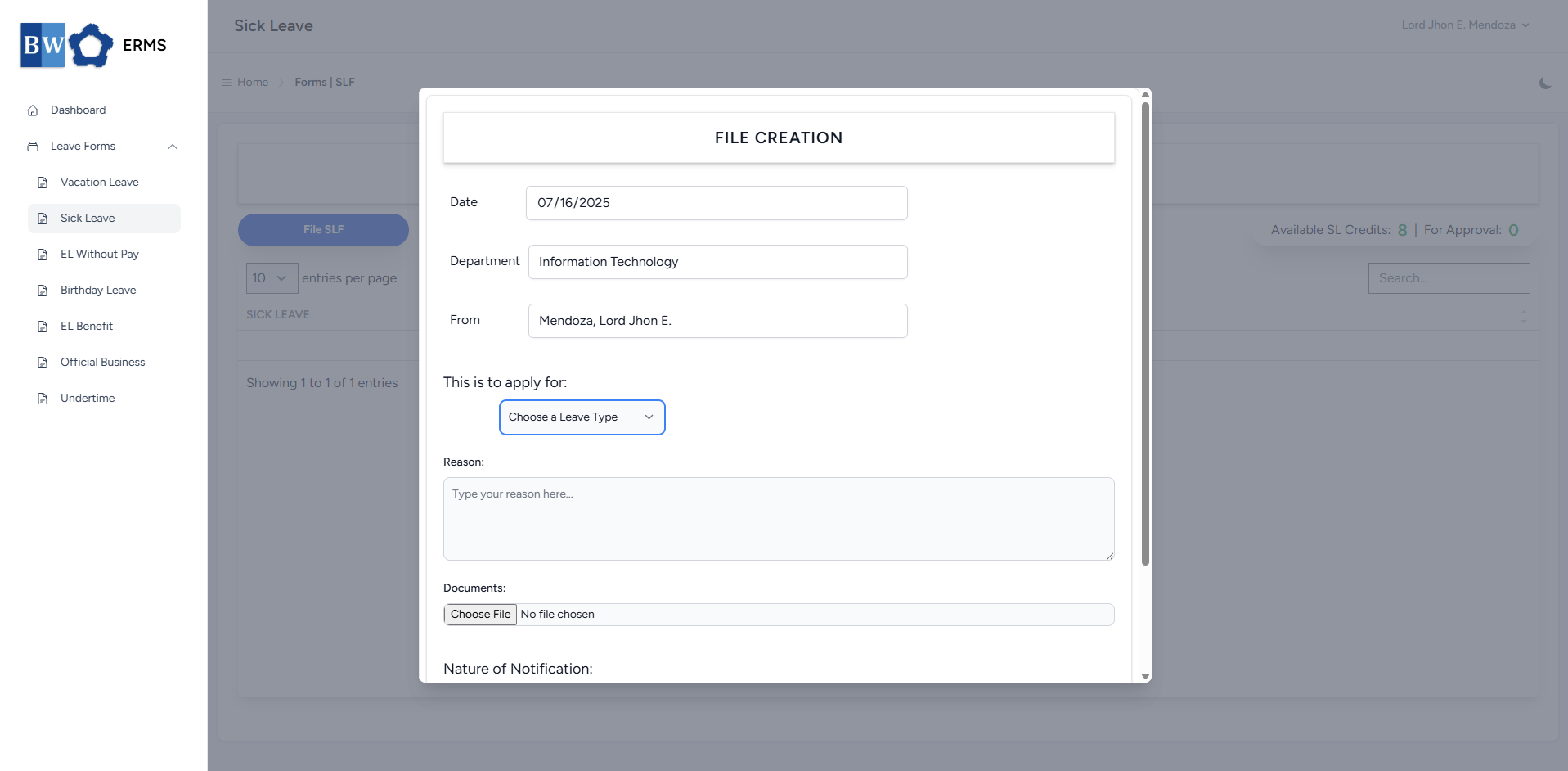
- On the **Sick Leave** page, click the **File SLF** button to open the form.
[](https://kb.mgmfoods.com.ph/uploads/images/gallery/2025-07/zwaimage.png)
- Fill out the required fields, then click **Submit**.
- **Note:** You may leave the document blank.
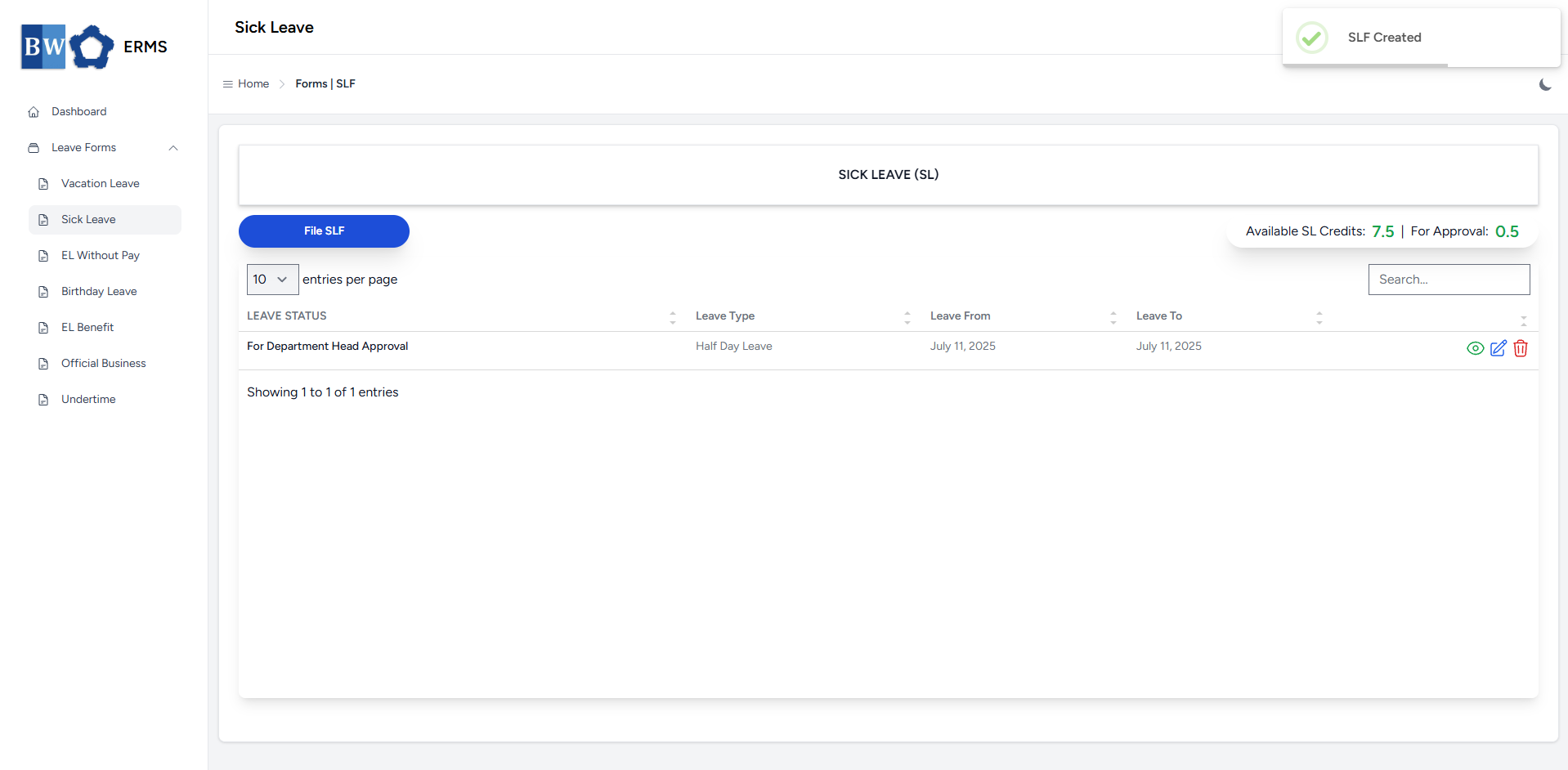
- After submitting, a notification will appear saying that the SLF has been created. The filed leave will be added to the list, and your **SL Credits** will be reduced based on the number of leave days you filed.
[](https://kb.mgmfoods.com.ph/uploads/images/gallery/2025-07/NwNimage.png)
- You can also use this page to check the status of your leave.
# Approver Managers/Supervisors Application
To access the Sick Leave page:
- In the **Sidebar**, click the **Leave Forms** dropdown.
- From the list that appears, select **Sick Leave**.
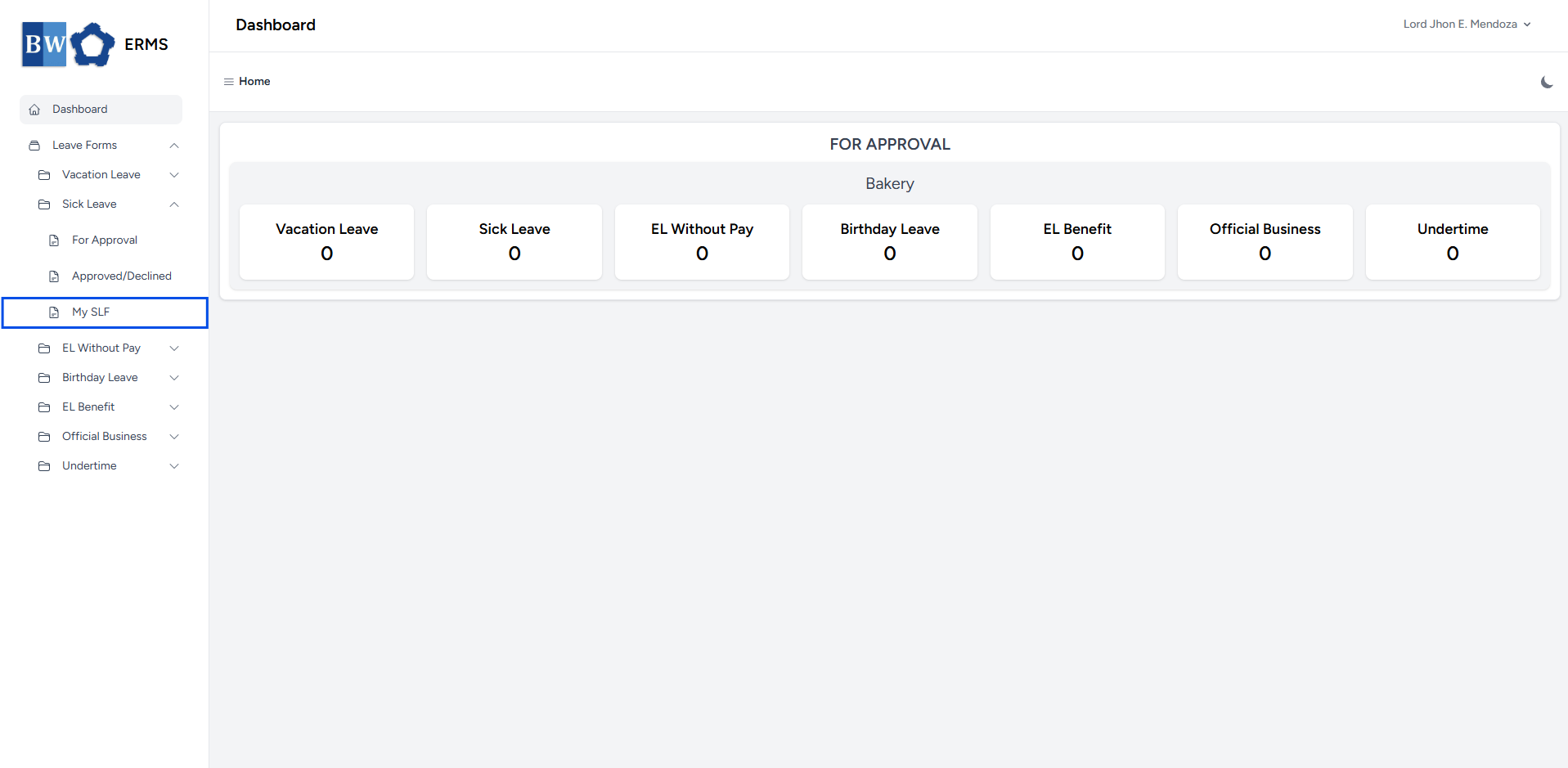
- Then, click **My SLF** to view your filed sick leaves.
[](https://kb.mgmfoods.com.ph/uploads/images/gallery/2025-07/qk3image.png)
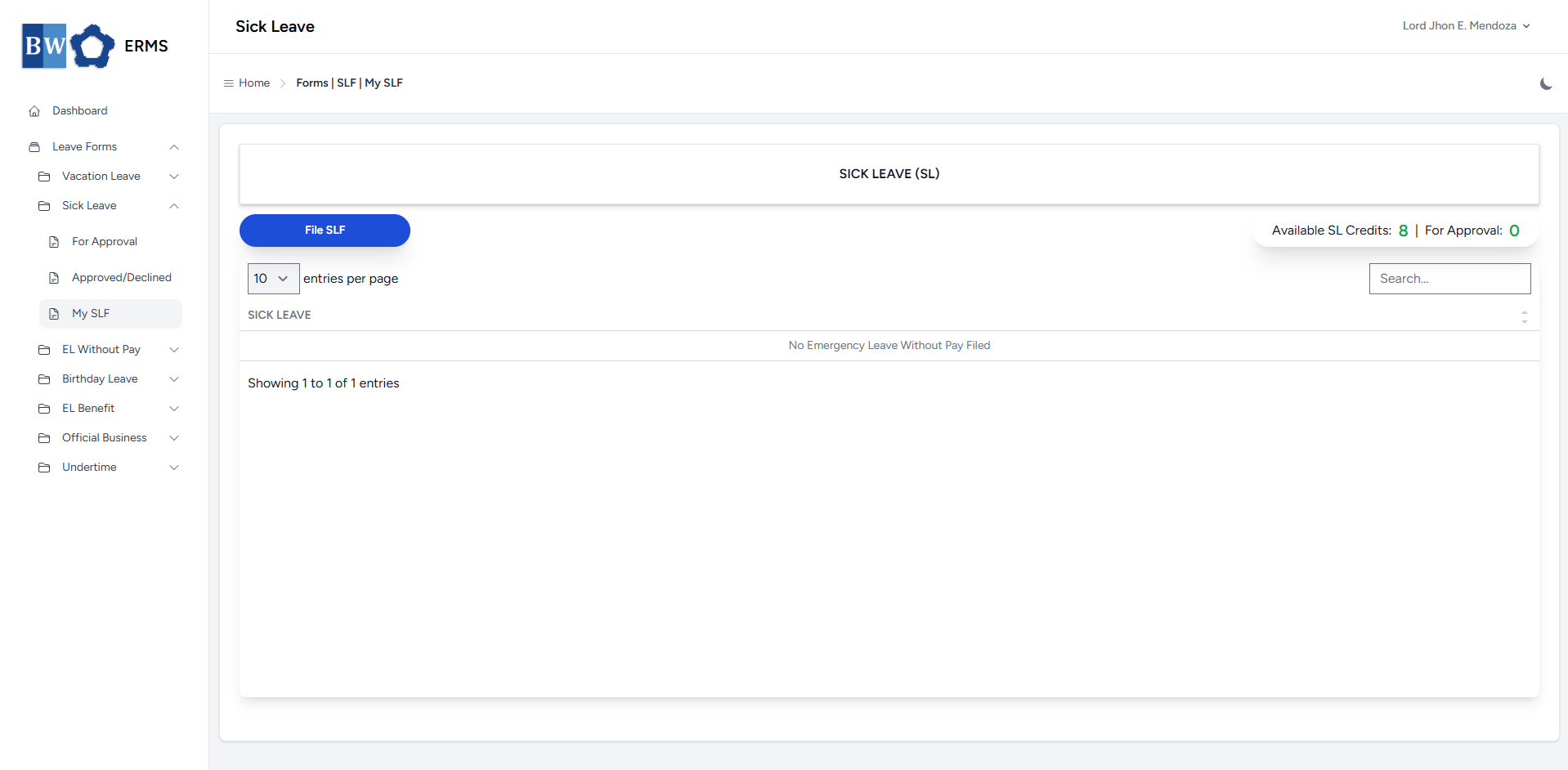
- It will open the **Sick Leave** **(My SLF)** page.
[](https://kb.mgmfoods.com.ph/uploads/images/gallery/2025-07/7R9image.png)
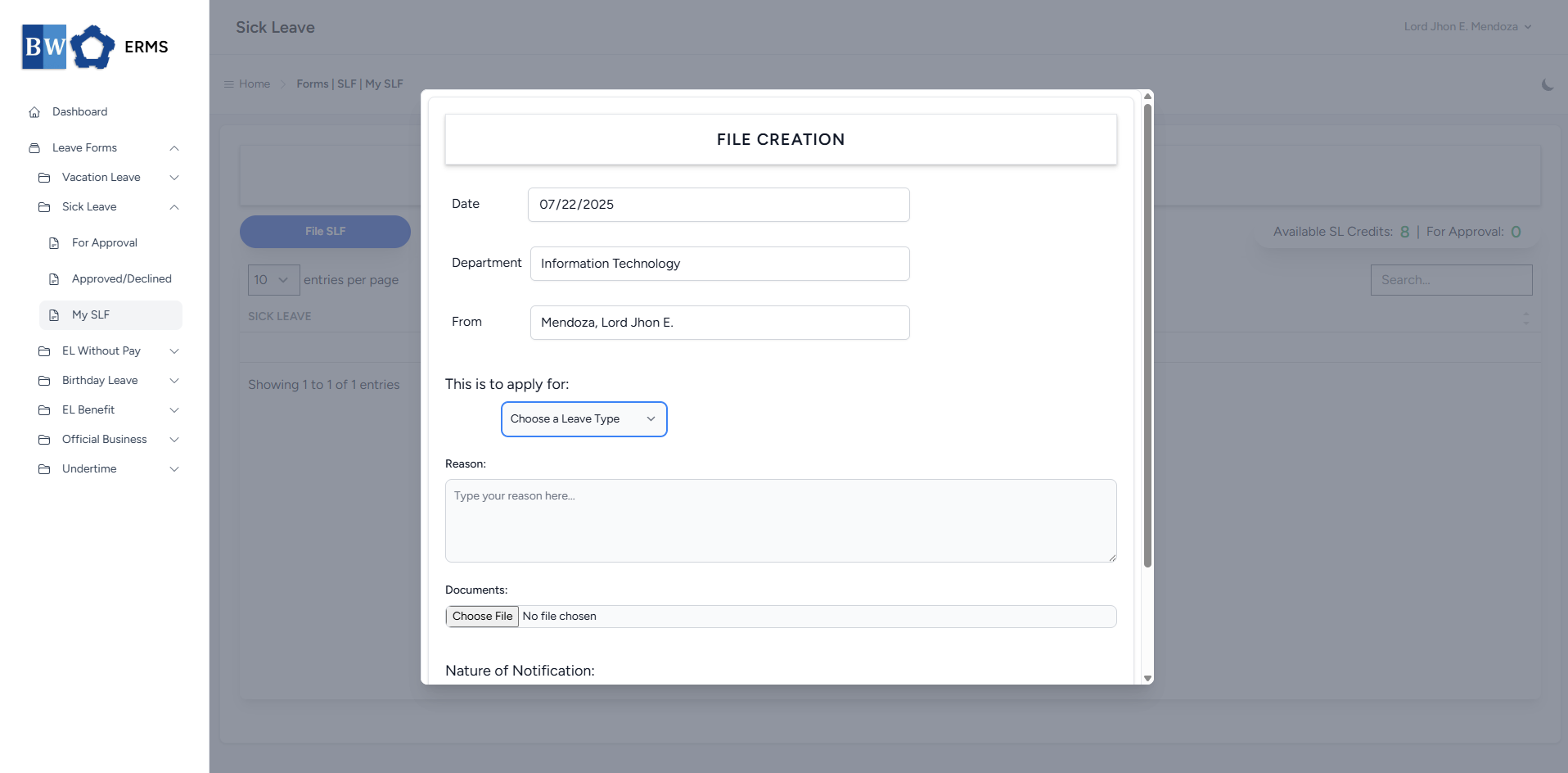
- On the **Sick Leave** **(My SLF)** page, click the **File SLF** button to open the form.
[](https://kb.mgmfoods.com.ph/uploads/images/gallery/2025-07/6yPimage.png)
- Fill out the required fields, then click **Submit**.
- **Note:** You may leave the document blank.
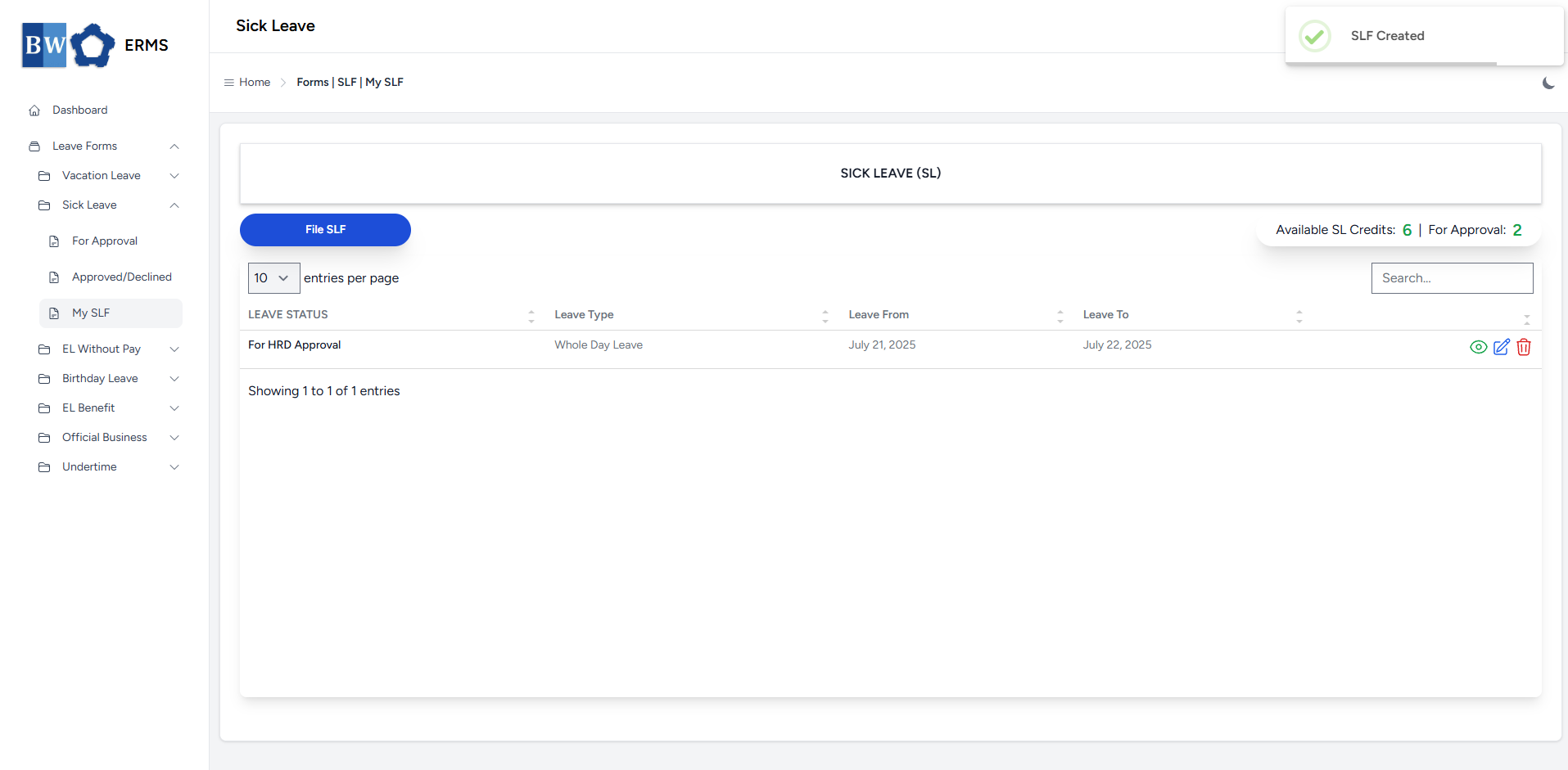
- After submitting, a notification will appear saying that the SLF has been created. The filed leave will be added to the list, and your **SL Credits** will be reduced based on the number of leave days you filed.
[](https://kb.mgmfoods.com.ph/uploads/images/gallery/2025-07/E4vimage.png)
- You can also use this page to check the status of your leave.
# Emergency Leave Without Pay
This section provides a clear and complete guide on how to file for Emergency Leave Without Pay, outlining the required steps and procedures.
# Employees & Non-Approver Managers/Supervisors Application
To access the Emergency Leave Without Pay page, you can do either of the following:
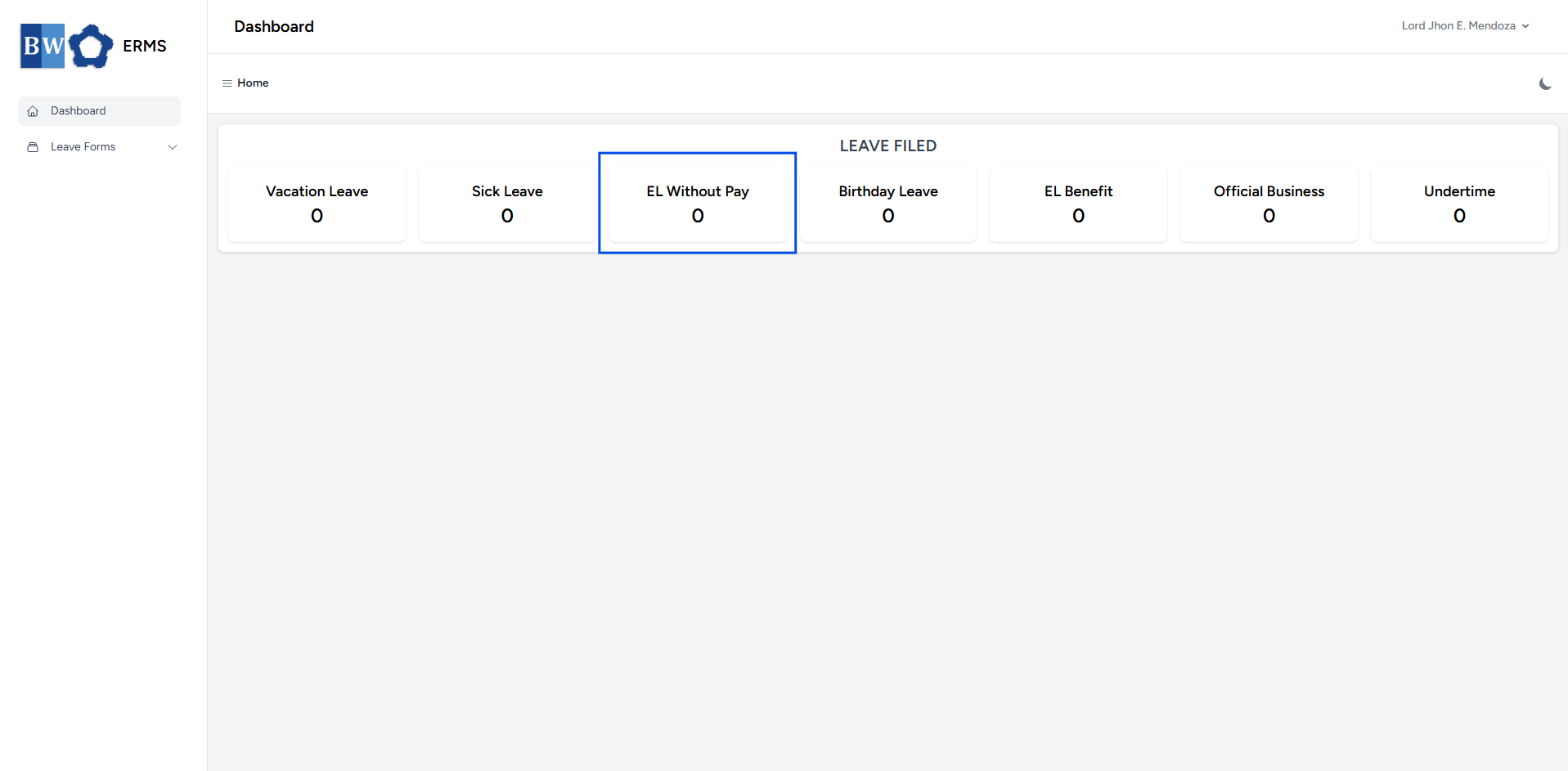
- On your Dashboard, click **EL Without Pay** under the **Leave Filed** section.
[](https://kb.mgmfoods.com.ph/uploads/images/gallery/2025-07/VCTimage.png)
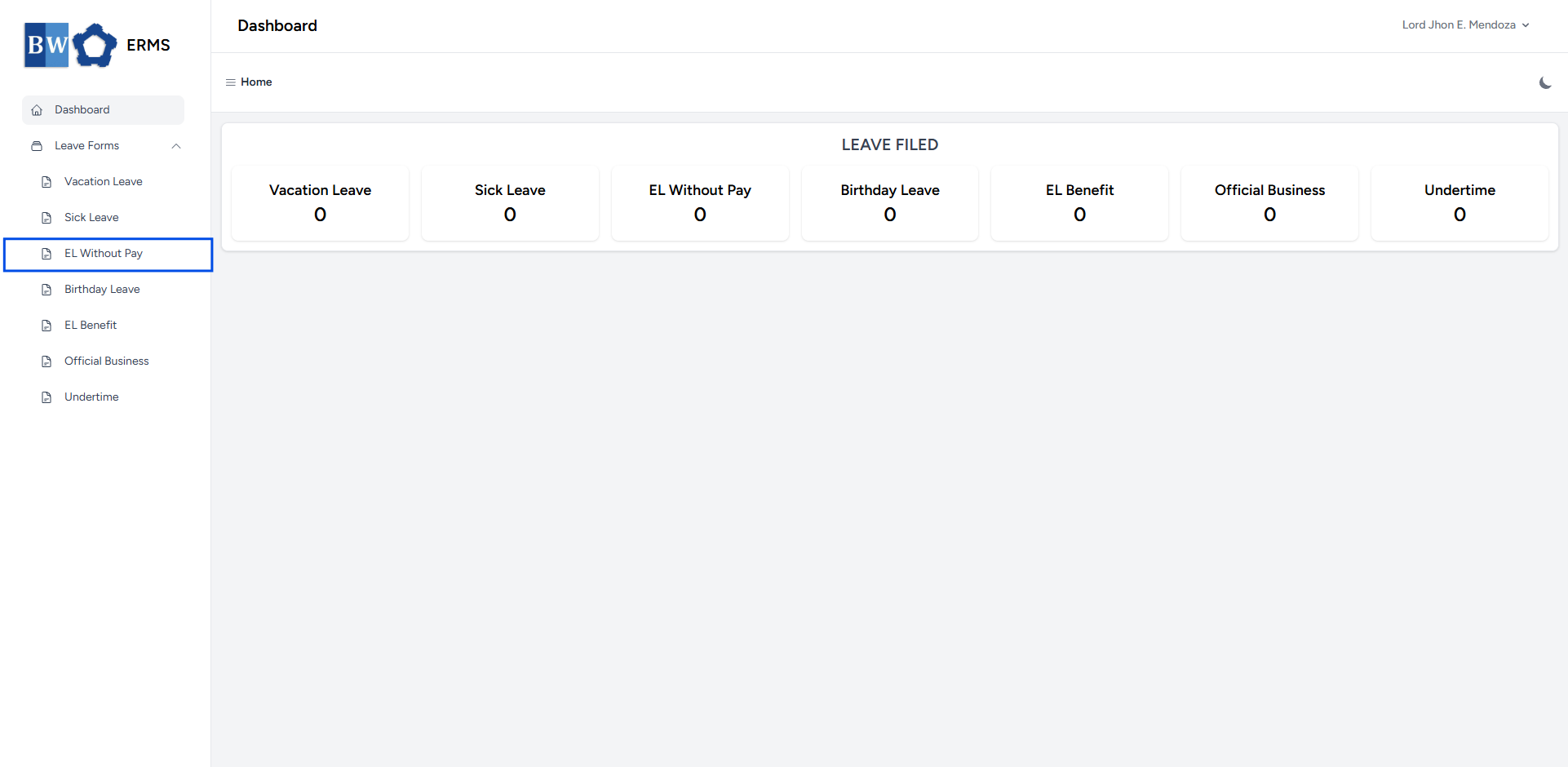
- Or, click the **Leave Forms** dropdown in the sidebar, then select **EL Without Pay**.
[](https://kb.mgmfoods.com.ph/uploads/images/gallery/2025-07/atgimage.png)
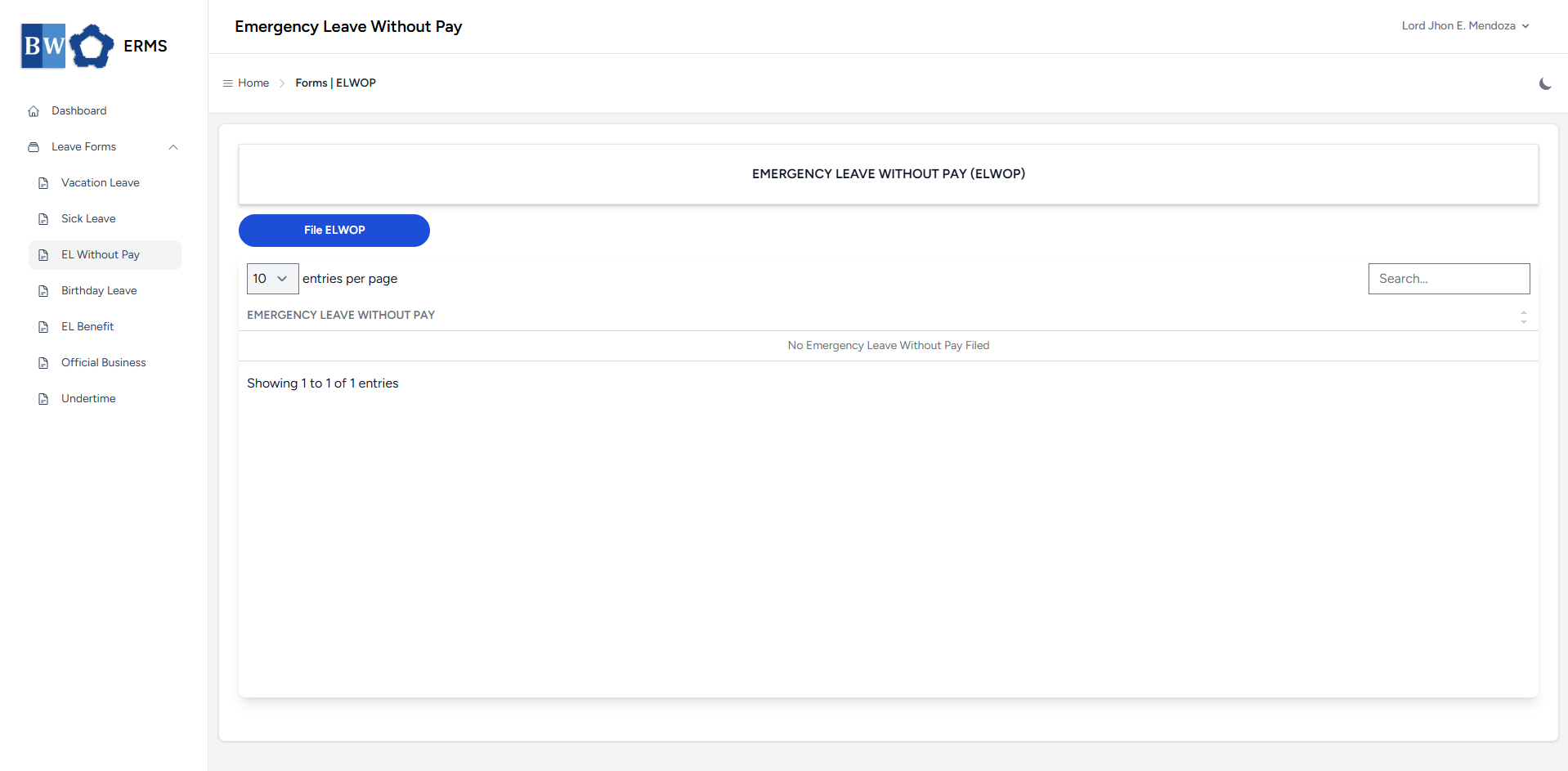
- It will open the **Emergency Leave Without Pay** page.
[](https://kb.mgmfoods.com.ph/uploads/images/gallery/2025-07/cDcimage.png)
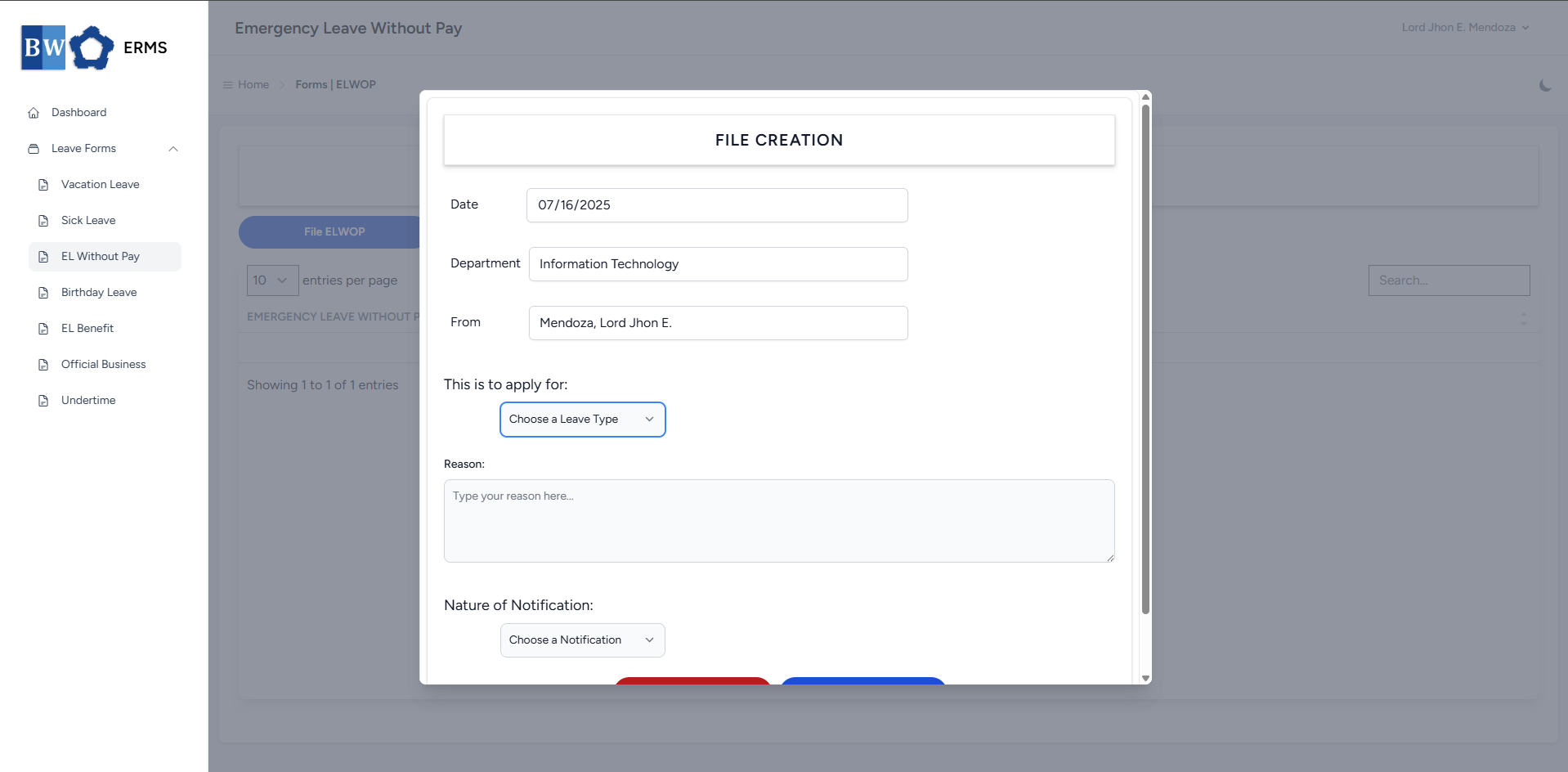
- On the **Emergency Leave Without Pay** page, click the **File ELWOP** button to open the form.
[](https://kb.mgmfoods.com.ph/uploads/images/gallery/2025-07/m1iimage.png)
- Fill out the required fields, then click **Submit**.
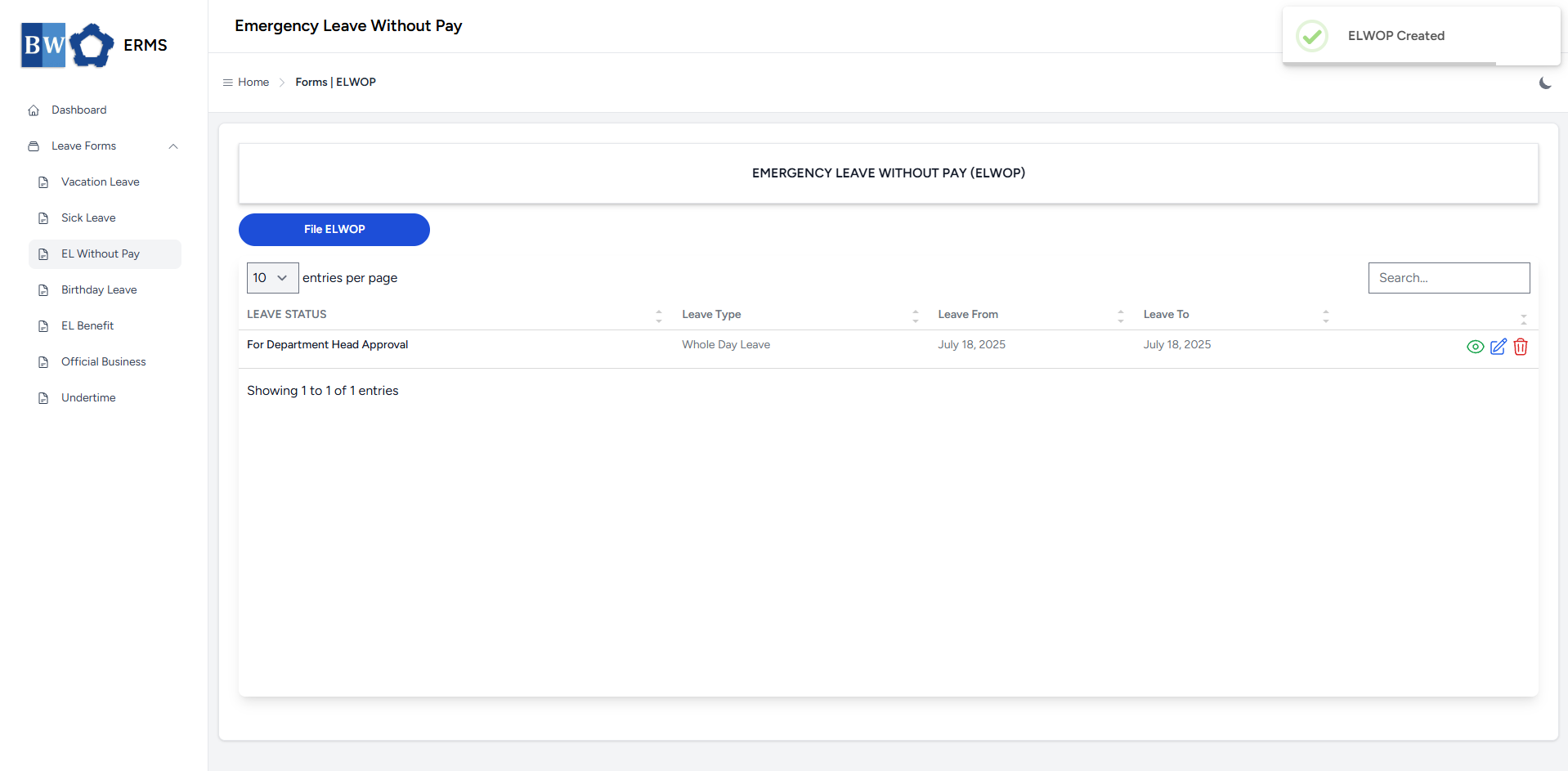
- After submitting, a notification will appear saying that the ELWOP has been created. The filed leave will be added to the list.
[](https://kb.mgmfoods.com.ph/uploads/images/gallery/2025-07/IErimage.png)
- You can also use this page to check the status of your leave.
# Approver Managers/Supervisors Application
To access the Emergency Leave Without Pay page:
- In the **Sidebar**, click the **Leave Forms** dropdown.
- From the list that appears, select **EL Without Pay**.
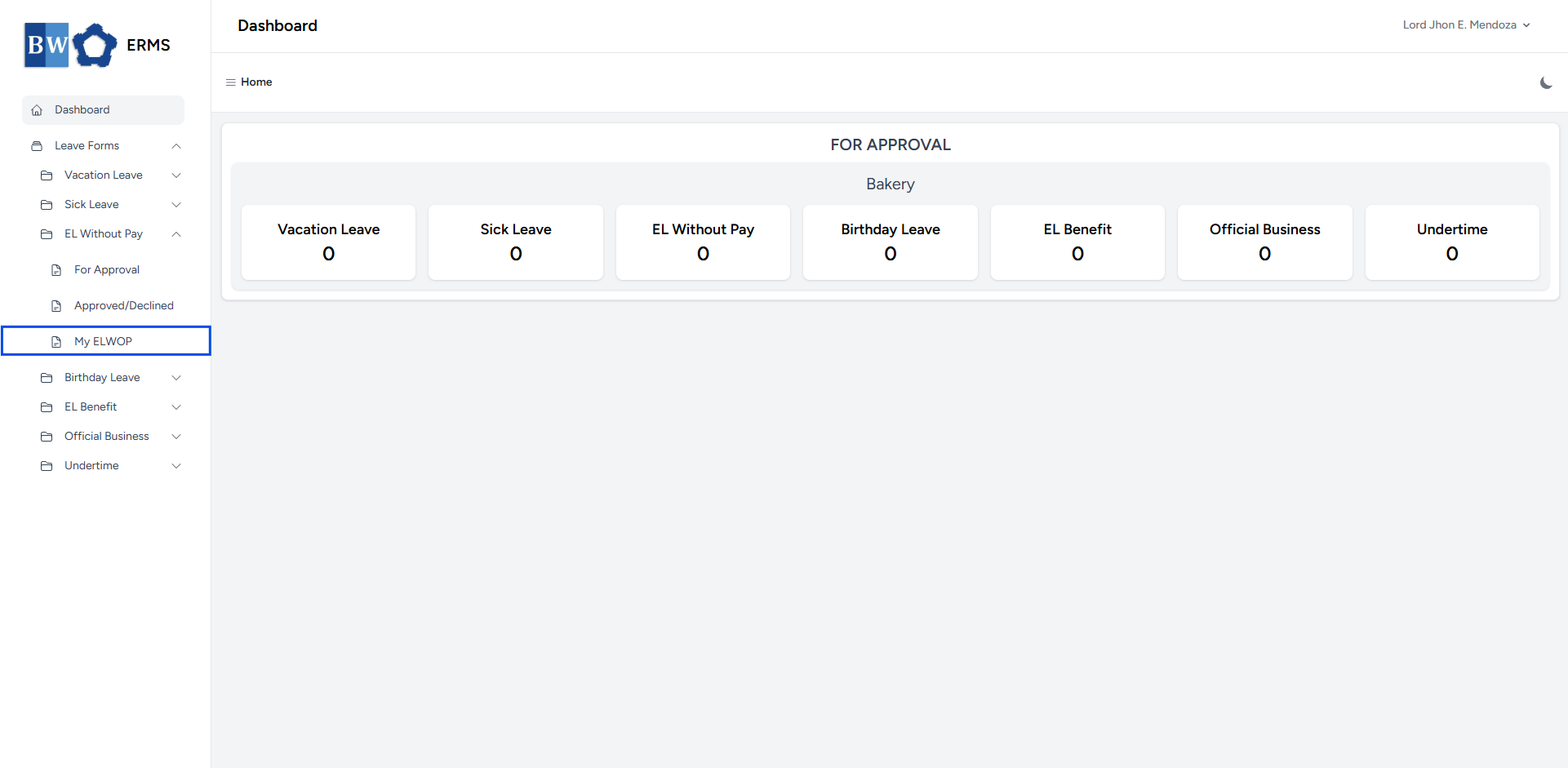
- Then, click **My ELWOP** to view your filed emergency leave without pay.
[](https://kb.mgmfoods.com.ph/uploads/images/gallery/2025-07/INfimage.png)
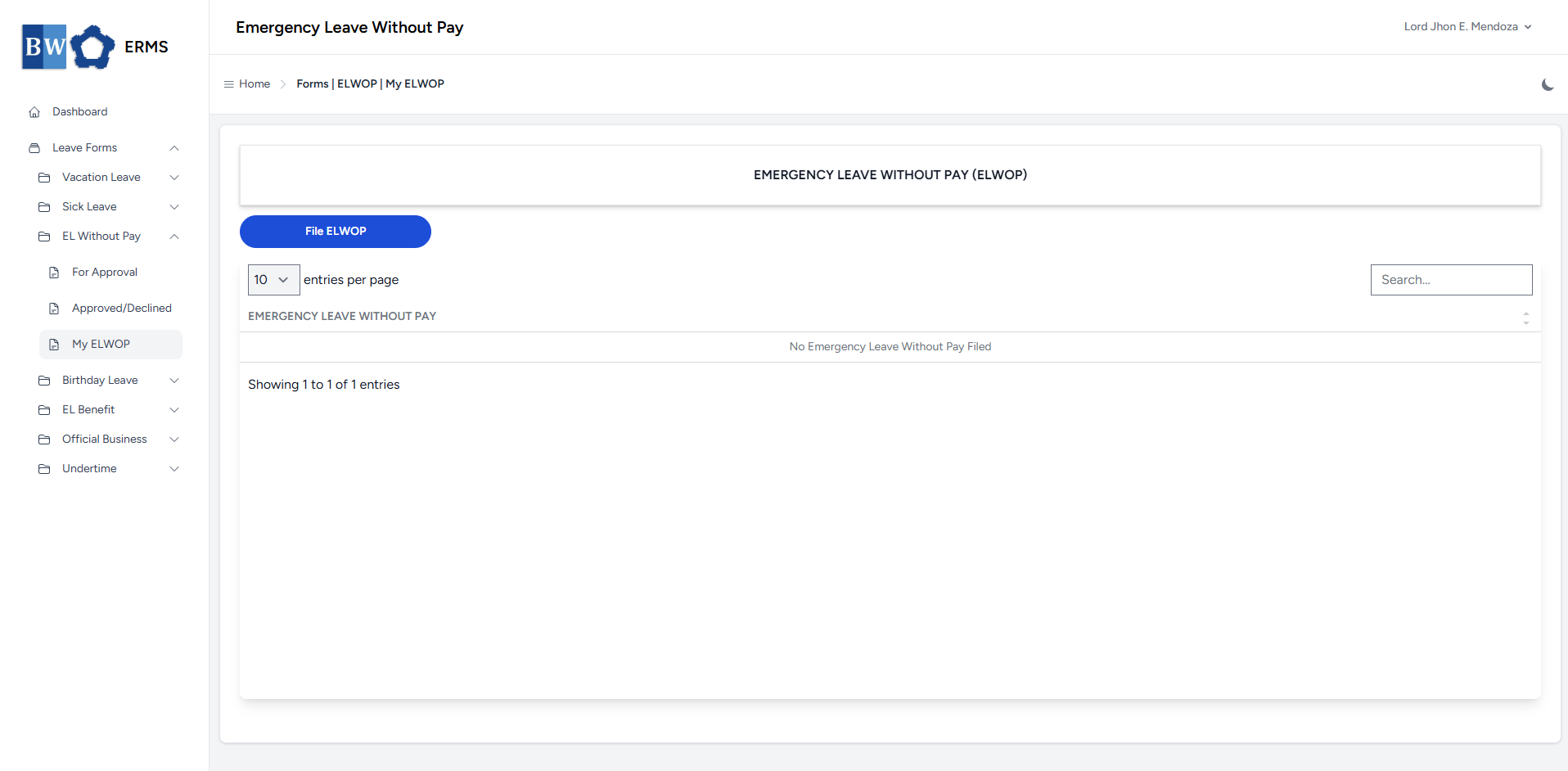
- It will open the **EL Without Pay (My ELWOP)** page.
[](https://kb.mgmfoods.com.ph/uploads/images/gallery/2025-07/ml4image.png)
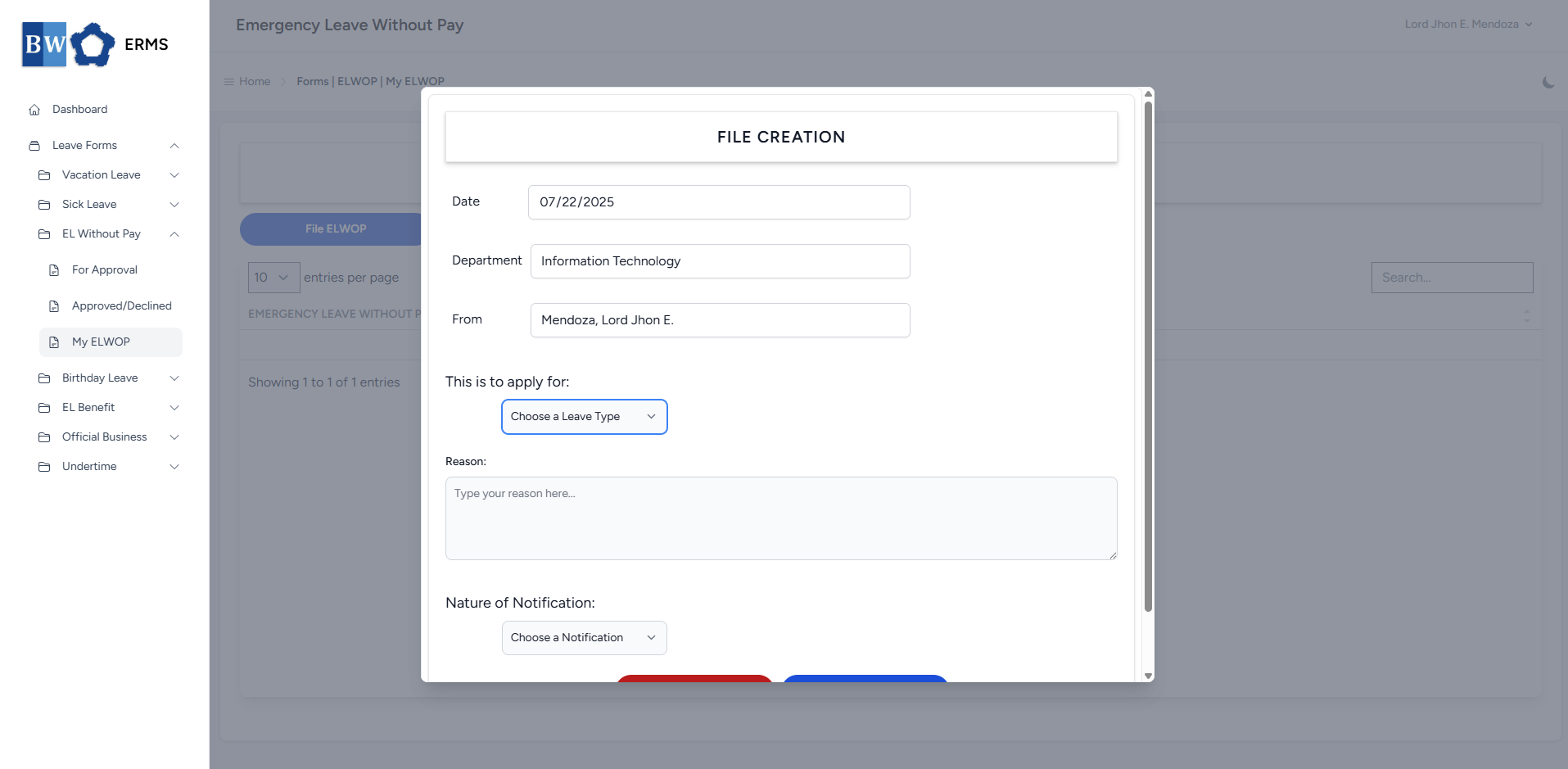
- On the **EL Without Pay** **(My ELWOP)** page, click the **File ELWOP** button to open the form.
[](https://kb.mgmfoods.com.ph/uploads/images/gallery/2025-07/hDNimage.png)
- Fill out the required fields, then click **Submit**.
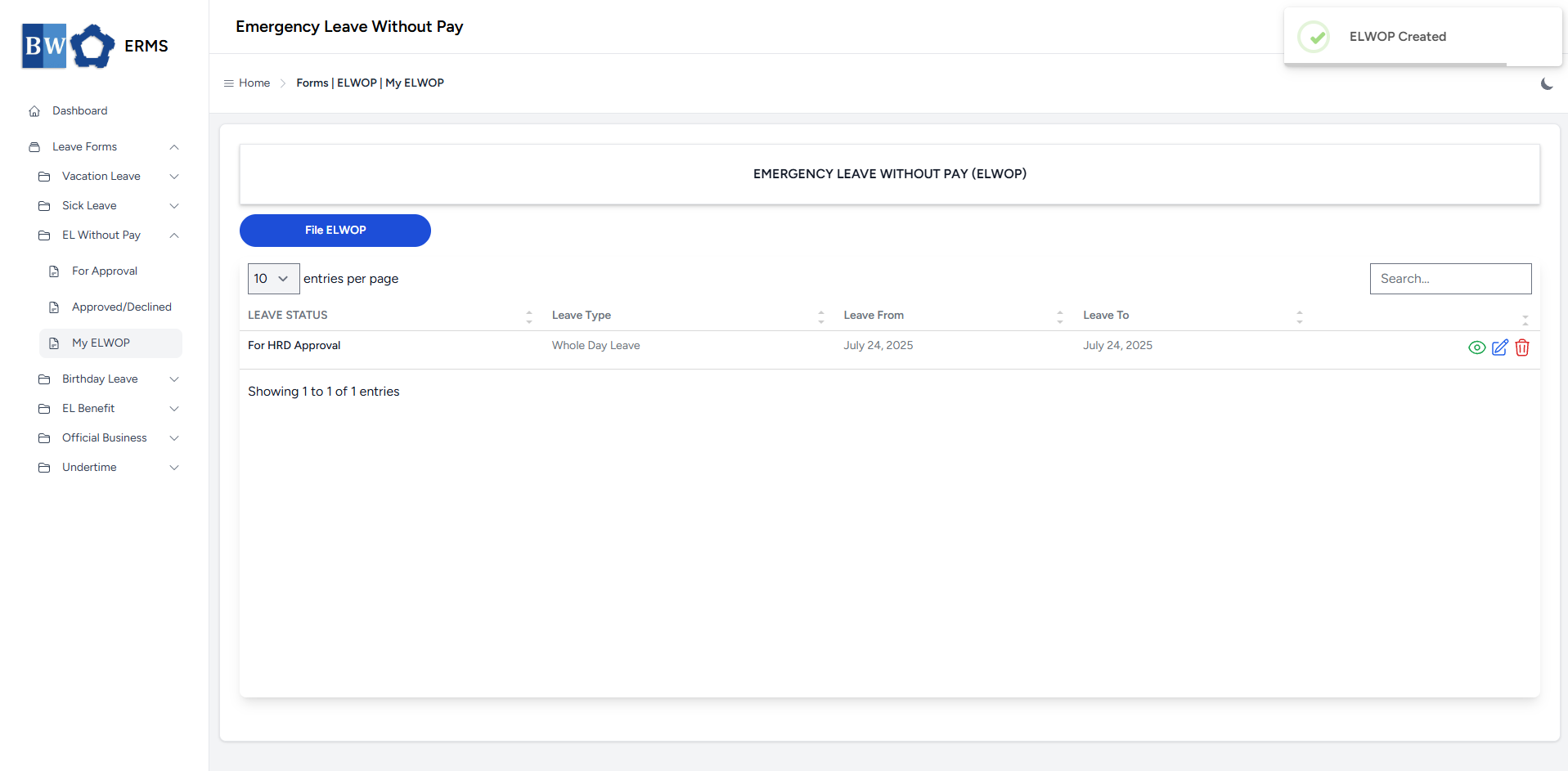
- After submitting, a notification will appear saying that the ELWOP has been created. The filed leave will be added to the list
[](https://kb.mgmfoods.com.ph/uploads/images/gallery/2025-07/oJqimage.png)
- You can also use this page to check the status of your leave.
# Birthday Leave
This section offers a clear and complete guide on how to file for Birthday Leave, detailing the steps to follow for a smooth application process.
# Employees & Non-Approver Managers/Supervisors Application
To access the Birthday Leave page, you can do either of the following:
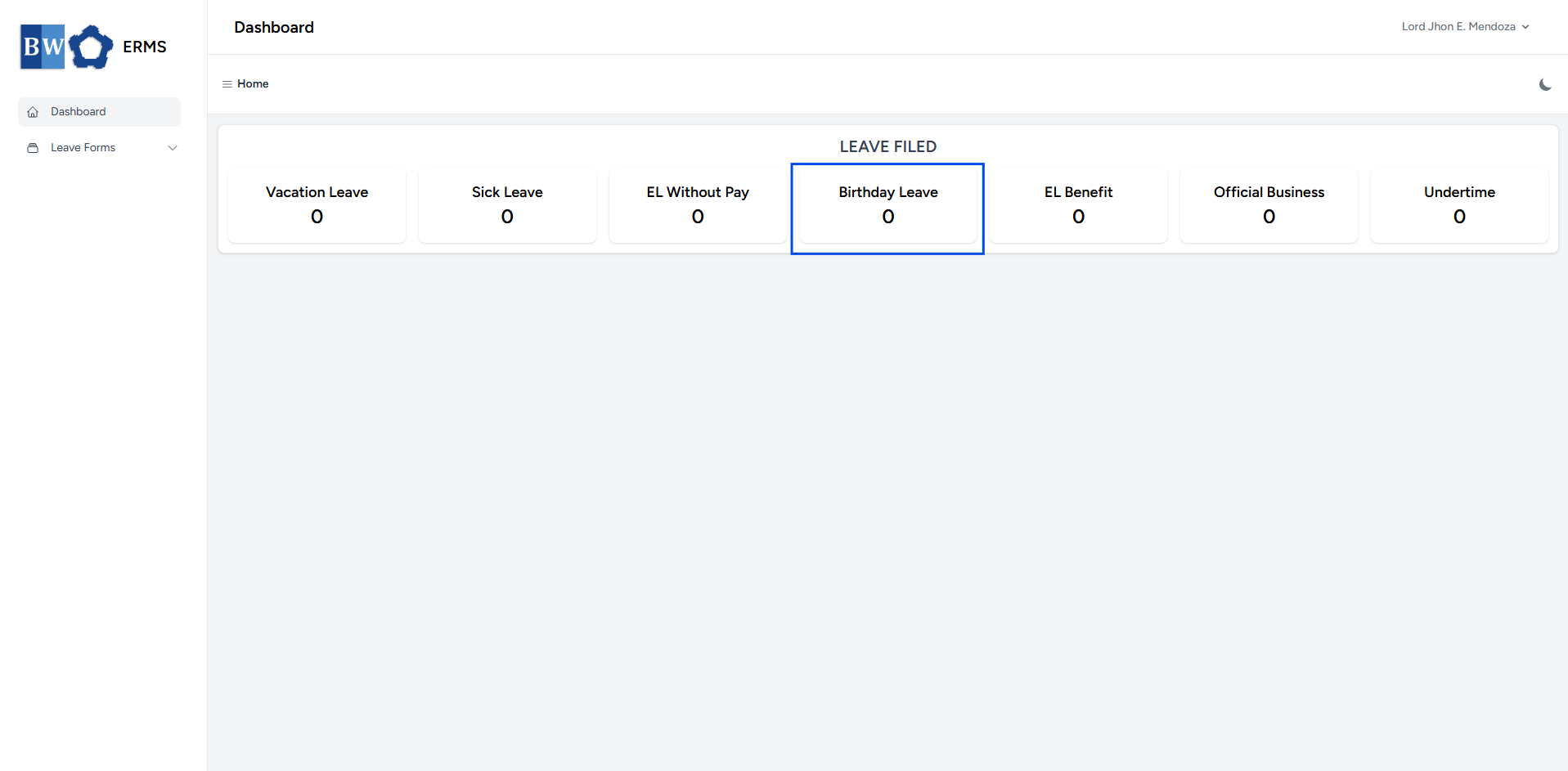
- On your Dashboard, click **Birthday Leave** under the **Leave Filed** section.
[](https://kb.mgmfoods.com.ph/uploads/images/gallery/2025-07/TRtimage.png)
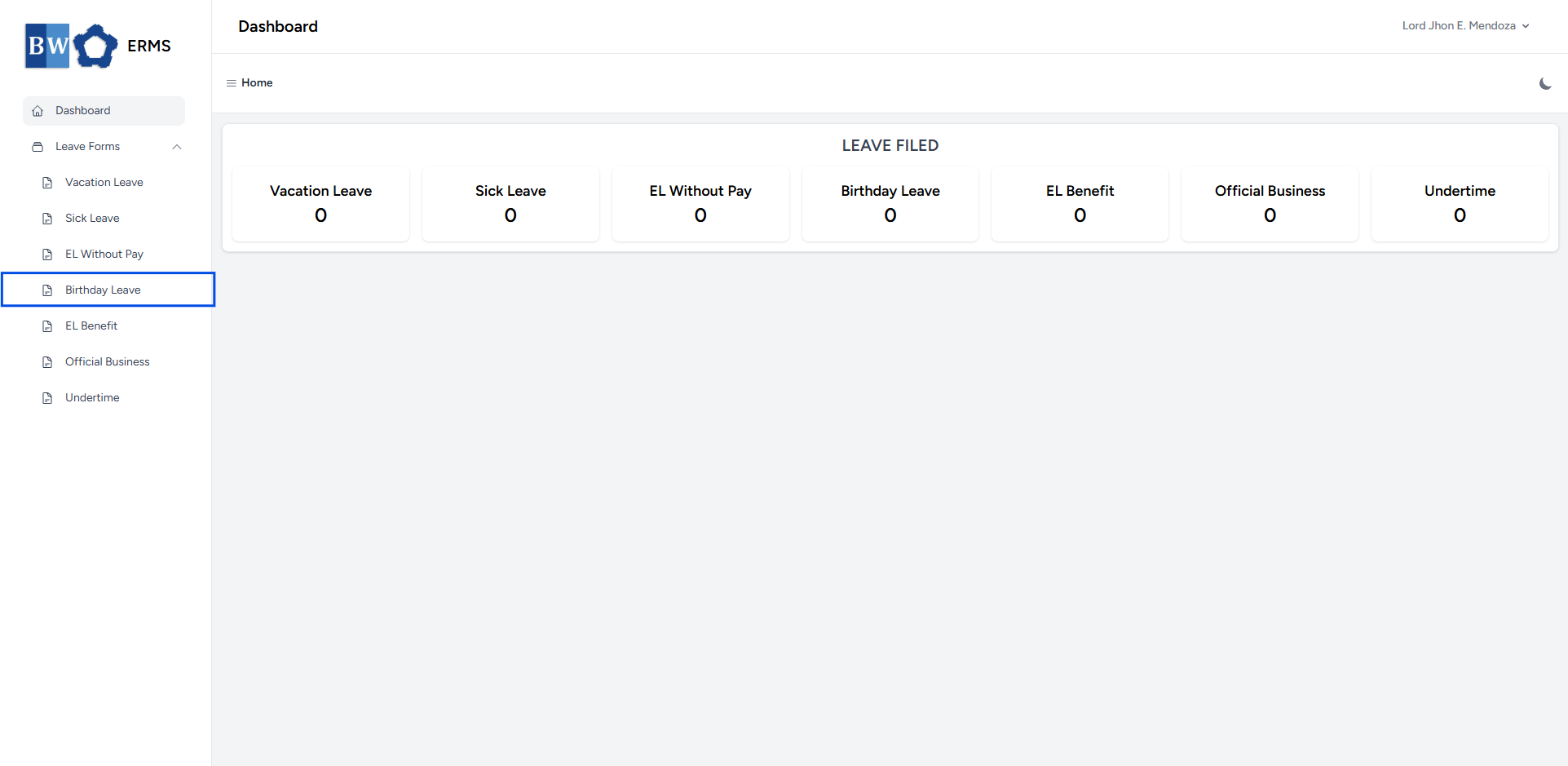
- Or, click the **Leave Forms** dropdown in the sidebar, then select **Birthday Leave**.
[](https://kb.mgmfoods.com.ph/uploads/images/gallery/2025-07/ZBdimage.png)
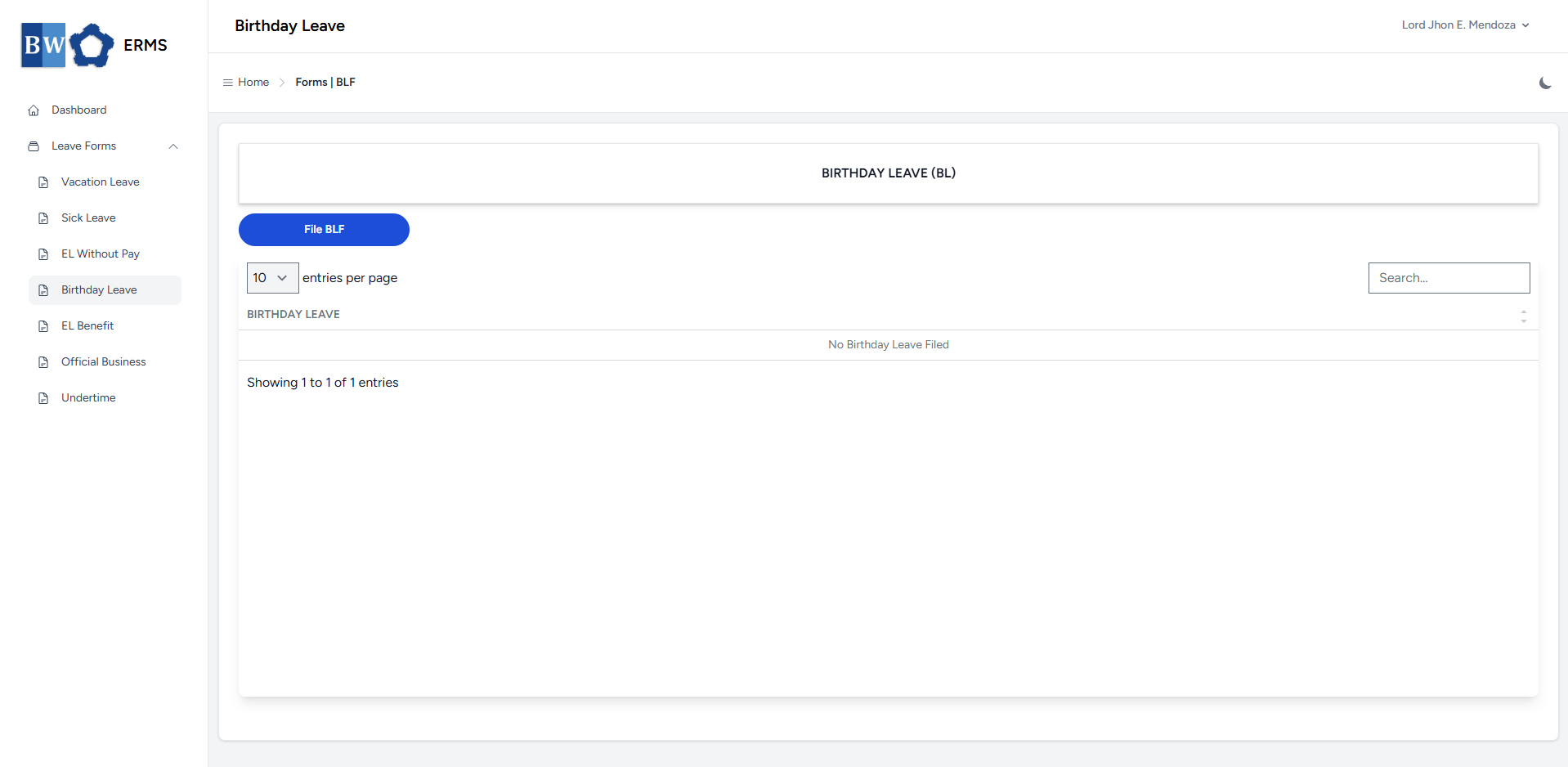
- It will open the **Birthday Leave** page.
[](https://kb.mgmfoods.com.ph/uploads/images/gallery/2025-07/uCZimage.png)
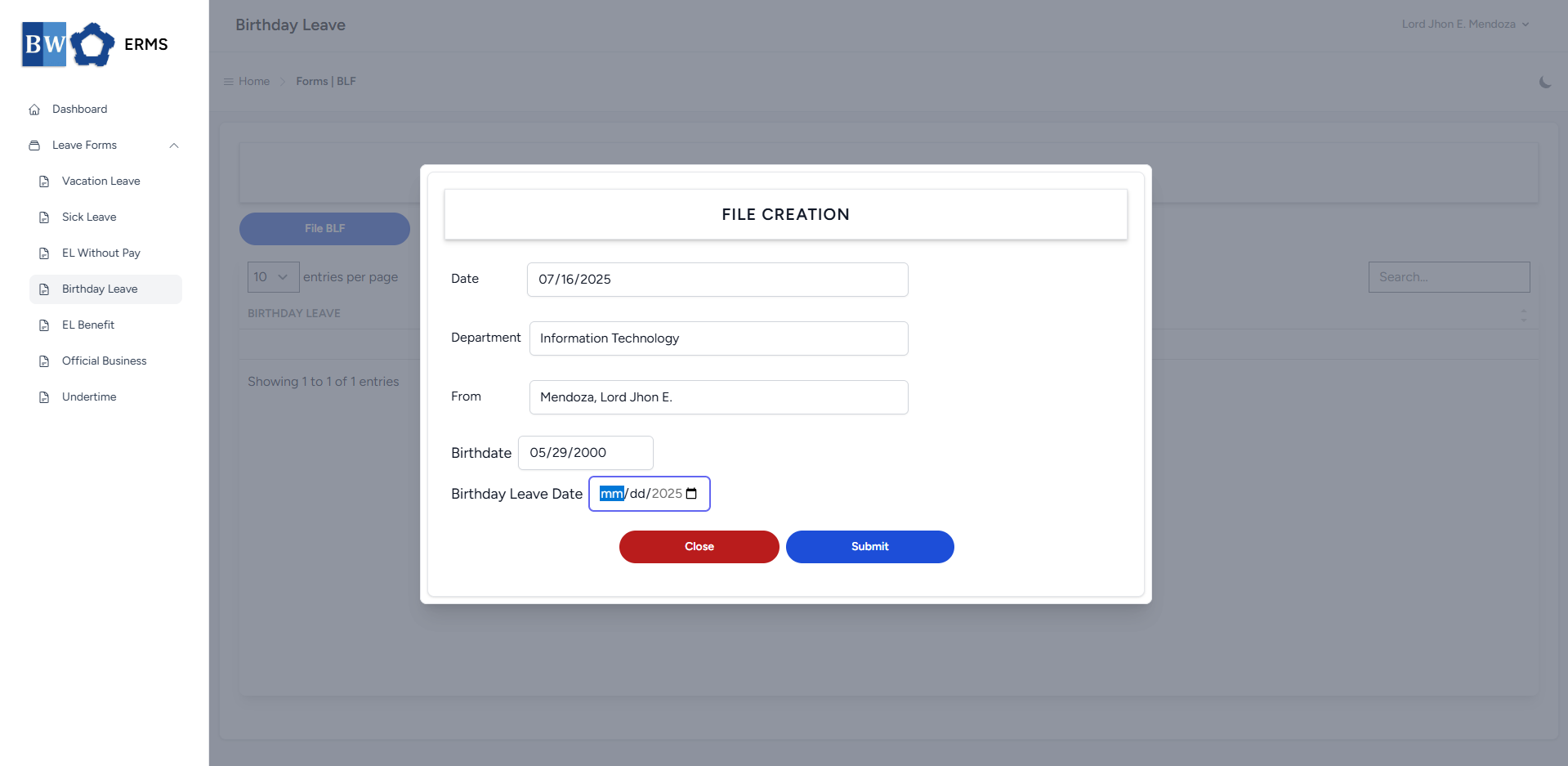
- On the **Birthday Leave** page, click the **File BLF** button to open the form.
[](https://kb.mgmfoods.com.ph/uploads/images/gallery/2025-07/WC4image.png)
- Fill out the required fields, then click **Submit**.
- **Note:** You can only file single **BLF** per year.
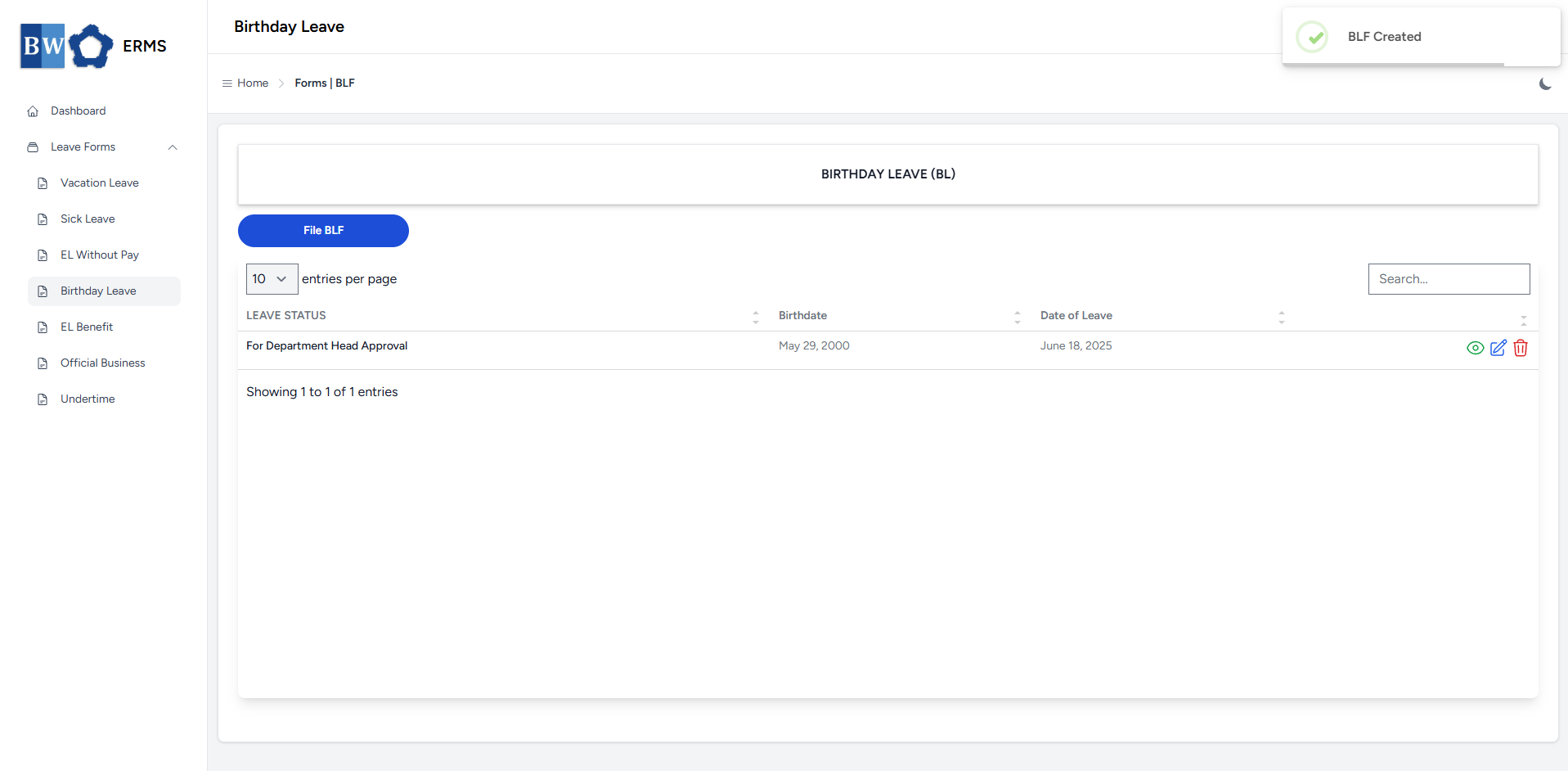
- After submitting, a notification will appear saying that the BLF has been created. The filed leave will be added to the list.
[](https://kb.mgmfoods.com.ph/uploads/images/gallery/2025-07/H5rimage.png)
- You can also use this page to check the status of your leave.
# Approver Managers/Supervisors Application
To access the Birthday Leave page:
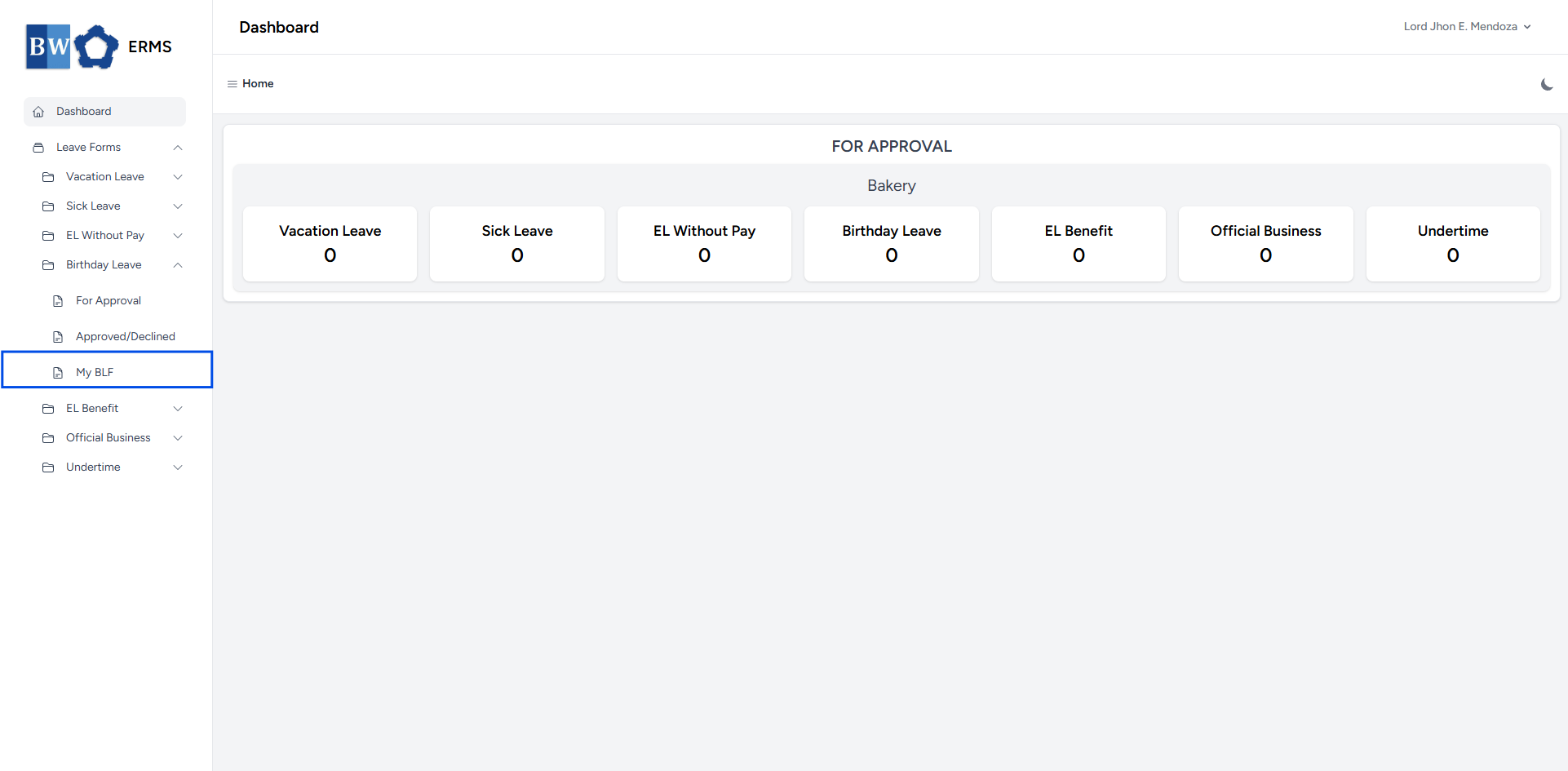
- In the **Sidebar**, click the **Leave Forms** dropdown.
- From the list that appears, select **Birthday Leave**.
- Then, click **My BLF** to view your filed birthday leave.
[](https://kb.mgmfoods.com.ph/uploads/images/gallery/2025-07/G4jimage.png)
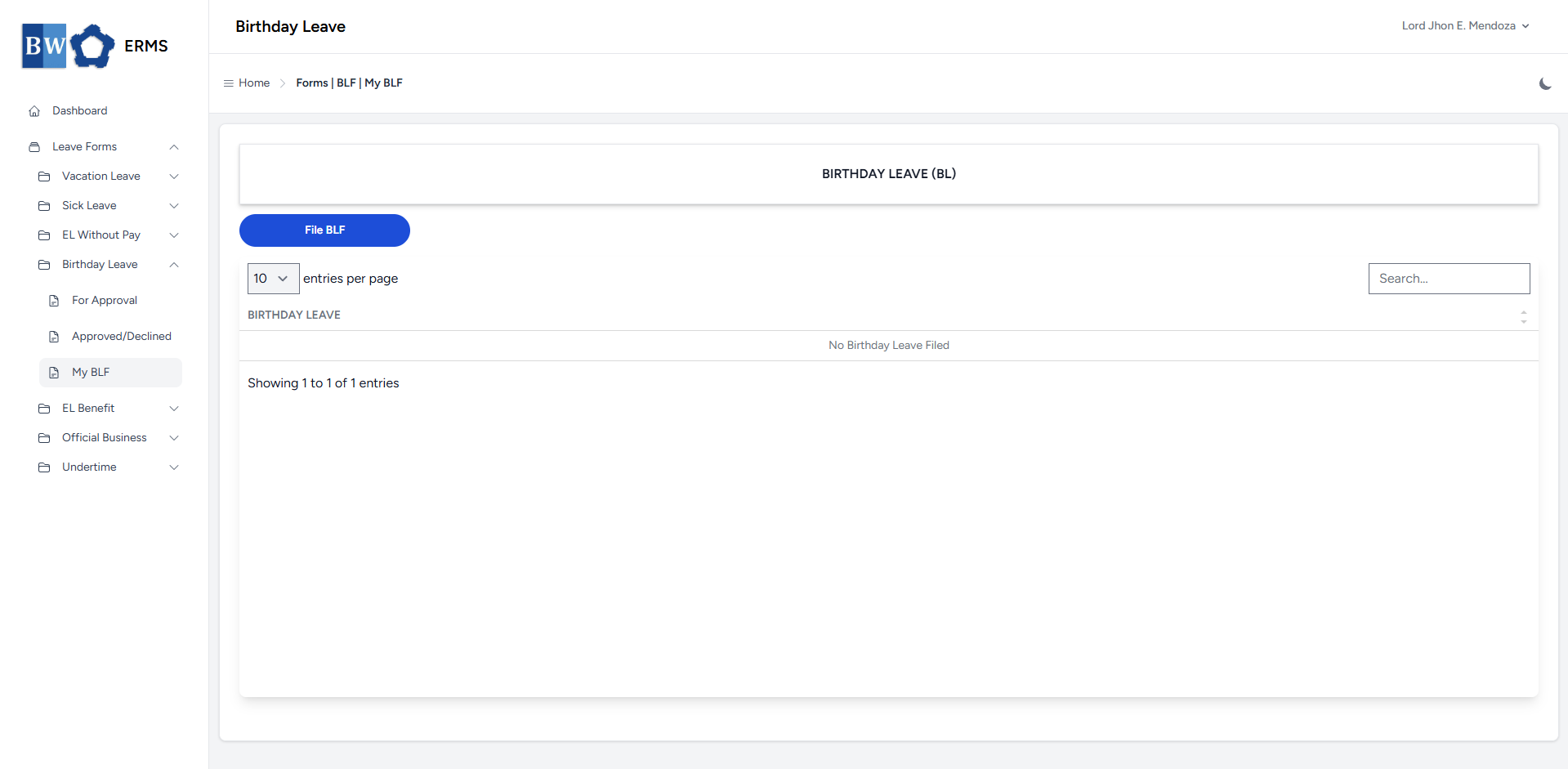
- It will open the **Birthday Leave (My BLF)** page.
[](https://kb.mgmfoods.com.ph/uploads/images/gallery/2025-07/SwVimage.png)
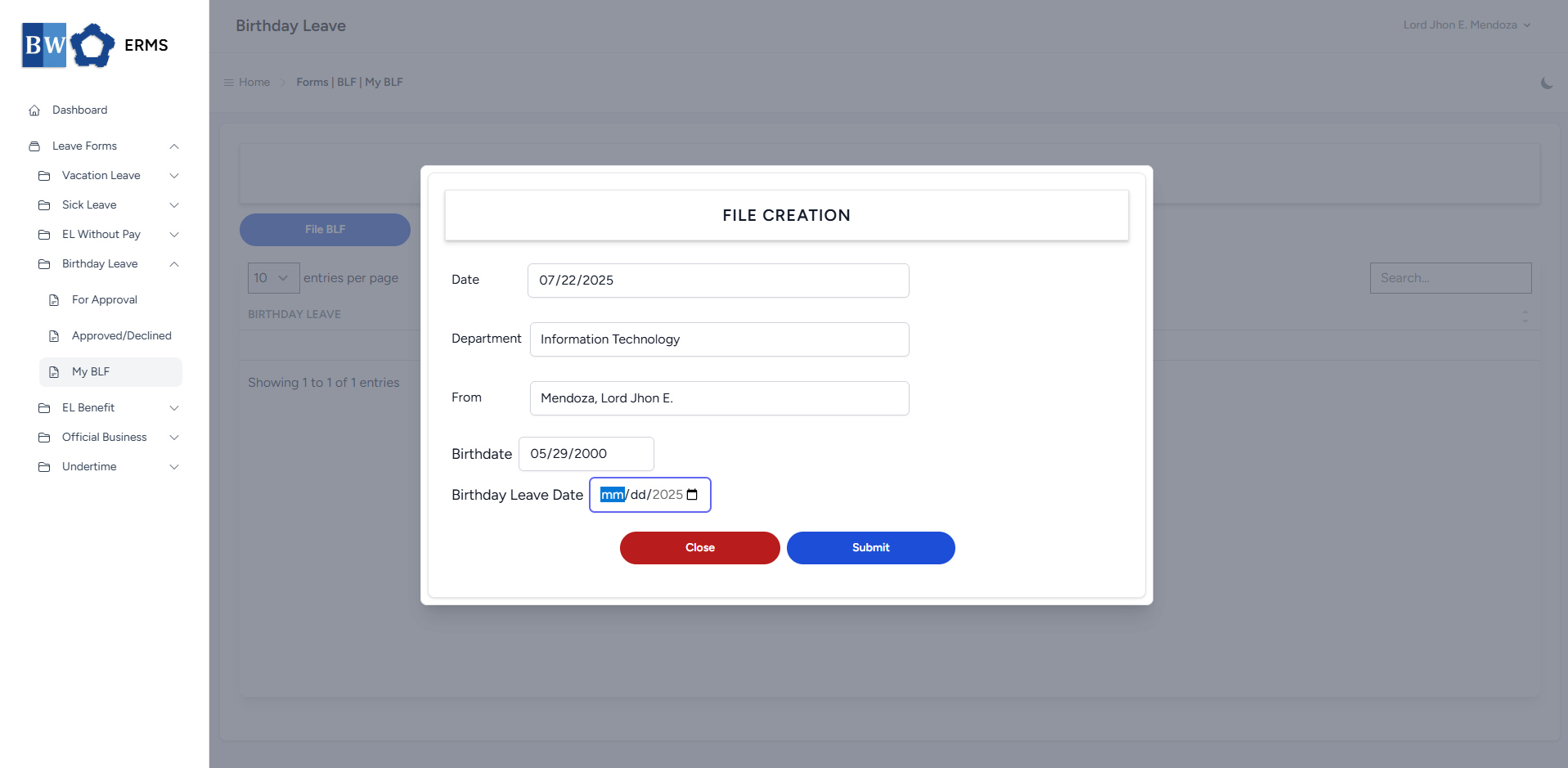
- On the **Birthday Leave** **(My BLF)** page, click the **File BLF** button to open the form.
[](https://kb.mgmfoods.com.ph/uploads/images/gallery/2025-07/Ffvimage.png)
- Fill out the required fields, then click **Submit**.
- **Note:** You can only file single **BLF** per year.
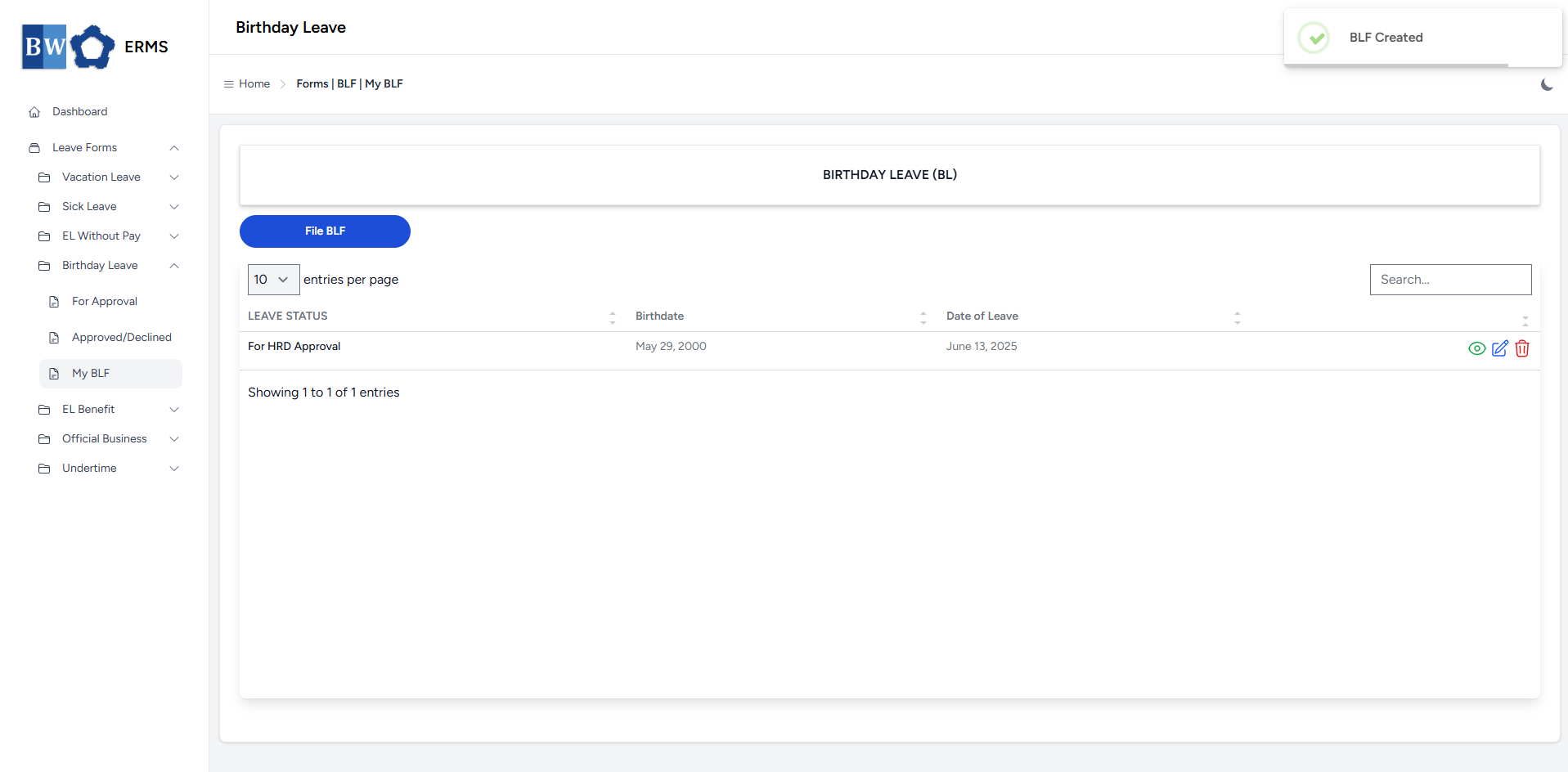
- After submitting, a notification will appear saying that the BLF has been created. The filed leave will be added to the list.
[](https://kb.mgmfoods.com.ph/uploads/images/gallery/2025-07/do0image.png)
- You can also use this page to check the status of your leave.
# Emergency Leave Benefit
This section provides a clear and complete guide on how to file for Emergency Leave Benefit, outlining the proper steps and requirements.
# Employees & Non-Approver Managers/Supervisors Application
To access the Emergency Leave Benefit page, you can do either of the following:
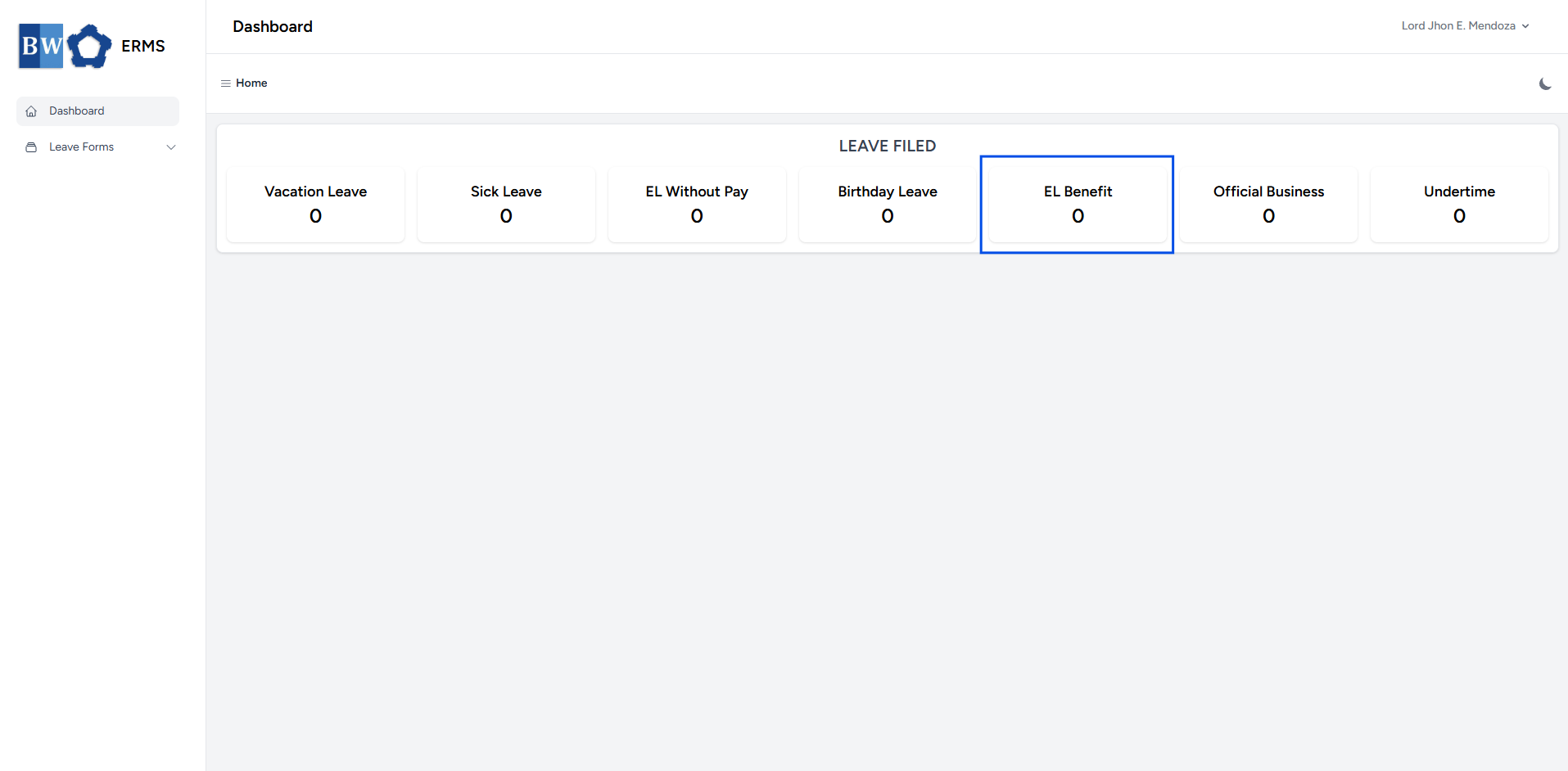
- On your Dashboard, click **EL Benefit** under the **Leave Filed** section.
[](https://kb.mgmfoods.com.ph/uploads/images/gallery/2025-07/aVNimage.png)
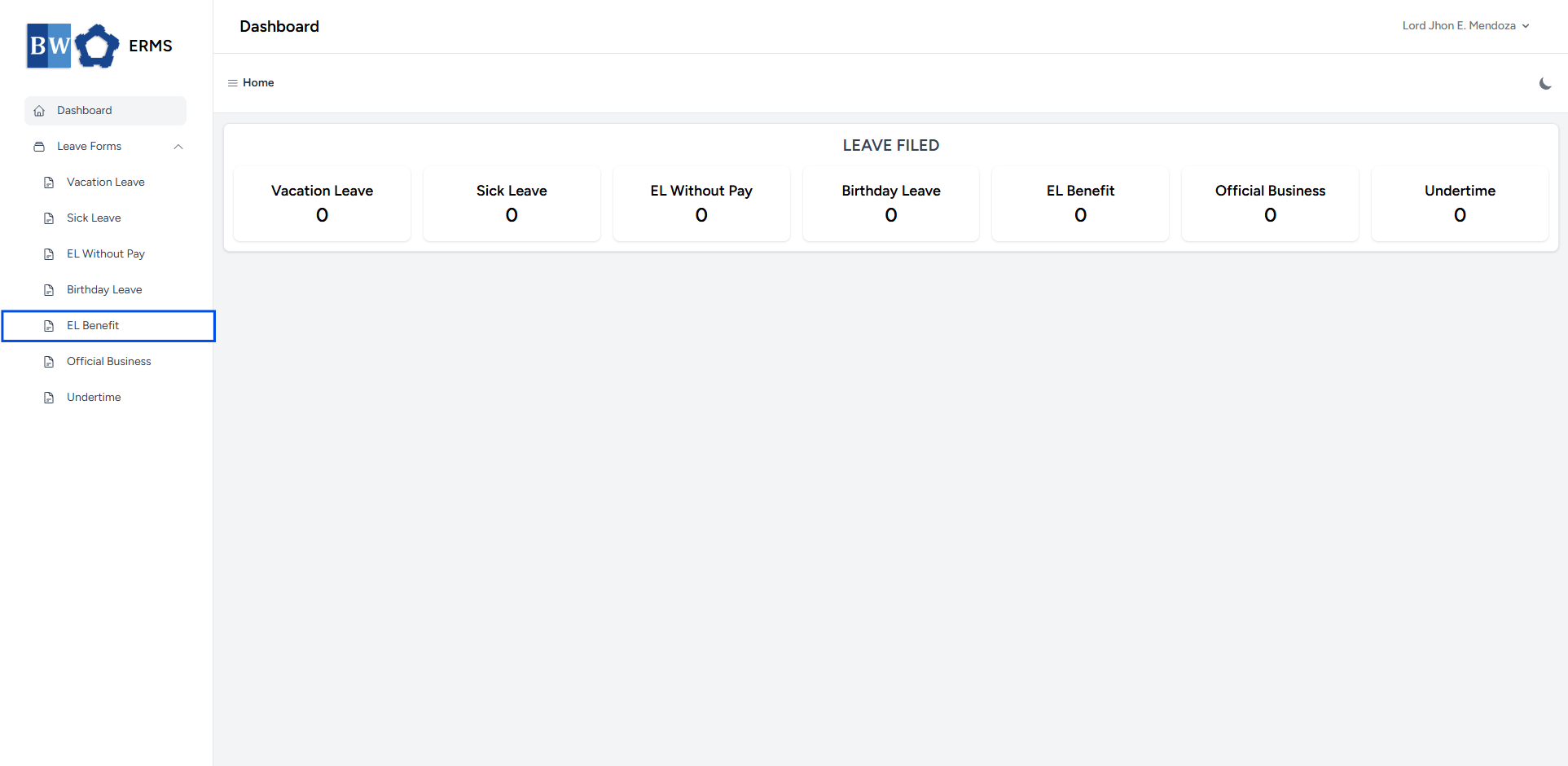
- Or, click the **Leave Forms** dropdown in the sidebar, then select **EL Benefit**.
[](https://kb.mgmfoods.com.ph/uploads/images/gallery/2025-07/W0Mimage.png)
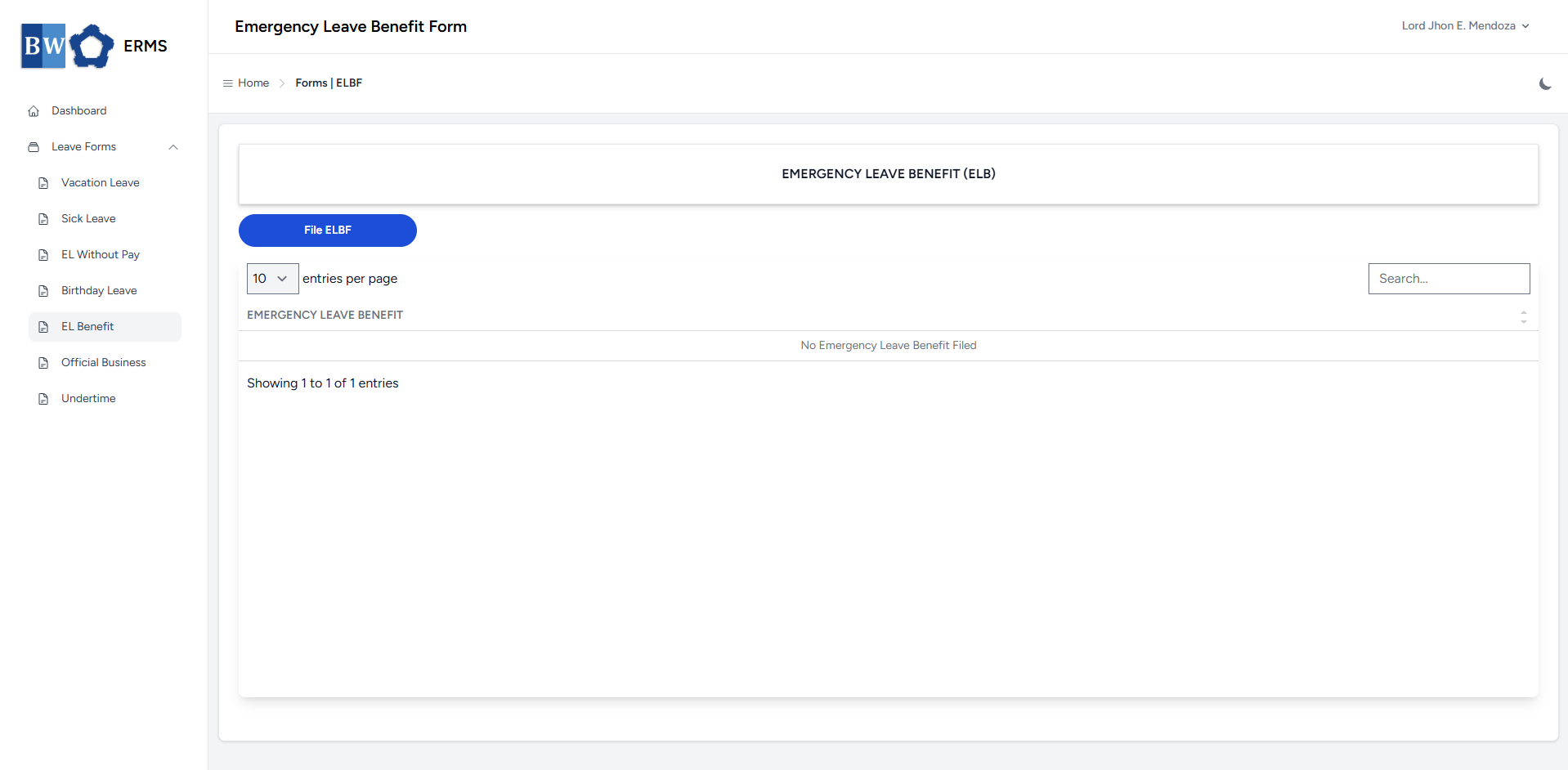
- It will open the **Emergency Leave Benefit** page.
[](https://kb.mgmfoods.com.ph/uploads/images/gallery/2025-07/kCIimage.png)
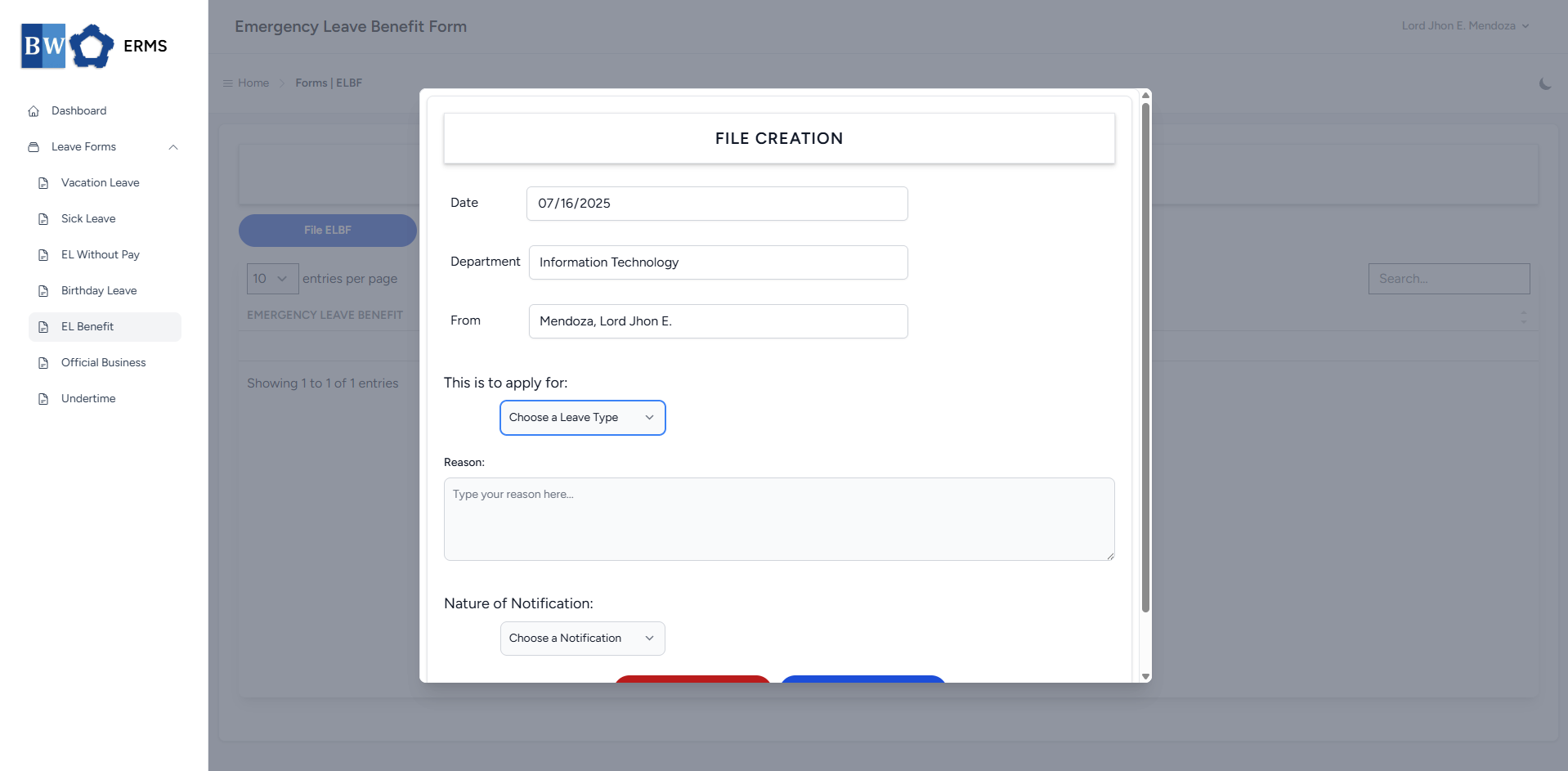
- On the **Emergency Leave Benefit** page, click the **File ELBF** button to open the form.
[](https://kb.mgmfoods.com.ph/uploads/images/gallery/2025-07/u09image.png)
- Fill out the required fields, then click **Submit.**
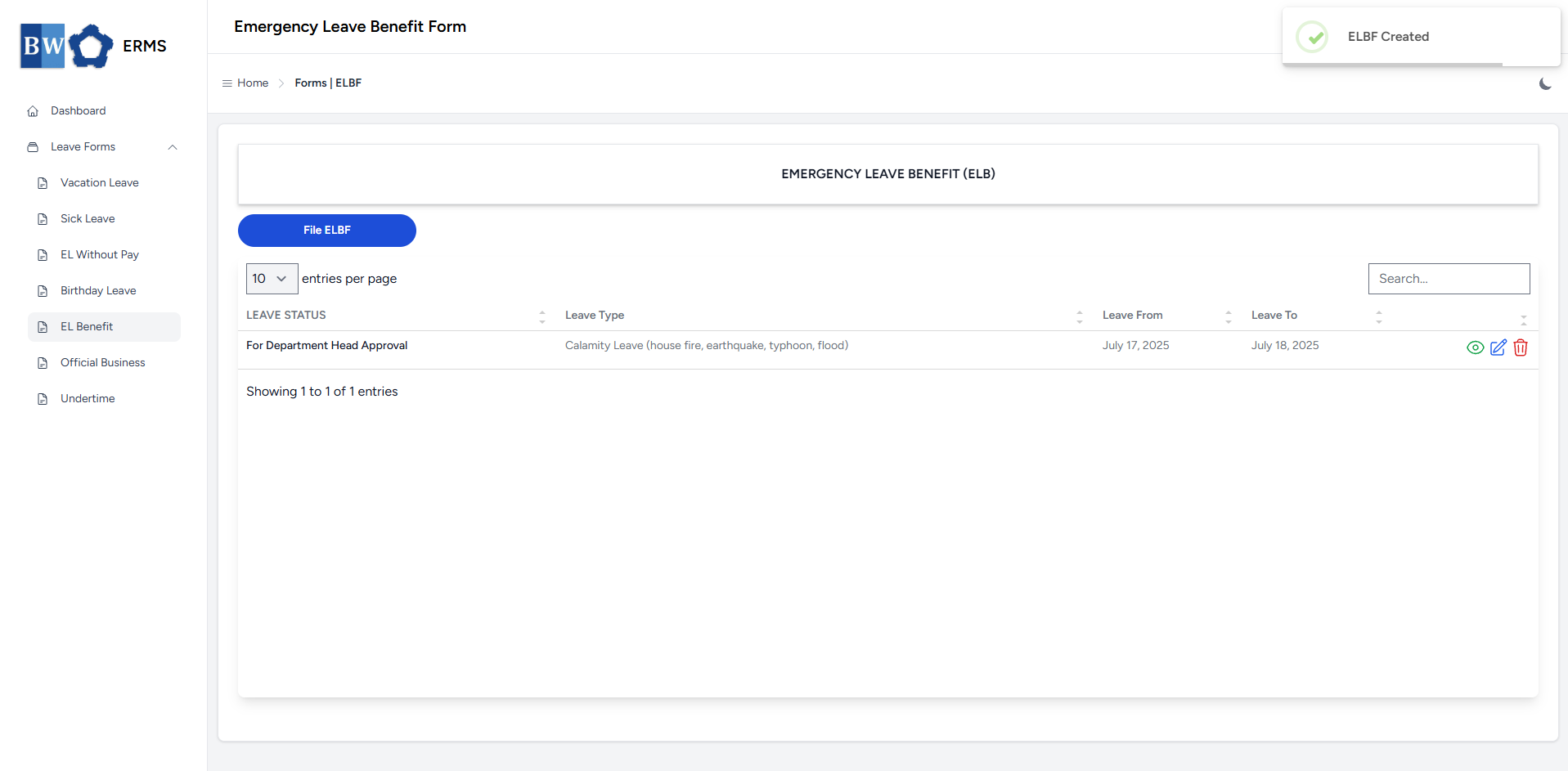
- After submitting, a notification will appear saying that the ELBF has been created. The filed leave will be added to the list.
[](https://kb.mgmfoods.com.ph/uploads/images/gallery/2025-07/pSKimage.png)
- You can also use this page to check the status of your leave.
# Approver Managers/Supervisors Application
To access the Emergency Leave Benefit page:
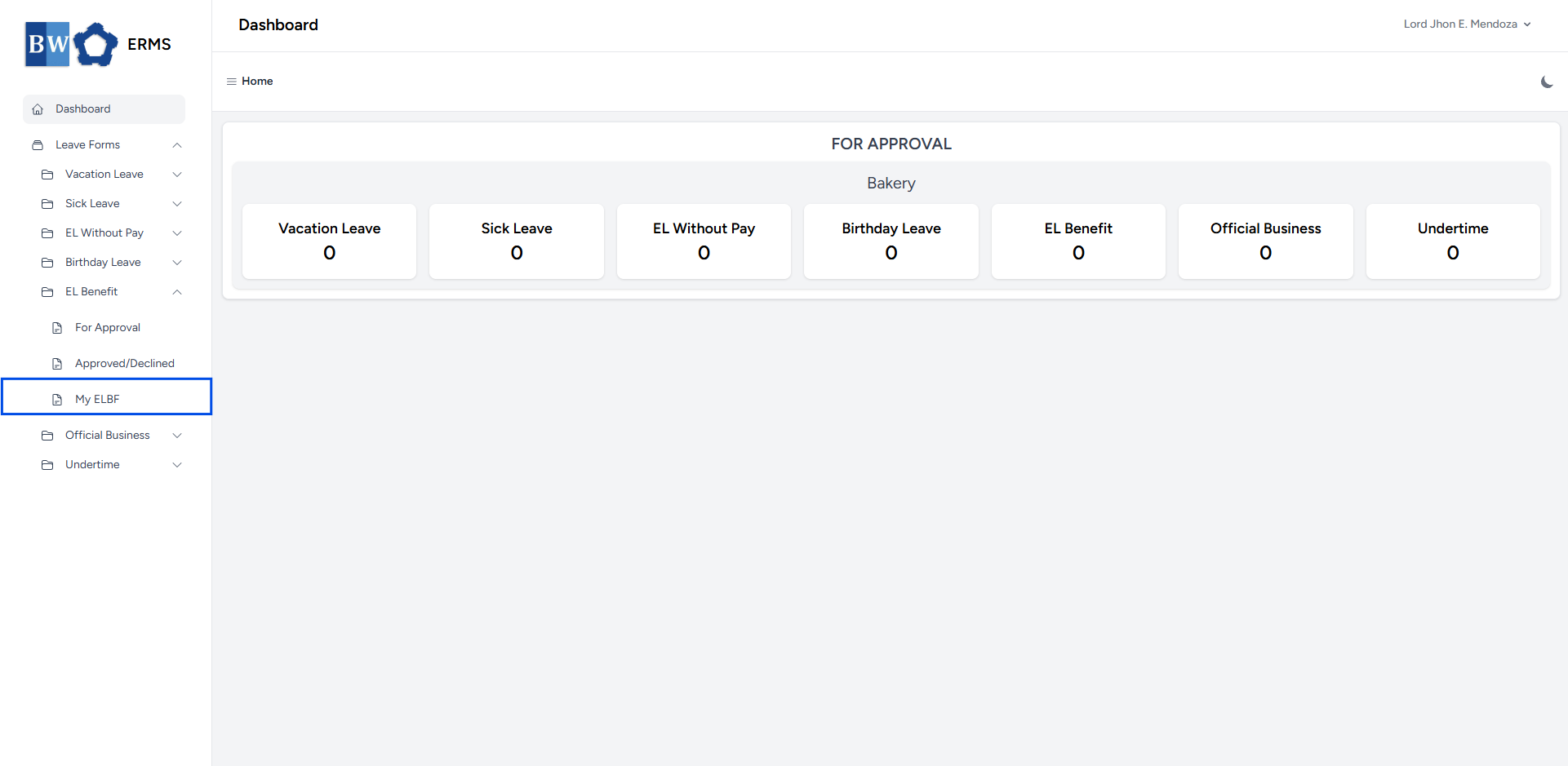
- In the **Sidebar**, click the **Leave Forms** dropdown.
- From the list that appears, select **EL Benefit**.
- Then, click **My ELBF** to view your filed emergency leave benefit.
[](https://kb.mgmfoods.com.ph/uploads/images/gallery/2025-07/6hTimage.png)
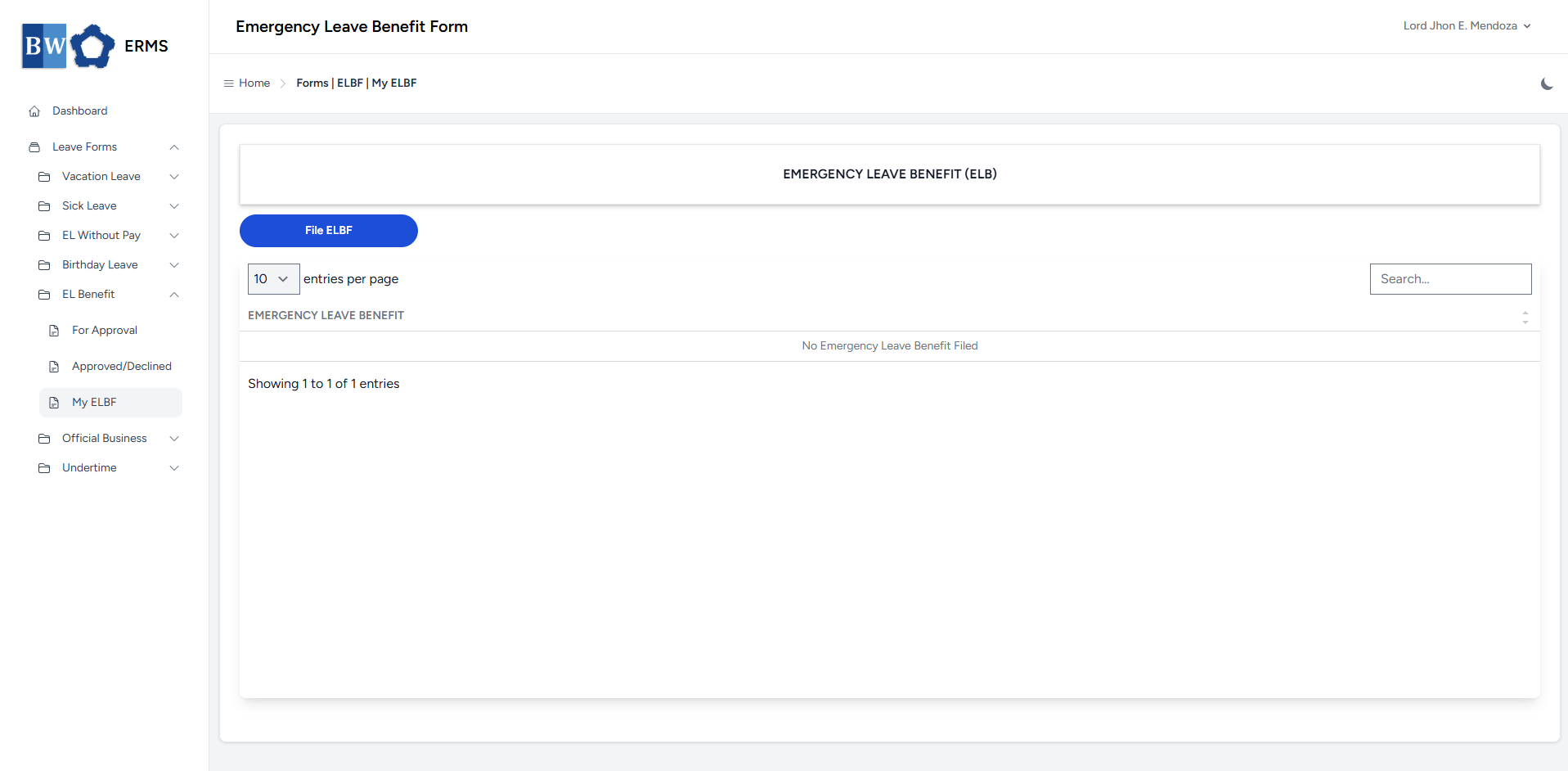
- It will open the **EL Benefit (My ELBF)** page.
[](https://kb.mgmfoods.com.ph/uploads/images/gallery/2025-07/9MQimage.png)
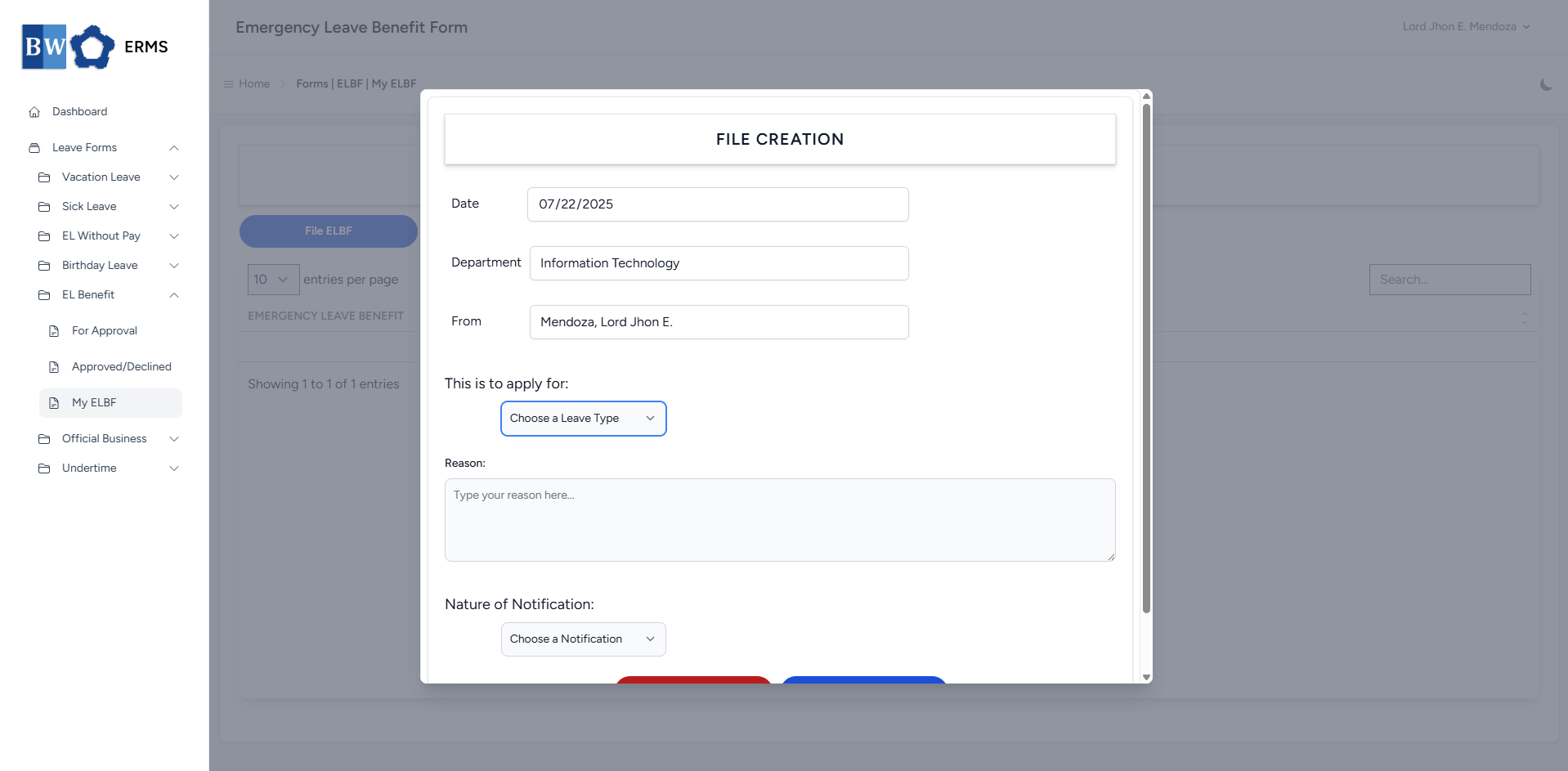
- On the **EL Benefit** **(My ELBF)** page, click the **File ELBF** button to open the form.
[](https://kb.mgmfoods.com.ph/uploads/images/gallery/2025-07/JROimage.png)
- Fill out the required fields, then click **Submit**.
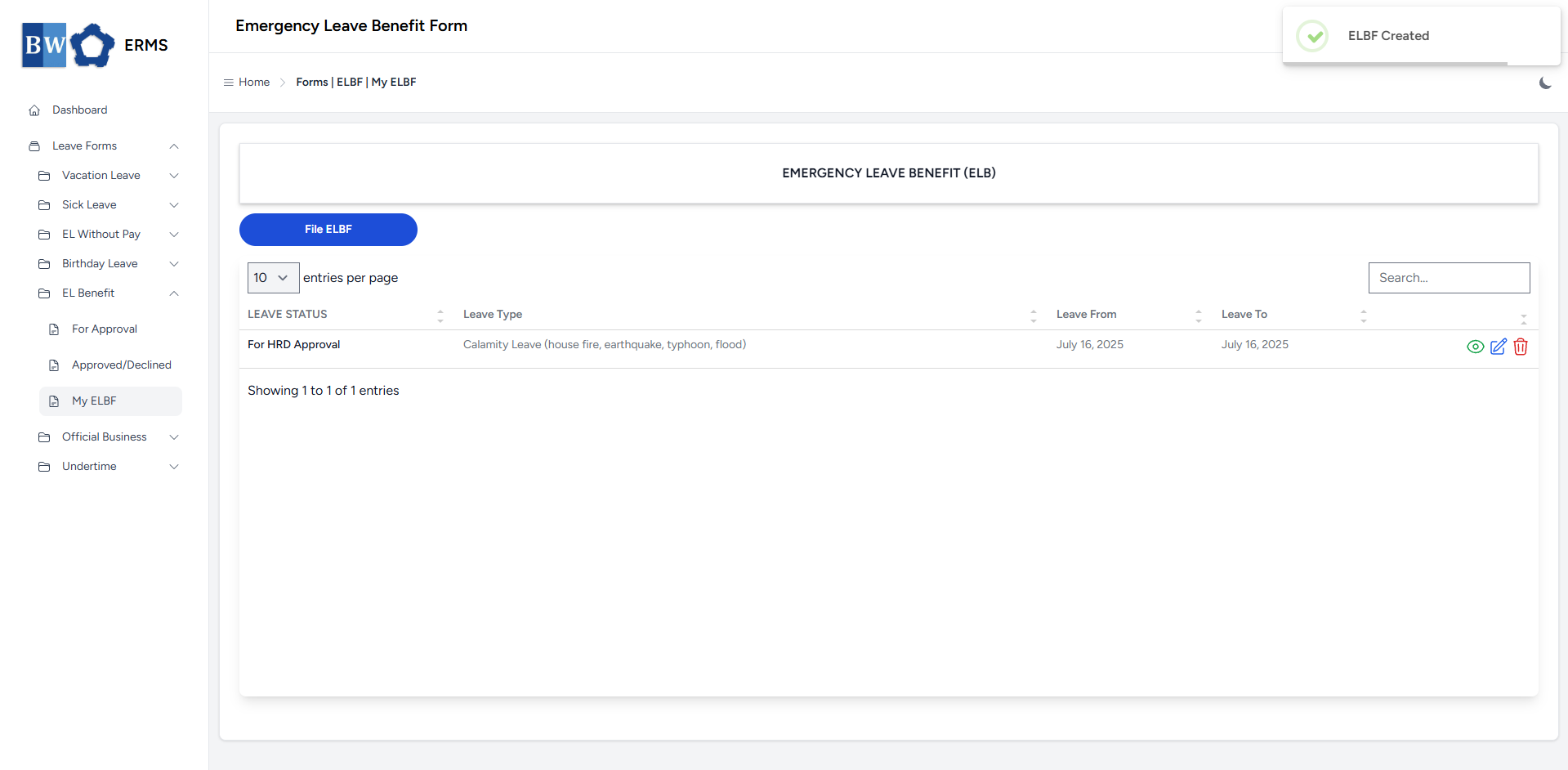
- After submitting, a notification will appear saying that the ELBF has been created. The filed leave will be added to the list
[](https://kb.mgmfoods.com.ph/uploads/images/gallery/2025-07/dZ3image.png)
- You can also use this page to check the status of your leave.
# Official Business
This section provides a clear and complete guide on how to file for Official Business, including the necessary steps and procedures to follow.
# Employees & Non-Approver Managers/Supervisors Application
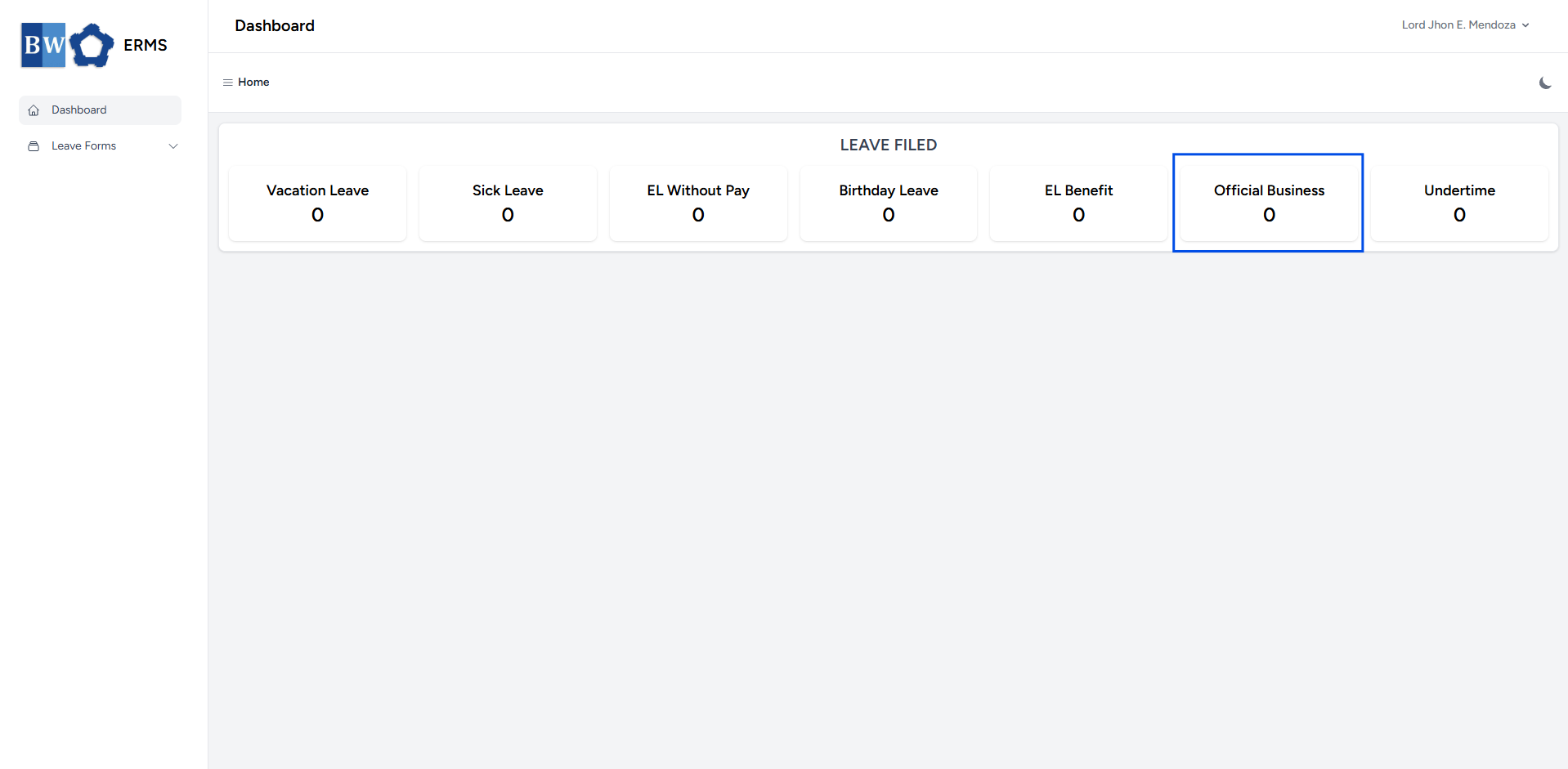
To access the Official Business page, you can do either of the following:
- On your Dashboard, click **Official Business** under the **Leave Filed** section.
[](https://kb.mgmfoods.com.ph/uploads/images/gallery/2025-07/pVUimage.png)
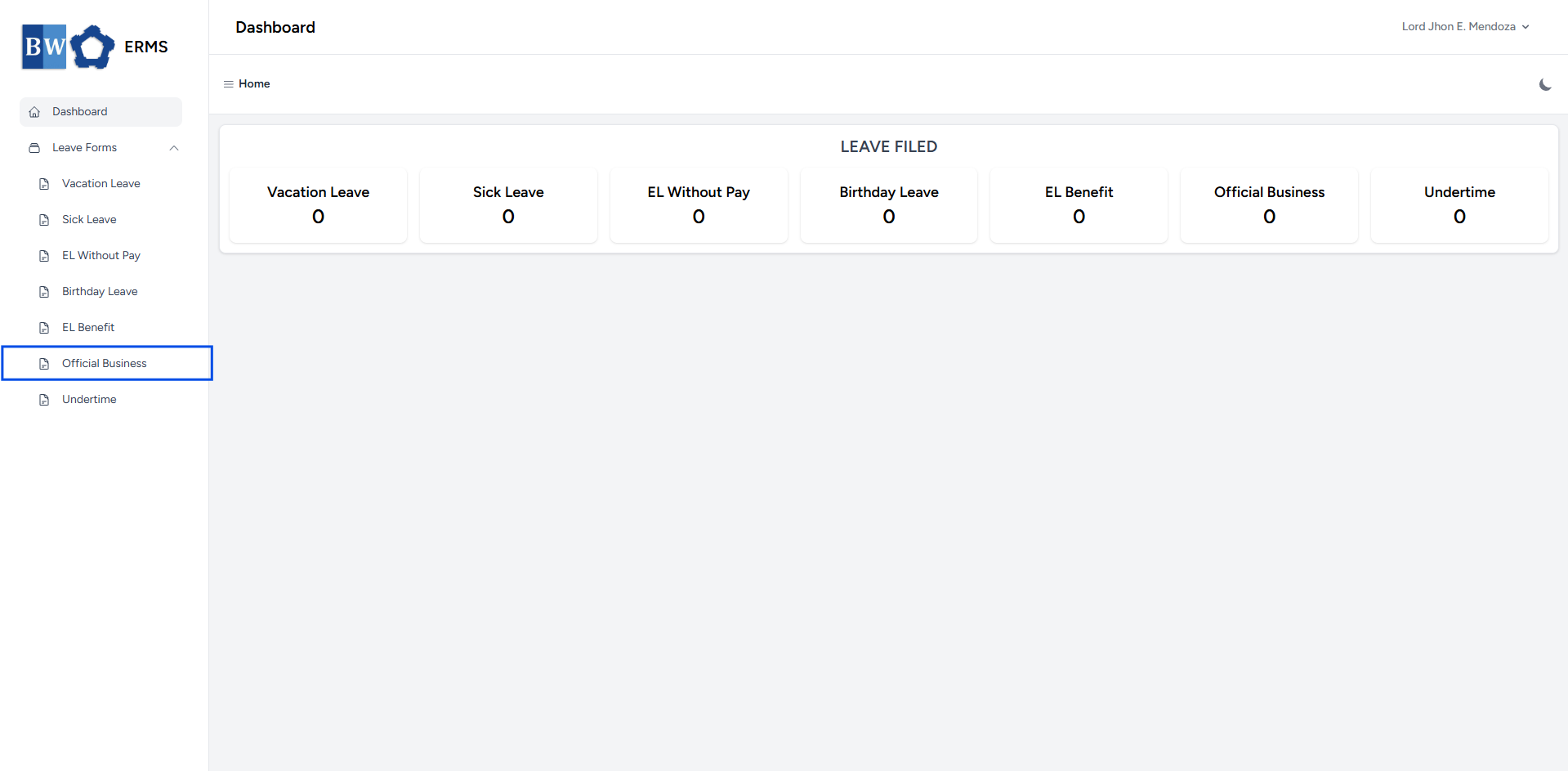
- Or, click the **Leave Forms** dropdown in the sidebar, then select **Official Business**.
[](https://kb.mgmfoods.com.ph/uploads/images/gallery/2025-07/UjXimage.png)
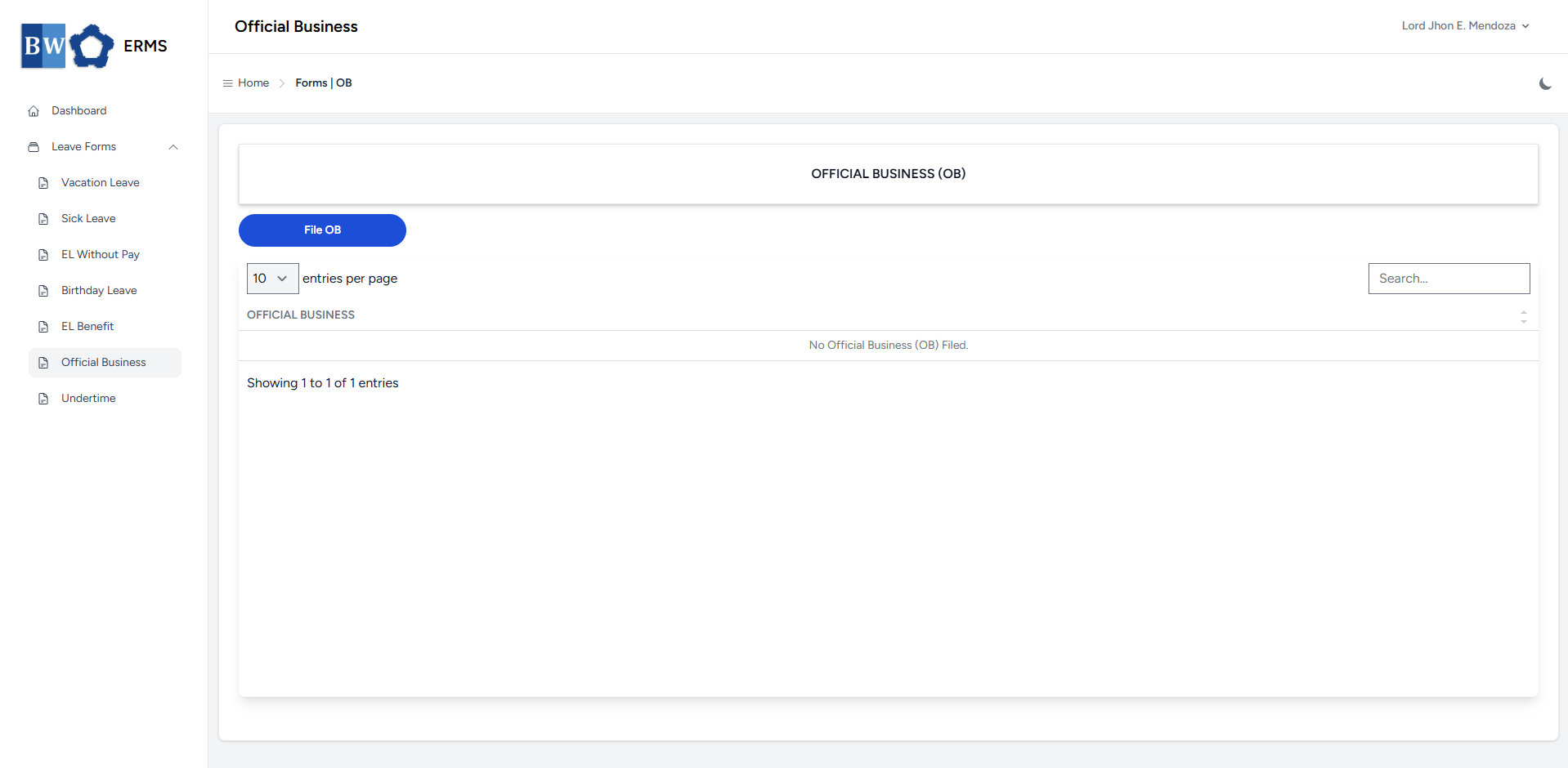
- It will open the **Official Business** page.
[](https://kb.mgmfoods.com.ph/uploads/images/gallery/2025-07/xwmimage.png)
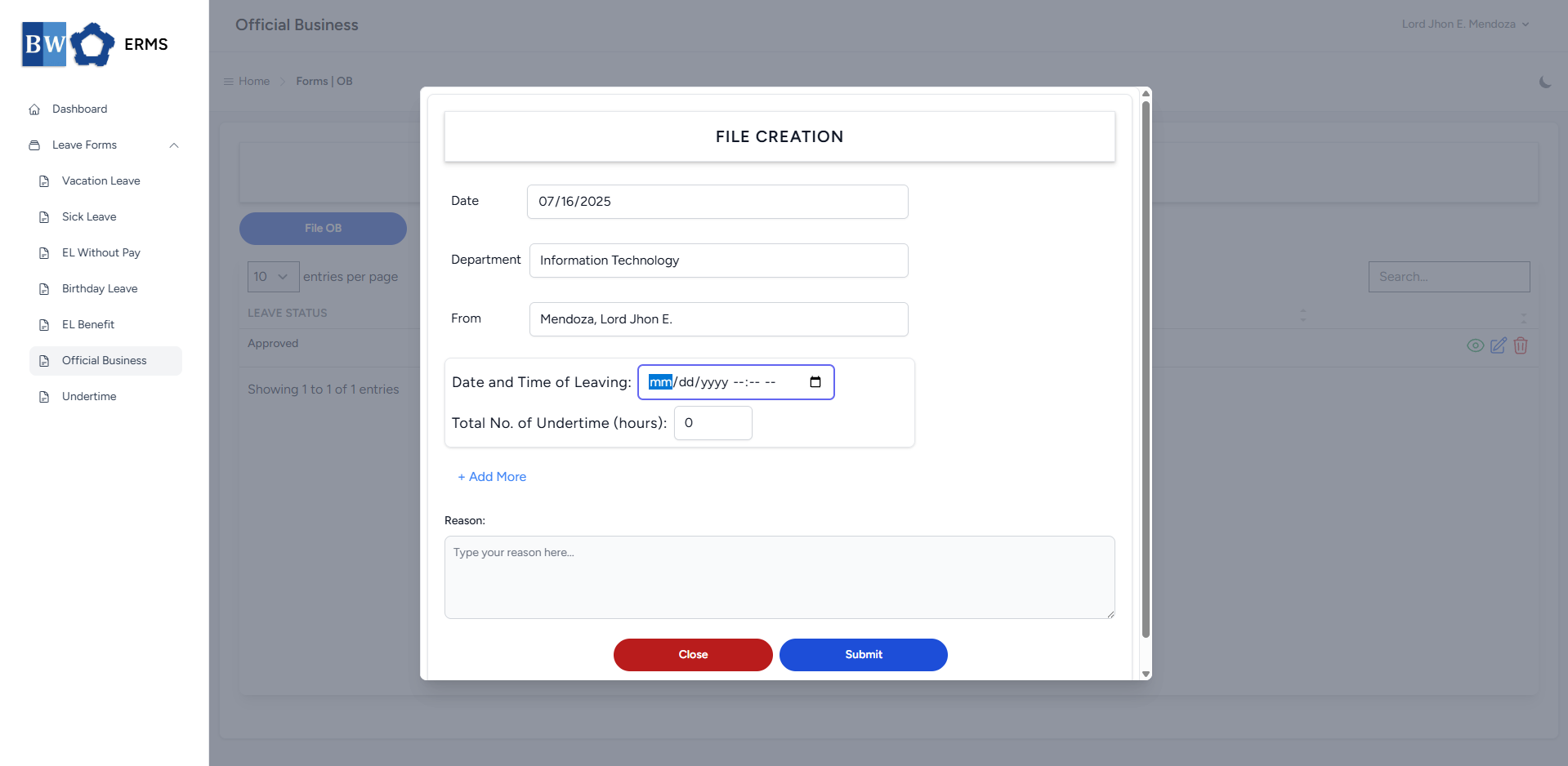
- On the **Official Business** page, click the **File OB** button to open the form.
[](https://kb.mgmfoods.com.ph/uploads/images/gallery/2025-07/gz1image.png)
- Fill out the required fields, then click **Submit.**
- **Note:** You can click ***Add More*** button if you want to file multiple OB date.
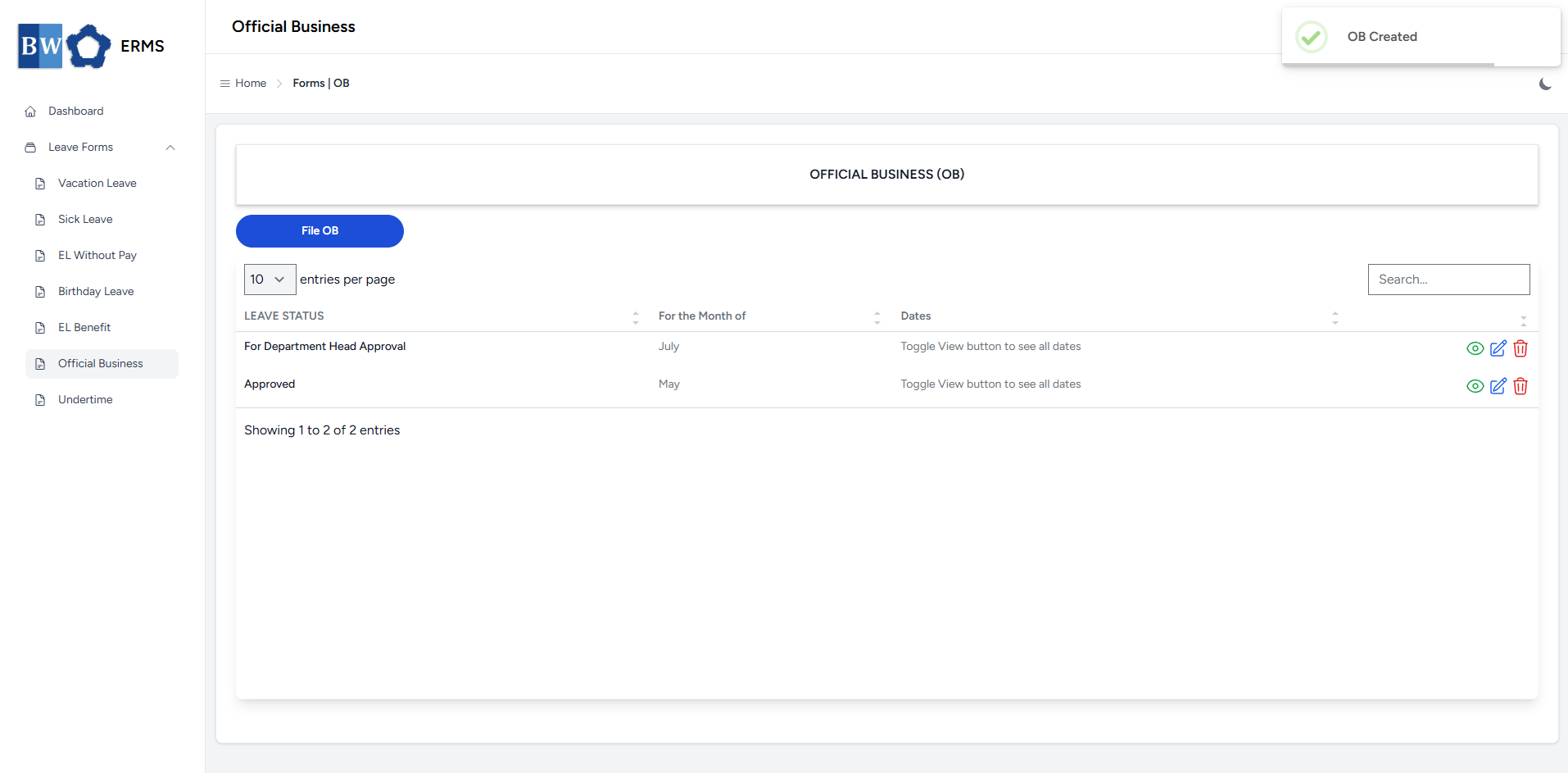
- After submitting, a notification will appear saying that the OB has been created. The filed leave will be added to the list.
[](https://kb.mgmfoods.com.ph/uploads/images/gallery/2025-07/49Timage.png)
- You can also use this page to check the status of your leave.
# Approver Managers/Supervisors Application
To access the Official Business page:
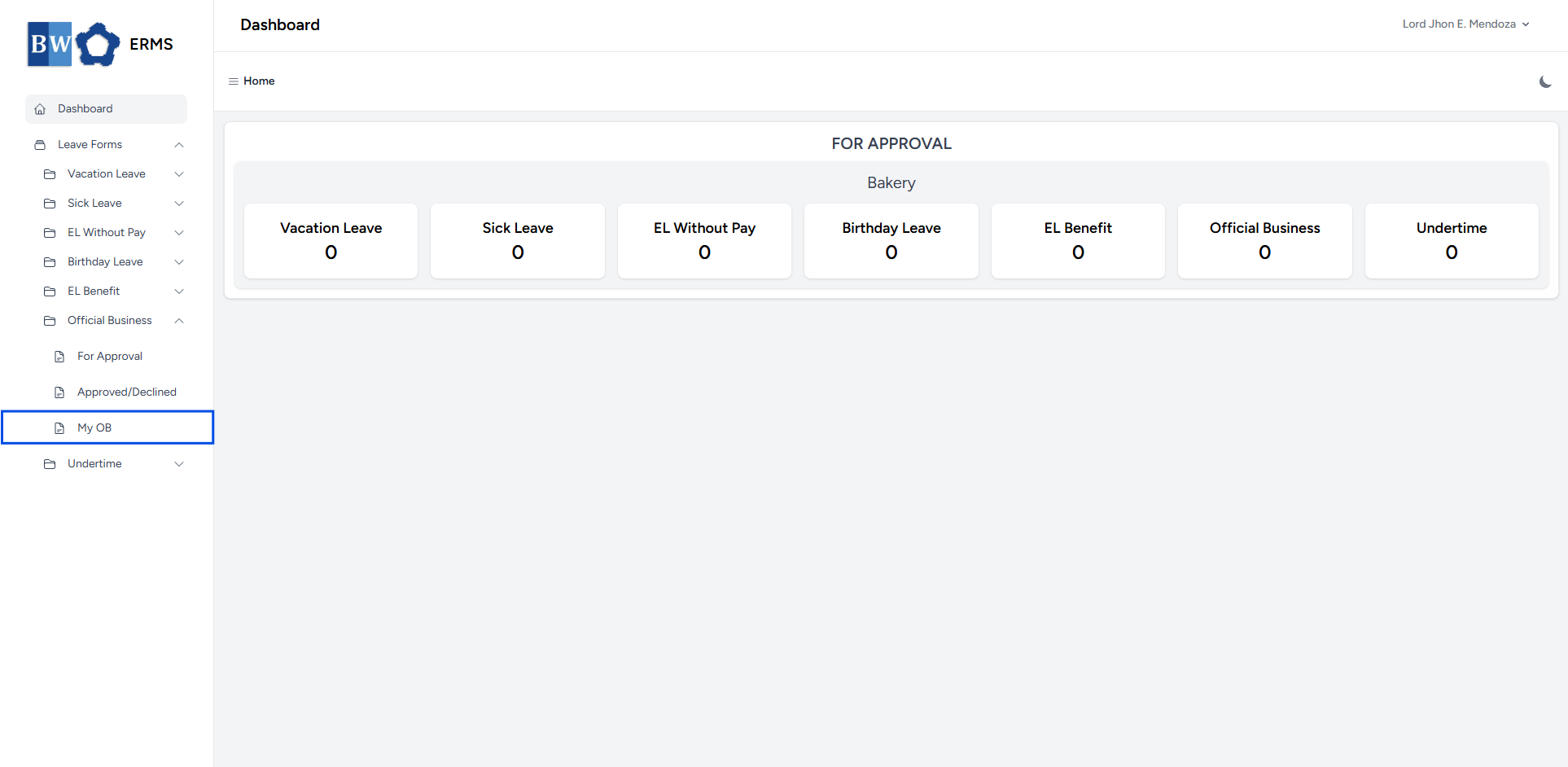
- In the **Sidebar**, click the **Leave Forms** dropdown.
- From the list that appears, select **Official Business**.
- Then, click **My OB** to view your filed official business.
[](https://kb.mgmfoods.com.ph/uploads/images/gallery/2025-07/CVmimage.png)
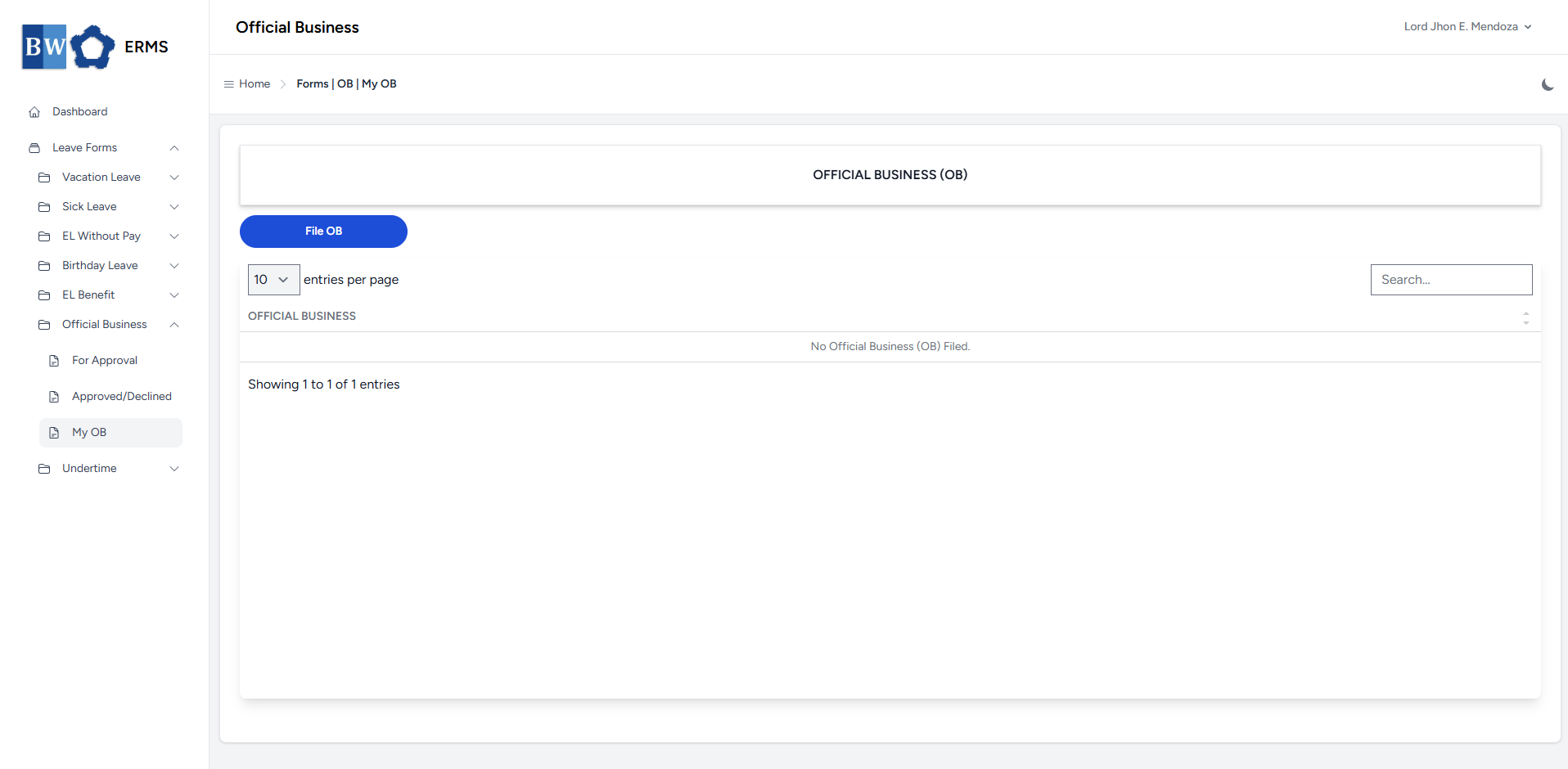
- It will open the **Official Business (My OB)** page.
[](https://kb.mgmfoods.com.ph/uploads/images/gallery/2025-07/z83image.png)
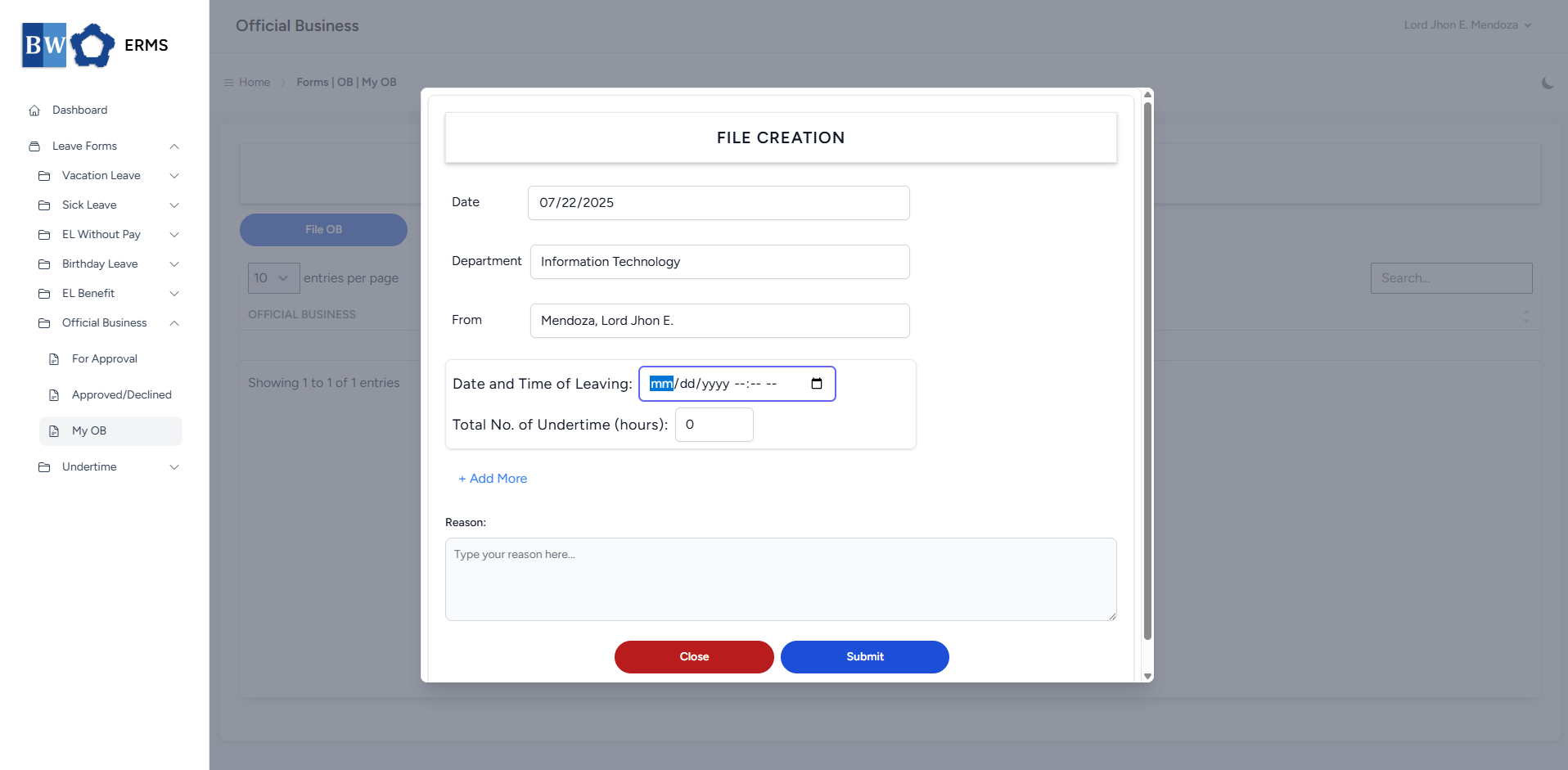
- On the **Official Business** **(My OB)** page, click the **File OB** button to open the form.
[](https://kb.mgmfoods.com.ph/uploads/images/gallery/2025-07/Oe4image.png)
- Fill out the required fields, then click **Submit.**
- **Note:** You can click ***Add More*** button if you want to file multiple OB date.
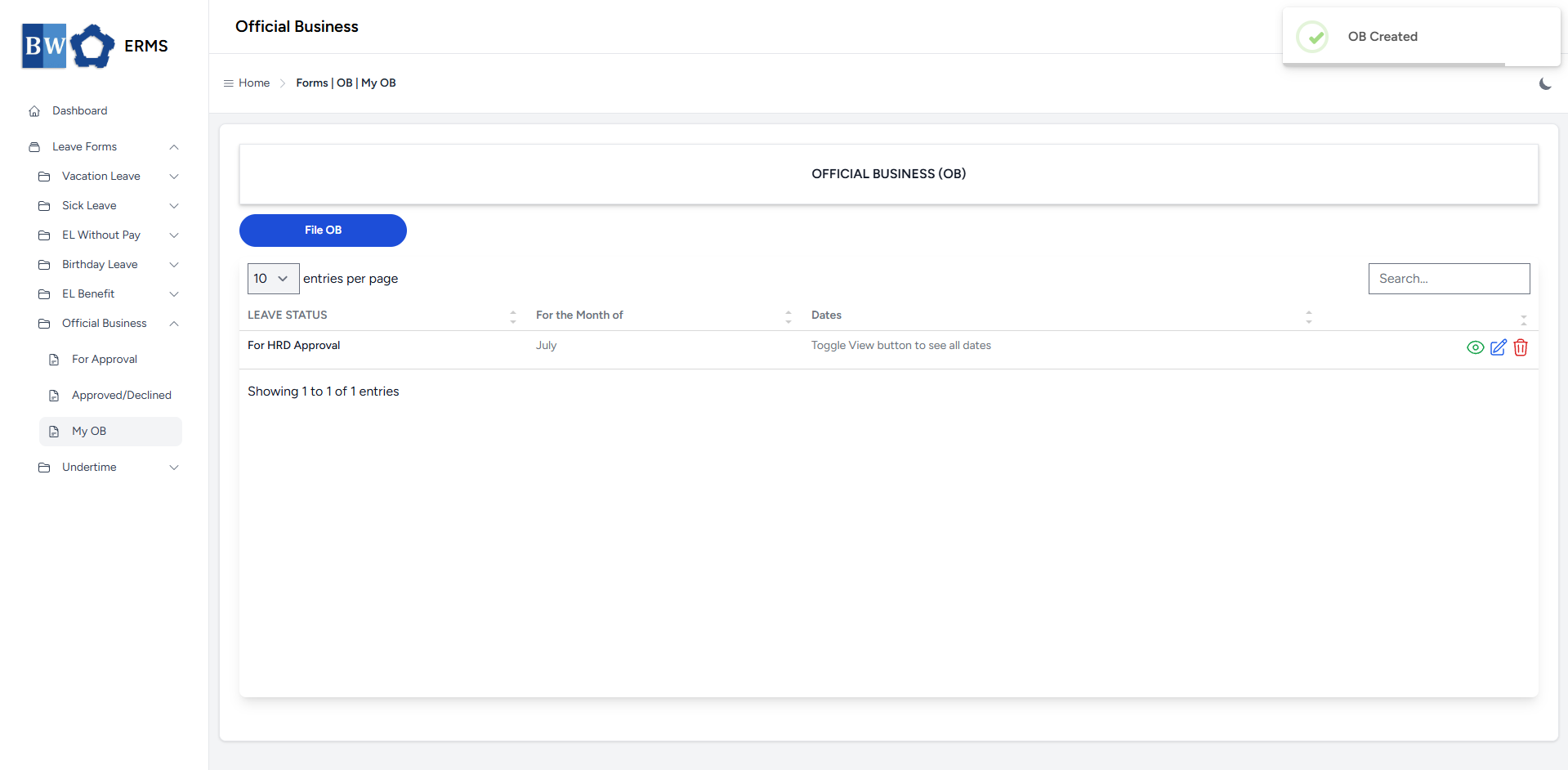
- After submitting, a notification will appear saying that the OB has been created. The filed leave will be added to the list.
[](https://kb.mgmfoods.com.ph/uploads/images/gallery/2025-07/yMRimage.png)
- You can also use this page to check the status of your leave.
# Undertime
This section offers a clear and complete guide on how to file for Undertime, outlining the proper steps and requirements.
# Employees & Non-Approver Managers/Supervisors Application
To access the Undertime page, you can do either of the following:
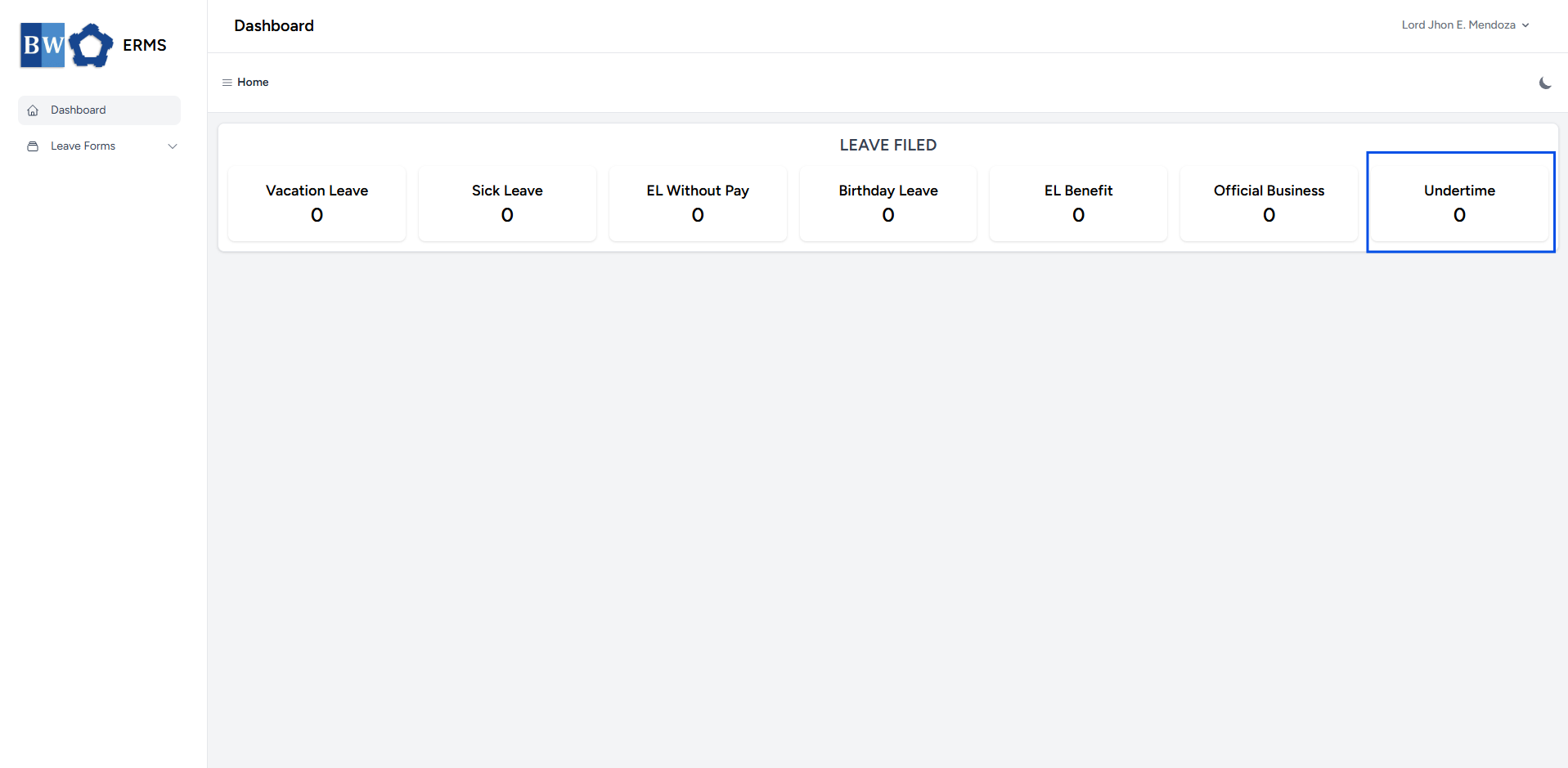
- On your Dashboard, click **Undertime** under the **Leave Filed** section.
[](https://kb.mgmfoods.com.ph/uploads/images/gallery/2025-07/oykimage.png)
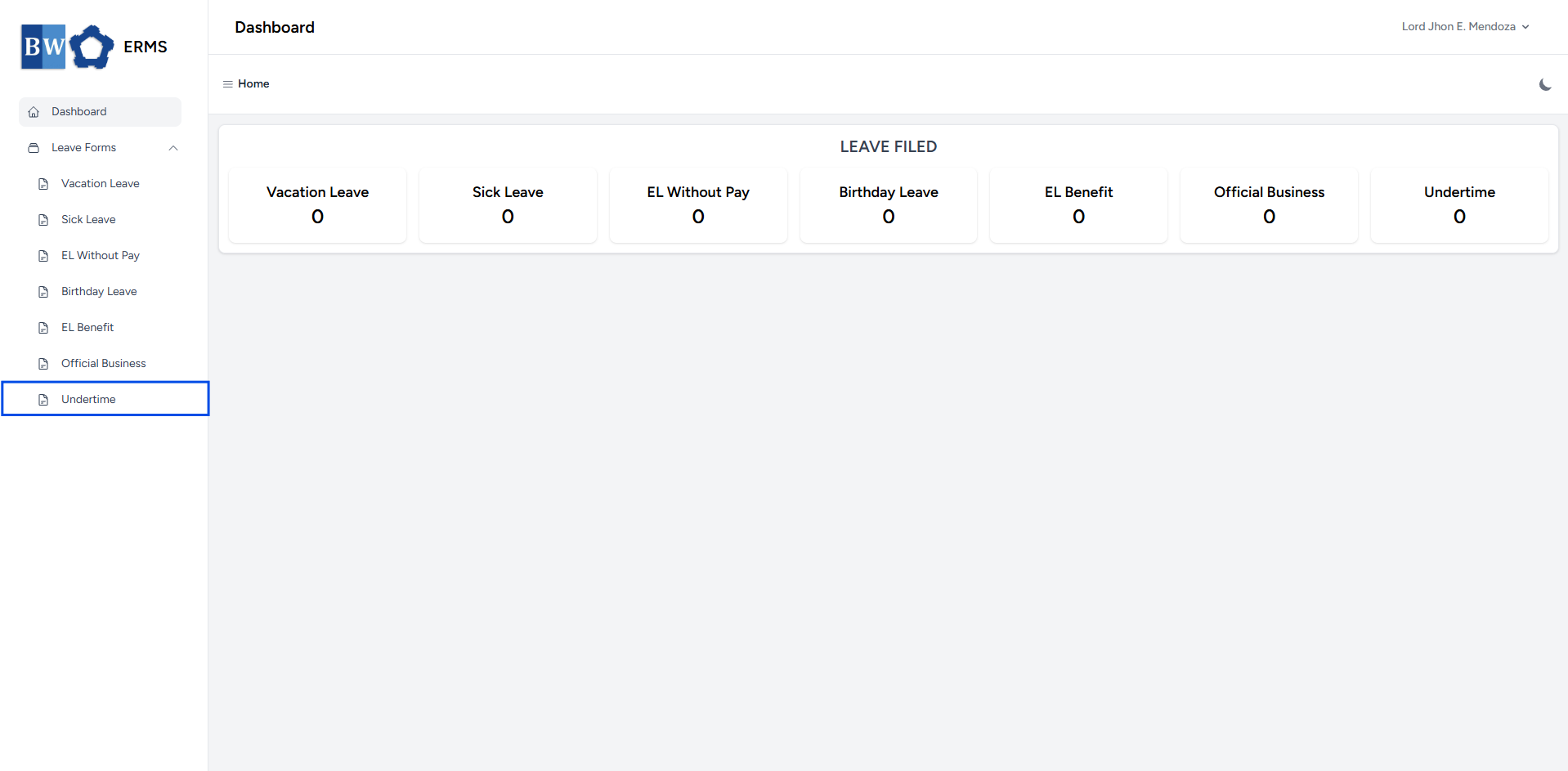
- Or, click the **Leave Forms** dropdown in the sidebar, then select **Undertime**.
[](https://kb.mgmfoods.com.ph/uploads/images/gallery/2025-07/RrRimage.png)
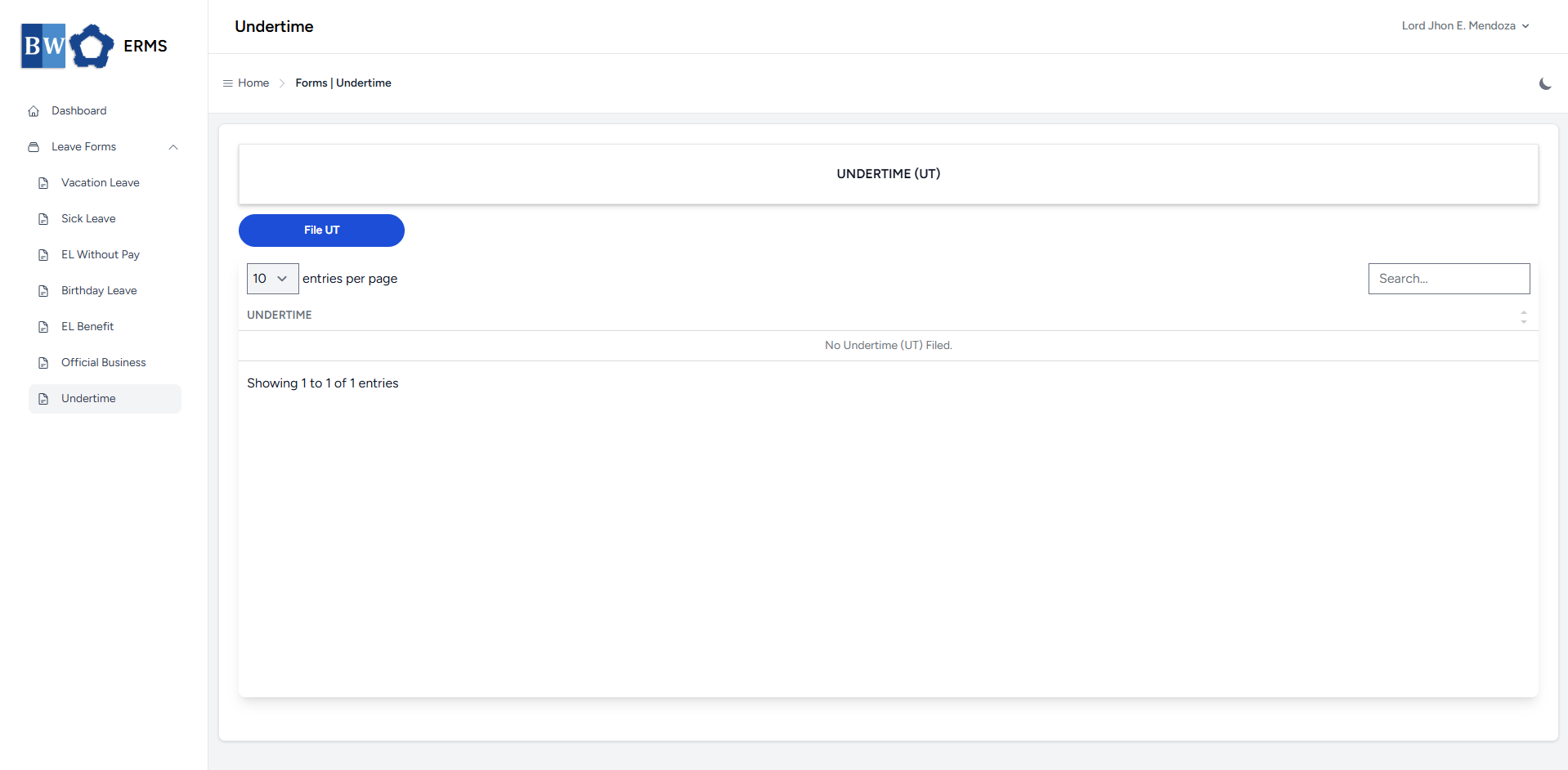
- It will open the **Undertime** page.
[](https://kb.mgmfoods.com.ph/uploads/images/gallery/2025-07/D8Gimage.png)
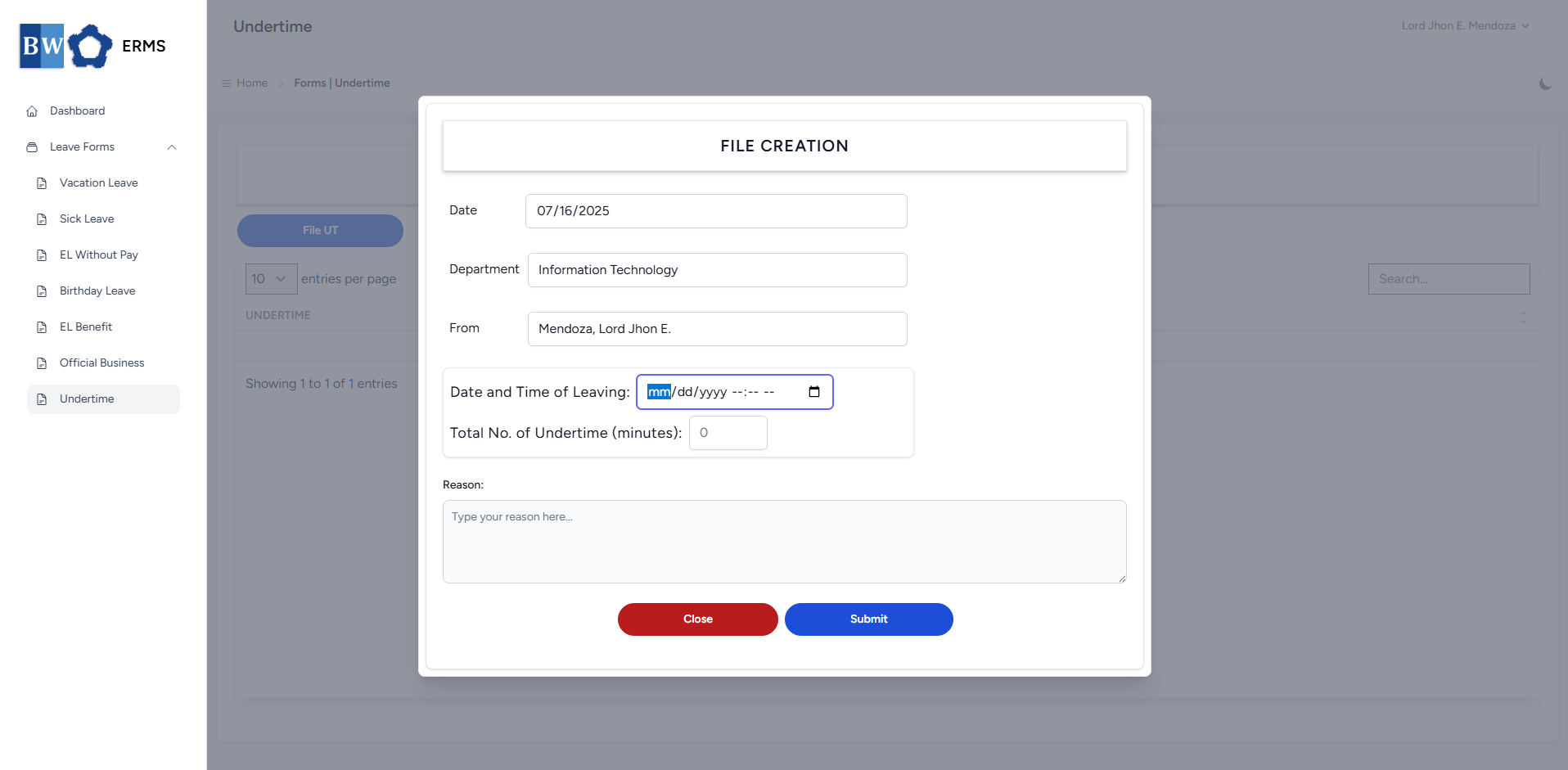
- On the **Undertime** page, click the **File UT** button to open the form.
[](https://kb.mgmfoods.com.ph/uploads/images/gallery/2025-07/wSJimage.png)
- Fill out the required fields, then click **Submit.**
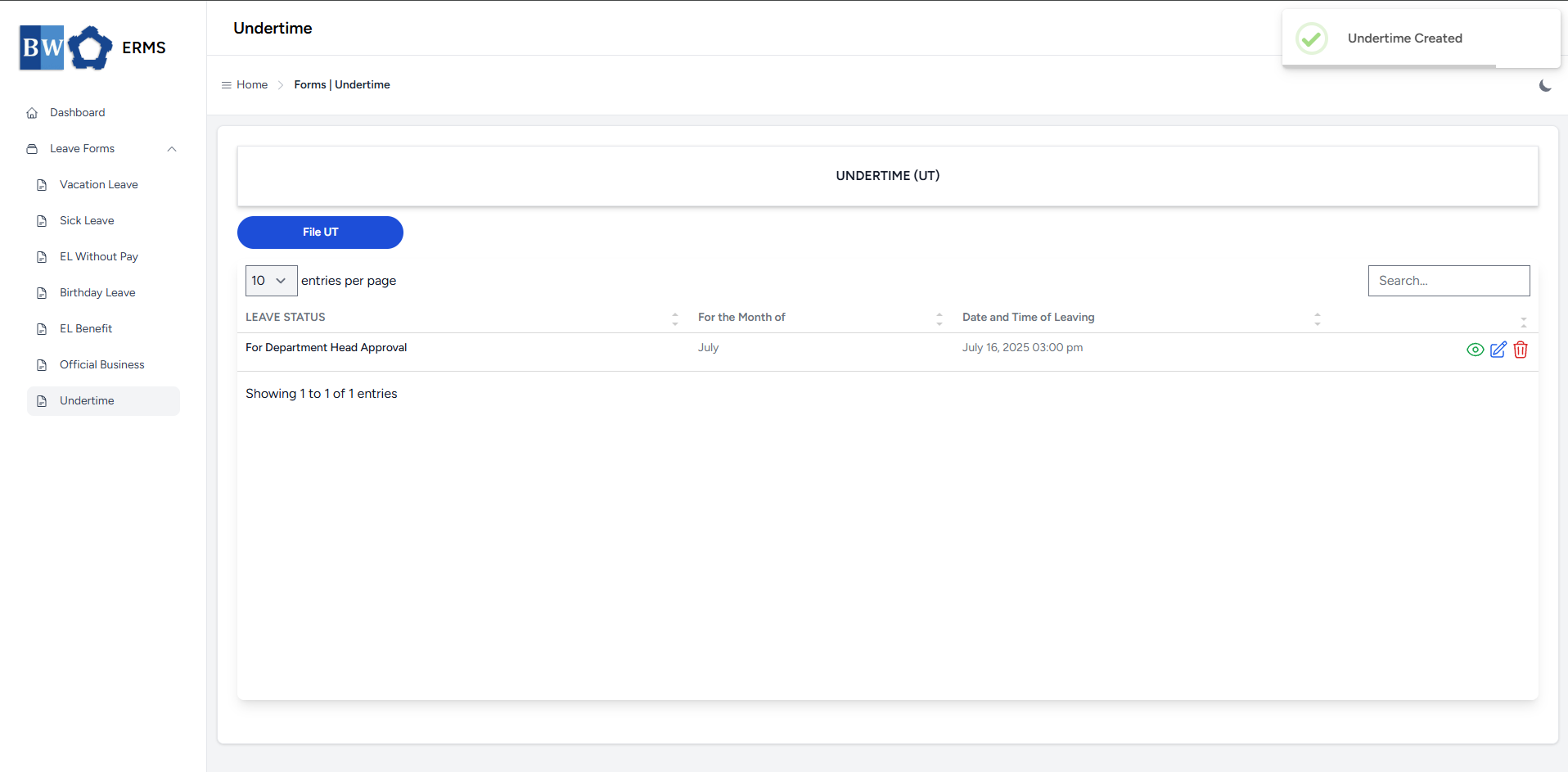
- After submitting, a notification will appear saying that the Undertime has been created. The filed leave will be added to the list.
[](https://kb.mgmfoods.com.ph/uploads/images/gallery/2025-07/tasimage.png)
- You can also use this page to check the status of your leave.
# Approver Managers/Supervisors Application
To access the Undertime page:
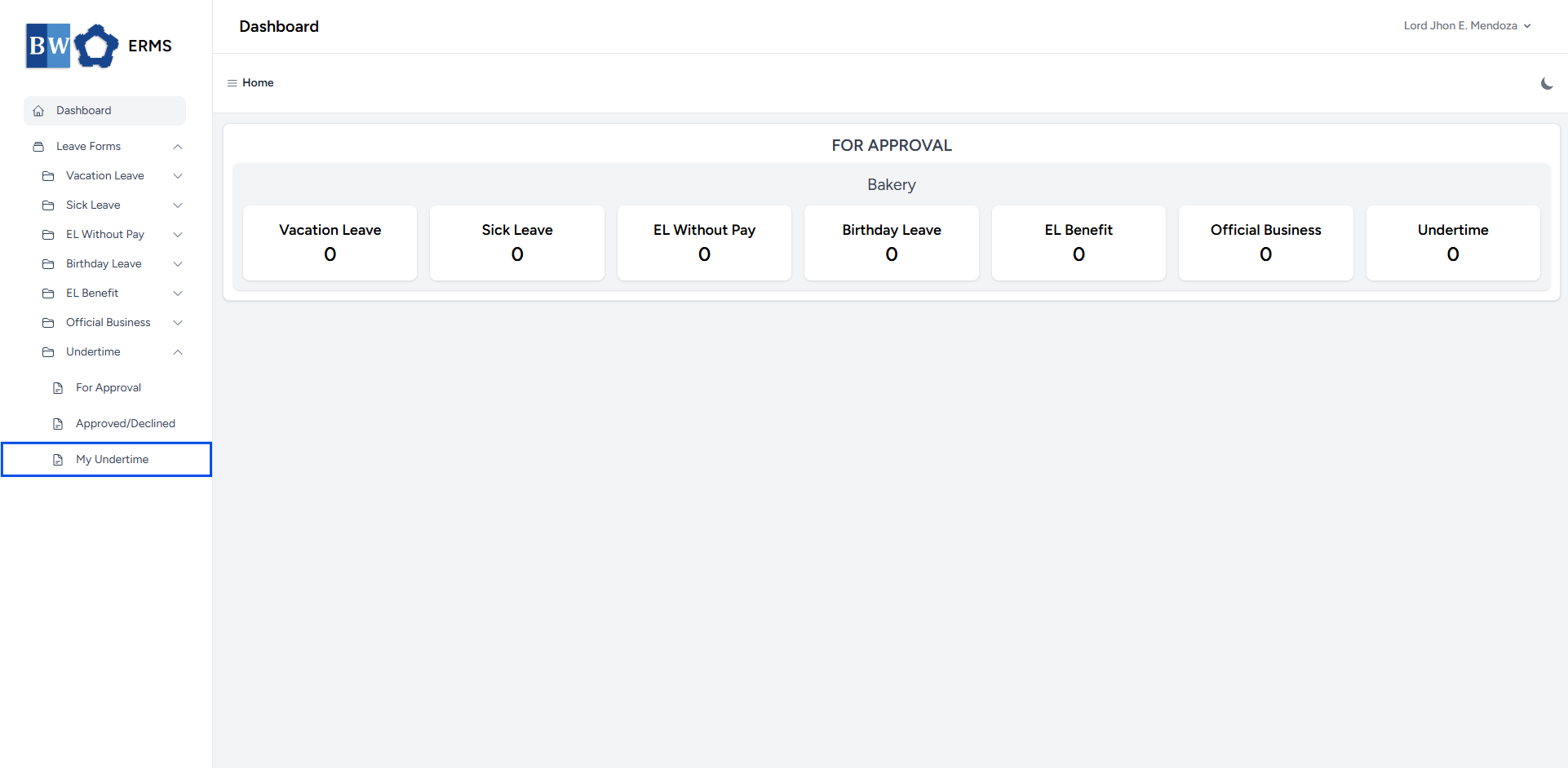
- In the **Sidebar**, click the **Leave Forms** dropdown.
- From the list that appears, select **Undertime**.
- Then, click **My Undertime** to view your filed undertime.
[](https://kb.mgmfoods.com.ph/uploads/images/gallery/2025-07/Mgwimage.png)
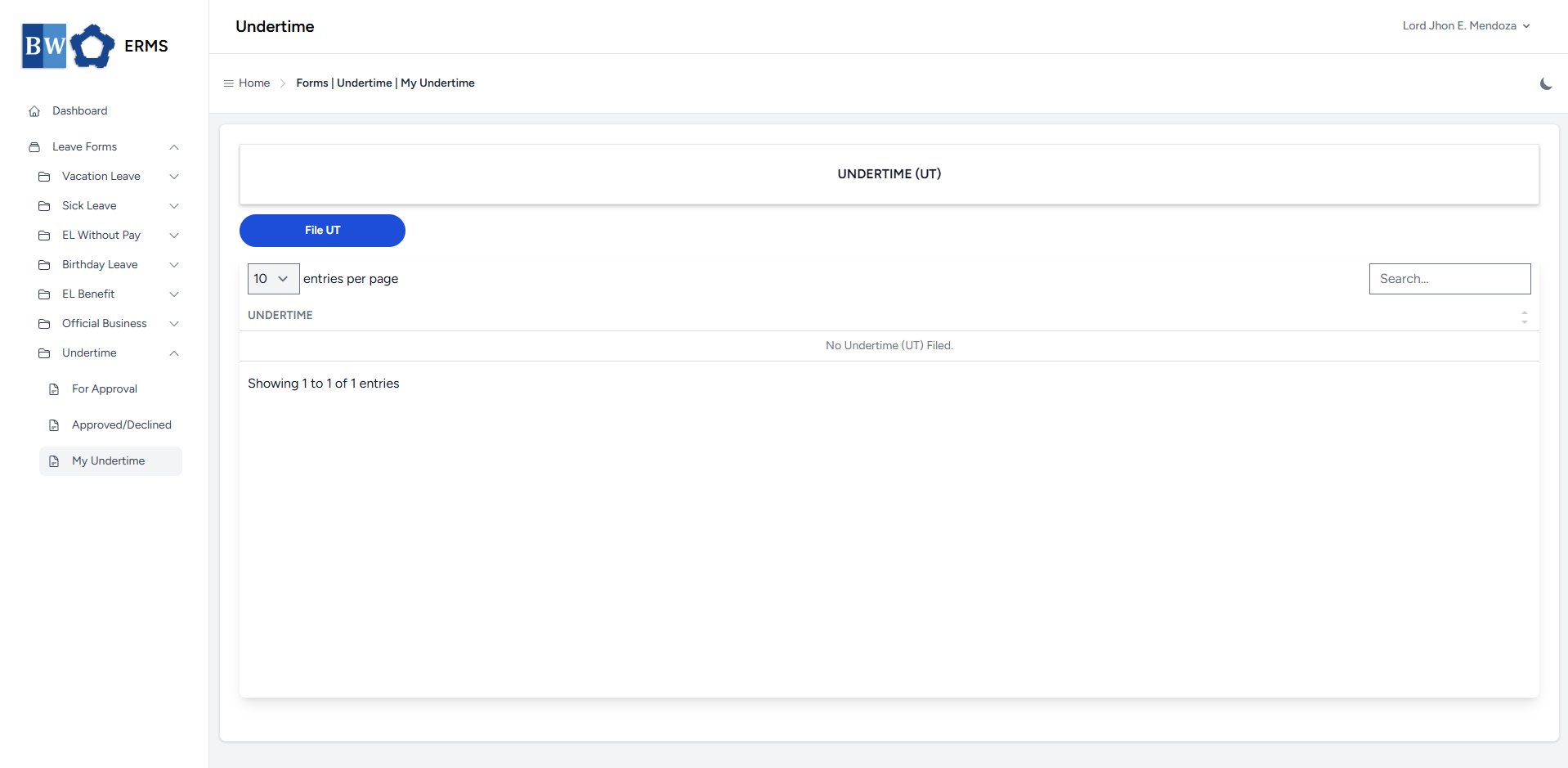
- It will open the **Undertime (My Undertime)** page.
[](https://kb.mgmfoods.com.ph/uploads/images/gallery/2025-07/vw3image.png)
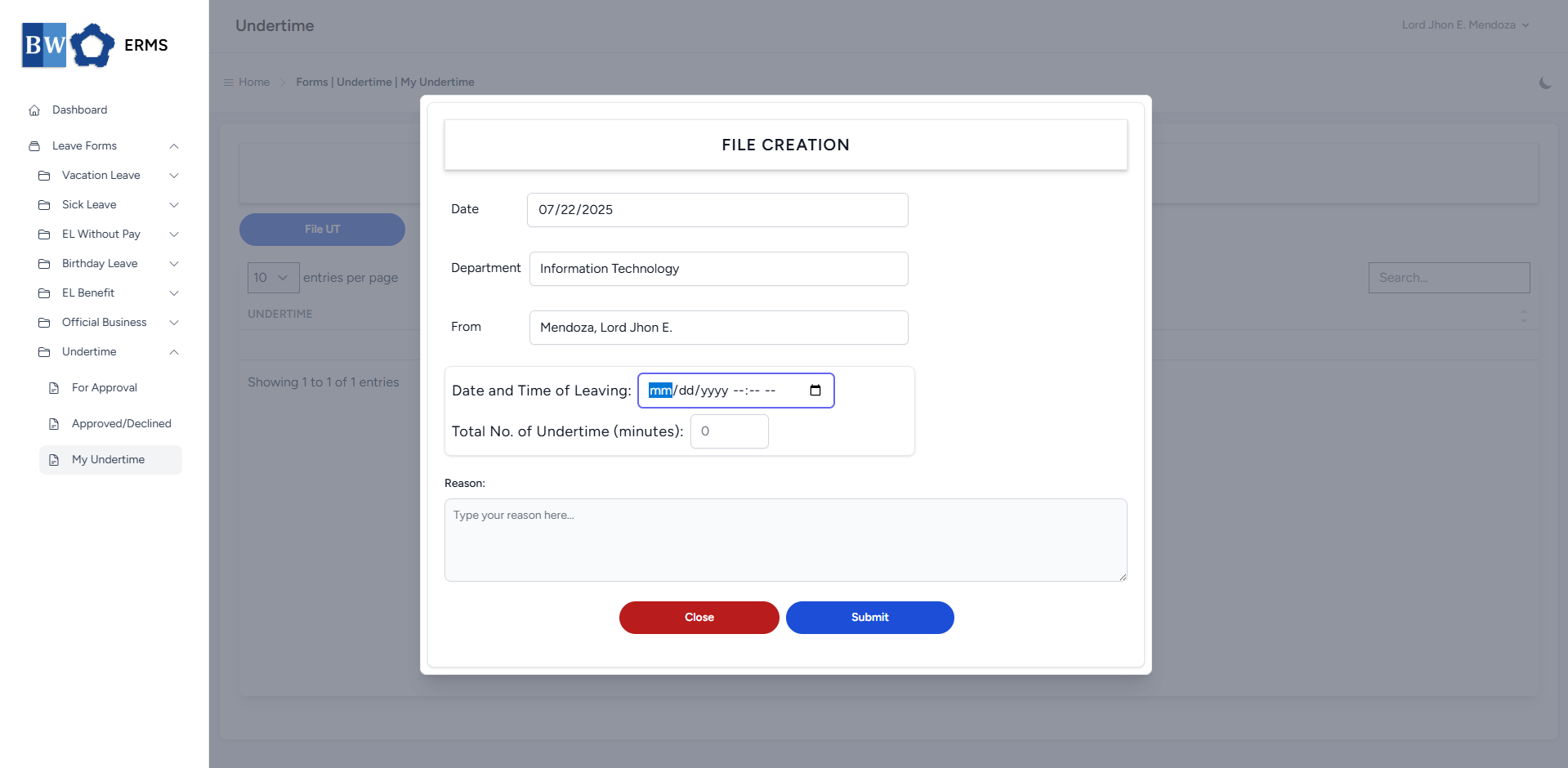
- On the **Undertime** **(My Undertime)** page, click the **File UT** button to open the form.
[](https://kb.mgmfoods.com.ph/uploads/images/gallery/2025-07/L1Fimage.png)
- Fill out the required fields, then click **Submit**.
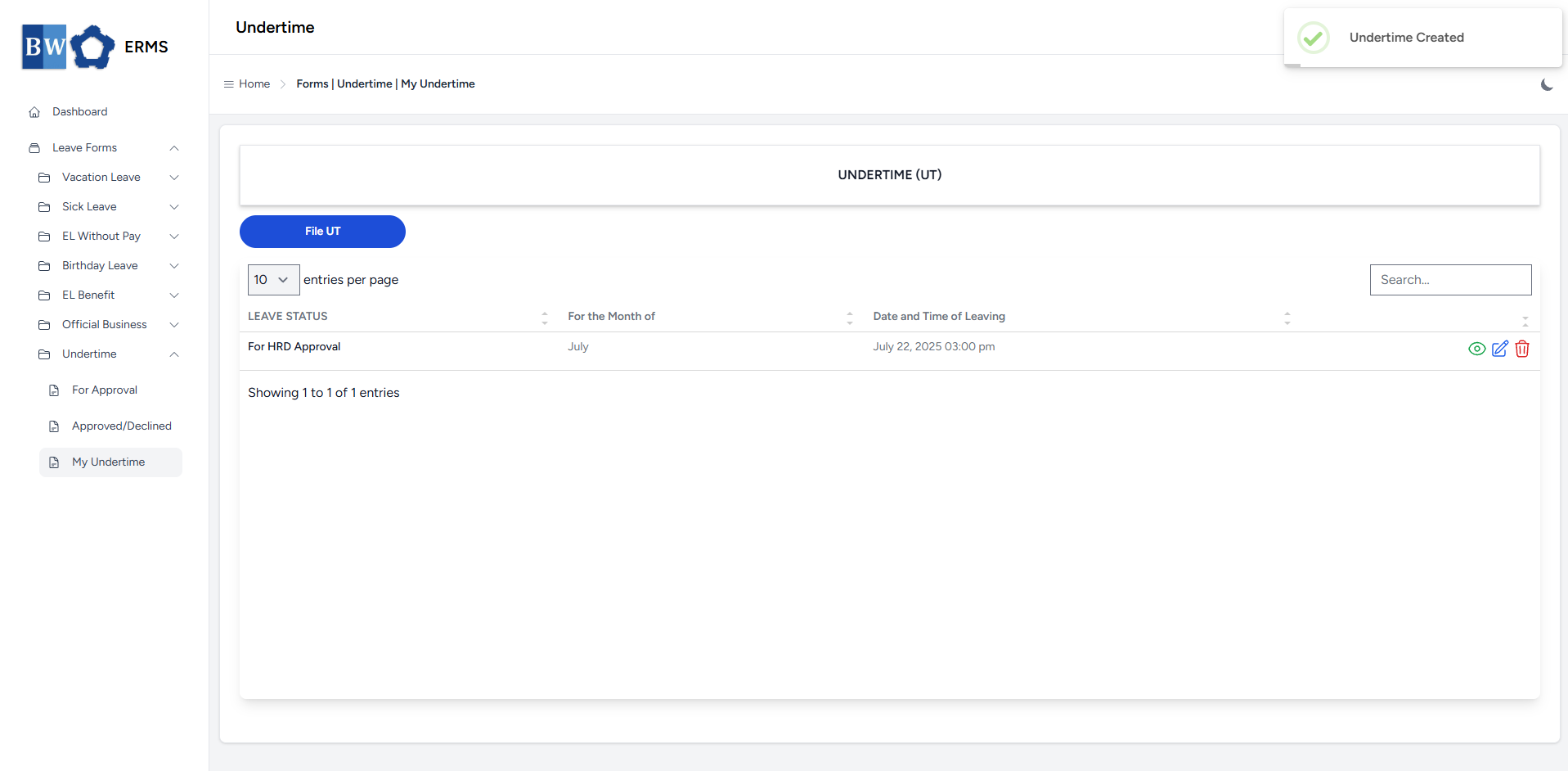
- After submitting, a notification will appear saying that the Undertime has been created. The filed leave will be added to the list
[](https://kb.mgmfoods.com.ph/uploads/images/gallery/2025-07/NBSimage.png)
- You can also use this page to check the status of your leave.