Filing a Leave
This book provides detailed guidance on the proper procedures for filing various types of leave. It outlines the necessary steps employees need to follow, along with the required documentation and conditions specific to each leave type. Whether it's vacation leave, sick leave, or any other form of absence, this guide serves as a helpful reference to ensure that all leave requests are submitted correctly and in accordance with company policies.
- Vacation Leave
- Sick Leave
- Emergency Leave Without Pay
- Birthday Leave
- Emergency Leave Benefit
- Official Business
- Undertime
Vacation Leave
This section offers a clear and complete guide on how to properly file for Vacation Leave, outlining the necessary steps to ensure a smooth and accurate application process.
Employees & Non-Approver Managers/Supervisors Application
To access the Vacation Leave page, you can do either of the following:
-
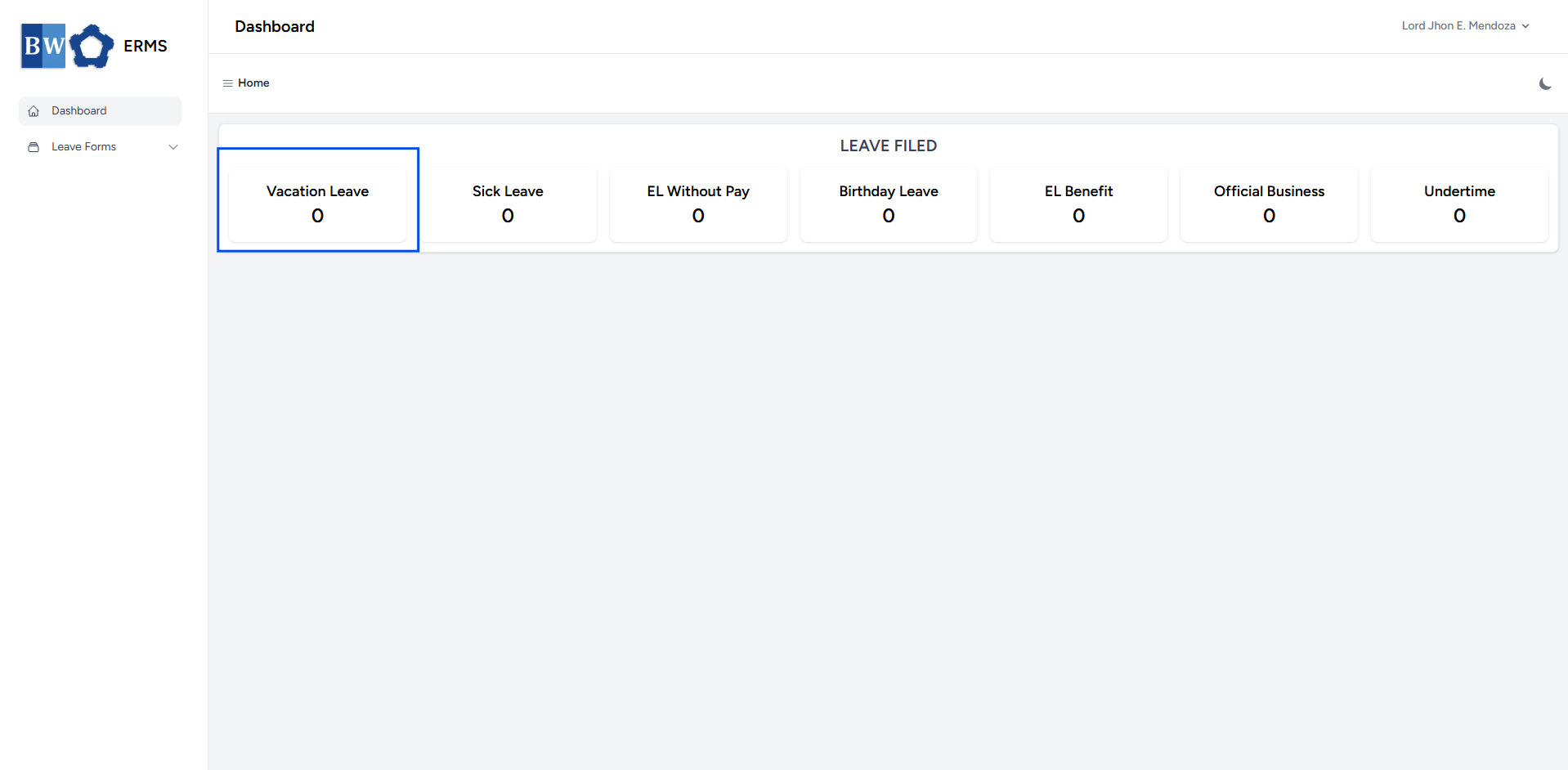
On your Dashboard, click Vacation Leave under the Leave Filed section.
-
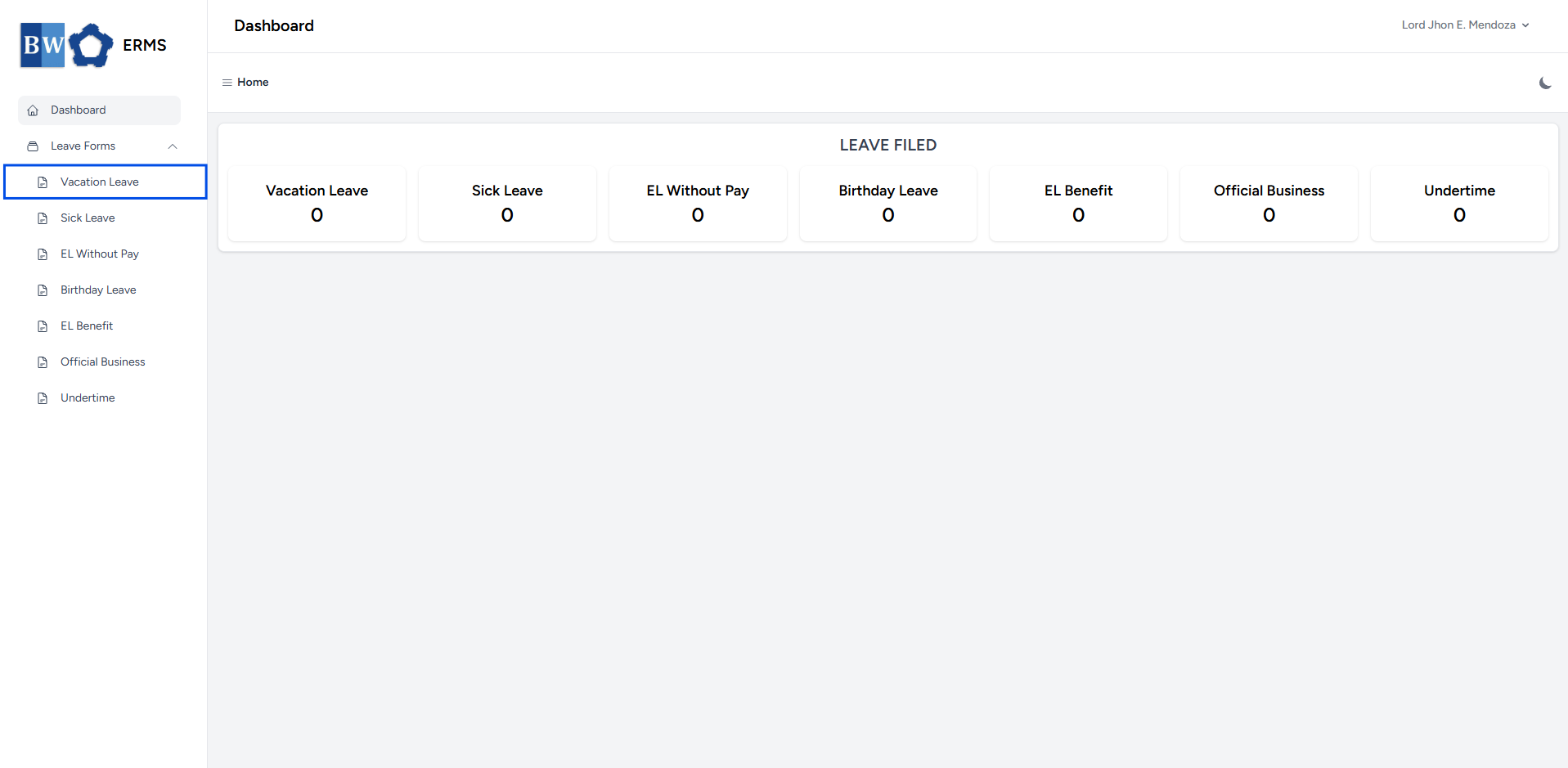
Or, click the Leave Forms dropdown in the sidebar, then select Vacation Leave.
- It will open the Vacation Leave page.
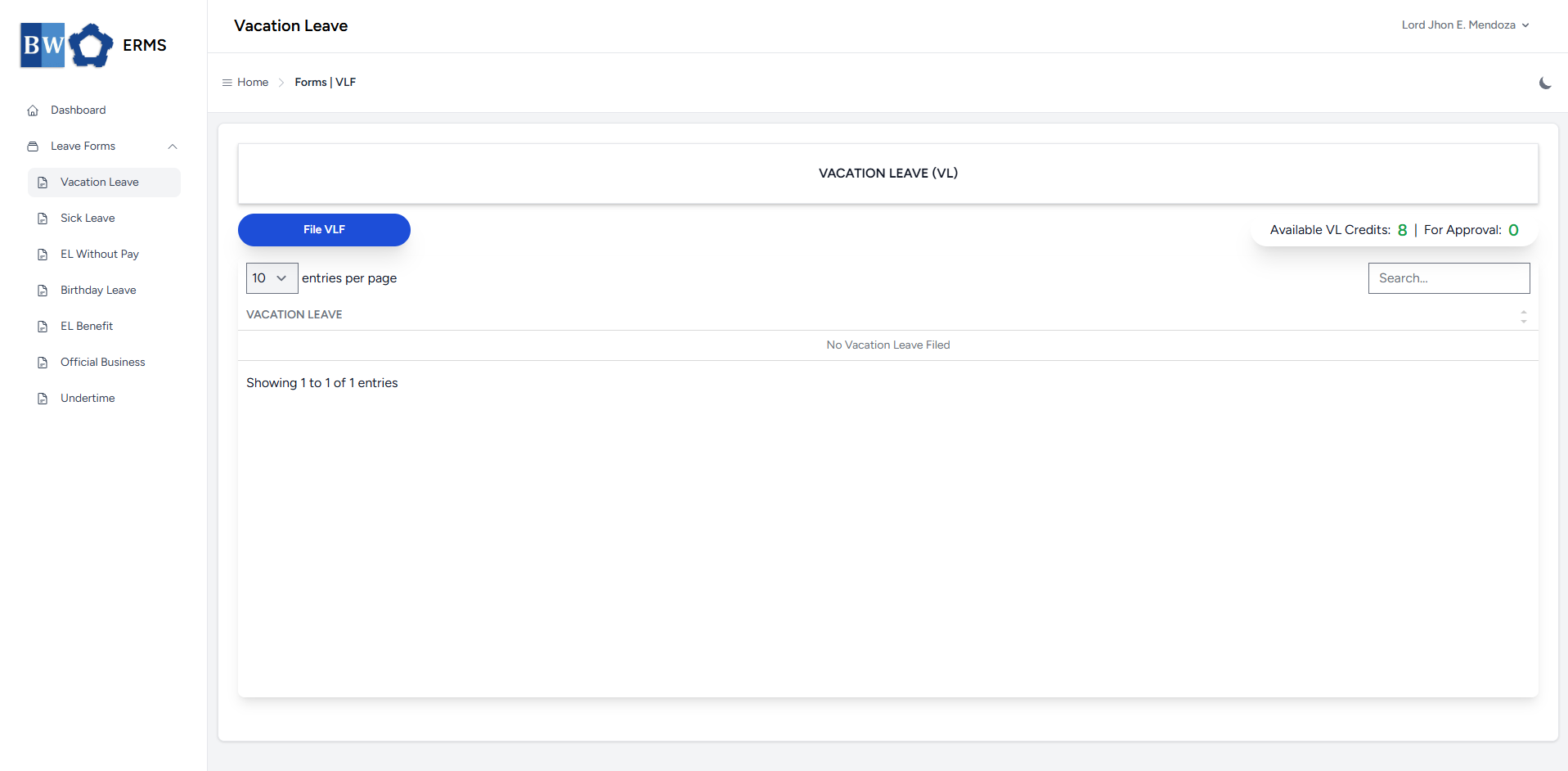
- On the Vacation Leave page, click the File VLF button to open the form.
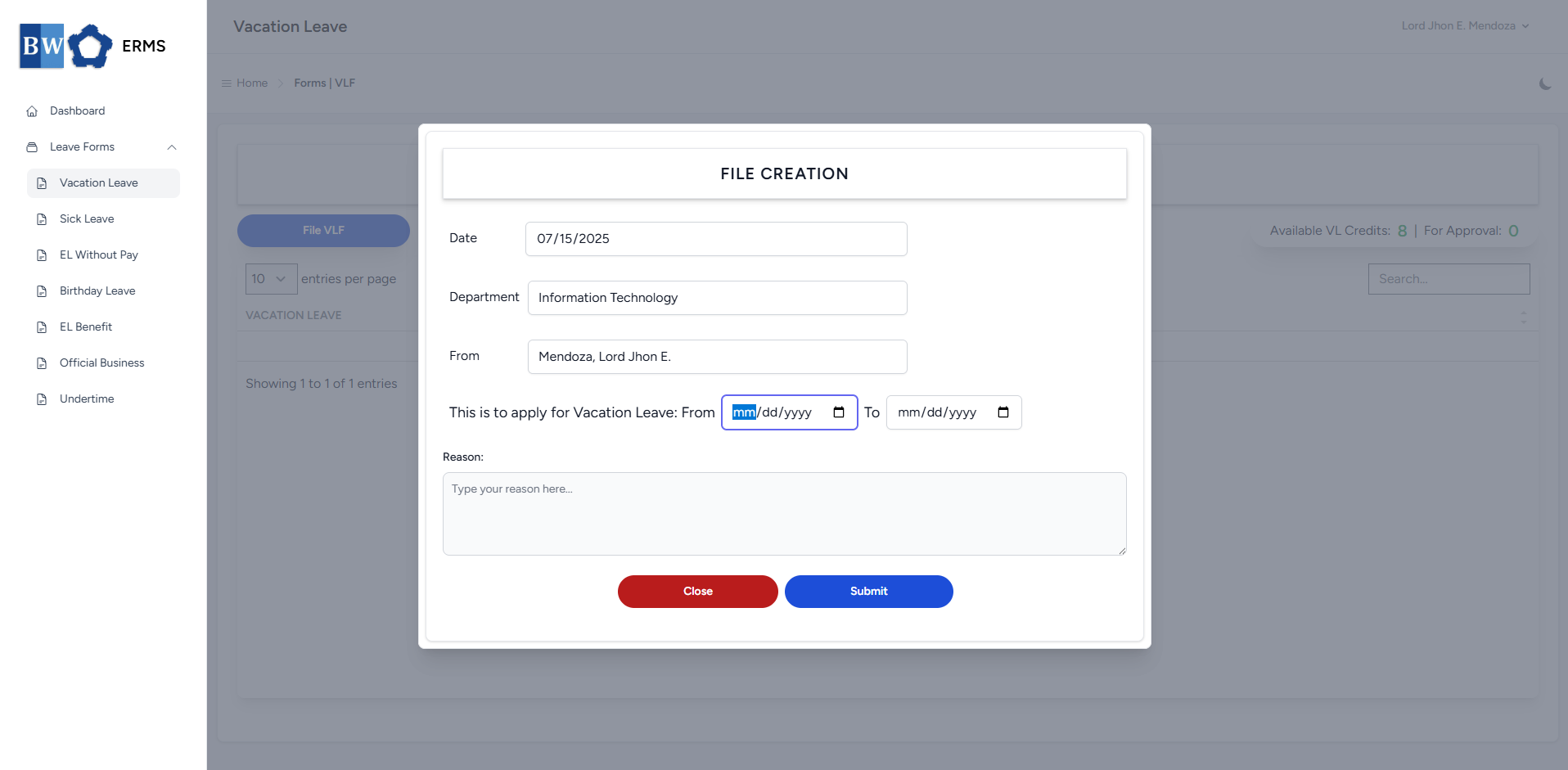
- Fill out the required fields, then click Submit.
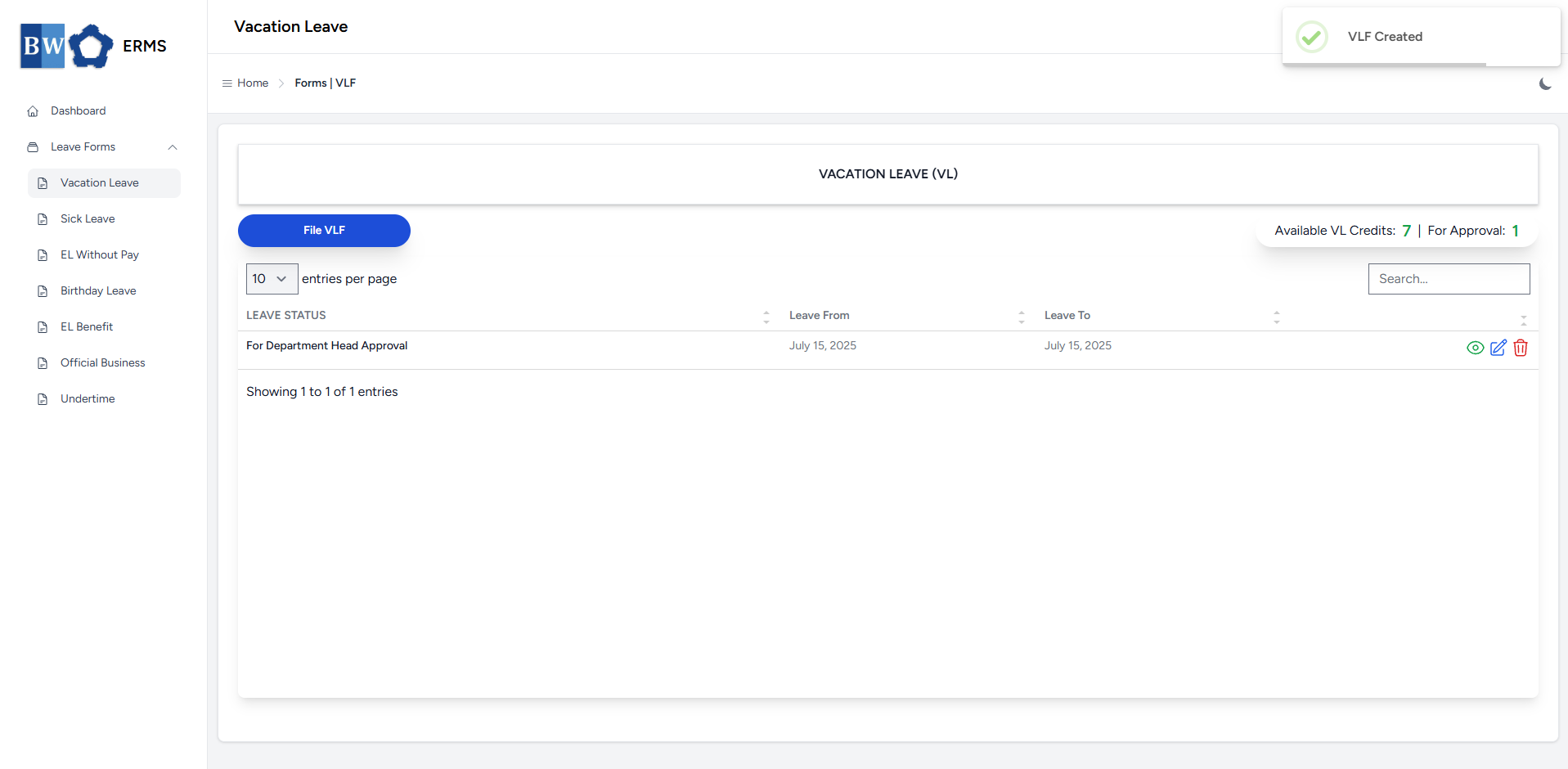
- After submitting, a notification will appear saying that the VLF has been created. The filed leave will be added to the list, and your VL Credits will be reduced based on the number of leave days you filed.
-
You can also use this page to check the status of your leave.
Approver Managers/Supervisors Application
To access the Vacation Leave page:
-
In the Sidebar, click the Leave Forms dropdown.
- From the list that appears, select Vacation Leave.
- Then, click My VLF to view your filed vacation leaves.
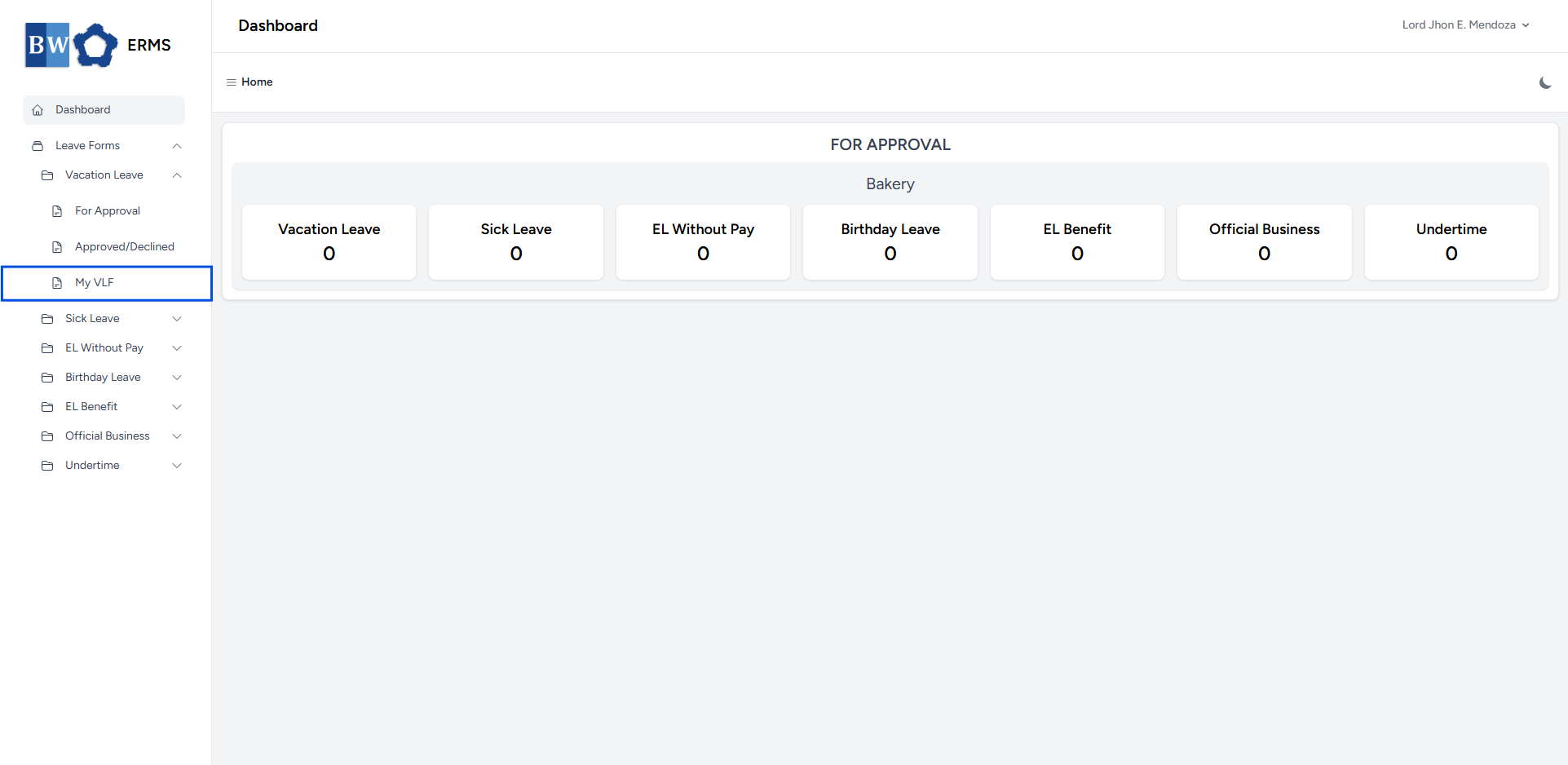
- It will open the Vacation Leave (My VLF) page.
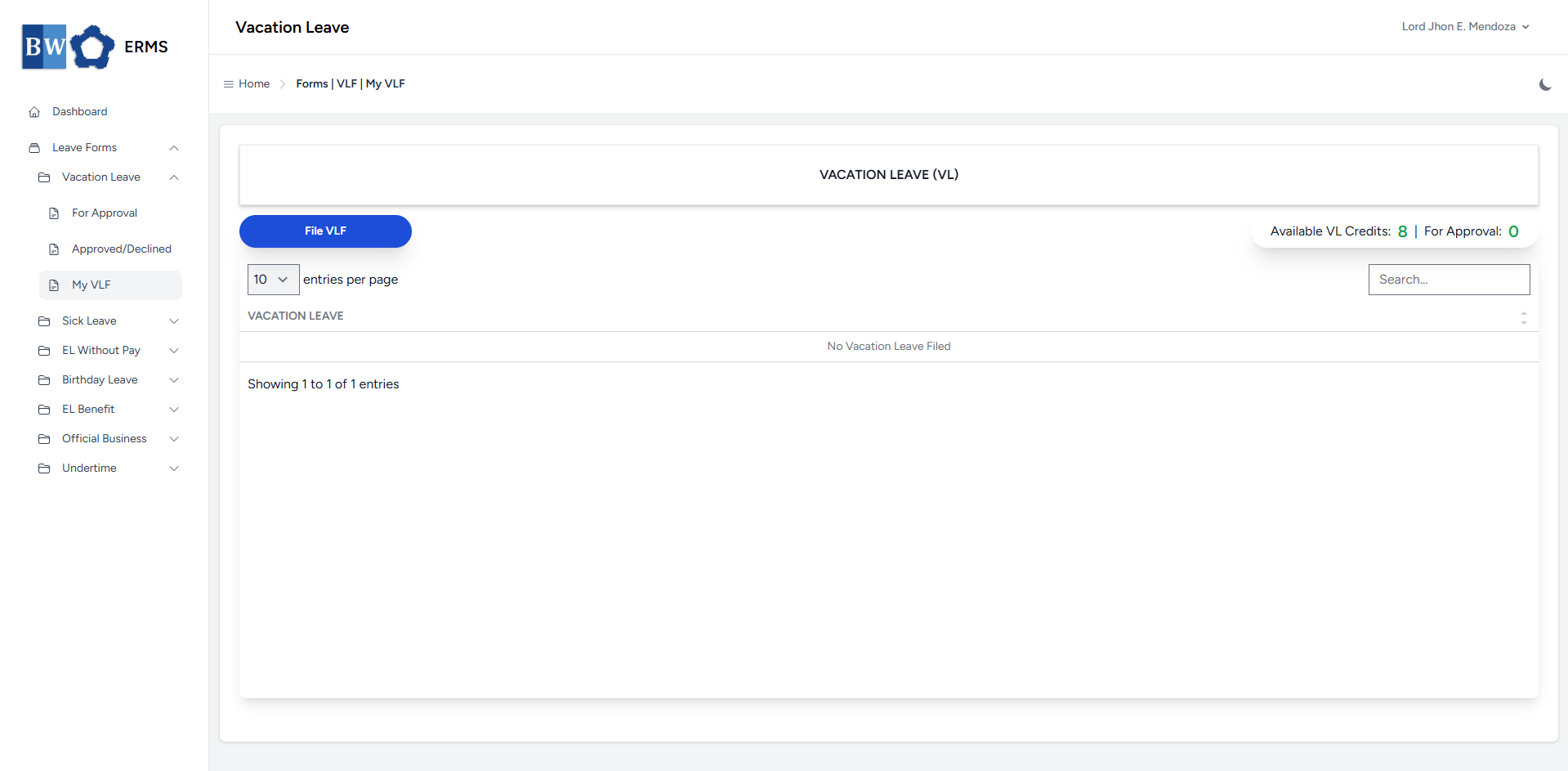
- On the Vacation Leave (My VLF) page, click the File VLF button to open the form.
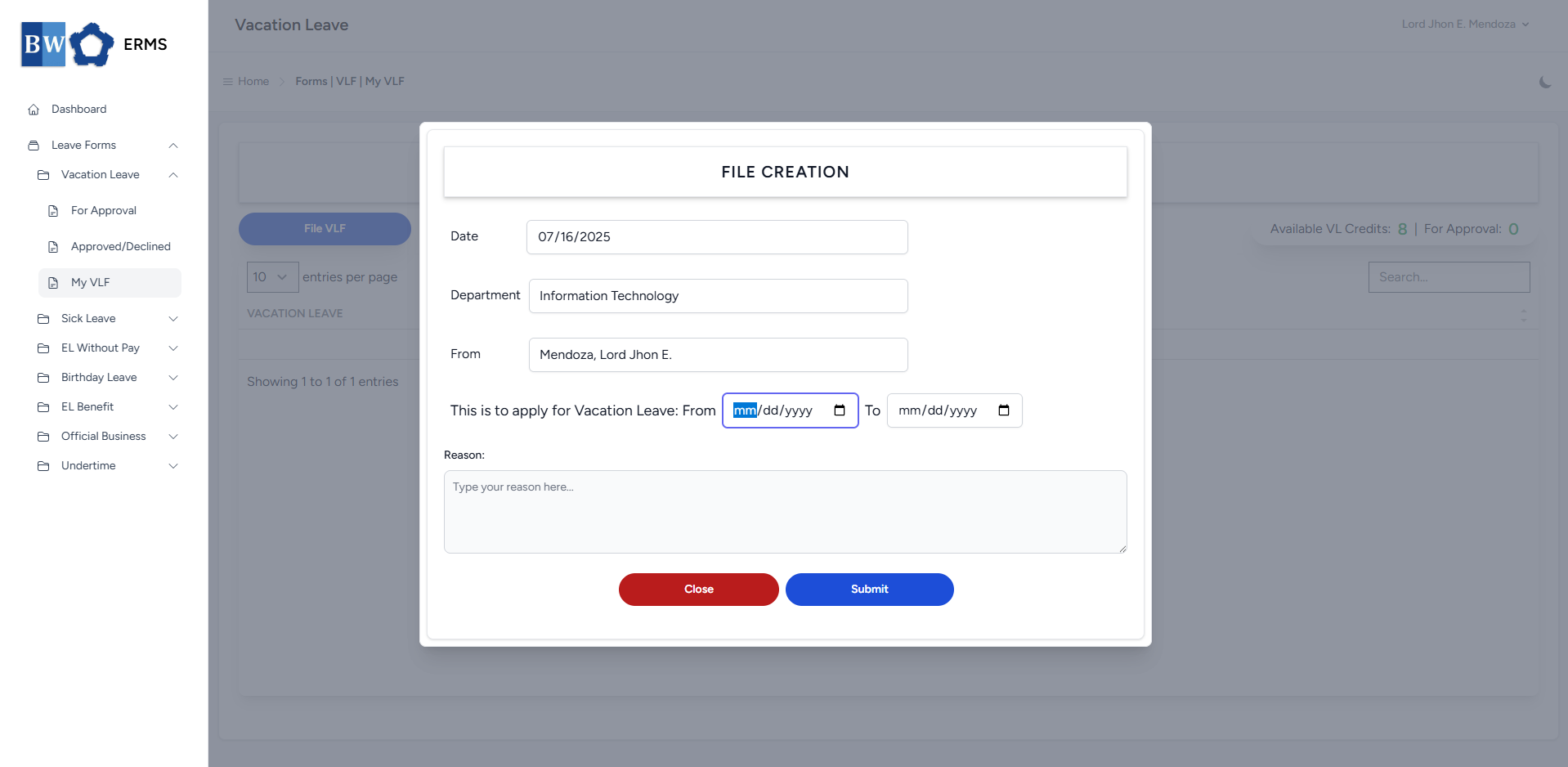
- Fill out the required fields, then click Submit.
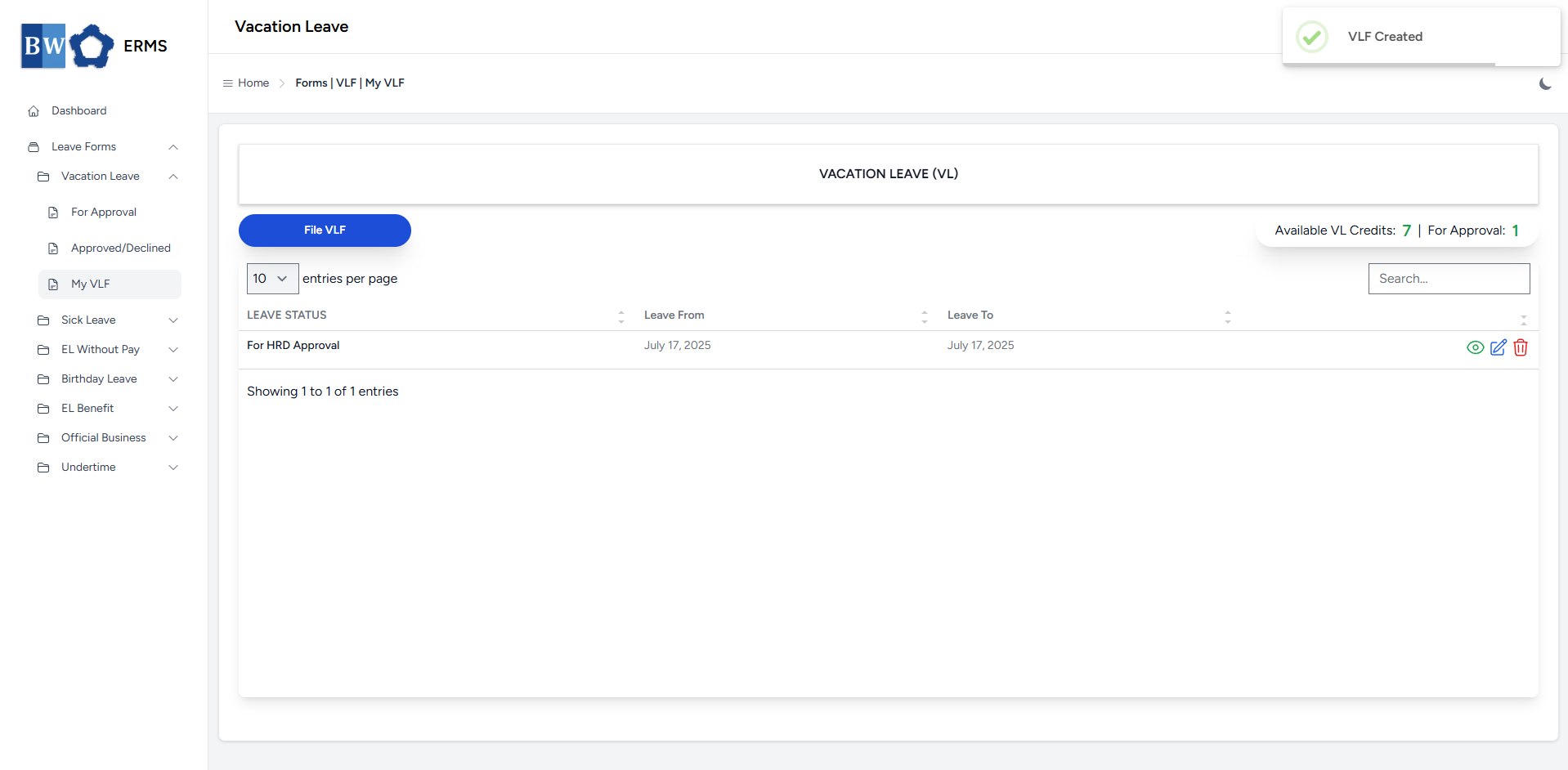
- After submitting, a notification will appear saying that the VLF has been created. The filed leave will be added to the list, and your VL Credits will be reduced based on the number of leave days you filed.
-
You can also use this page to check the status of your leave.
Sick Leave
This section provides a clear and complete guide on how to properly file for Sick Leave, including the necessary steps and requirements.
Employees & Non-Approver Managers/Supervisors Application
To access the Sick Leave page, you can do either of the following:
-
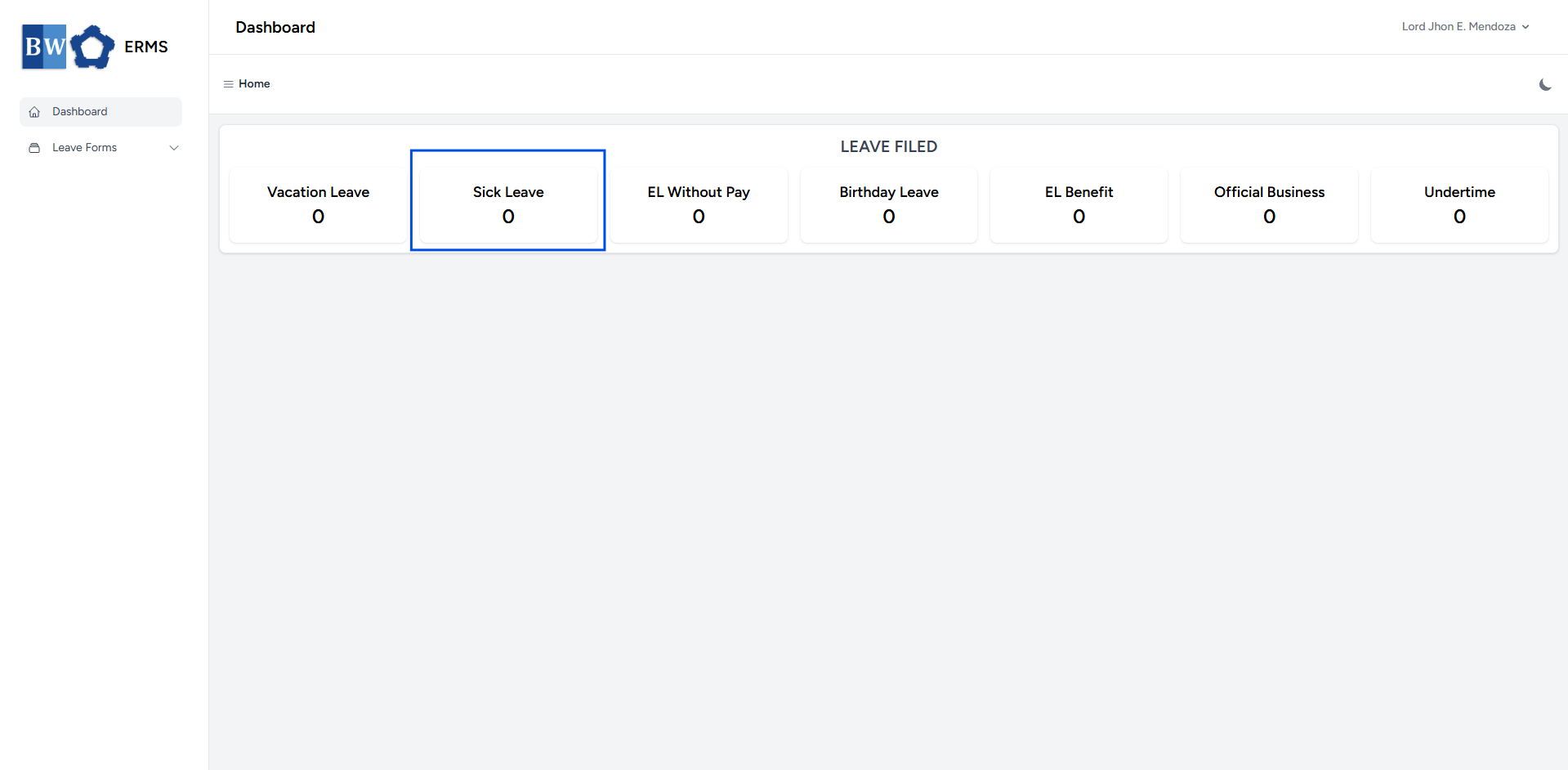
On your Dashboard, click Sick Leave under the Leave Filed section.
-
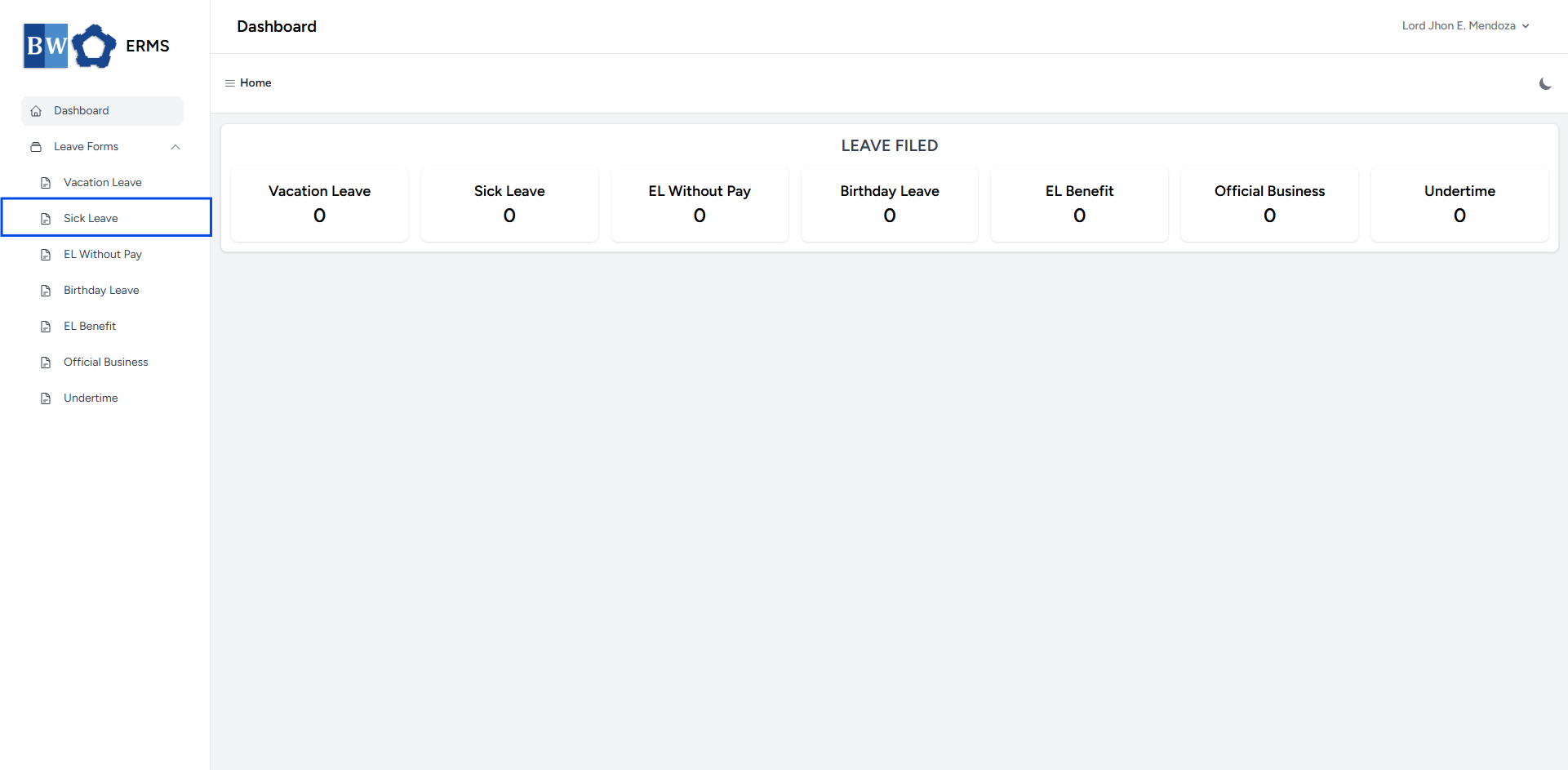
Or, click the Leave Forms dropdown in the sidebar, then select Sick Leave.
- It will open the Sick Leave page.
- On the Sick Leave page, click the File SLF button to open the form.
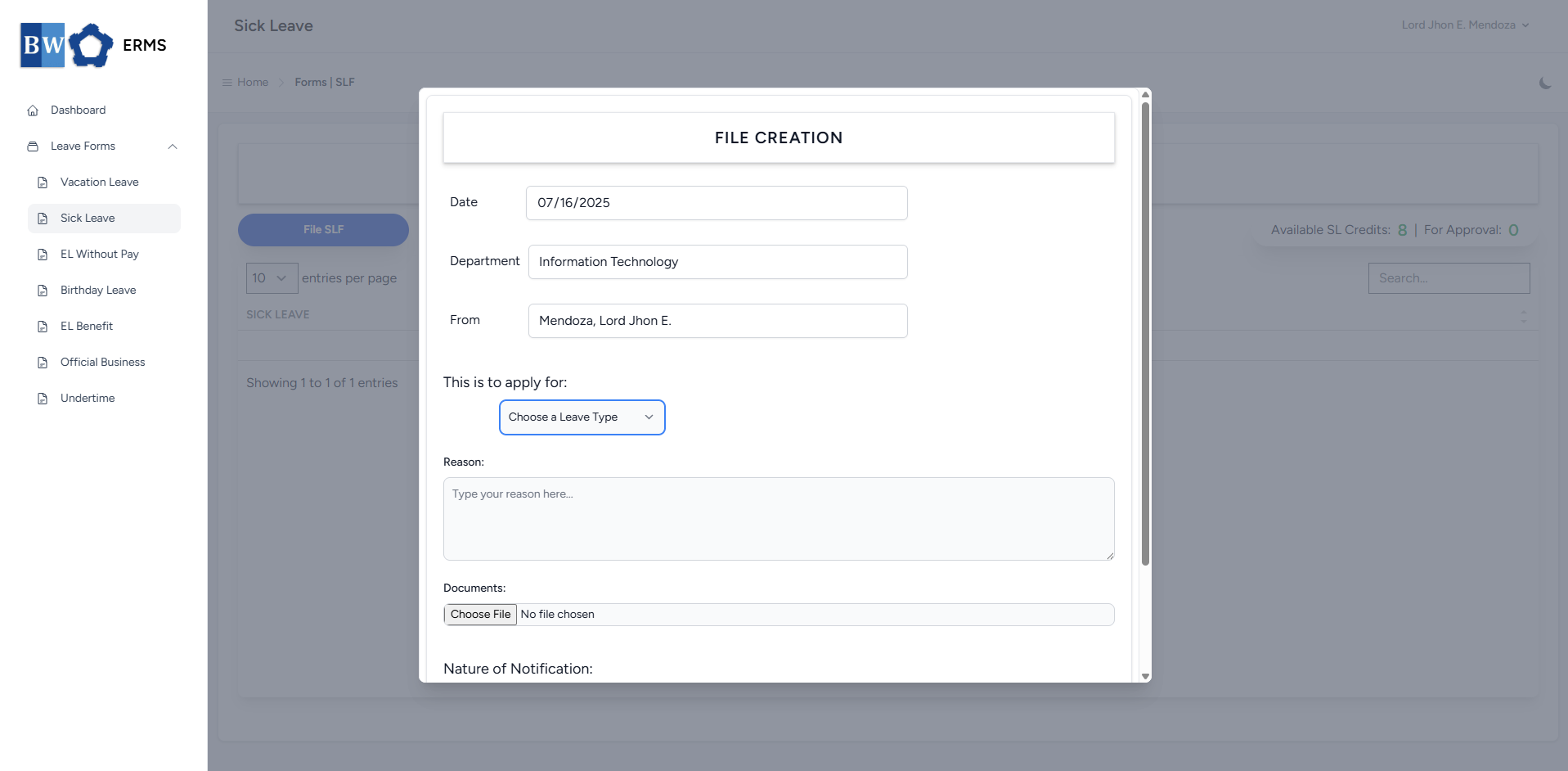
- Fill out the required fields, then click Submit.
- Note: You may leave the document blank.
- Note: You may leave the document blank.
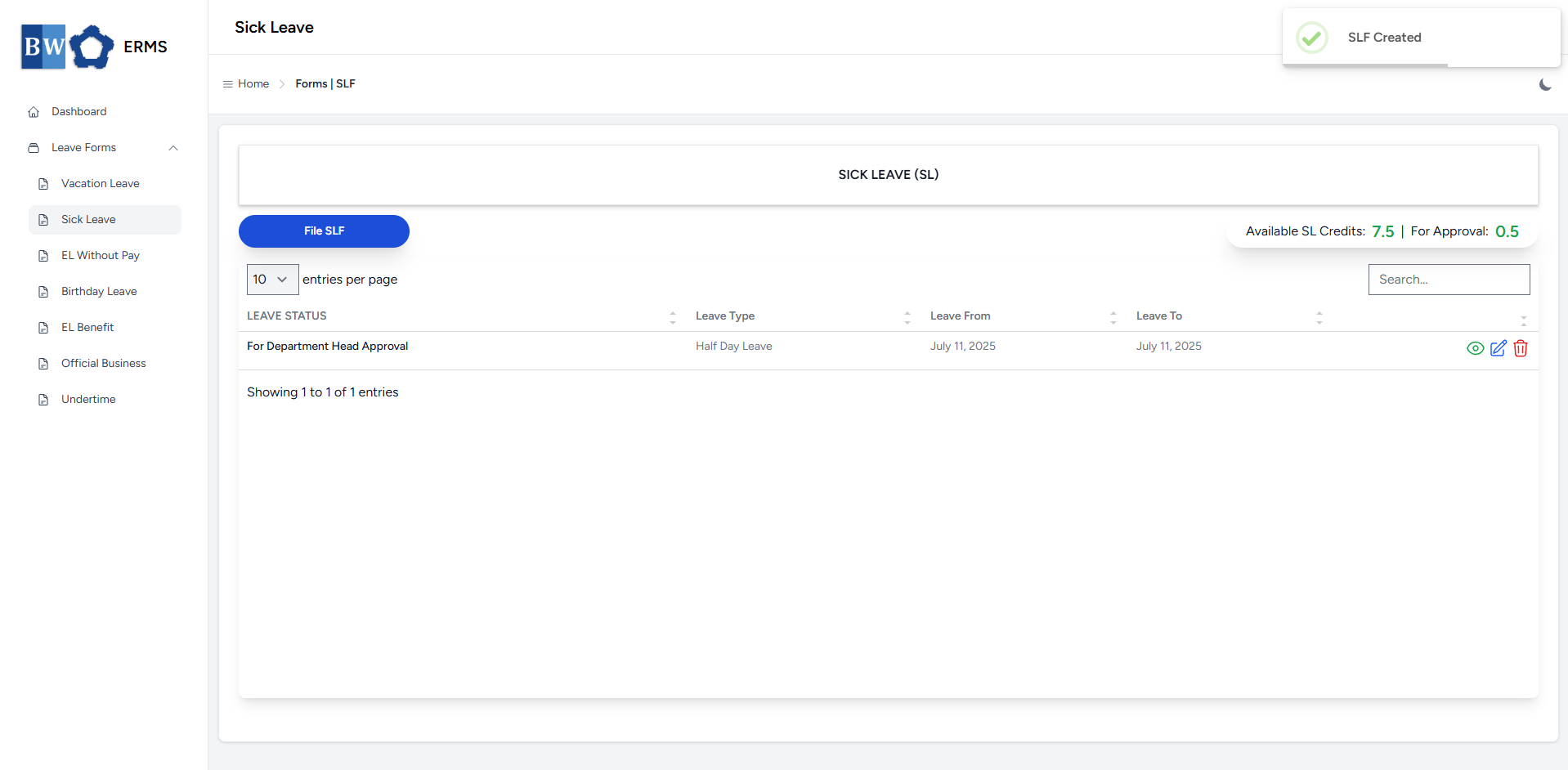
- After submitting, a notification will appear saying that the SLF has been created. The filed leave will be added to the list, and your SL Credits will be reduced based on the number of leave days you filed.
-
You can also use this page to check the status of your leave.
Approver Managers/Supervisors Application
To access the Sick Leave page:
-
In the Sidebar, click the Leave Forms dropdown.
- From the list that appears, select Sick Leave.
- Then, click My SLF to view your filed sick leaves.
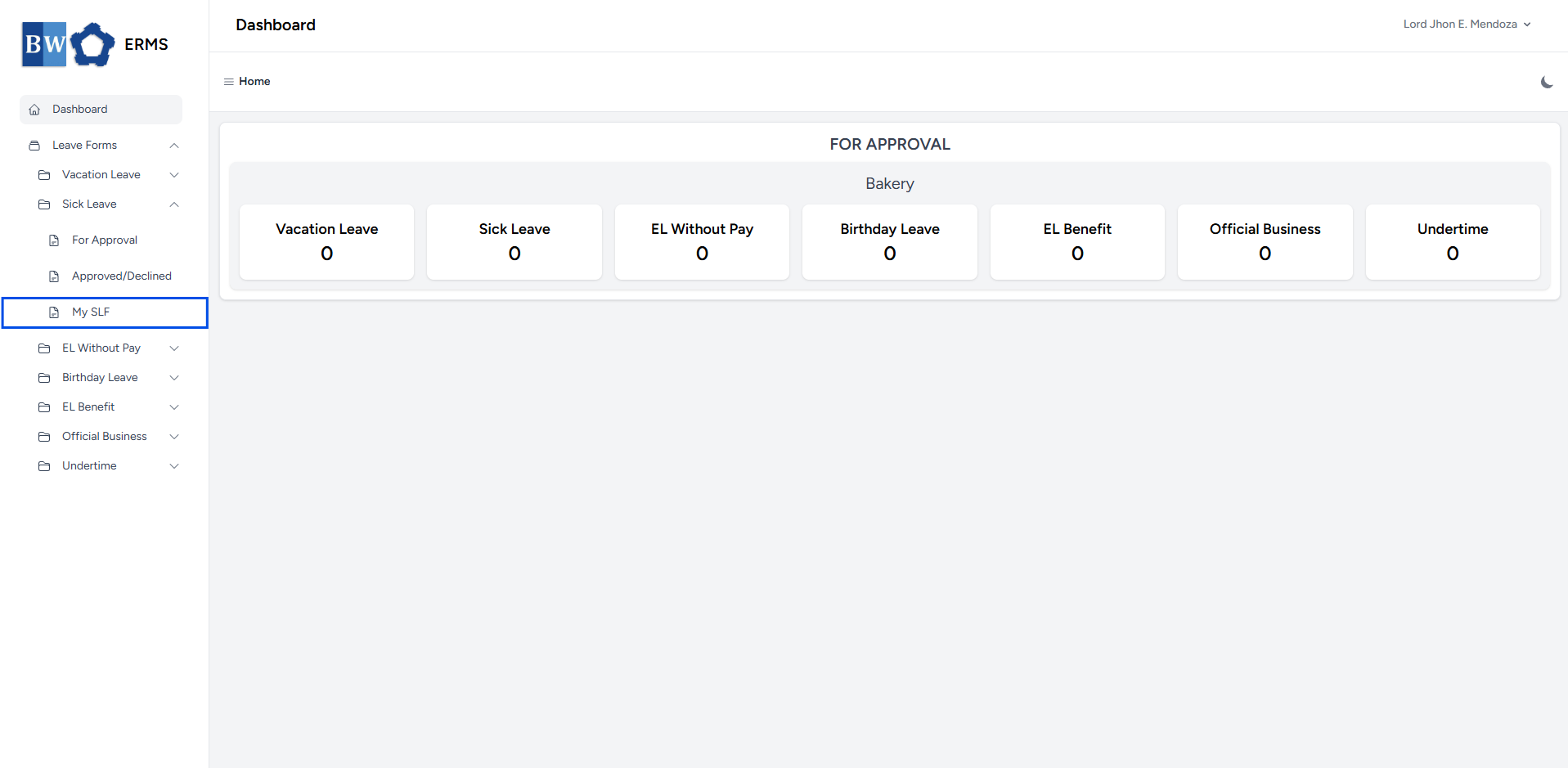
- It will open the Sick Leave (My SLF) page.
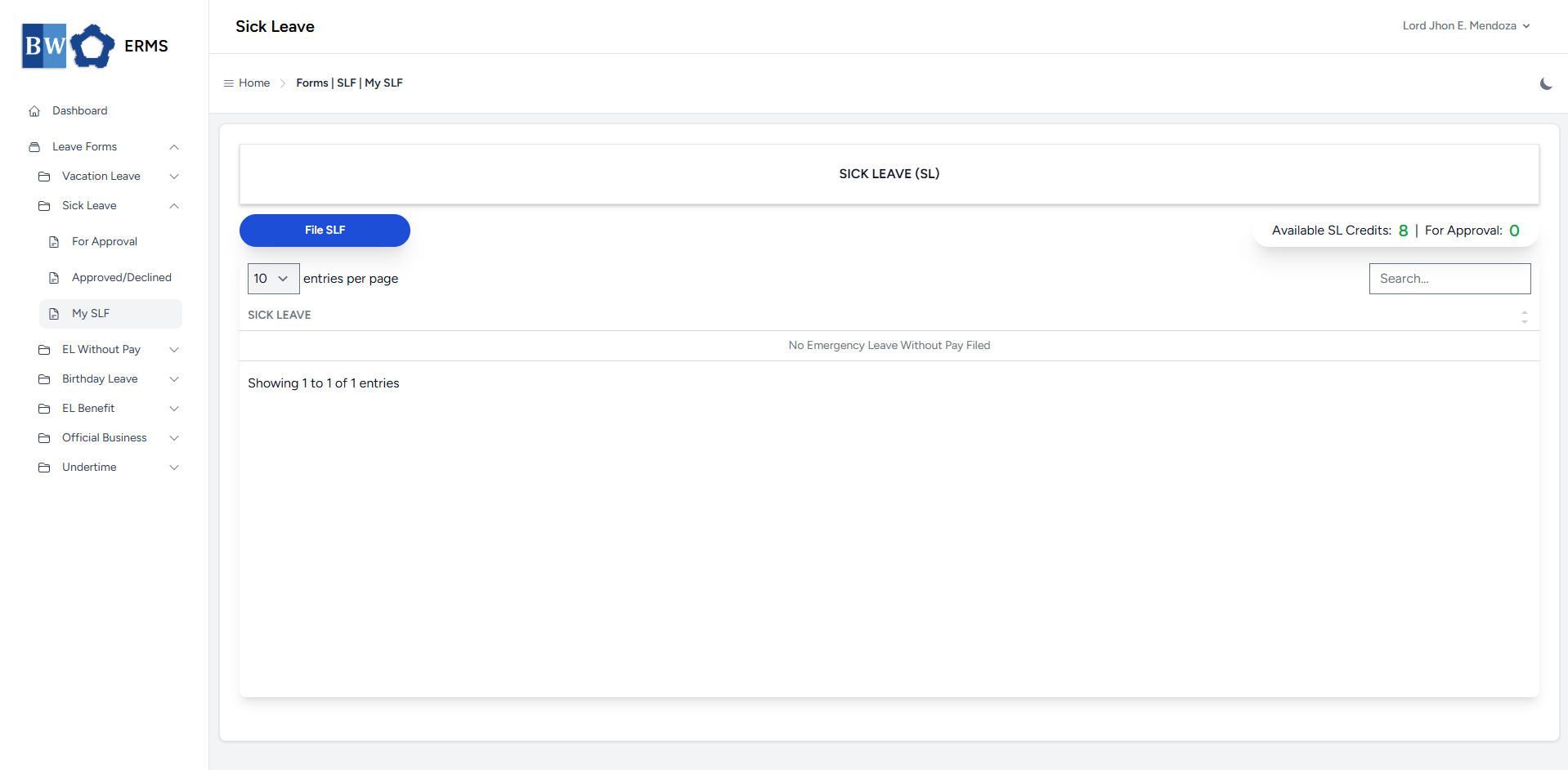
- On the Sick Leave (My SLF) page, click the File SLF button to open the form.
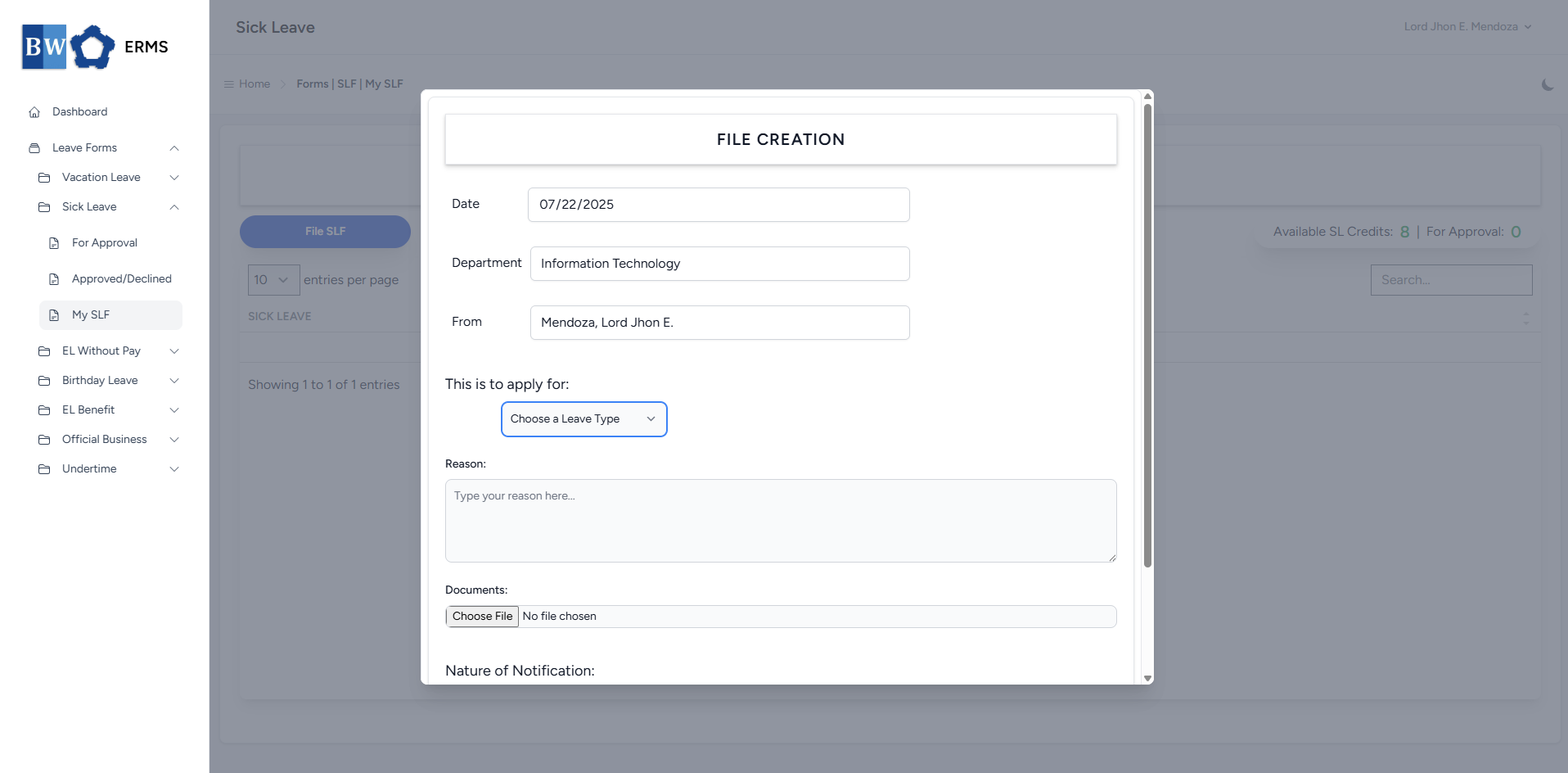
- Fill out the required fields, then click Submit.
- Note: You may leave the document blank.
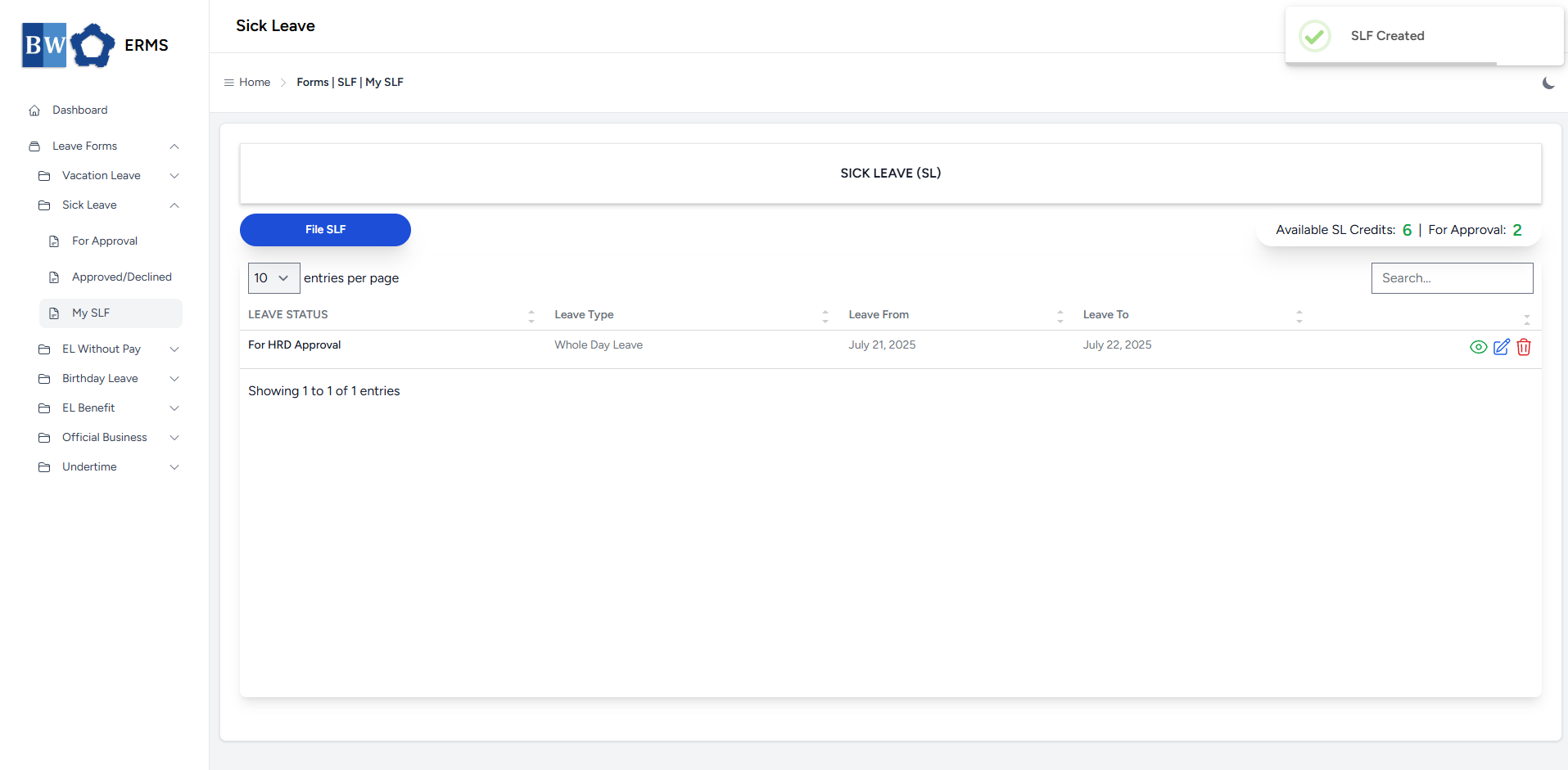
- After submitting, a notification will appear saying that the SLF has been created. The filed leave will be added to the list, and your SL Credits will be reduced based on the number of leave days you filed.
-
You can also use this page to check the status of your leave.
Emergency Leave Without Pay
This section provides a clear and complete guide on how to file for Emergency Leave Without Pay, outlining the required steps and procedures.
Employees & Non-Approver Managers/Supervisors Application
To access the Emergency Leave Without Pay page, you can do either of the following:
-
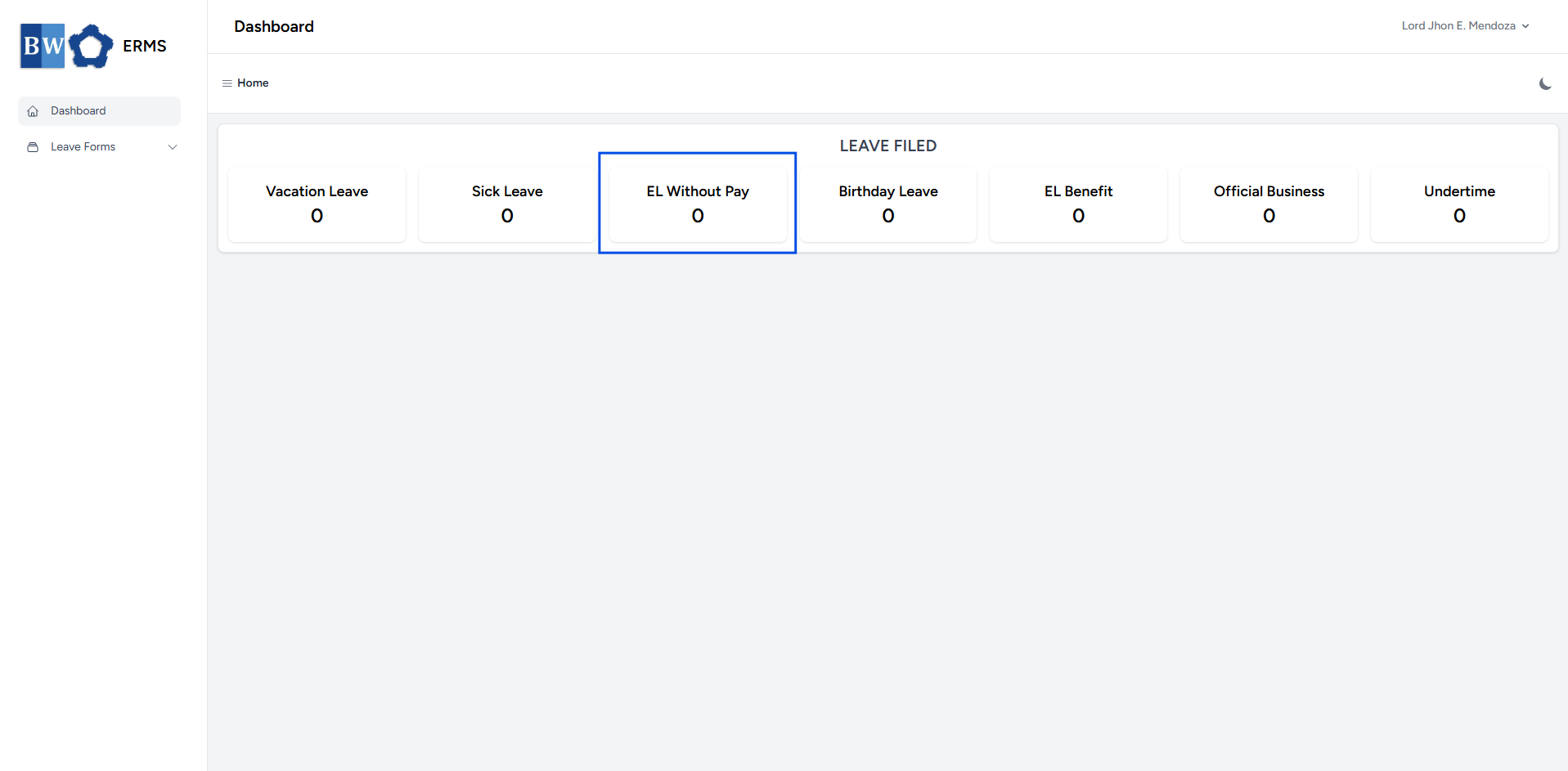
On your Dashboard, click EL Without Pay under the Leave Filed section.
-
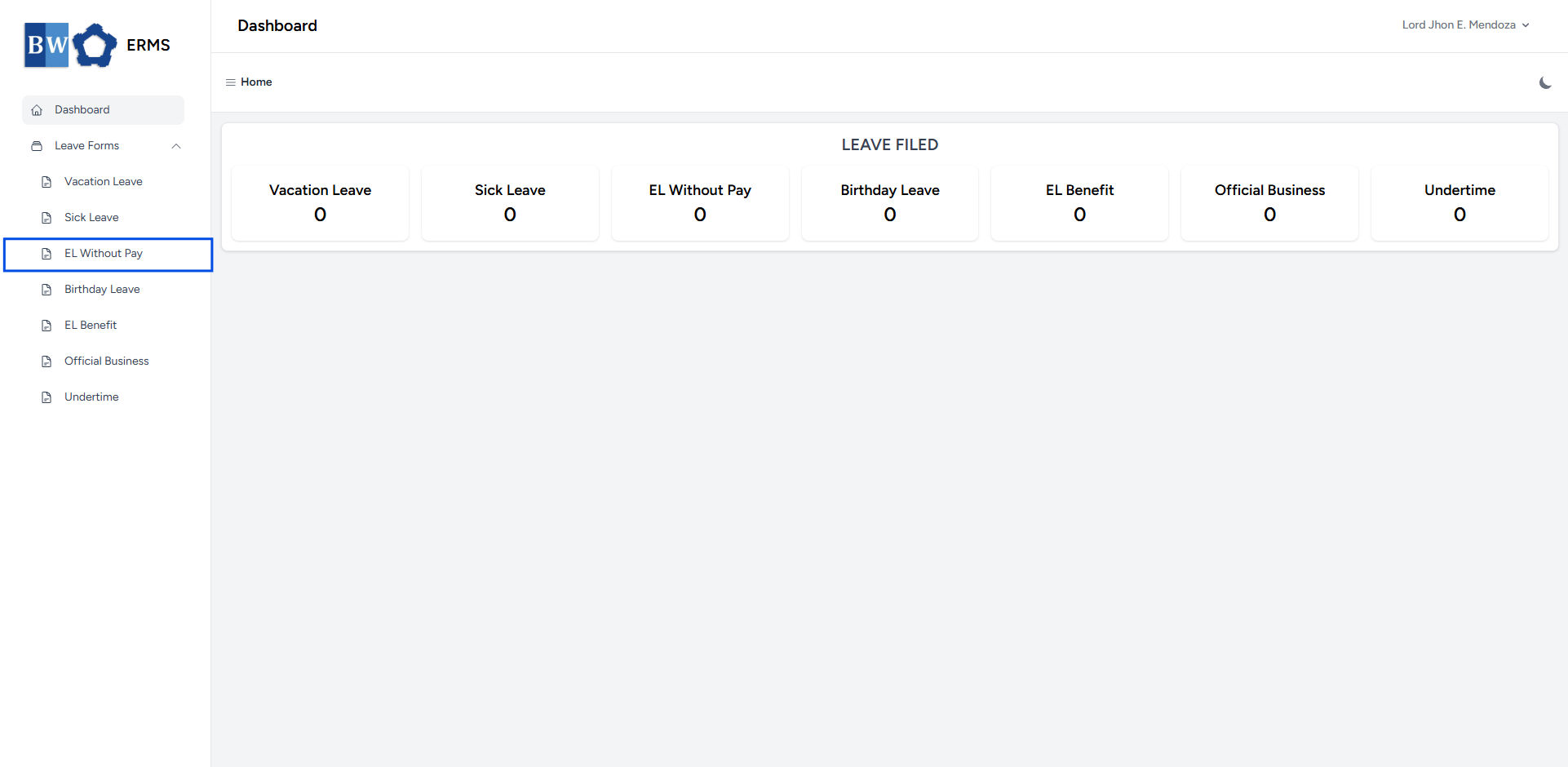
Or, click the Leave Forms dropdown in the sidebar, then select EL Without Pay.
- It will open the Emergency Leave Without Pay page.
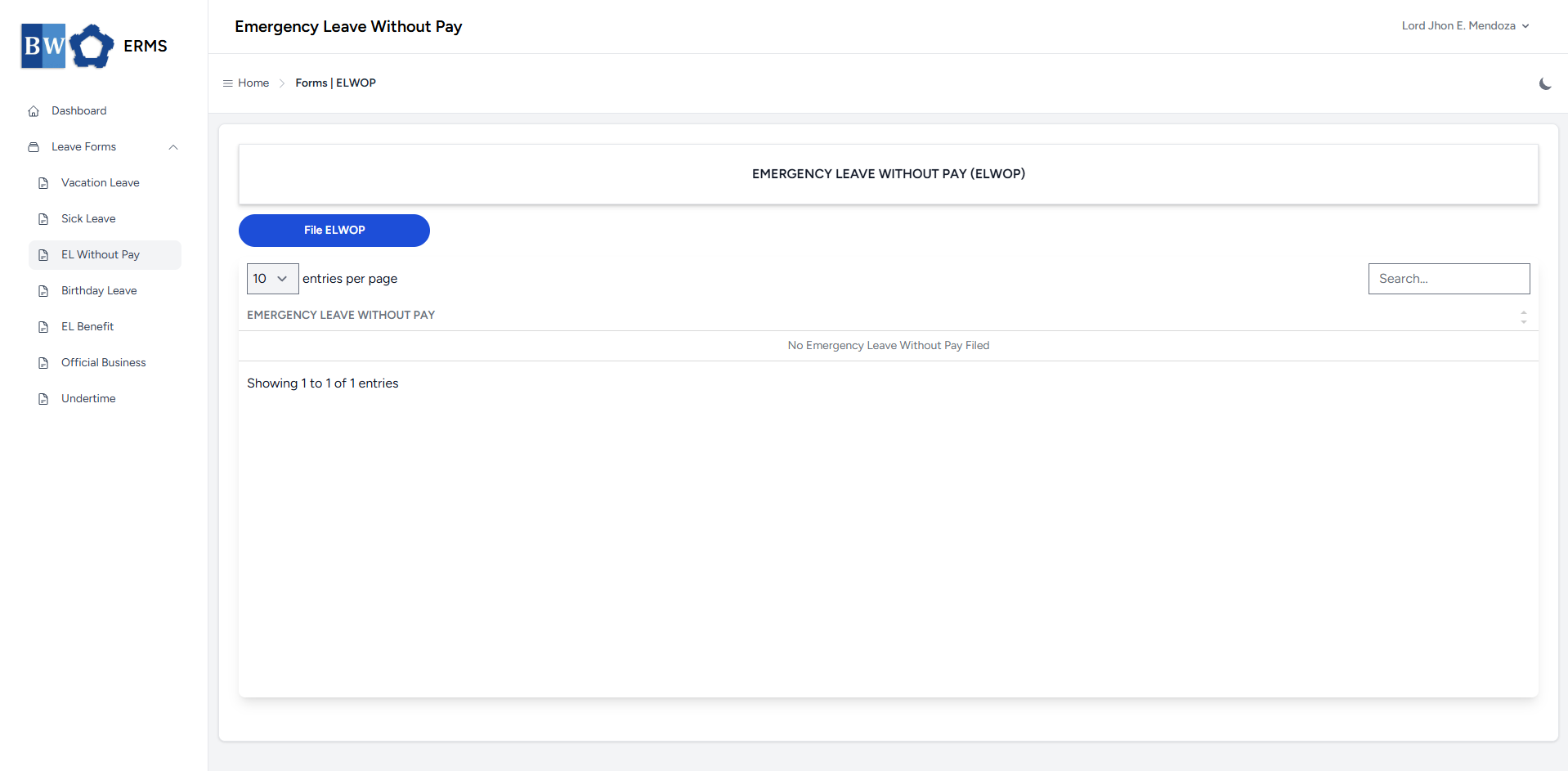
- On the Emergency Leave Without Pay page, click the File ELWOP button to open the form.
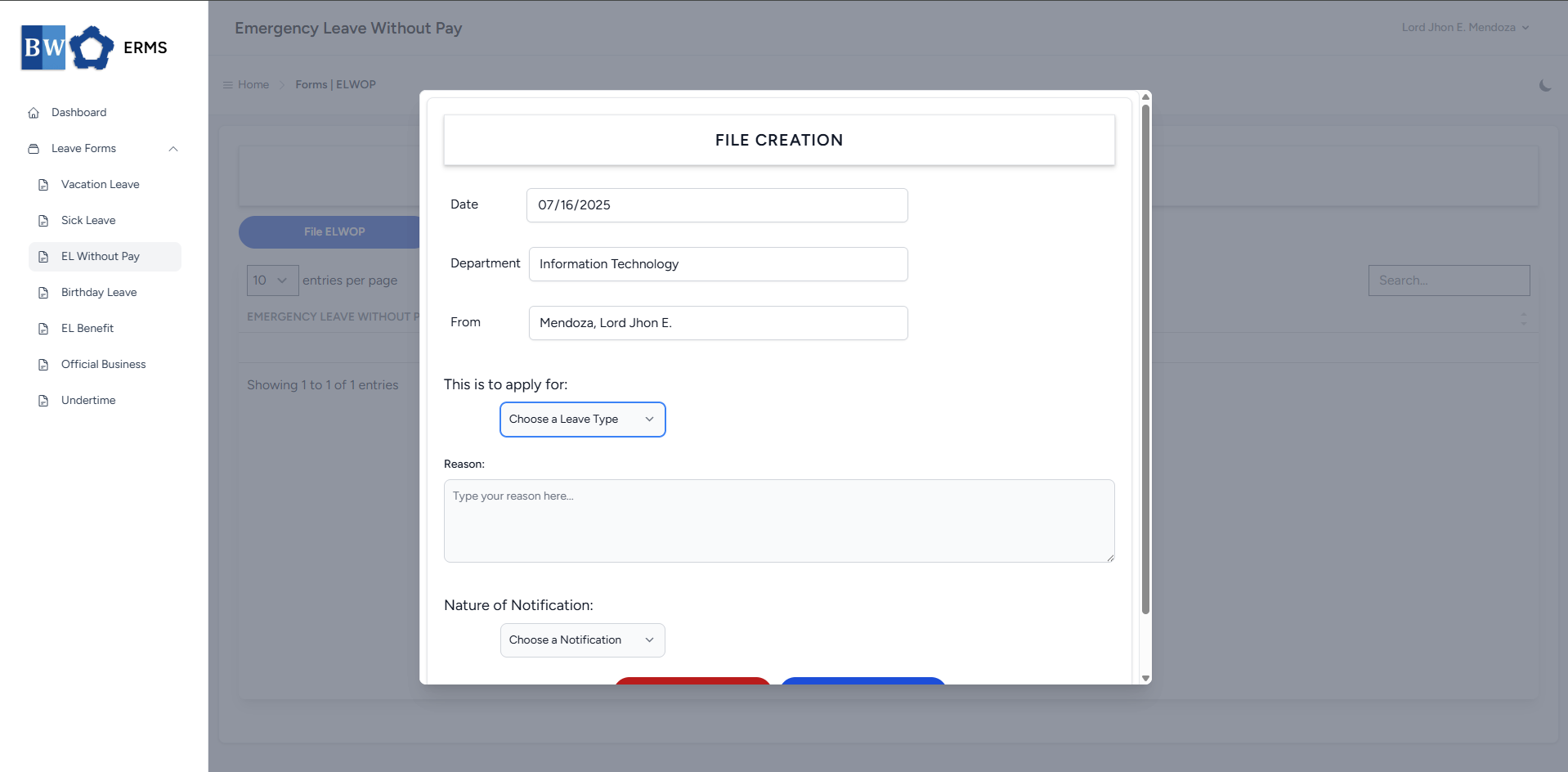
- Fill out the required fields, then click Submit.
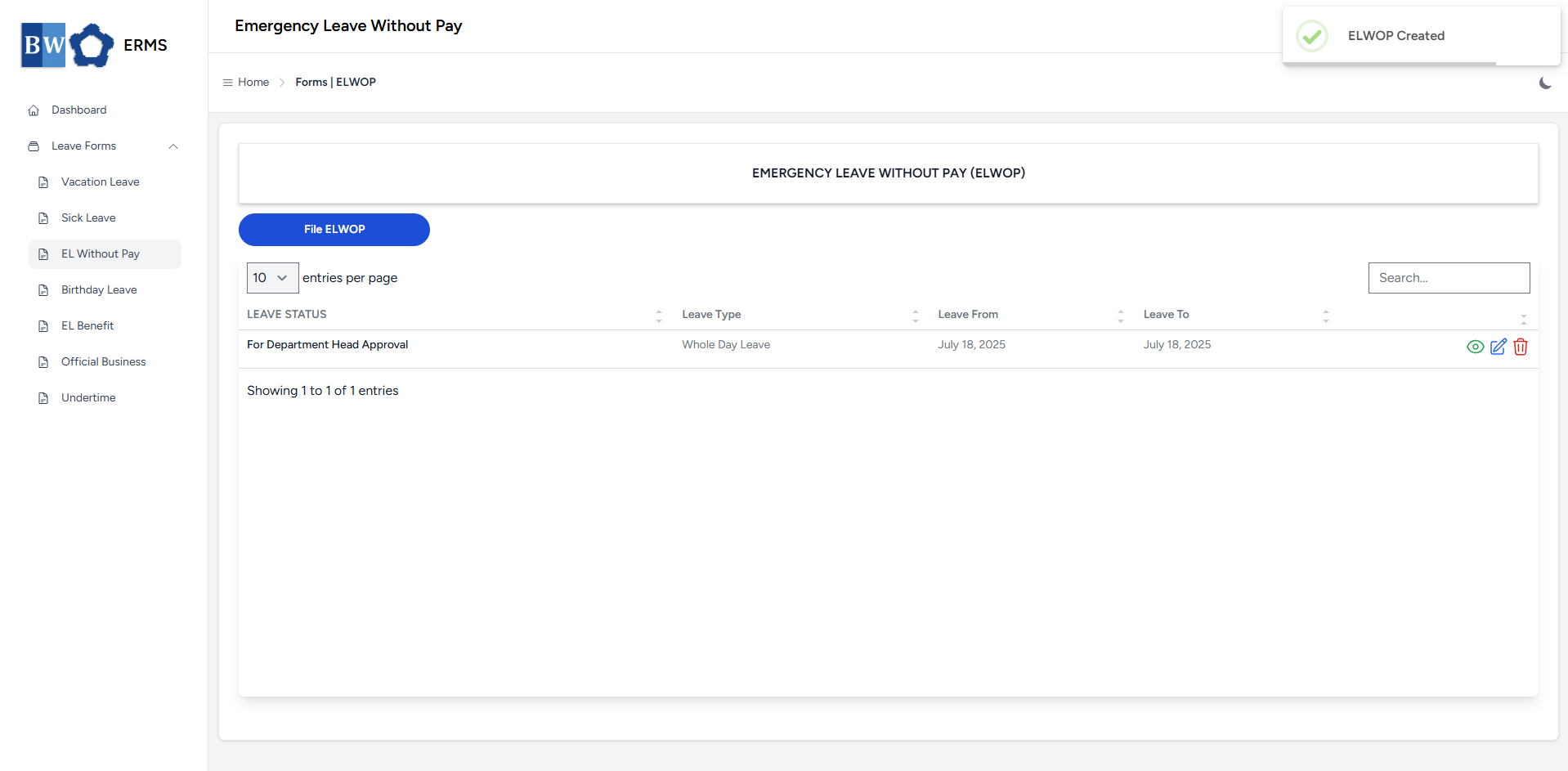
- After submitting, a notification will appear saying that the ELWOP has been created. The filed leave will be added to the list.
-
You can also use this page to check the status of your leave.
Approver Managers/Supervisors Application
To access the Emergency Leave Without Pay page:
-
In the Sidebar, click the Leave Forms dropdown.
- From the list that appears, select EL Without Pay.
- Then, click My ELWOP to view your filed emergency leave without pay.
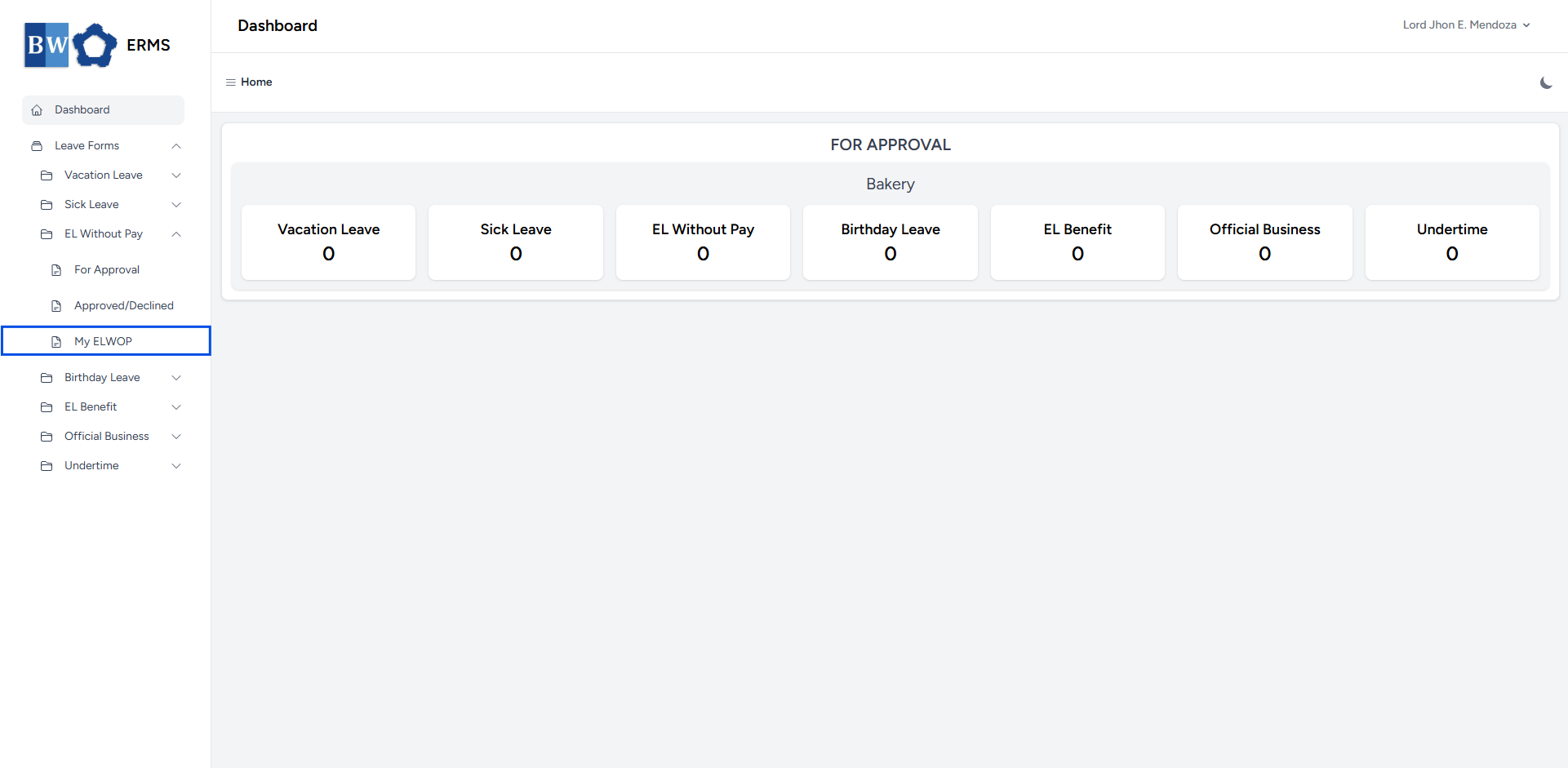
- It will open the EL Without Pay (My ELWOP) page.
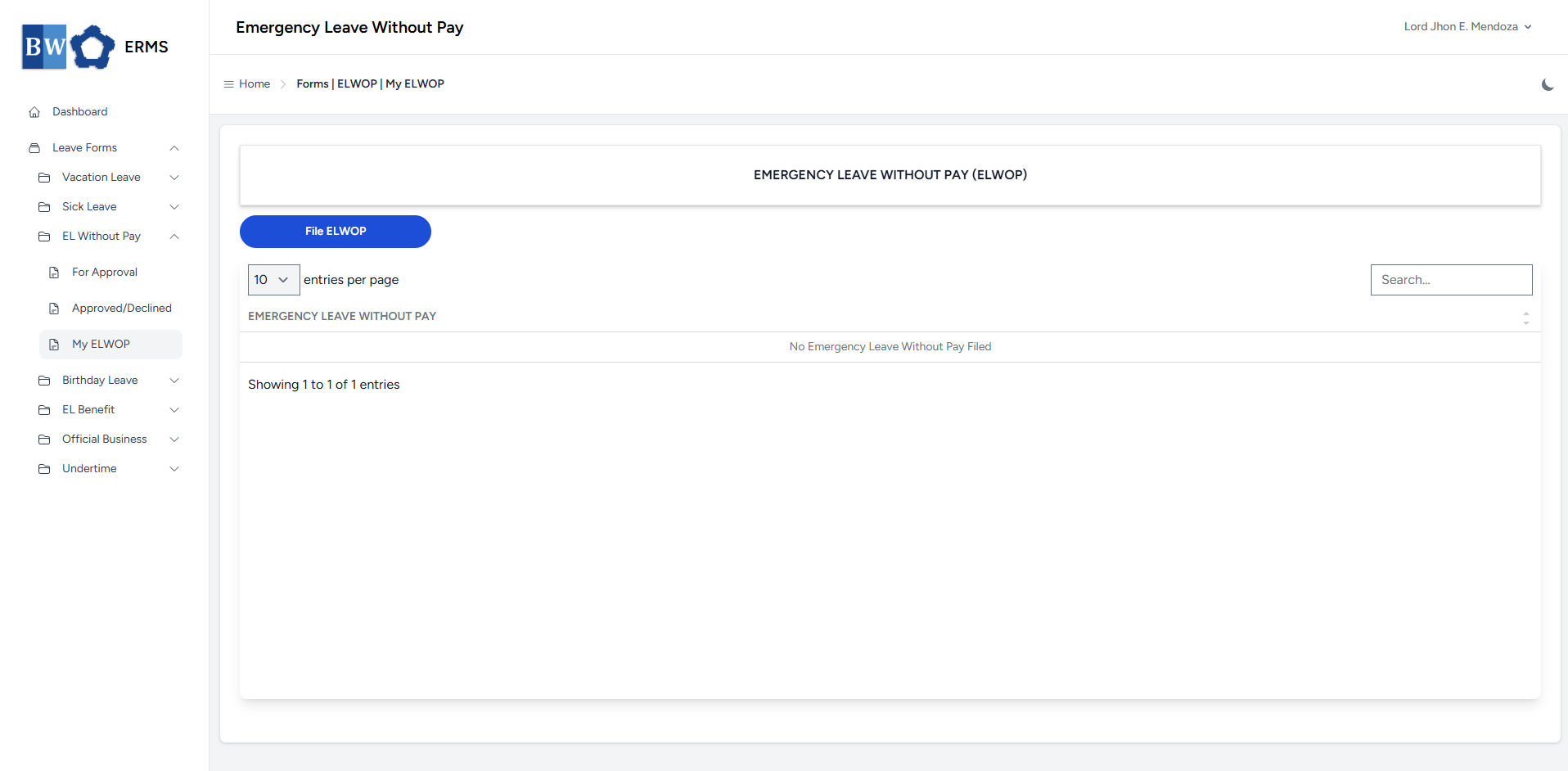
- On the EL Without Pay (My ELWOP) page, click the File ELWOP button to open the form.
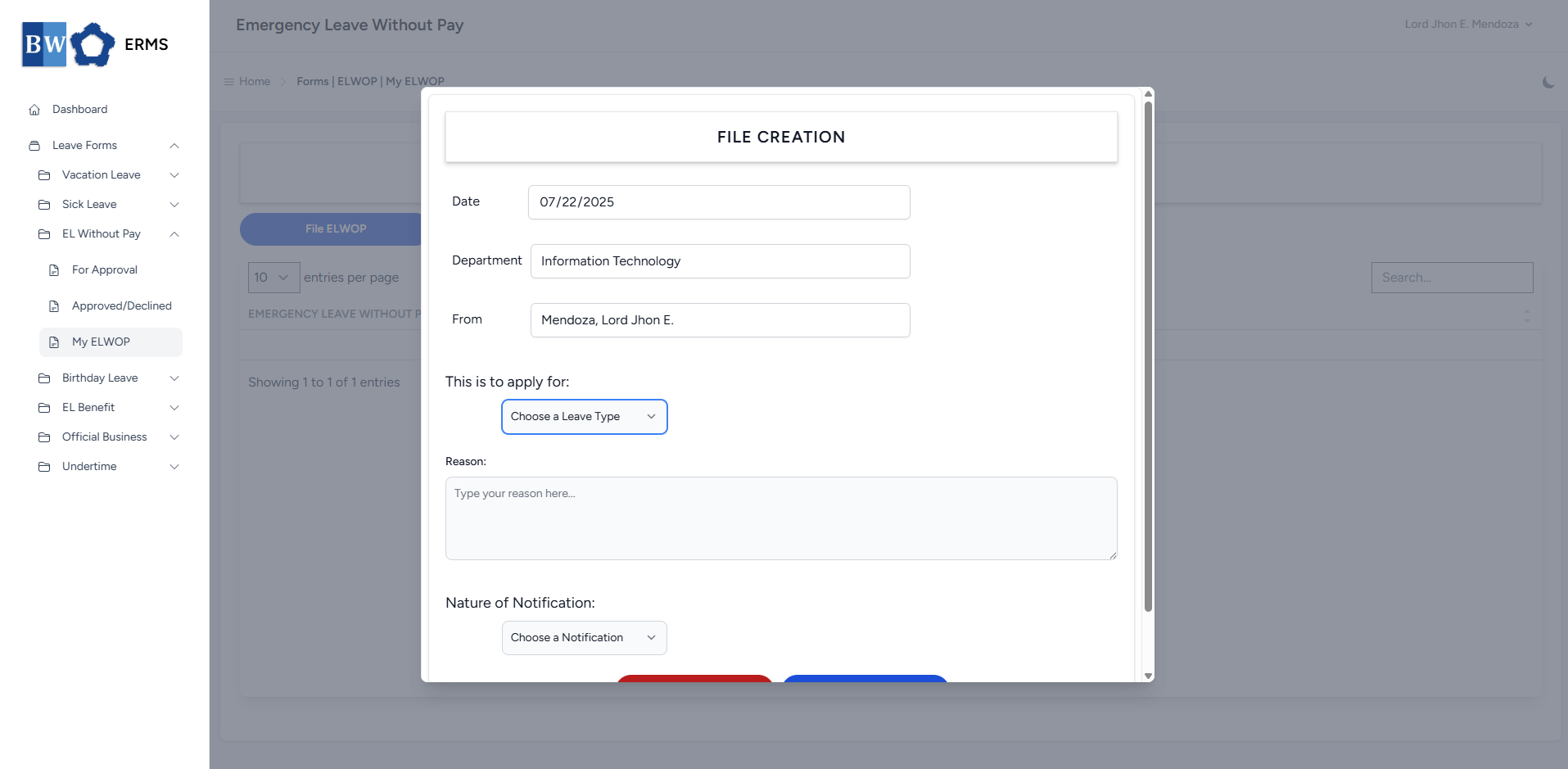
- Fill out the required fields, then click Submit.
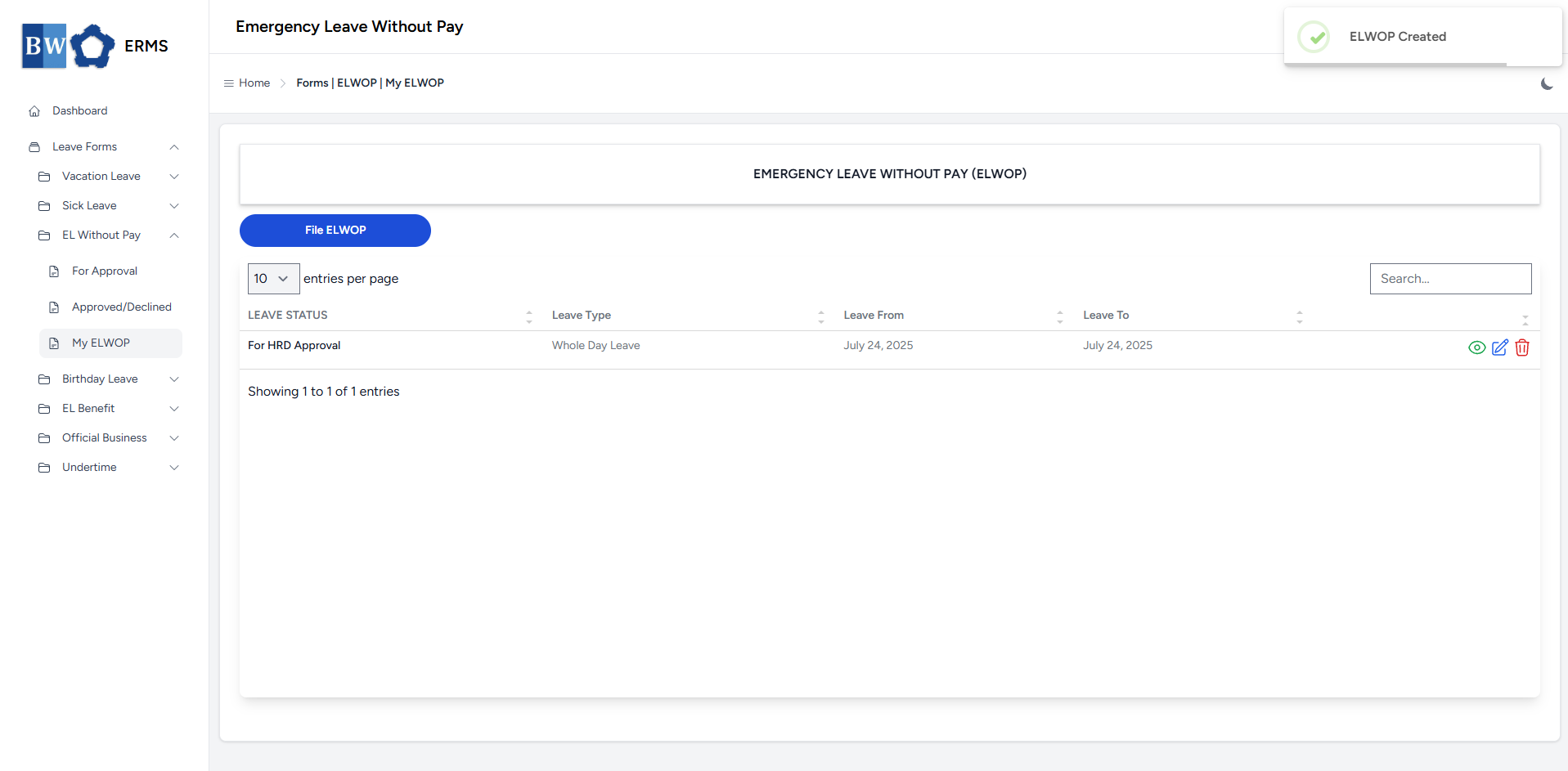
- After submitting, a notification will appear saying that the ELWOP has been created. The filed leave will be added to the list
-
You can also use this page to check the status of your leave.
Birthday Leave
This section offers a clear and complete guide on how to file for Birthday Leave, detailing the steps to follow for a smooth application process.
Employees & Non-Approver Managers/Supervisors Application
To access the Birthday Leave page, you can do either of the following:
-
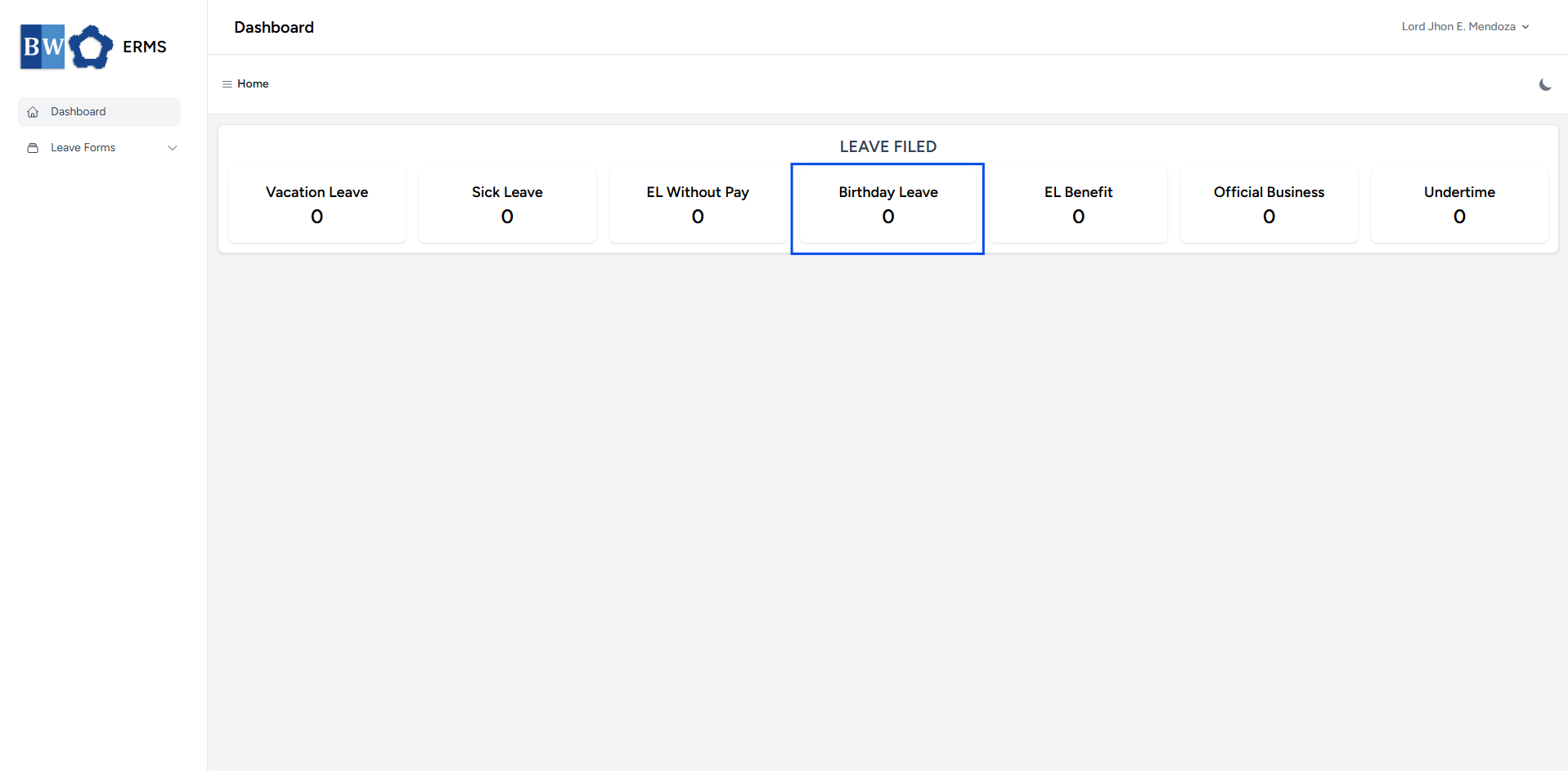
On your Dashboard, click Birthday Leave under the Leave Filed section.
-
Or, click the Leave Forms dropdown in the sidebar, then select Birthday Leave.
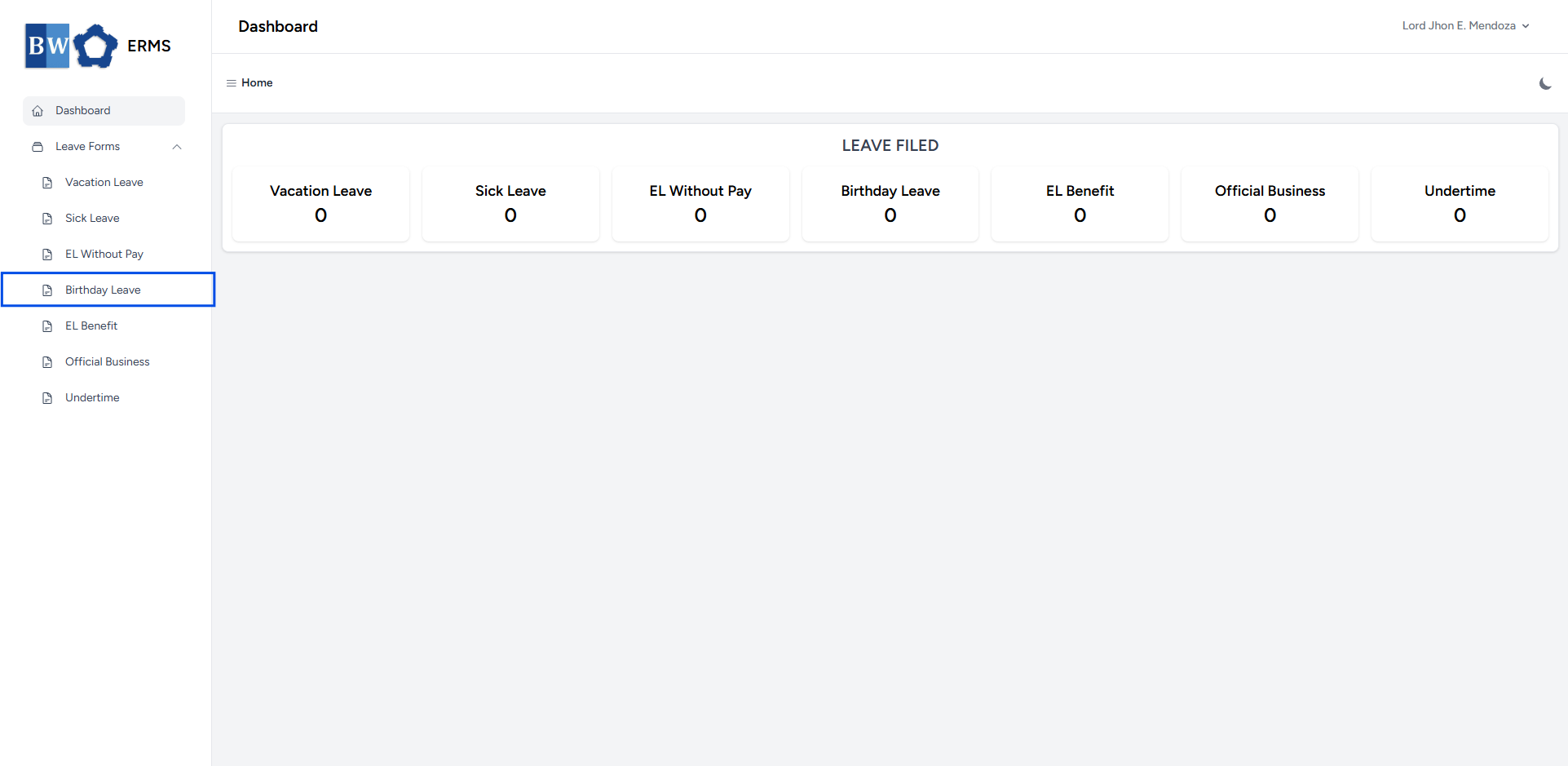
- It will open the Birthday Leave page.
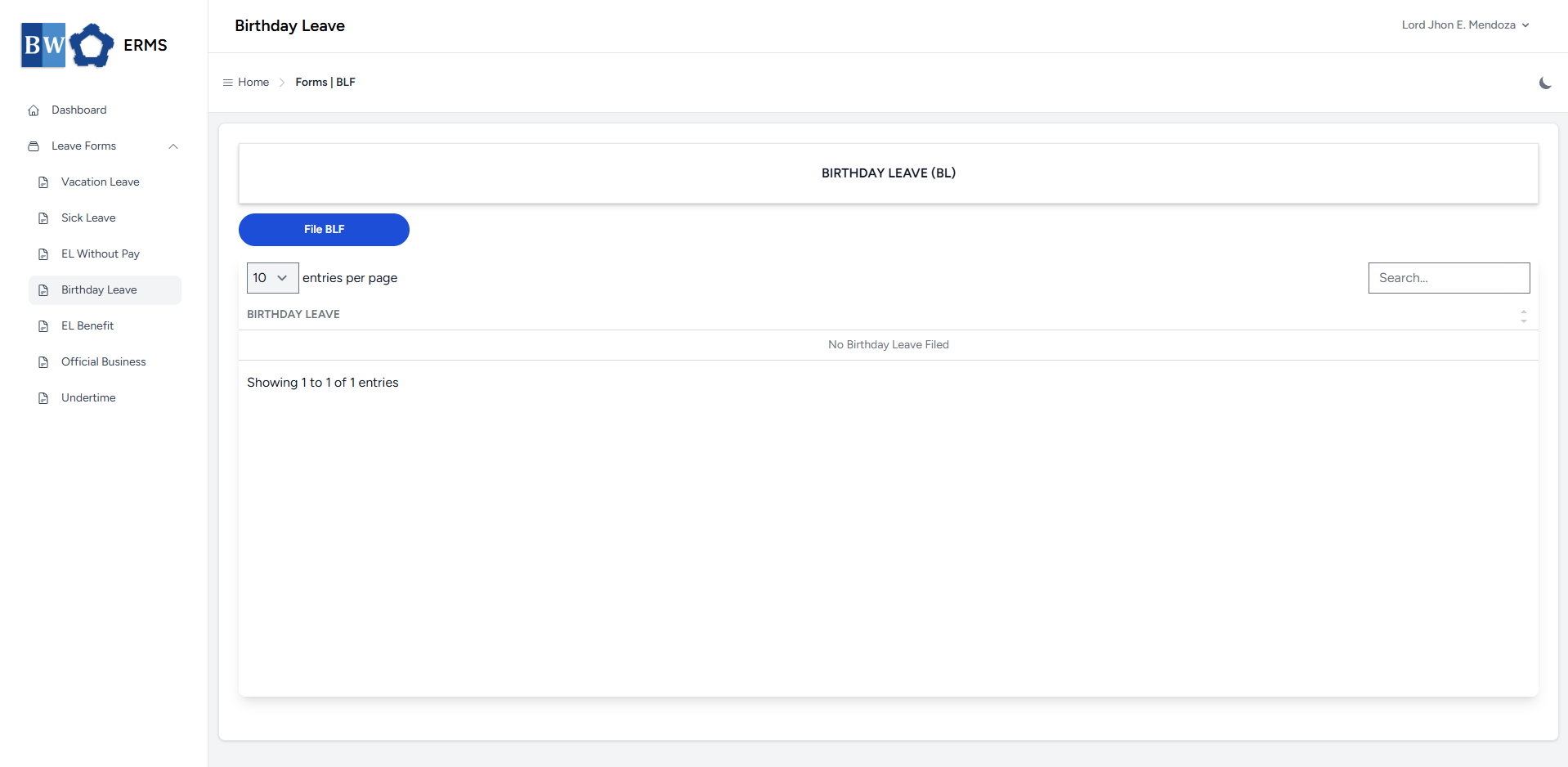
- On the Birthday Leave page, click the File BLF button to open the form.
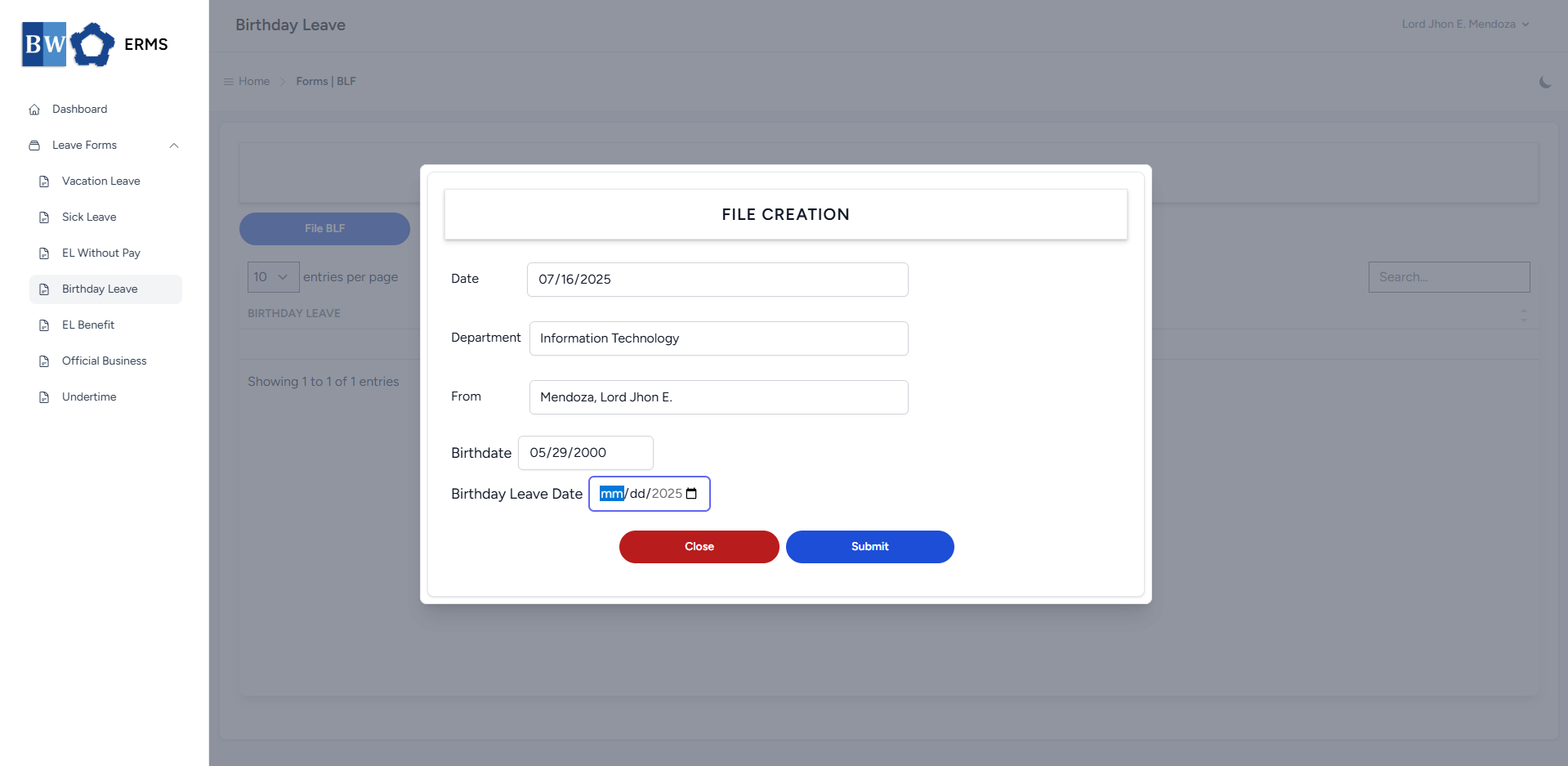
- Fill out the required fields, then click Submit.
- Note: You can only file single BLF per year.
- Note: You can only file single BLF per year.
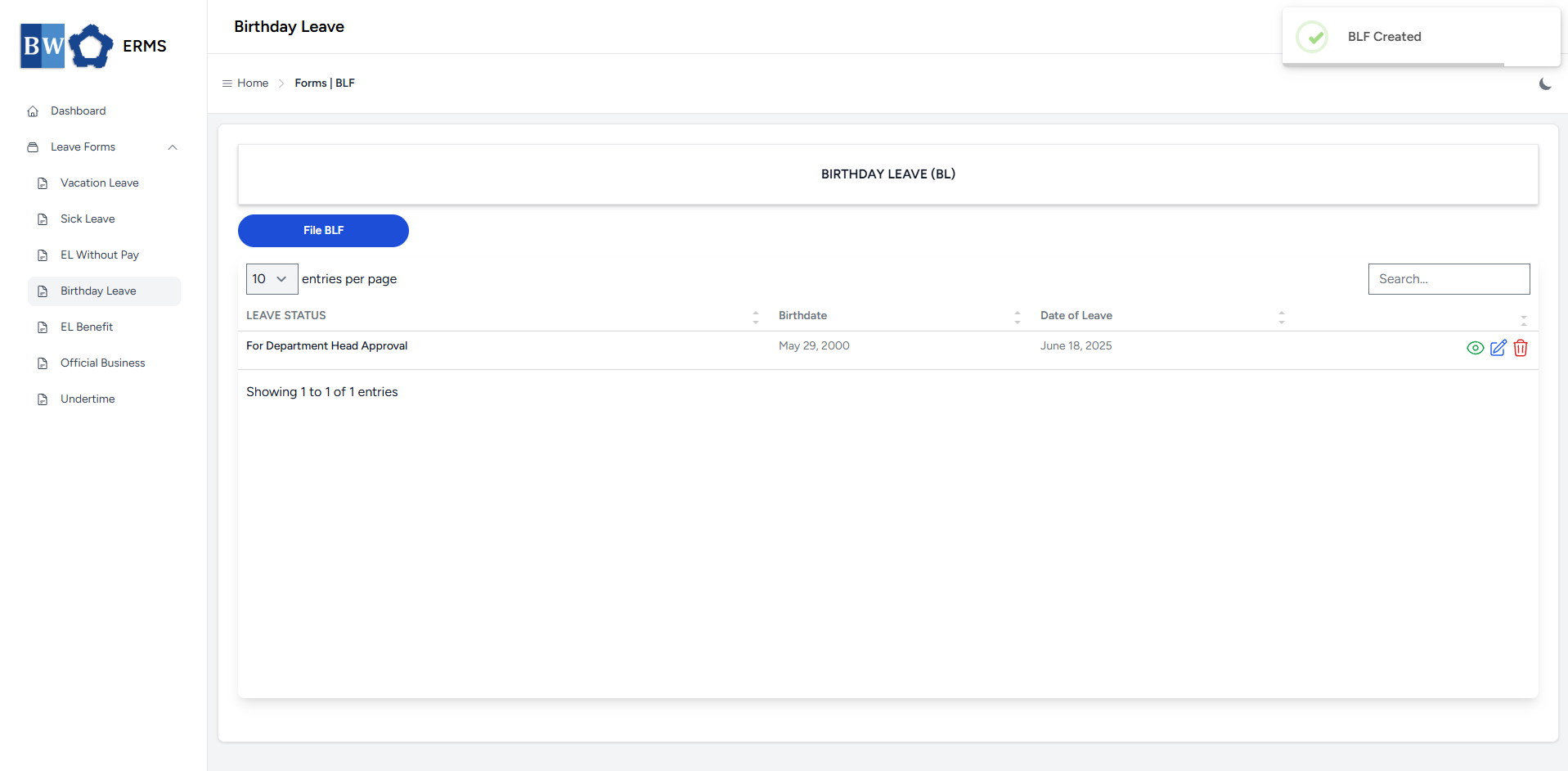
- After submitting, a notification will appear saying that the BLF has been created. The filed leave will be added to the list.
-
You can also use this page to check the status of your leave.
Approver Managers/Supervisors Application
To access the Birthday Leave page:
-
In the Sidebar, click the Leave Forms dropdown.
- From the list that appears, select Birthday Leave.
- Then, click My BLF to view your filed birthday leave.
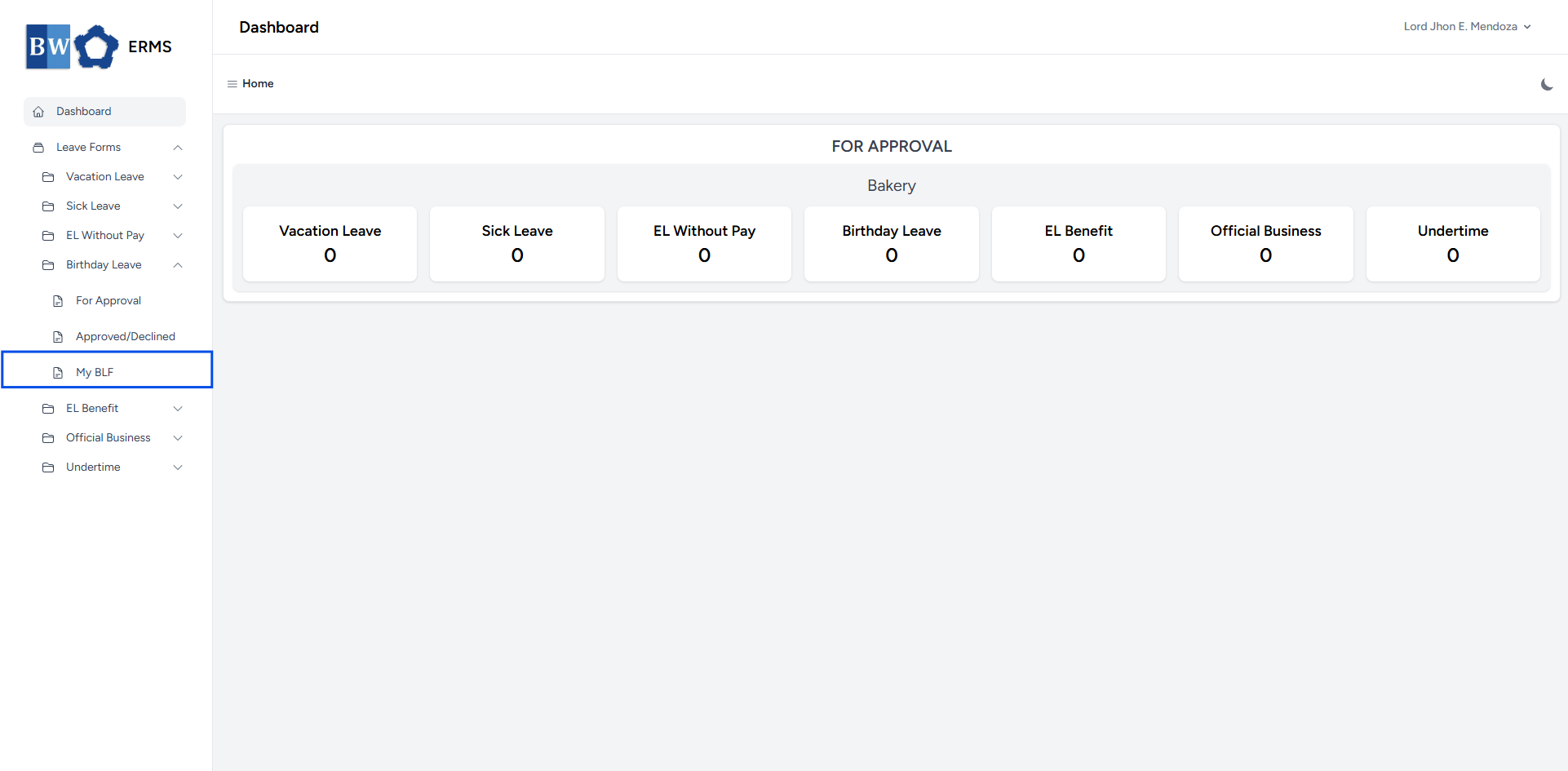
- It will open the Birthday Leave (My BLF) page.
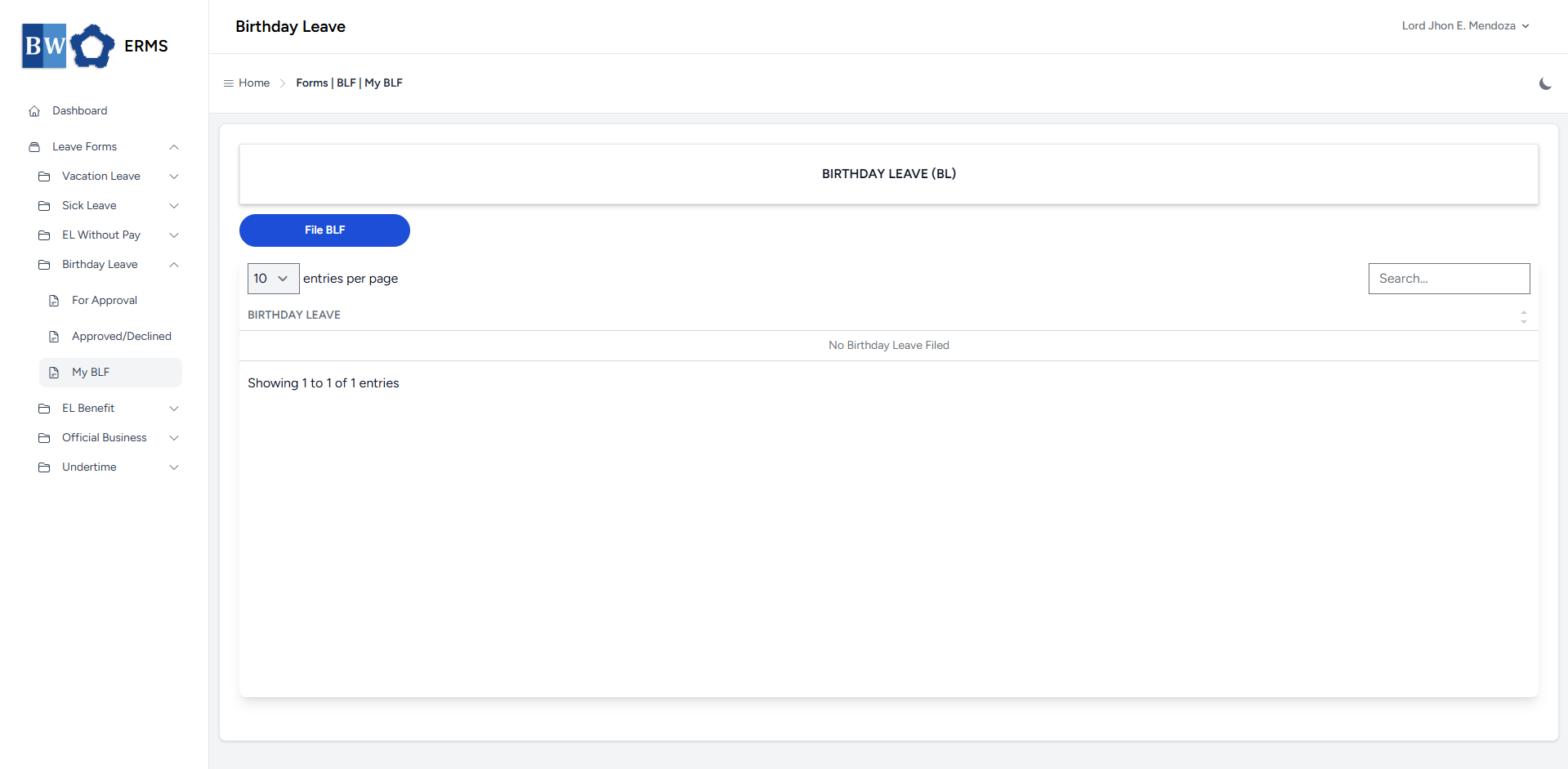
- On the Birthday Leave (My BLF) page, click the File BLF button to open the form.
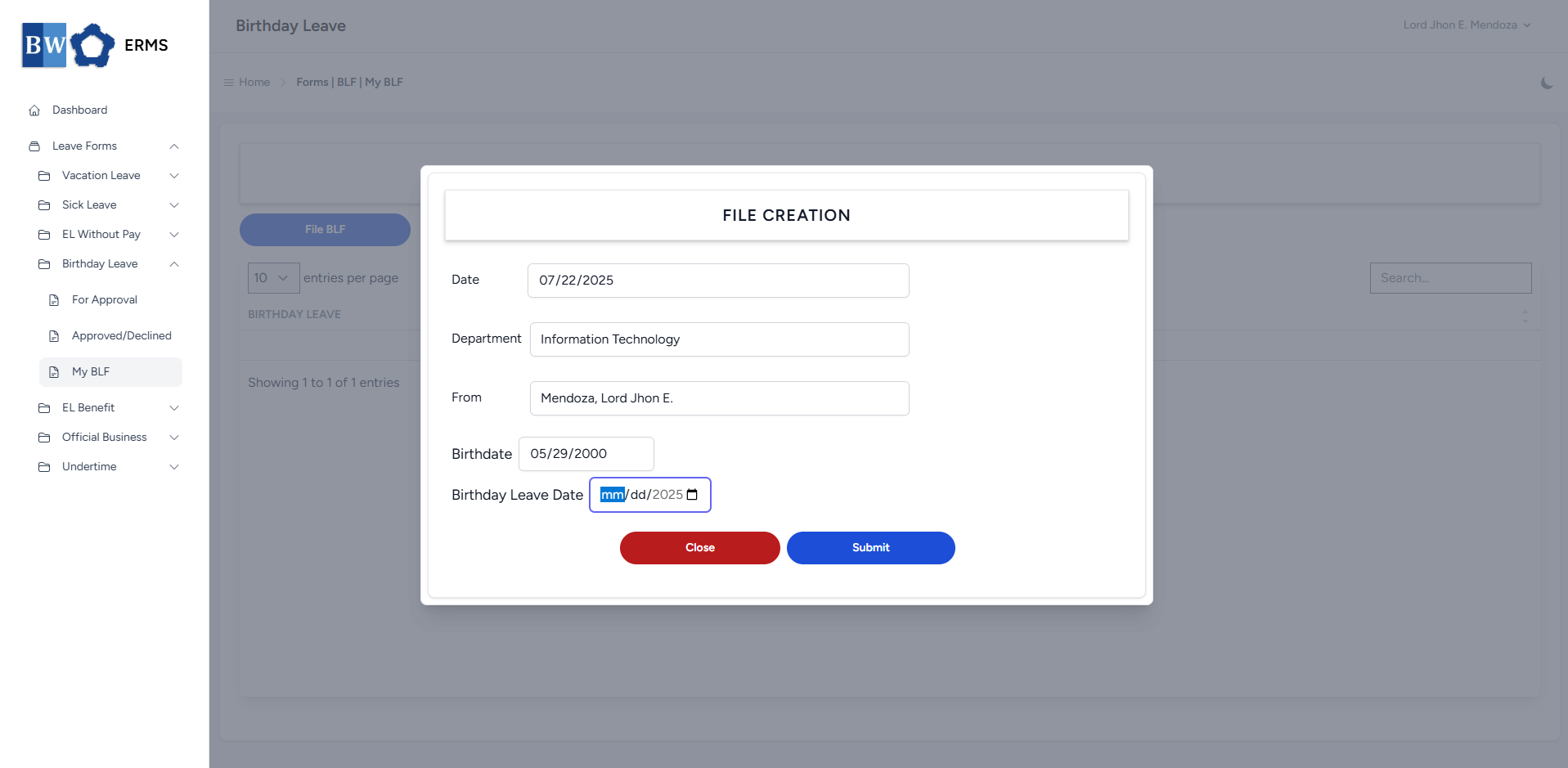
- Fill out the required fields, then click Submit.
- Note: You can only file single BLF per year.
- Note: You can only file single BLF per year.
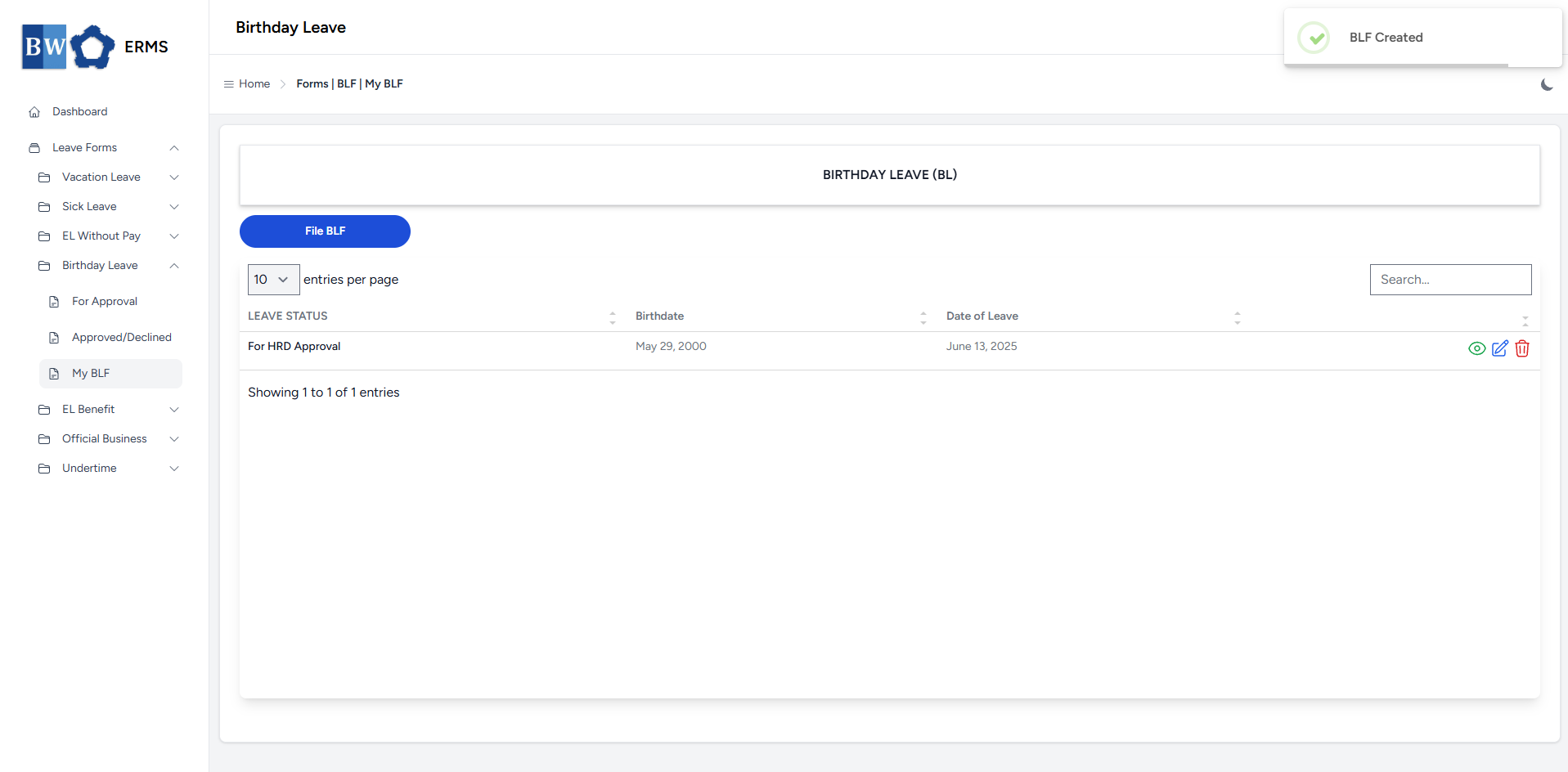
- After submitting, a notification will appear saying that the BLF has been created. The filed leave will be added to the list.
-
You can also use this page to check the status of your leave.
Emergency Leave Benefit
This section provides a clear and complete guide on how to file for Emergency Leave Benefit, outlining the proper steps and requirements.
Employees & Non-Approver Managers/Supervisors Application
To access the Emergency Leave Benefit page, you can do either of the following:
-
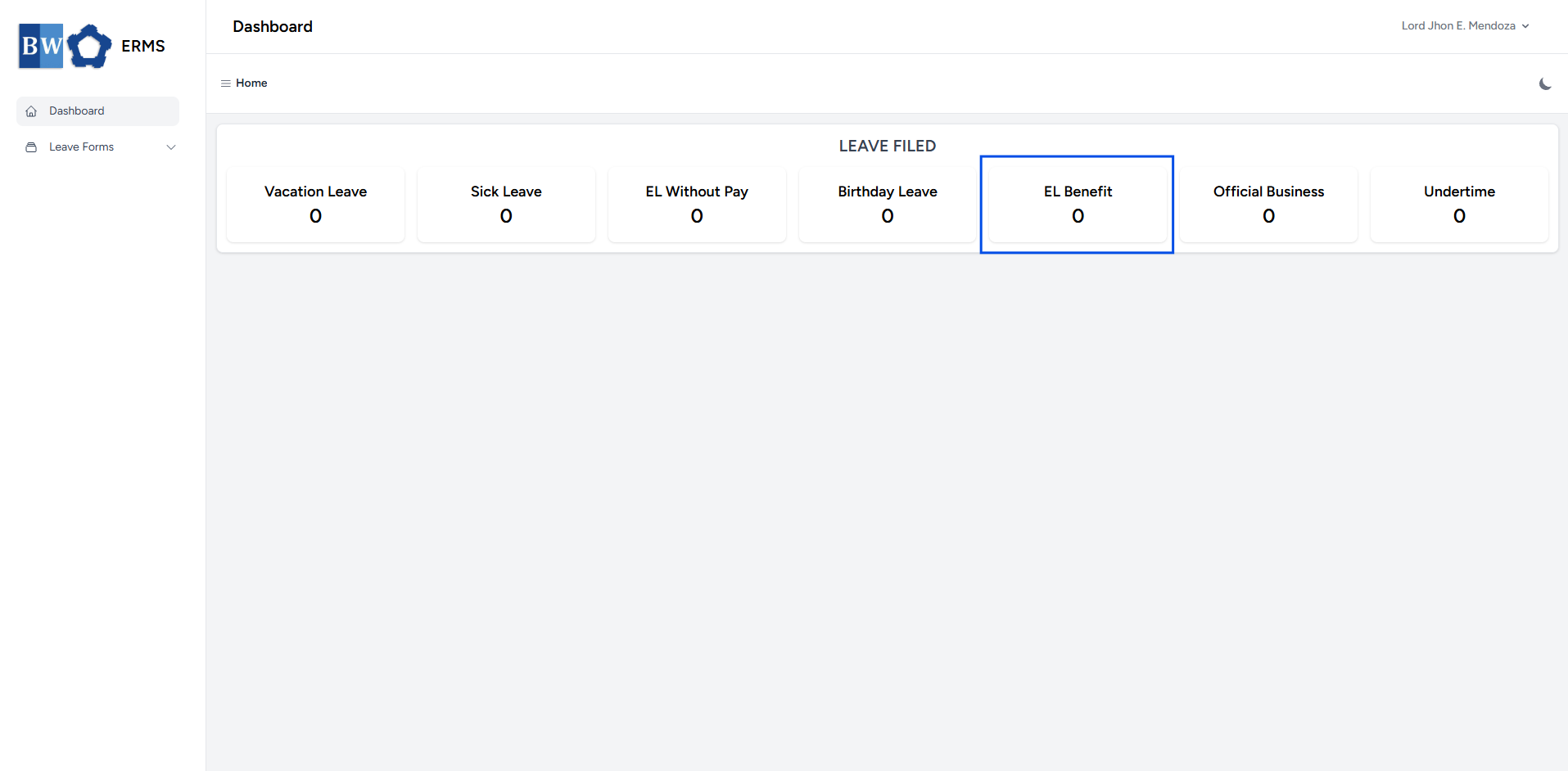
On your Dashboard, click EL Benefit under the Leave Filed section.
-
Or, click the Leave Forms dropdown in the sidebar, then select EL Benefit.
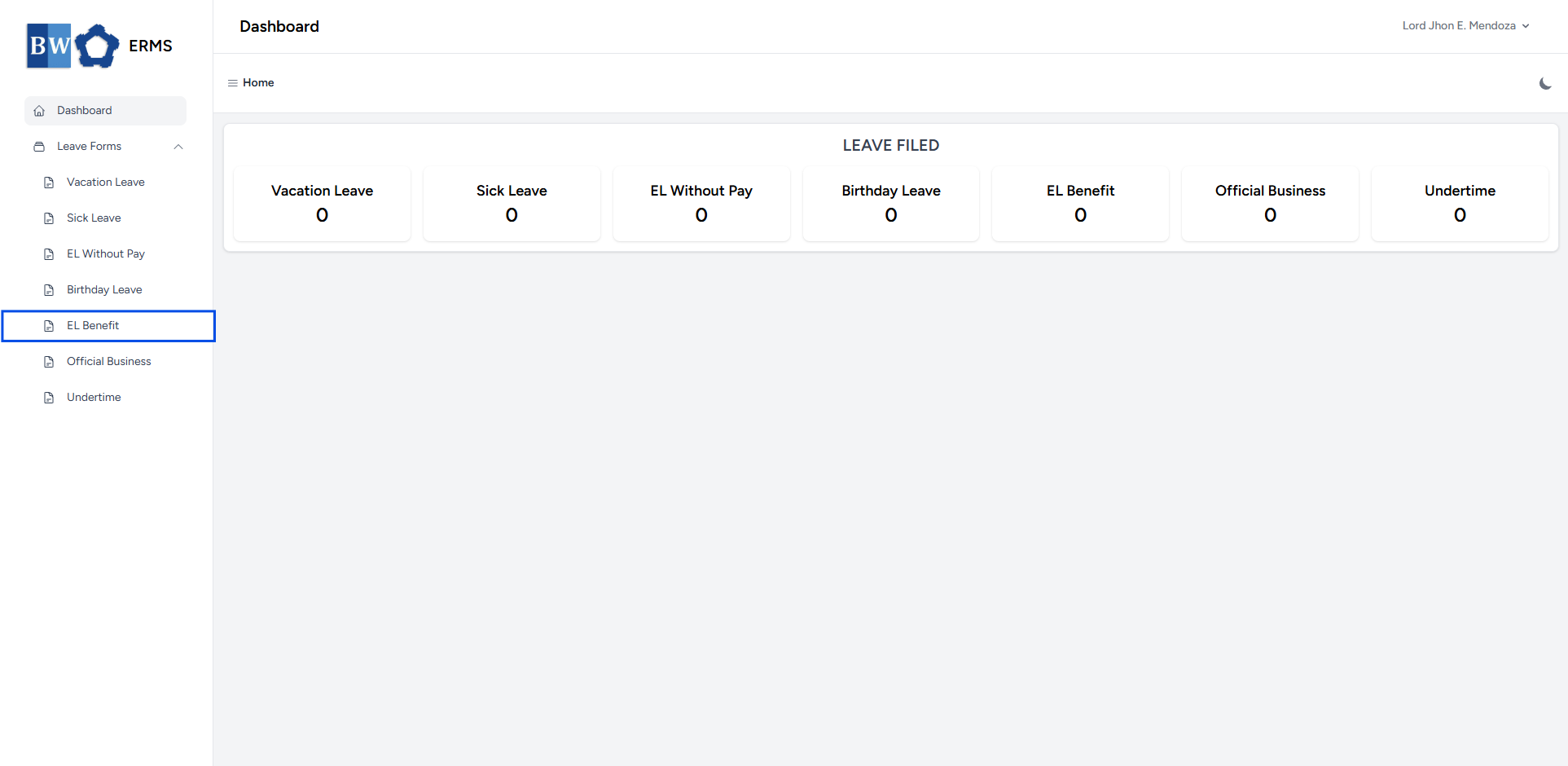
- It will open the Emergency Leave Benefit page.
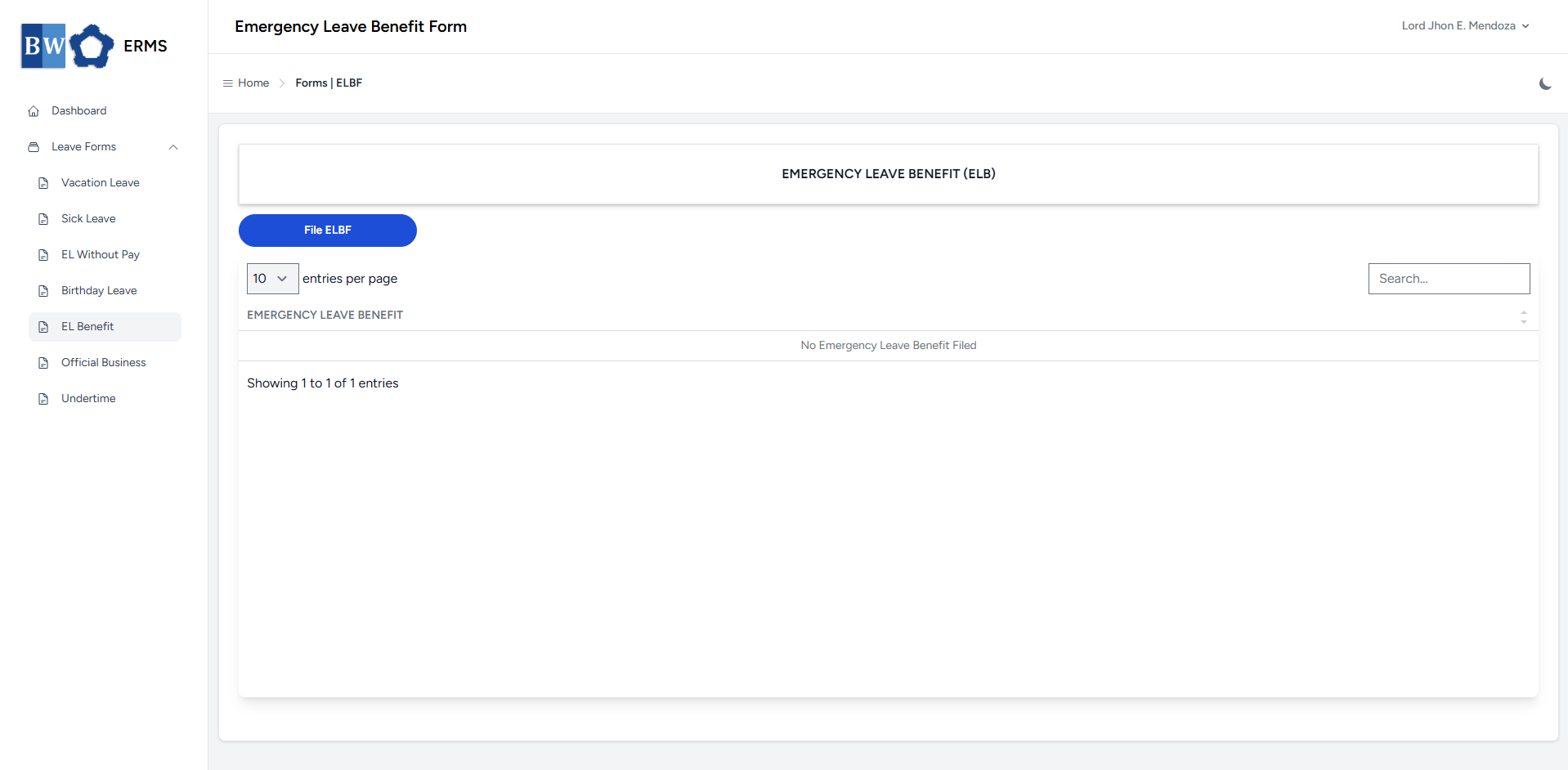
- On the Emergency Leave Benefit page, click the File ELBF button to open the form.
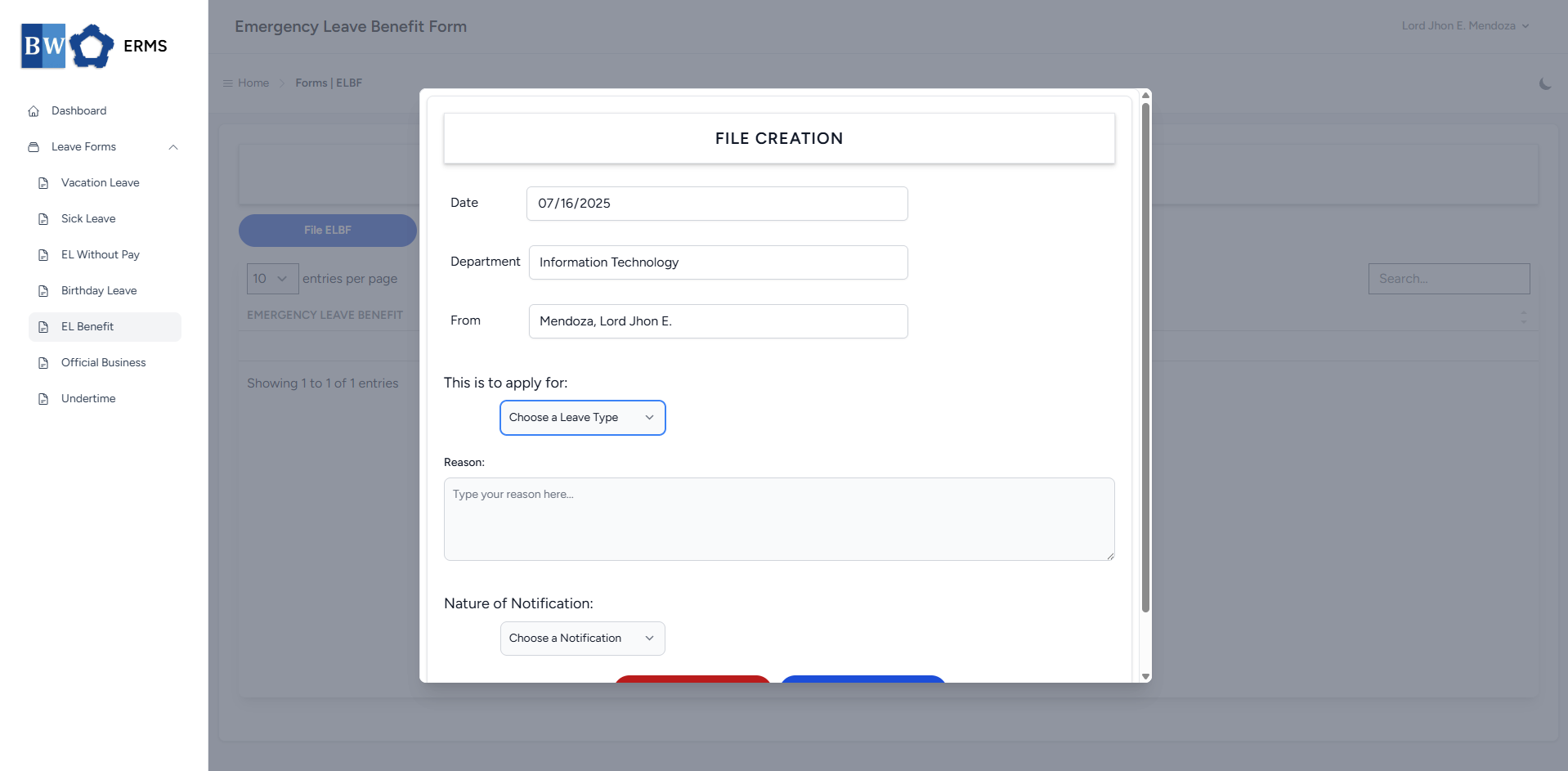
- Fill out the required fields, then click Submit.
- After submitting, a notification will appear saying that the ELBF has been created. The filed leave will be added to the list.

-
You can also use this page to check the status of your leave.
Approver Managers/Supervisors Application
To access the Emergency Leave Benefit page:
-
In the Sidebar, click the Leave Forms dropdown.
- From the list that appears, select EL Benefit.
- Then, click My ELBF to view your filed emergency leave benefit.
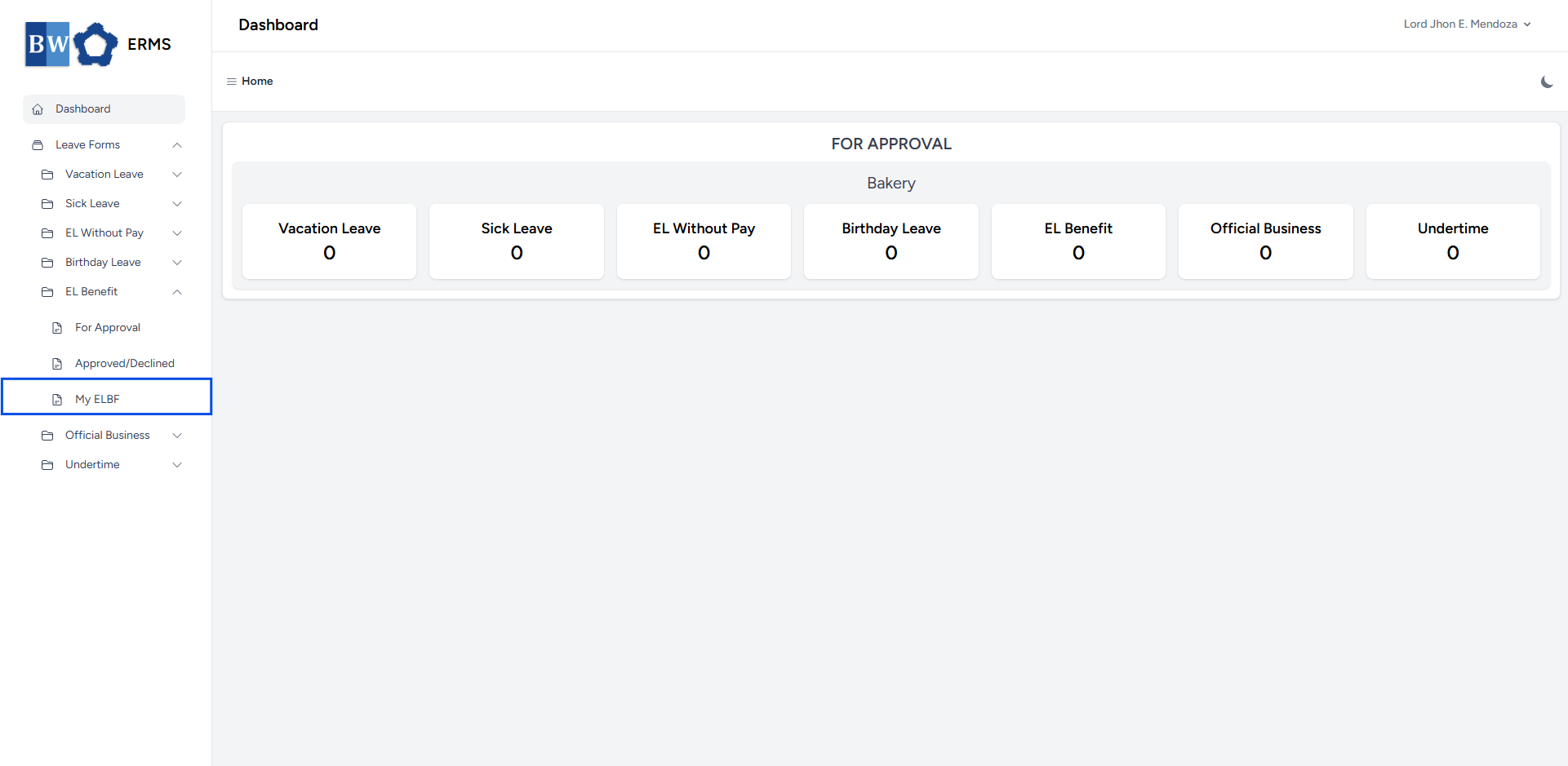
- It will open the EL Benefit (My ELBF) page.
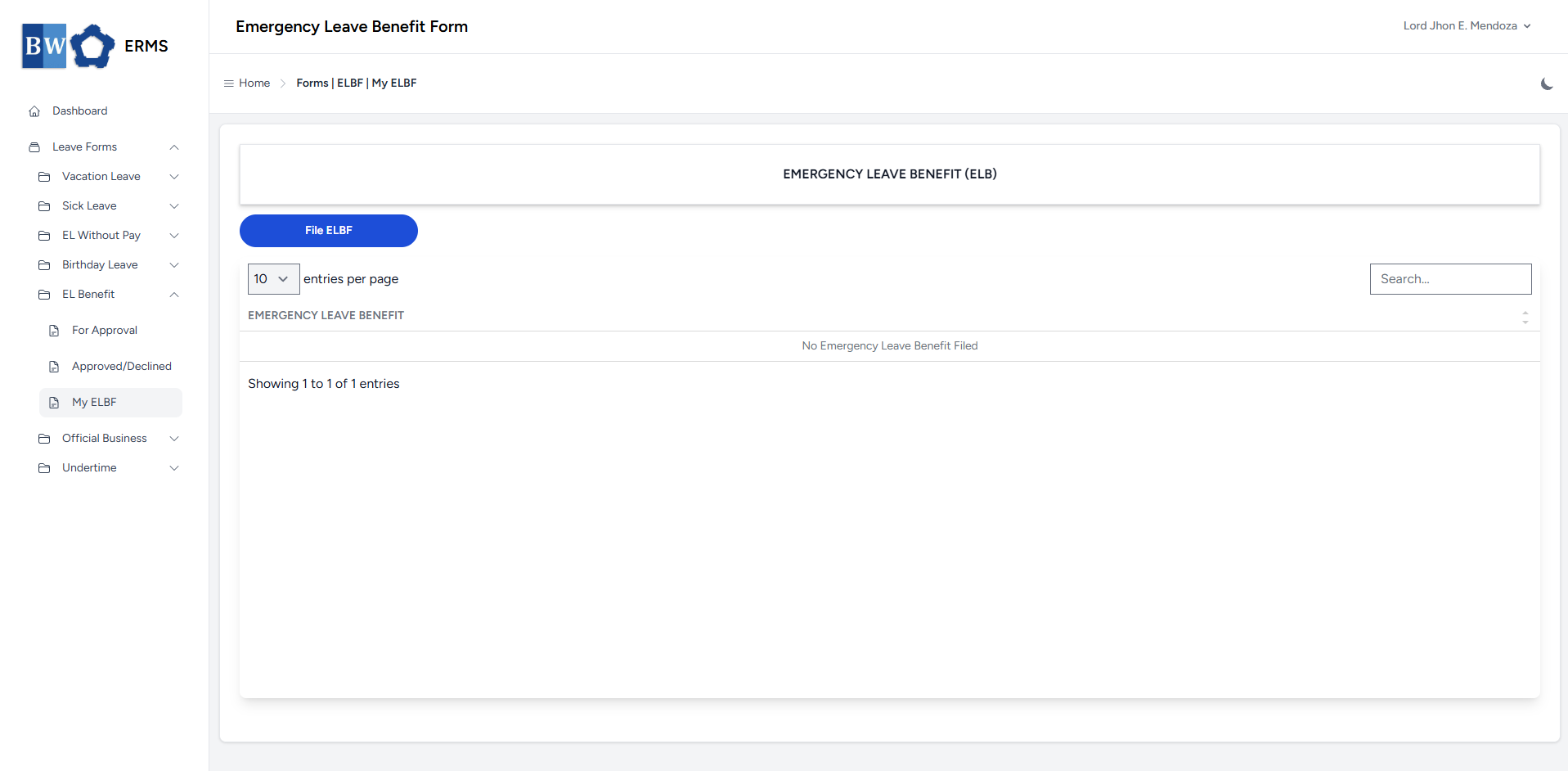
- On the EL Benefit (My ELBF) page, click the File ELBF button to open the form.
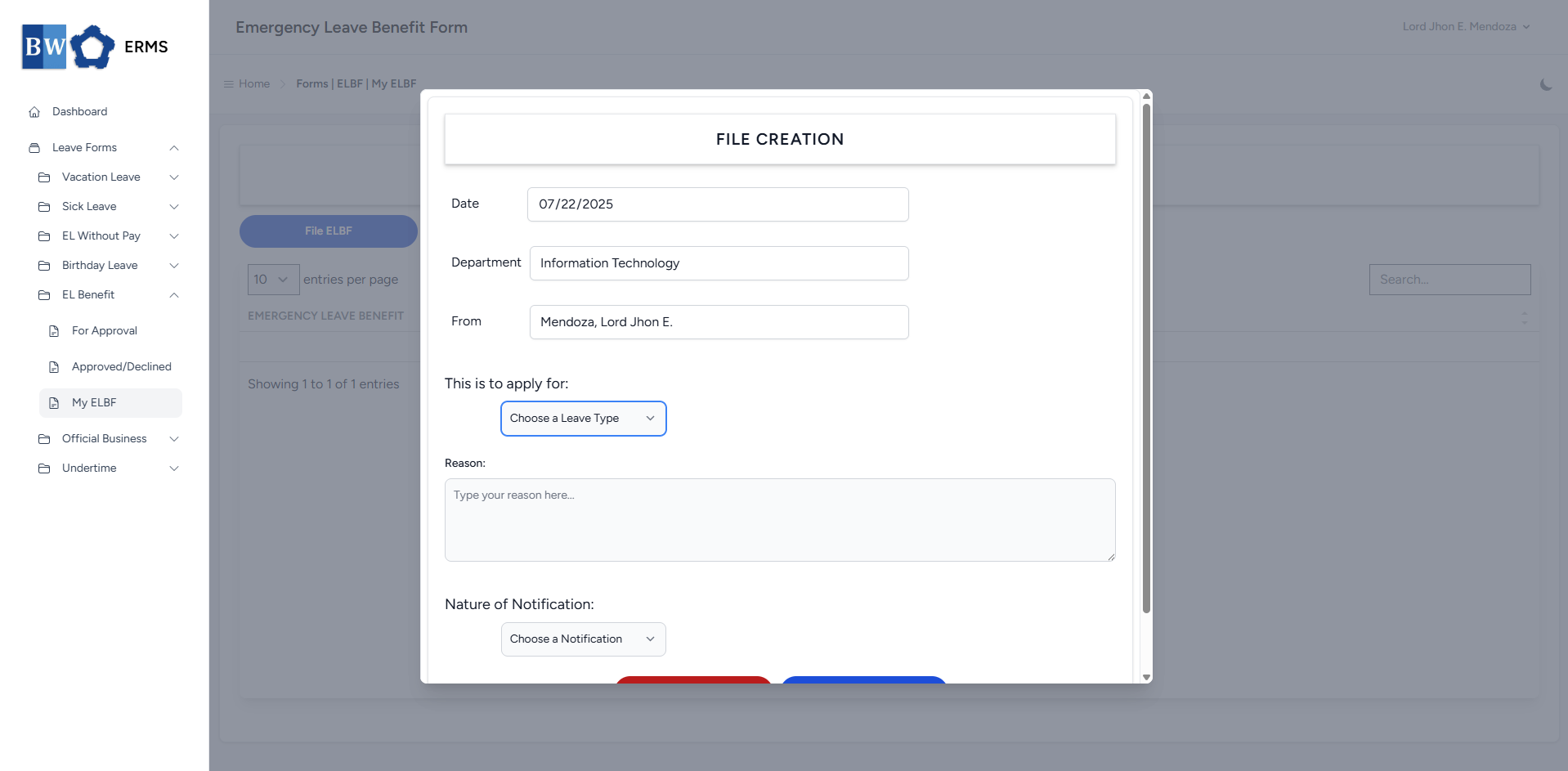
- Fill out the required fields, then click Submit.
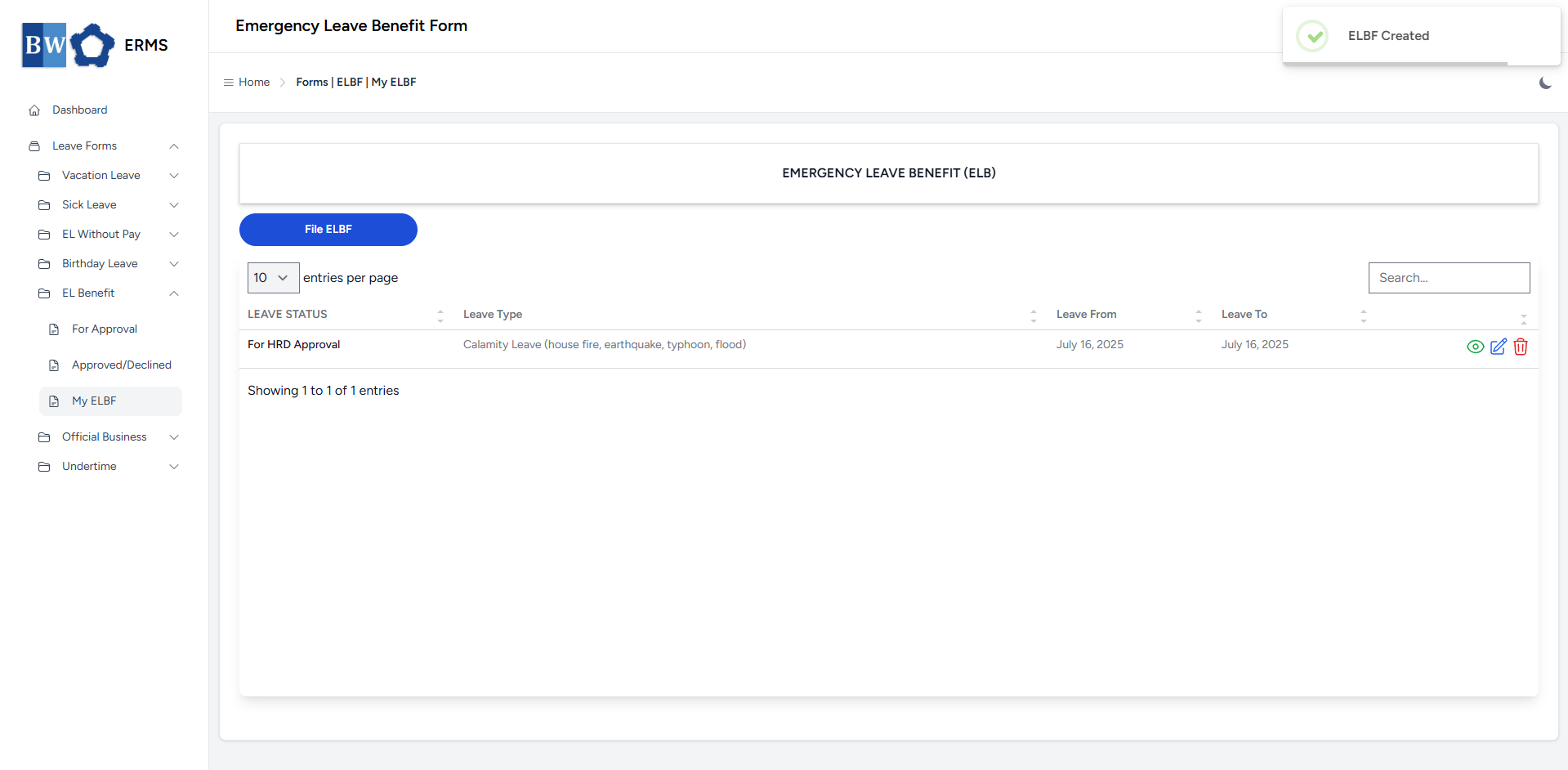
- After submitting, a notification will appear saying that the ELBF has been created. The filed leave will be added to the list
-
You can also use this page to check the status of your leave.
Official Business
This section provides a clear and complete guide on how to file for Official Business, including the necessary steps and procedures to follow.
Employees & Non-Approver Managers/Supervisors Application
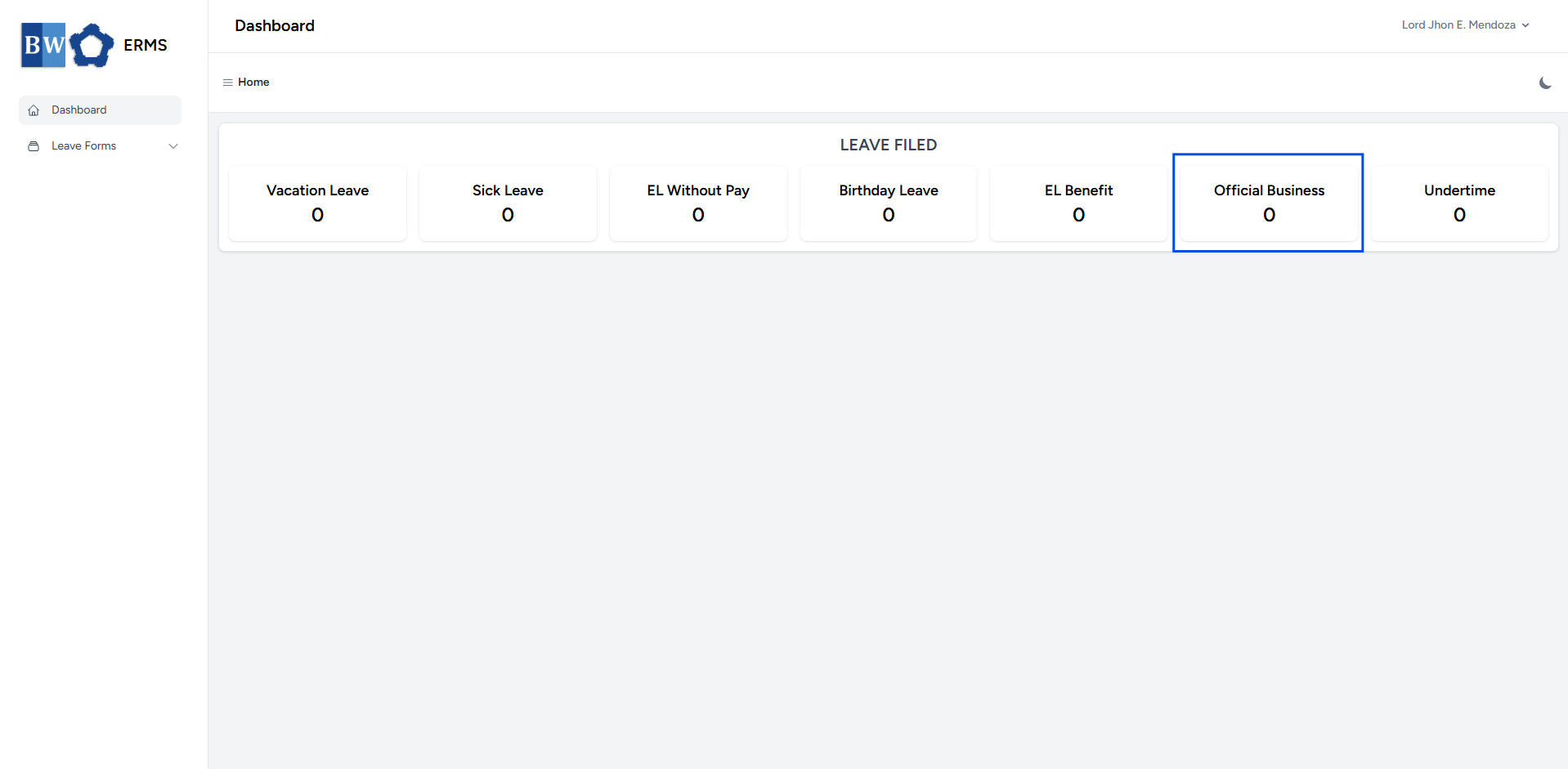
To access the Official Business page, you can do either of the following:
-
On your Dashboard, click Official Business under the Leave Filed section.
-
Or, click the Leave Forms dropdown in the sidebar, then select Official Business.
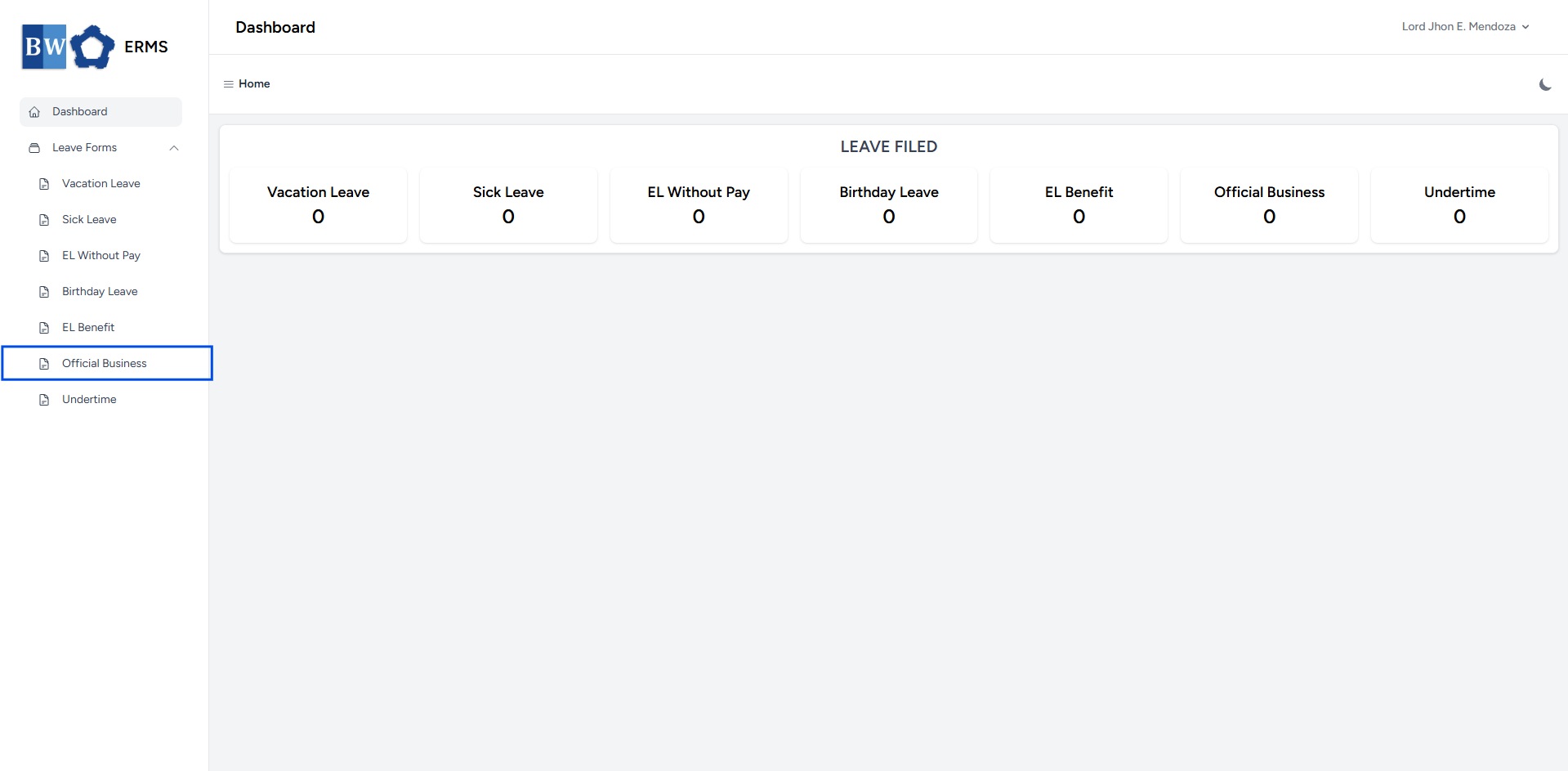
- It will open the Official Business page.
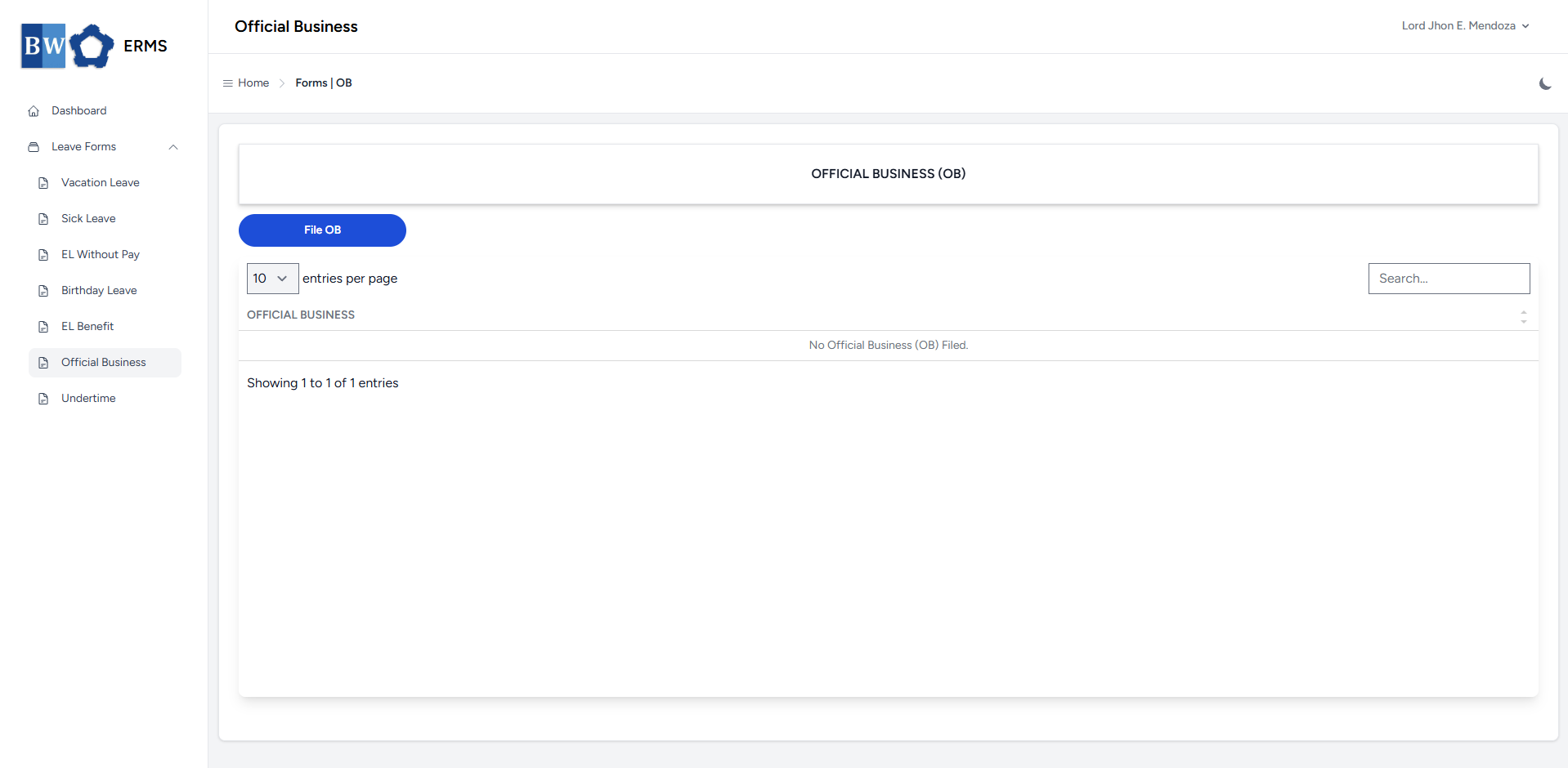
- On the Official Business page, click the File OB button to open the form.
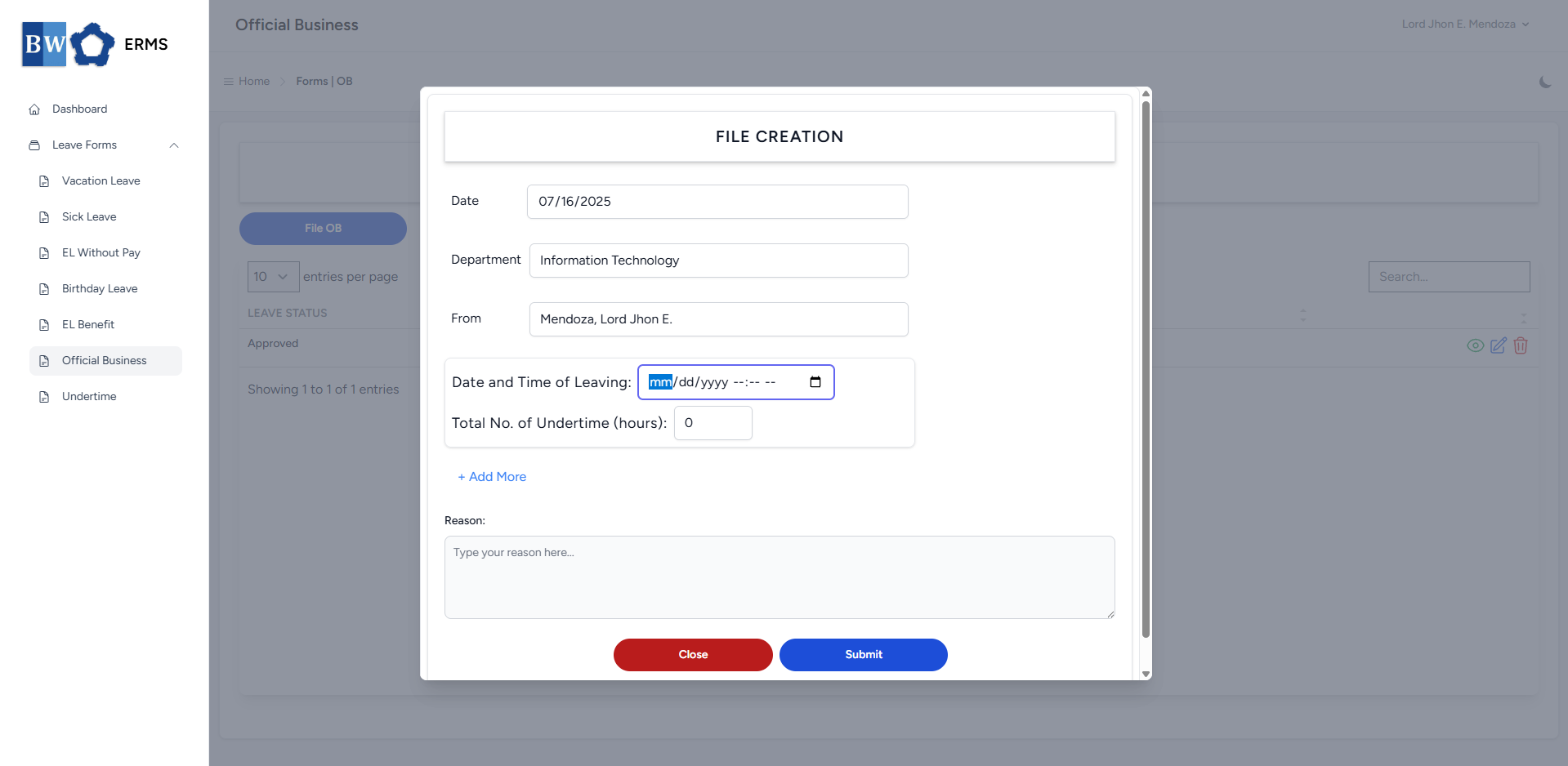
- Fill out the required fields, then click Submit.
- Note: You can click Add More button if you want to file multiple OB date.
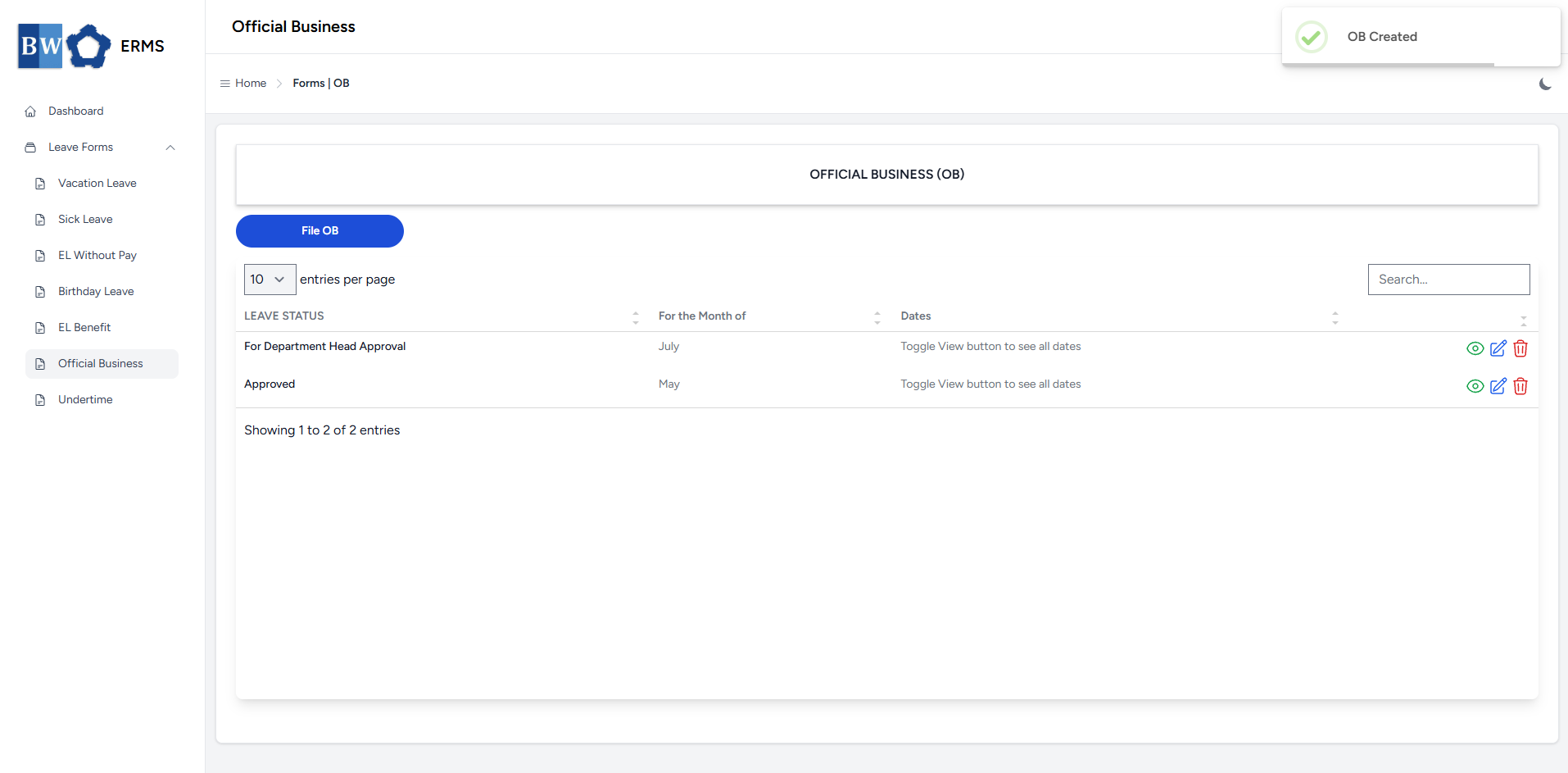
- After submitting, a notification will appear saying that the OB has been created. The filed leave will be added to the list.
-
You can also use this page to check the status of your leave.
Approver Managers/Supervisors Application
To access the Official Business page:
-
In the Sidebar, click the Leave Forms dropdown.
- From the list that appears, select Official Business.
- Then, click My OB to view your filed official business.
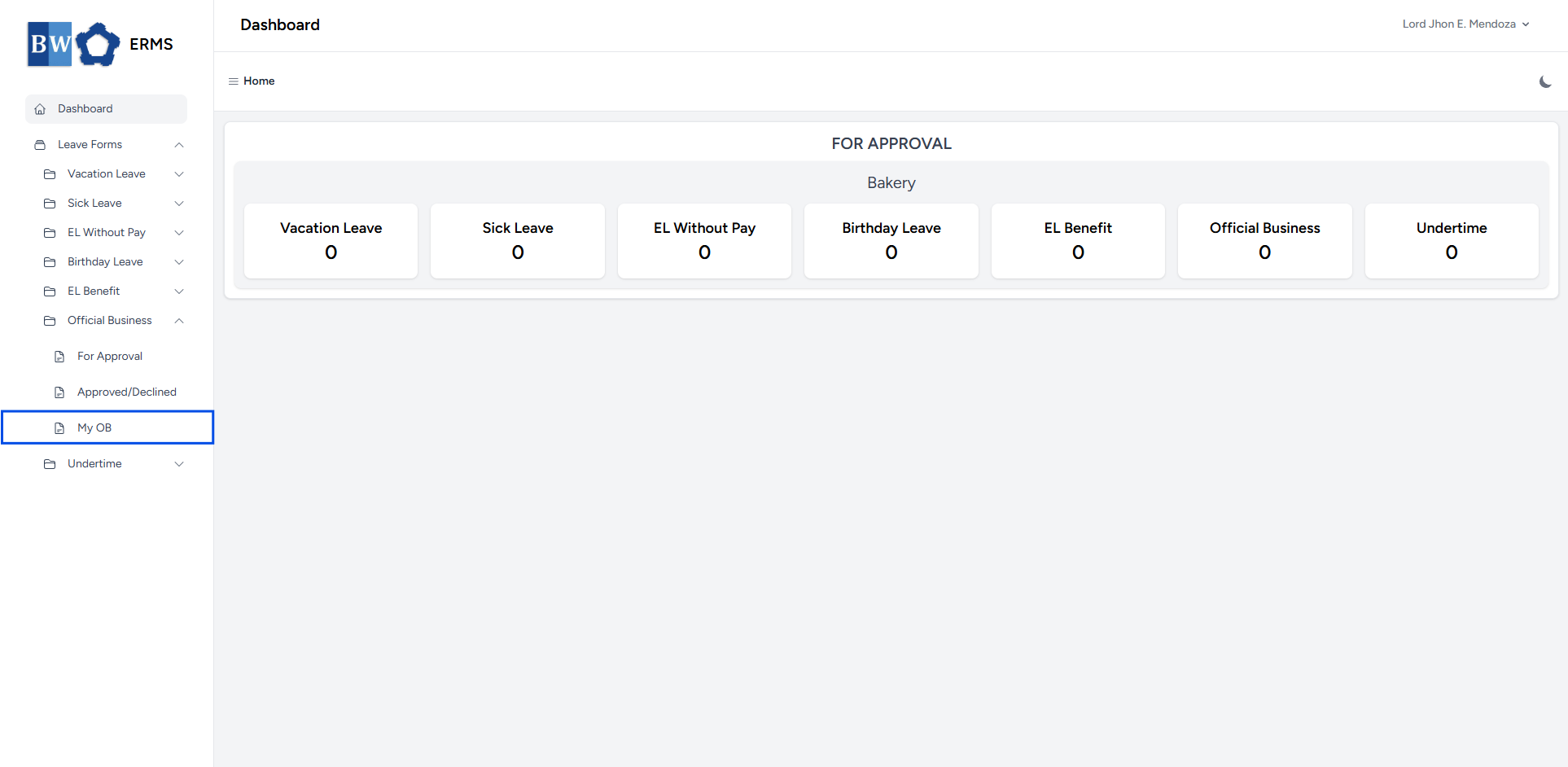
- It will open the Official Business (My OB) page.
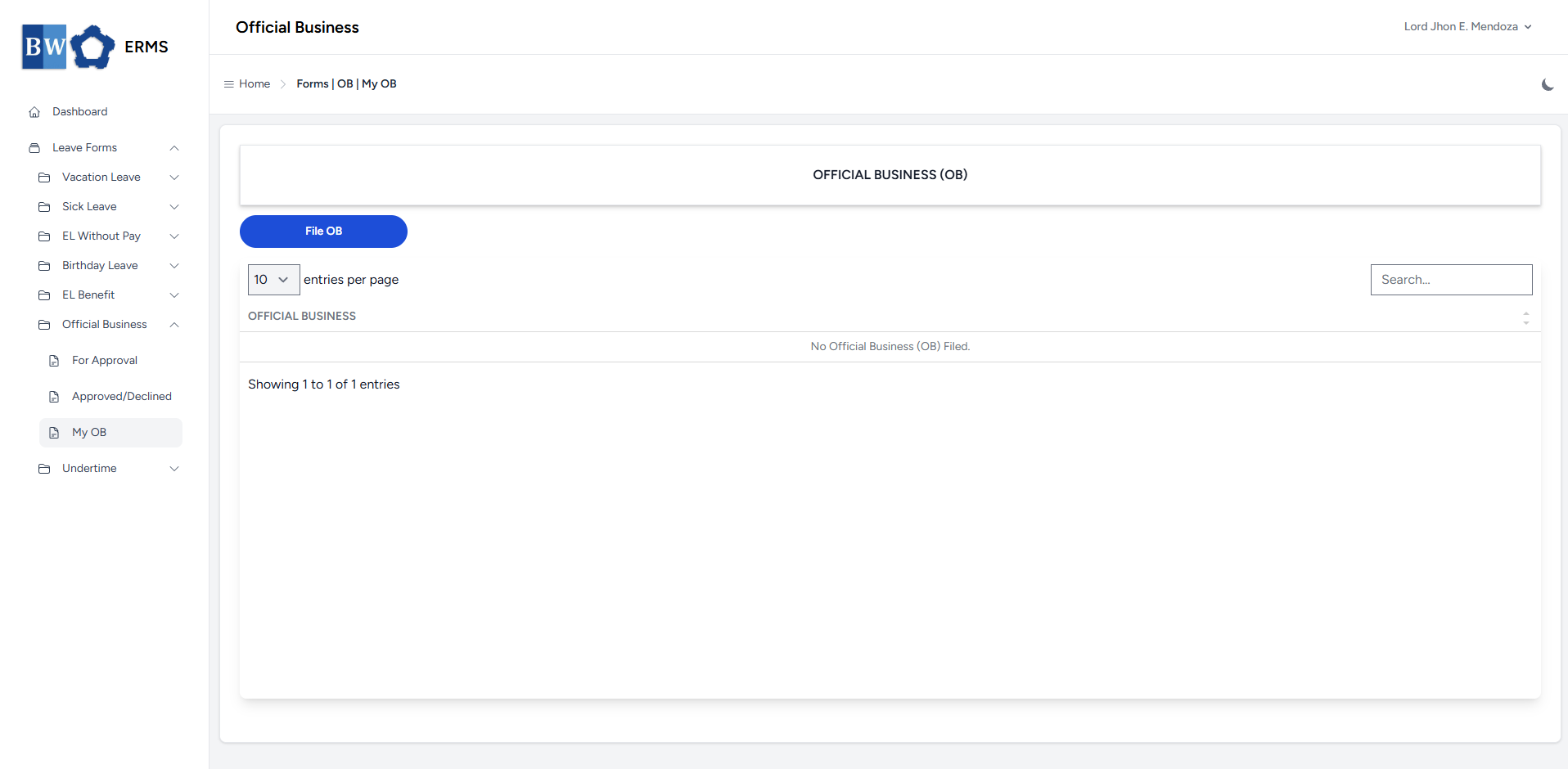
- On the Official Business (My OB) page, click the File OB button to open the form.
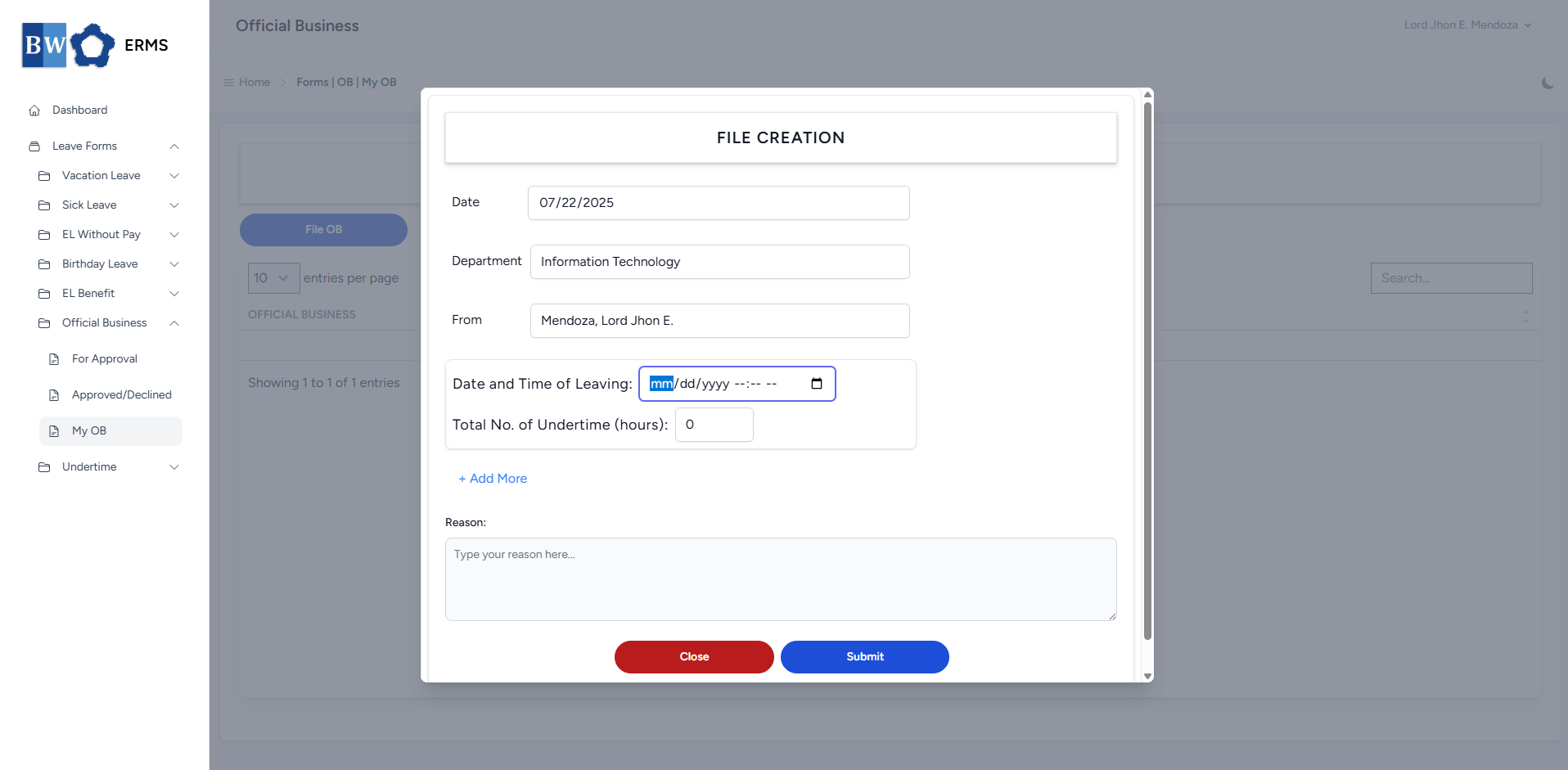
- Fill out the required fields, then click Submit.
- Note: You can click Add More button if you want to file multiple OB date.
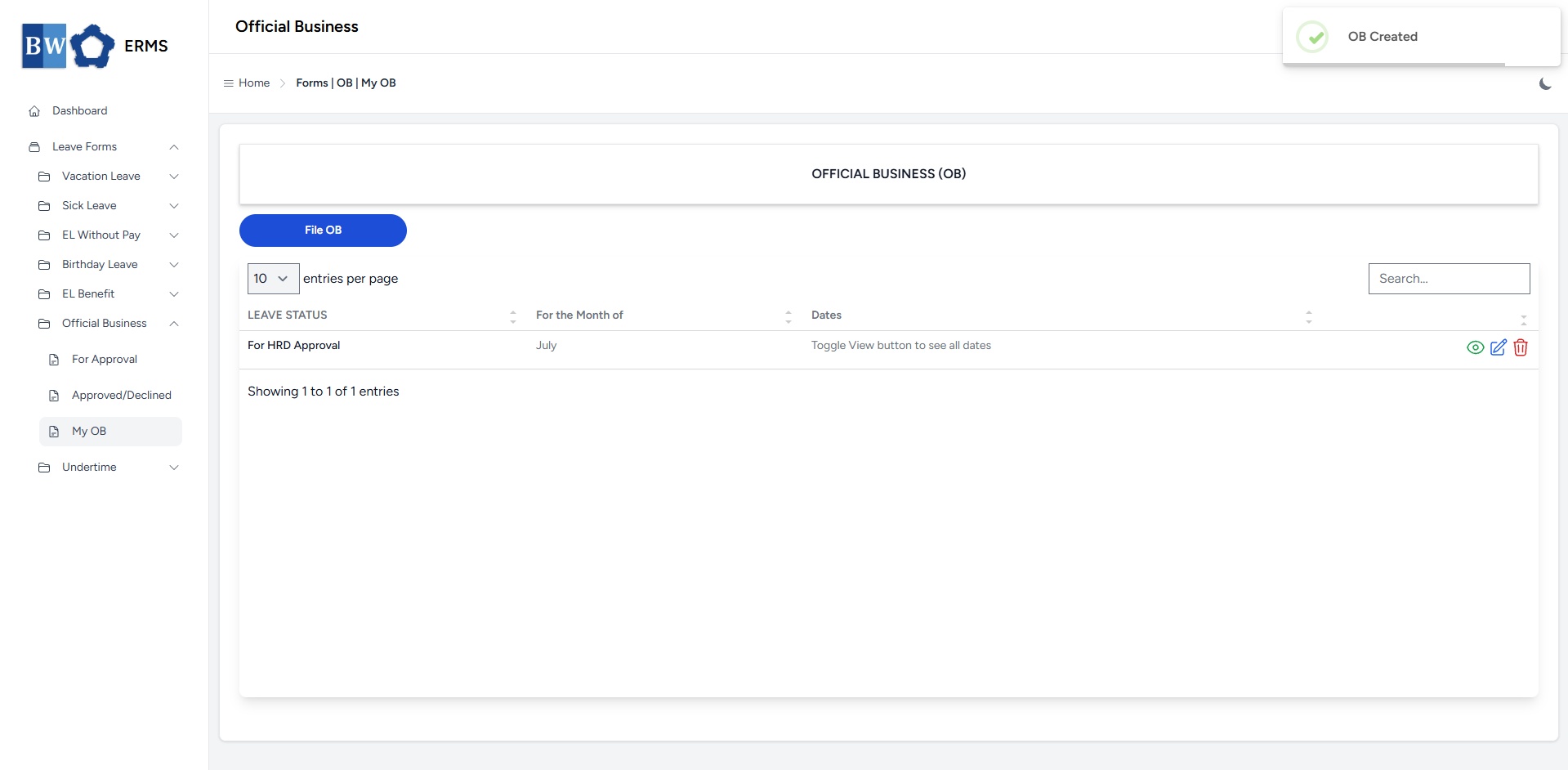
- After submitting, a notification will appear saying that the OB has been created. The filed leave will be added to the list.
-
You can also use this page to check the status of your leave.
Undertime
This section offers a clear and complete guide on how to file for Undertime, outlining the proper steps and requirements.
Employees & Non-Approver Managers/Supervisors Application
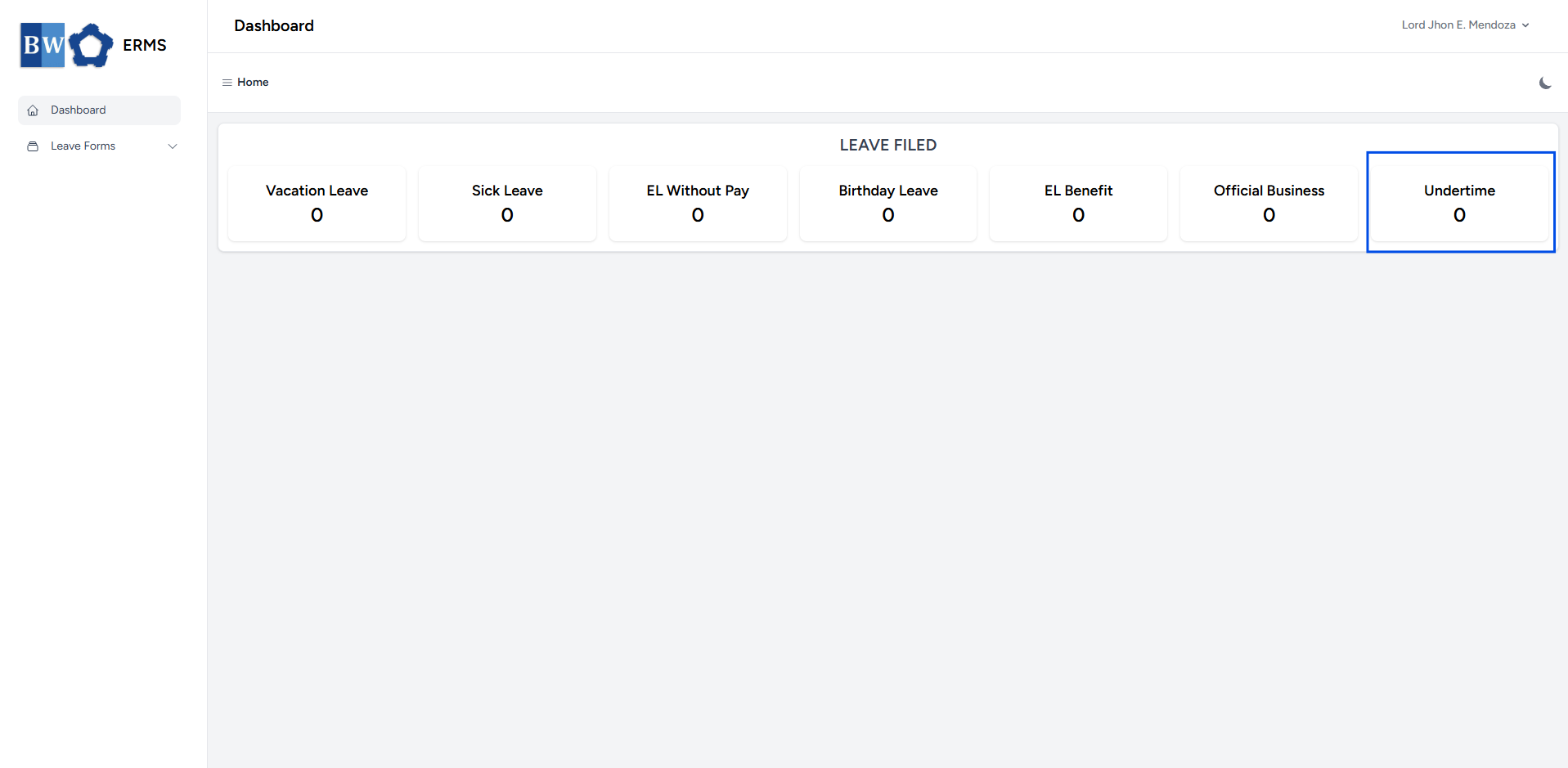
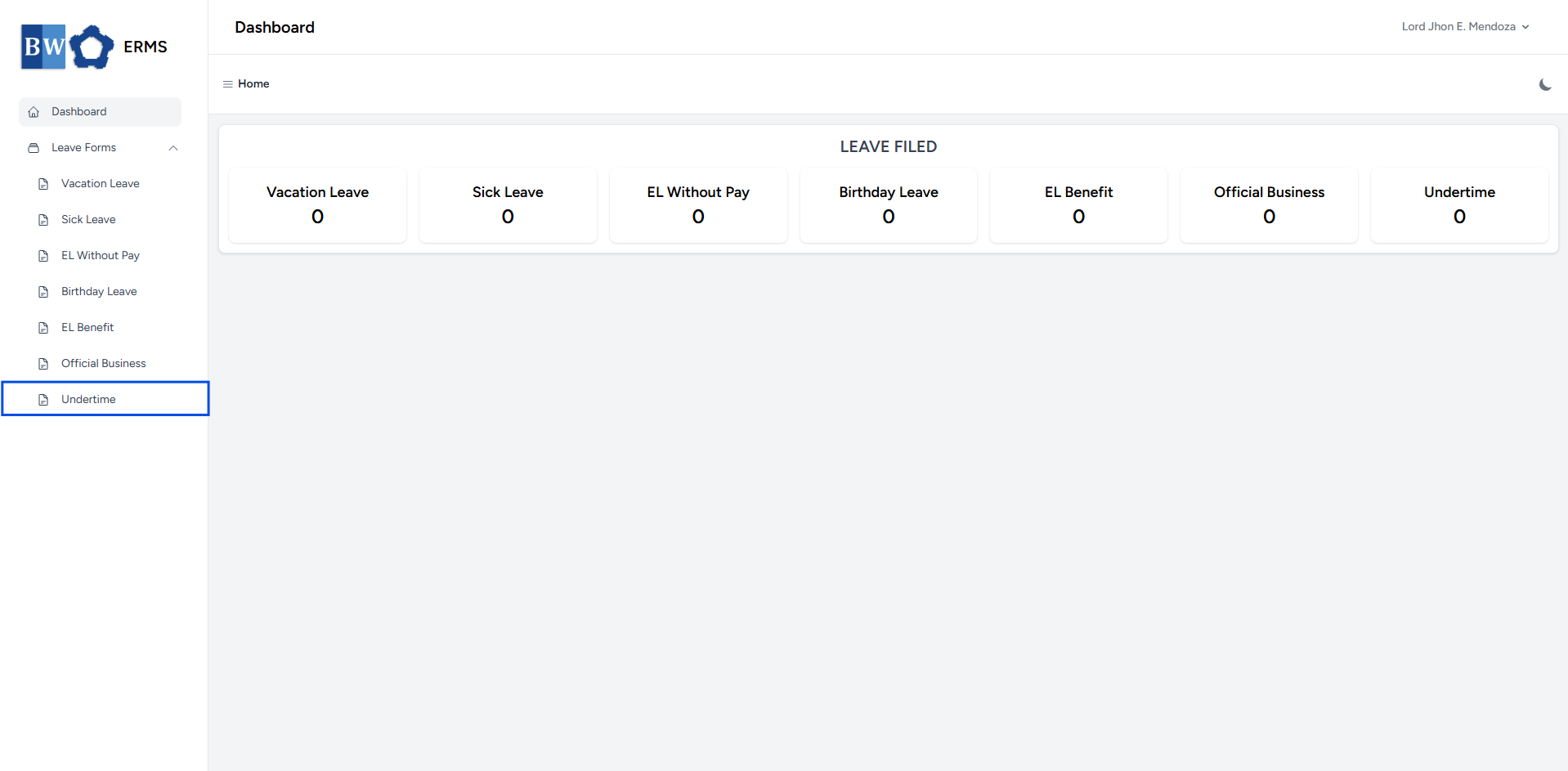
To access the Undertime page, you can do either of the following:
-
On your Dashboard, click Undertime under the Leave Filed section.
-
Or, click the Leave Forms dropdown in the sidebar, then select Undertime.
- It will open the Undertime page.
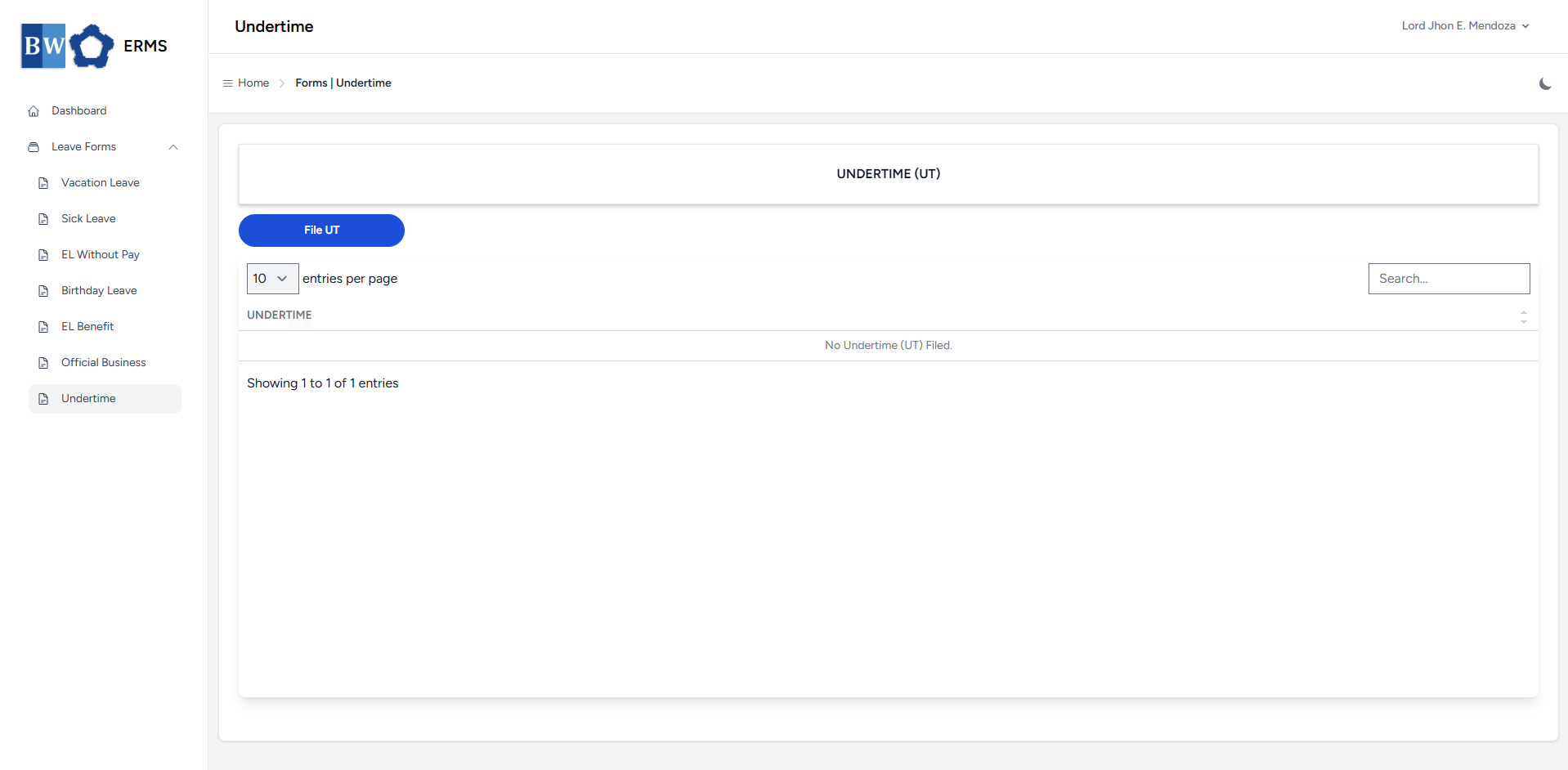
- On the Undertime page, click the File UT button to open the form.
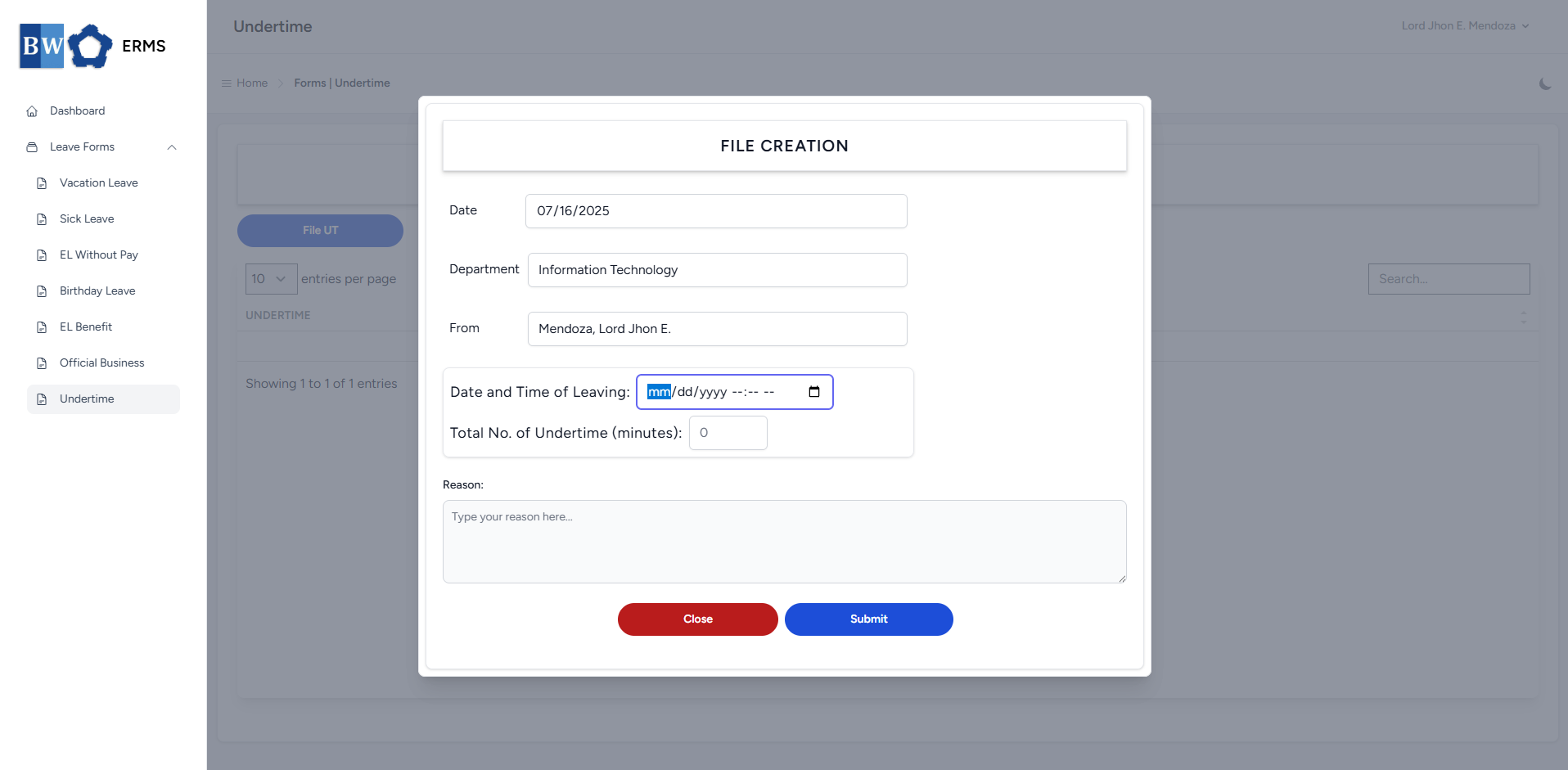
- Fill out the required fields, then click Submit.
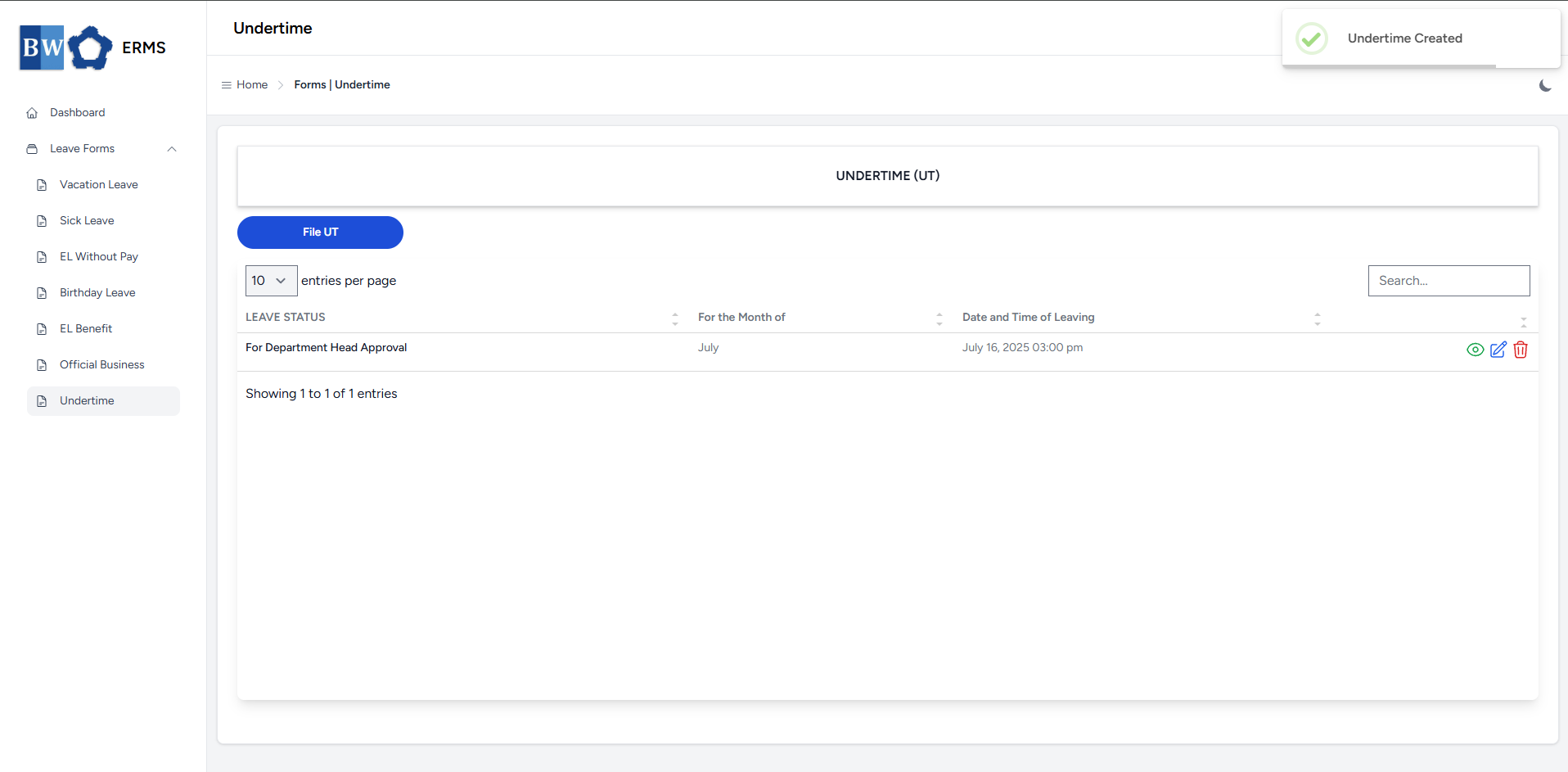
- After submitting, a notification will appear saying that the Undertime has been created. The filed leave will be added to the list.
-
You can also use this page to check the status of your leave.
Approver Managers/Supervisors Application
To access the Undertime page:
-
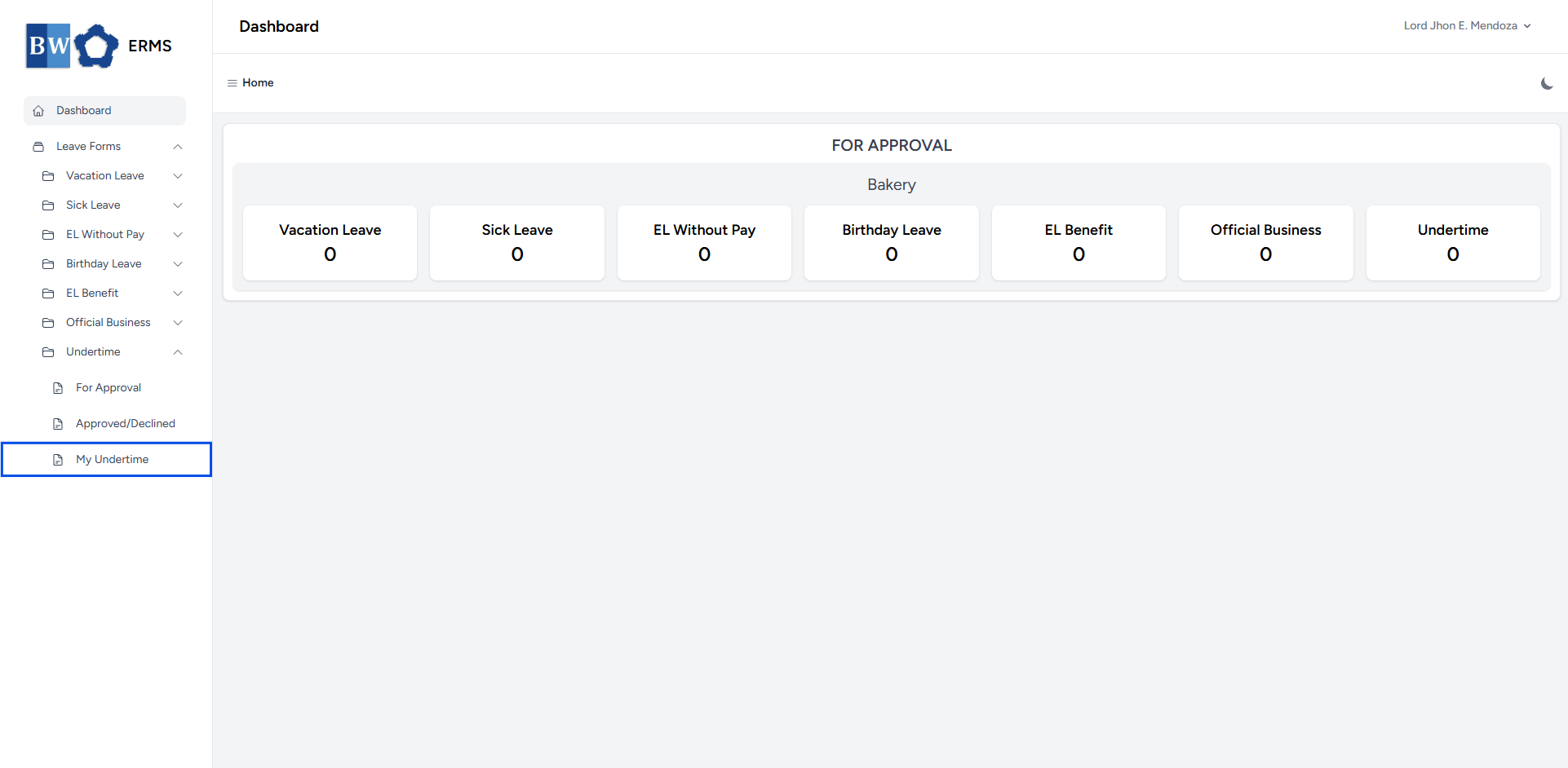
In the Sidebar, click the Leave Forms dropdown.
- From the list that appears, select Undertime.
- Then, click My Undertime to view your filed undertime.
- It will open the Undertime (My Undertime) page.
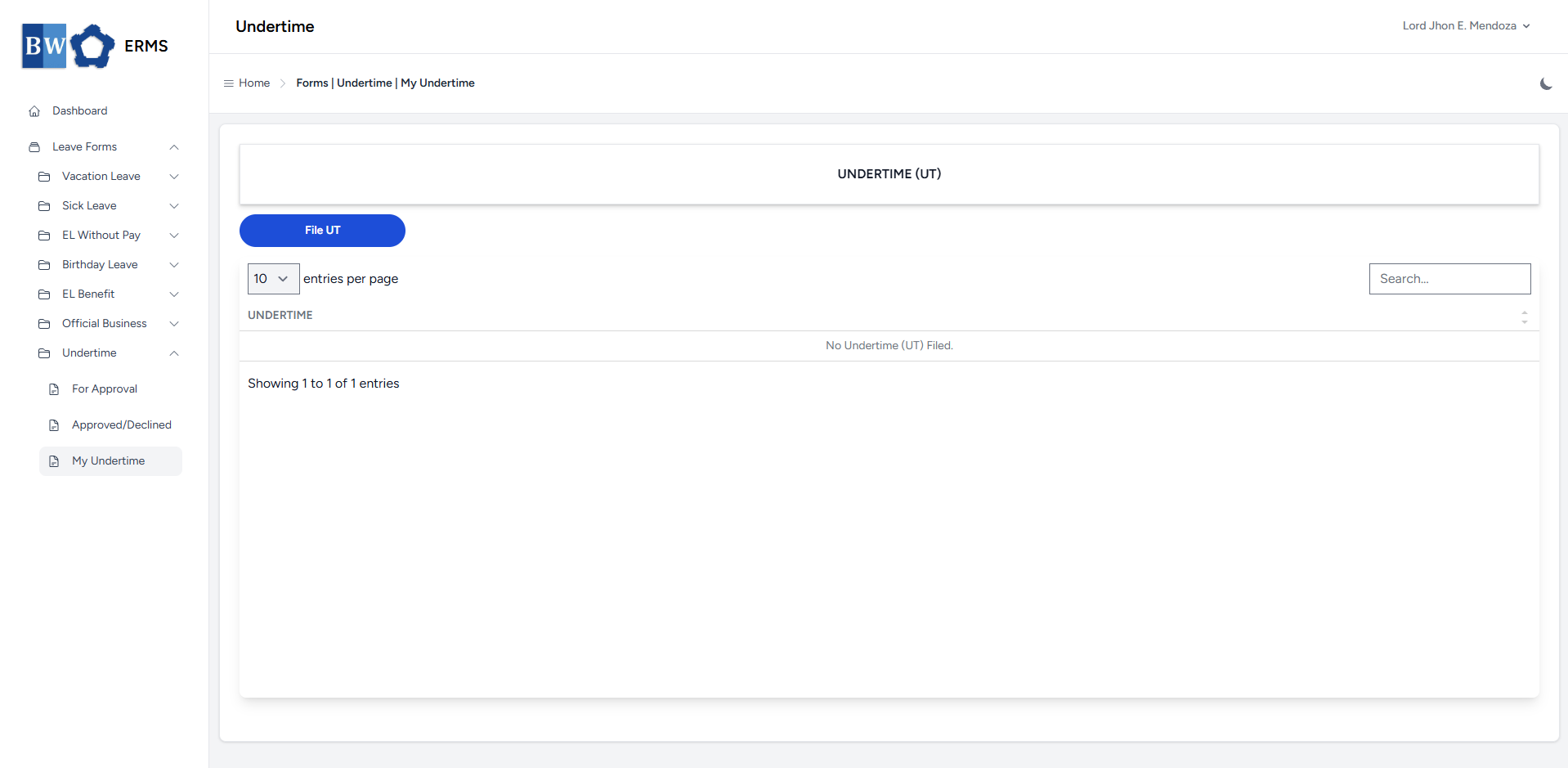
- On the Undertime (My Undertime) page, click the File UT button to open the form.
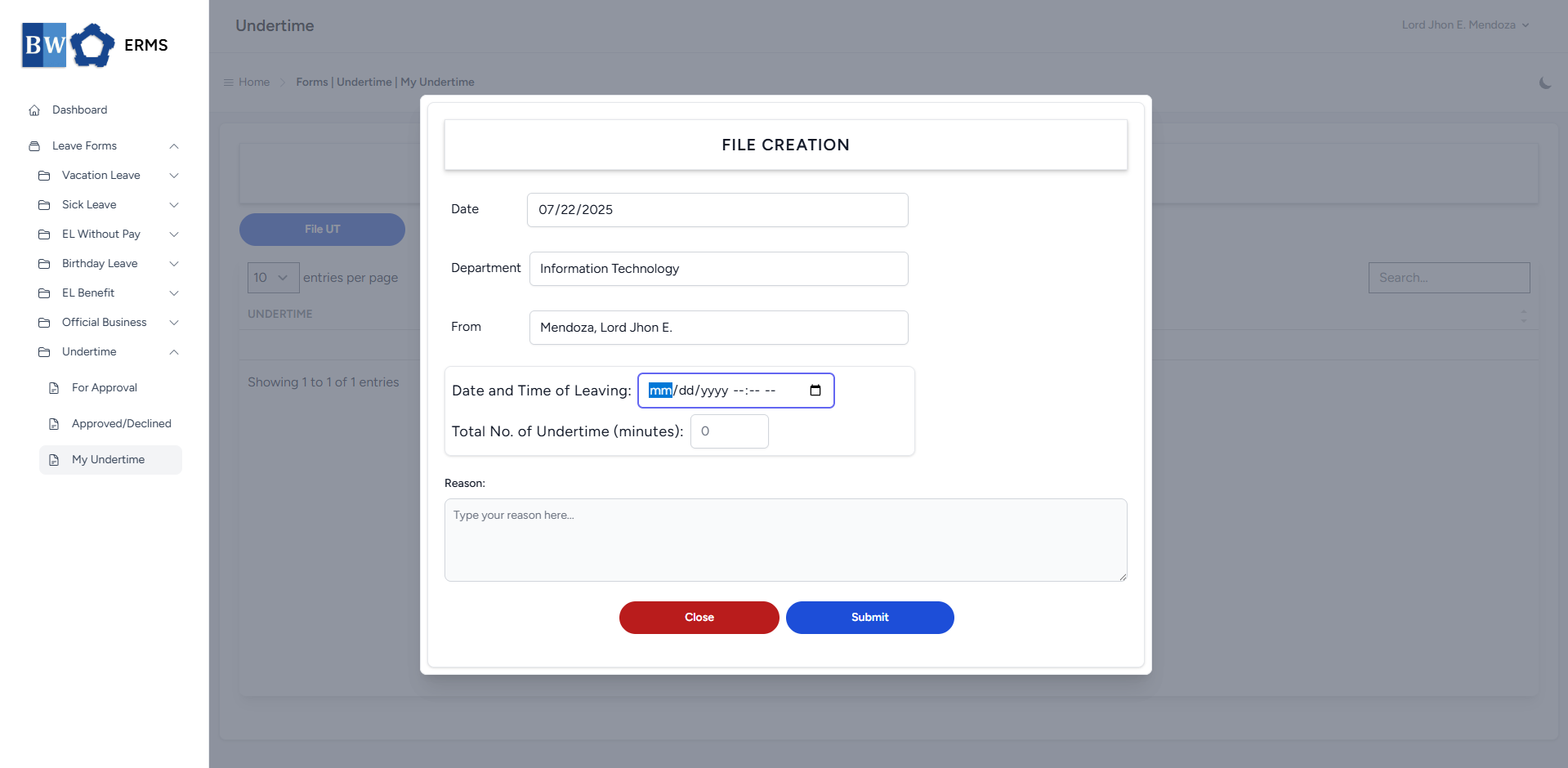
- Fill out the required fields, then click Submit.
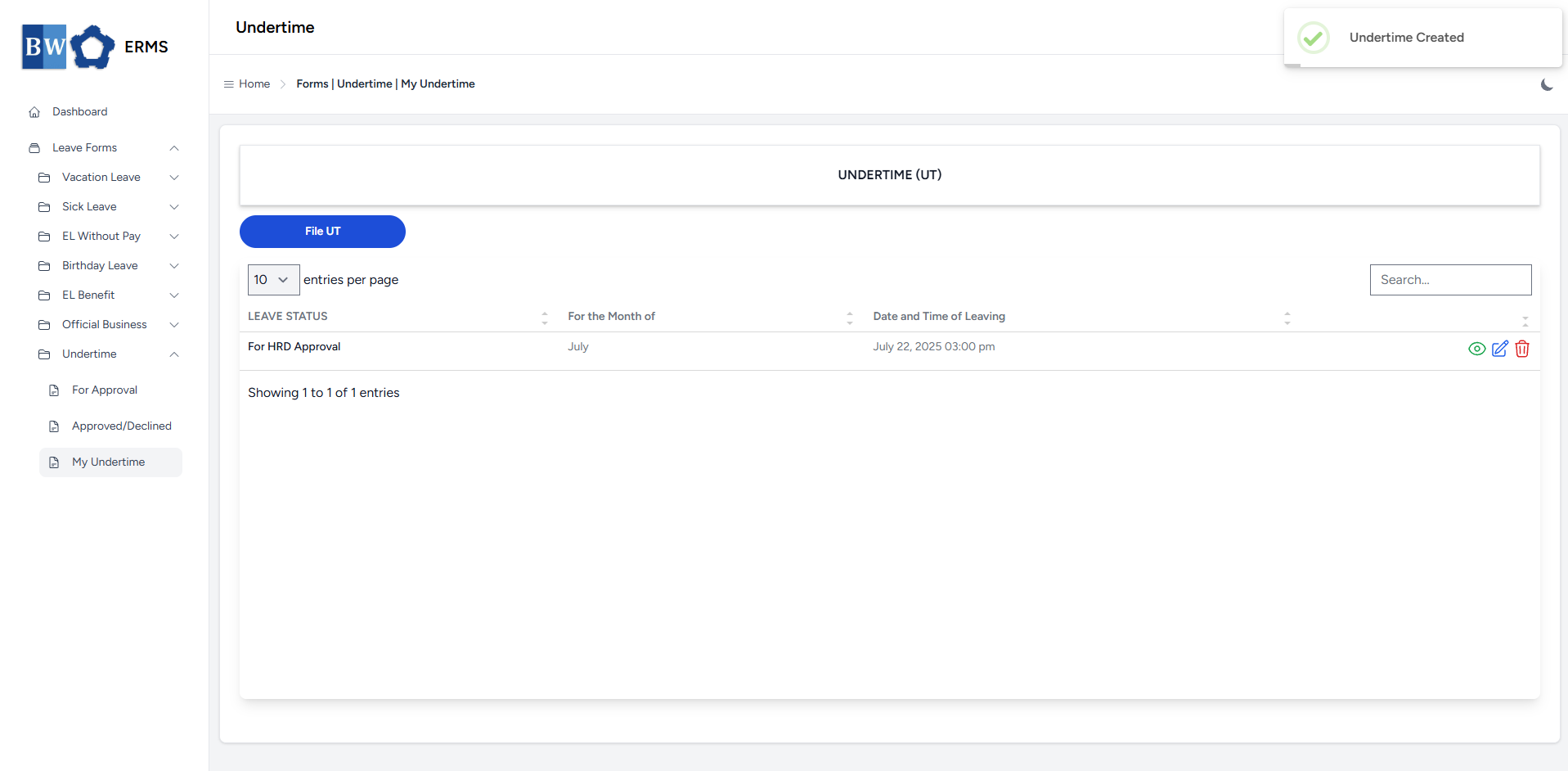
- After submitting, a notification will appear saying that the Undertime has been created. The filed leave will be added to the list
-
You can also use this page to check the status of your leave.