# Undertime
This section offers a clear and complete guide on how to file for Undertime, outlining the proper steps and requirements.
# Employees & Non-Approver Managers/Supervisors Application
To access the Undertime page, you can do either of the following:
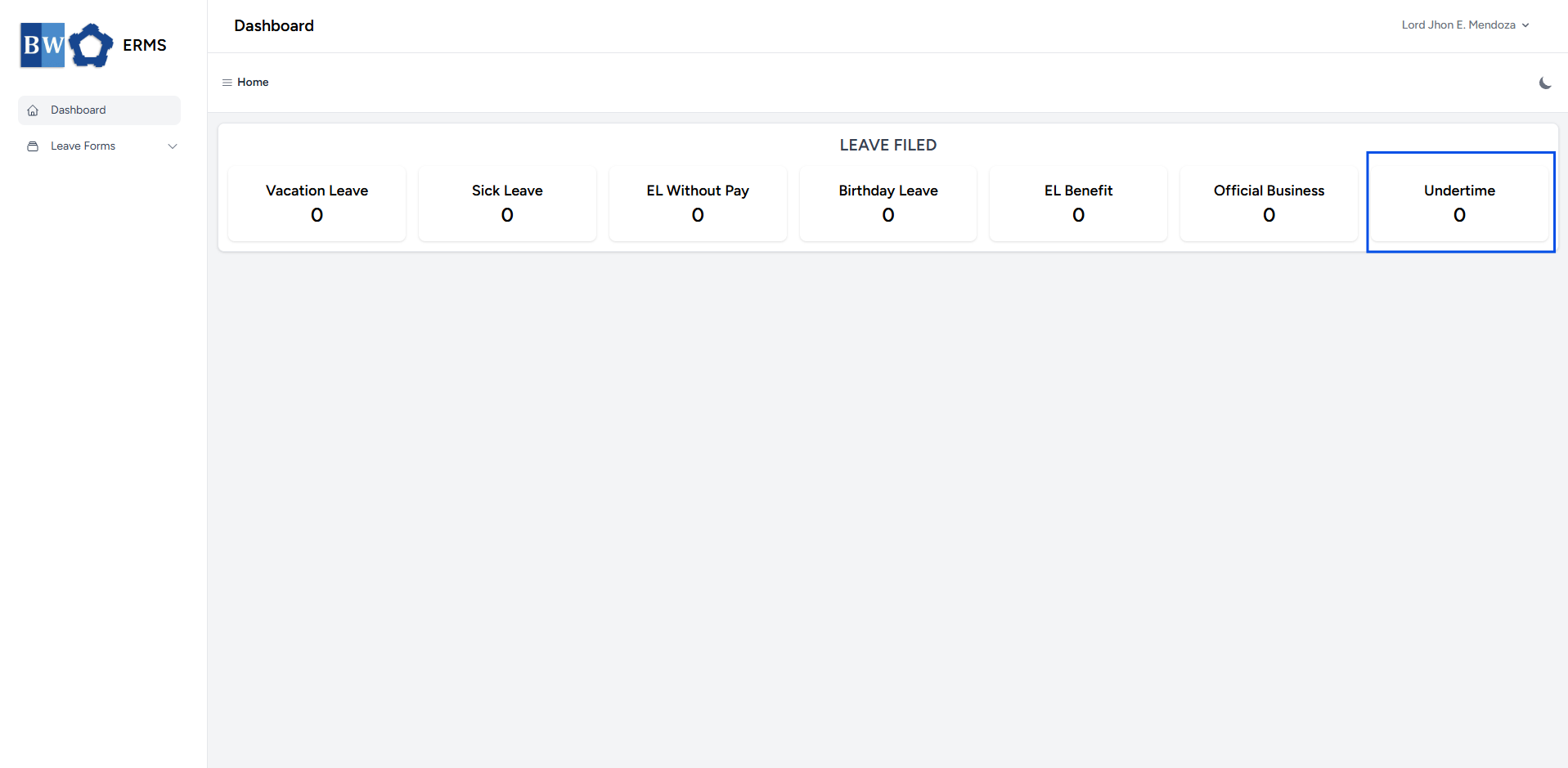
- On your Dashboard, click **Undertime** under the **Leave Filed** section.
[](https://kb.mgmfoods.com.ph/uploads/images/gallery/2025-07/oykimage.png)
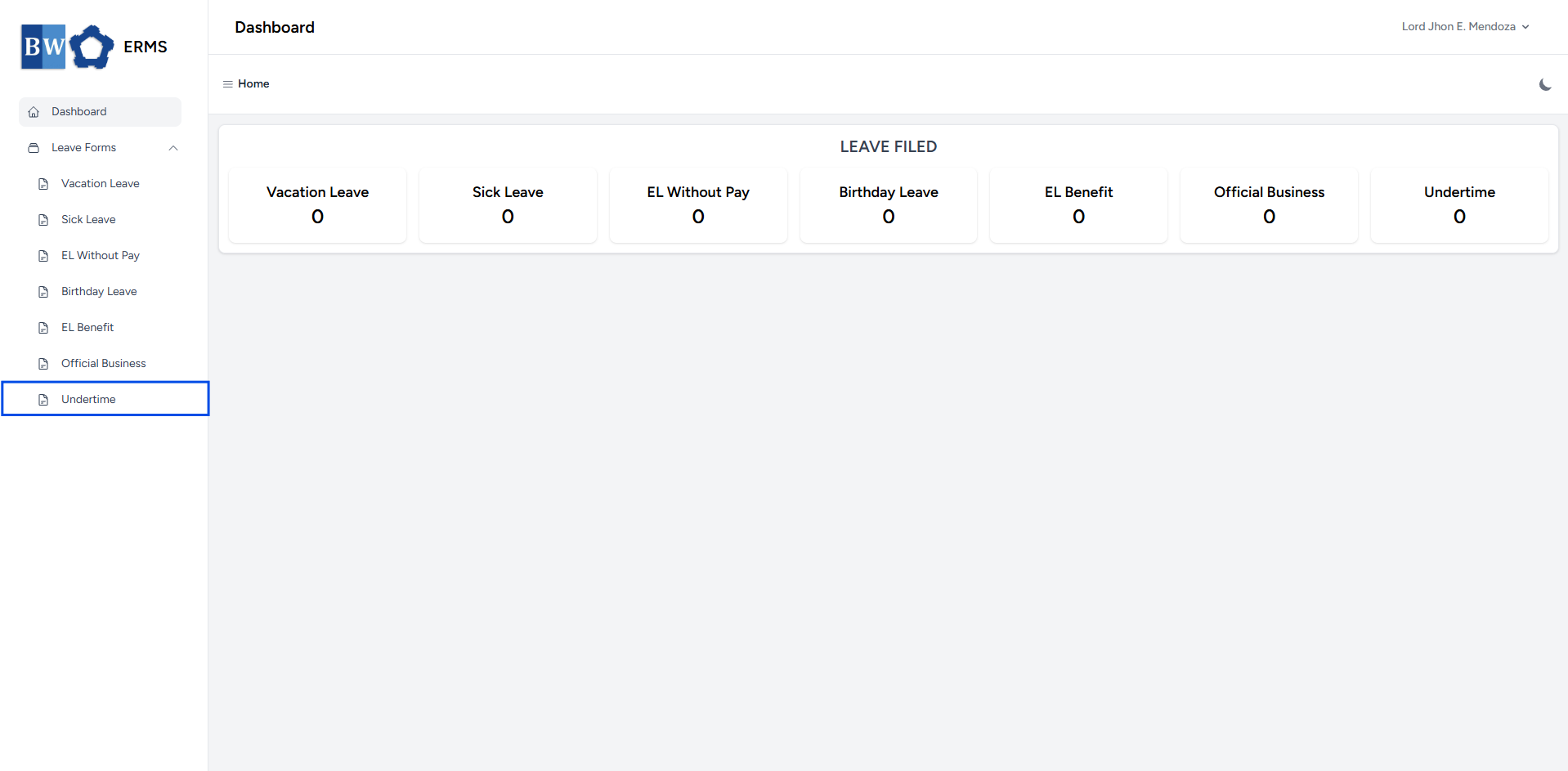
- Or, click the **Leave Forms** dropdown in the sidebar, then select **Undertime**.
[](https://kb.mgmfoods.com.ph/uploads/images/gallery/2025-07/RrRimage.png)
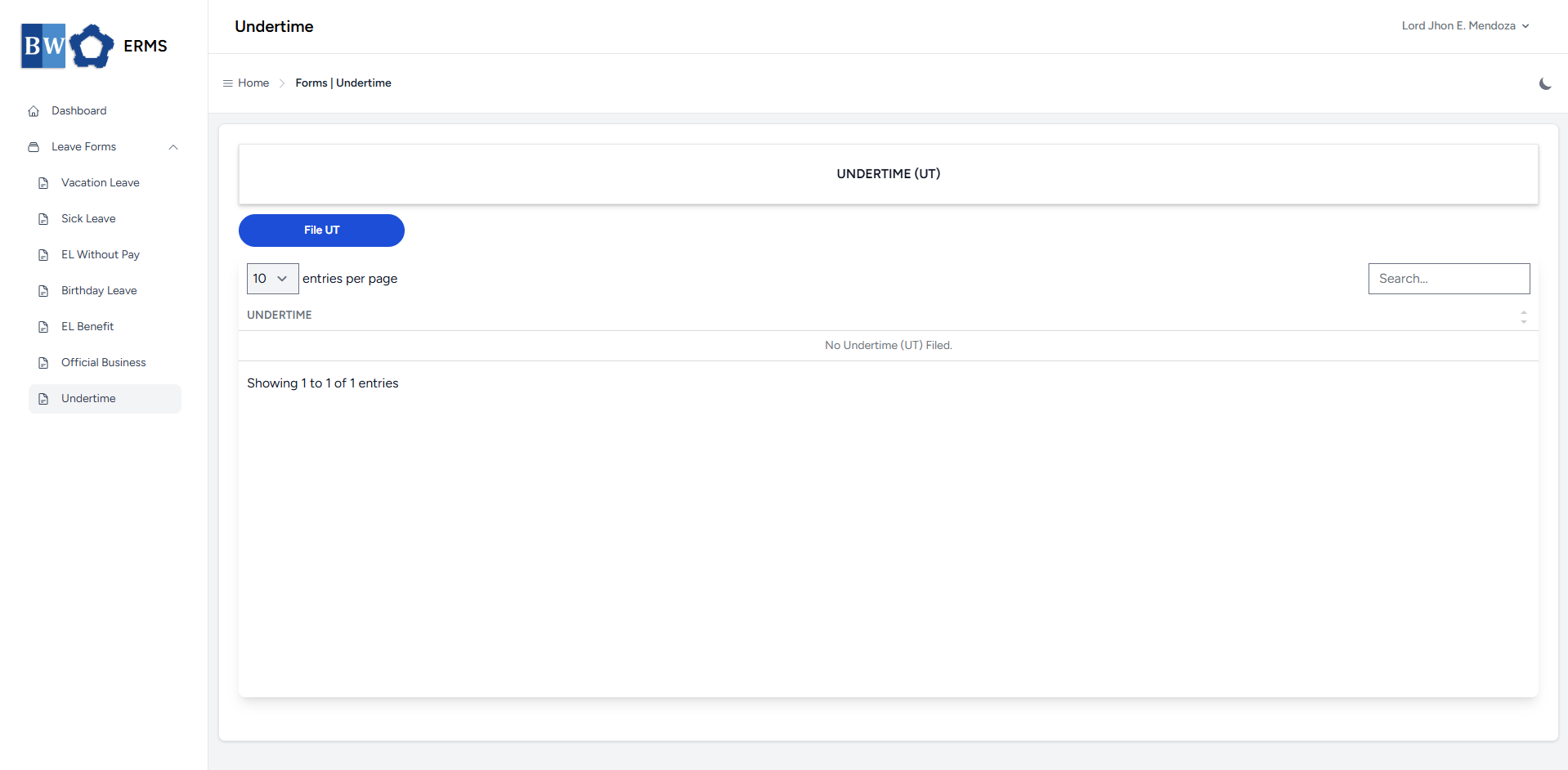
- It will open the **Undertime** page.
[](https://kb.mgmfoods.com.ph/uploads/images/gallery/2025-07/D8Gimage.png)
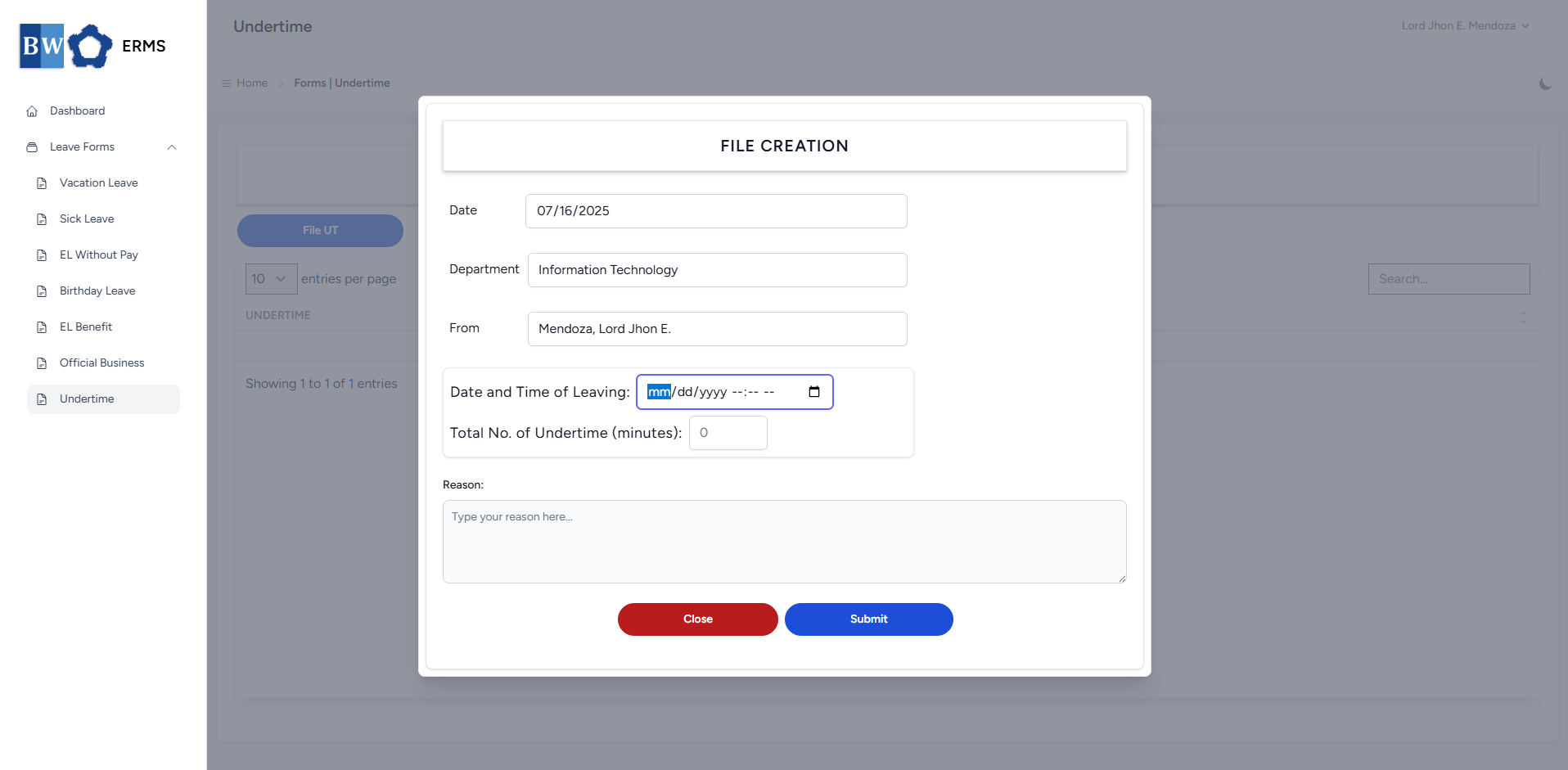
- On the **Undertime** page, click the **File UT** button to open the form.
[](https://kb.mgmfoods.com.ph/uploads/images/gallery/2025-07/wSJimage.png)
- Fill out the required fields, then click **Submit.**
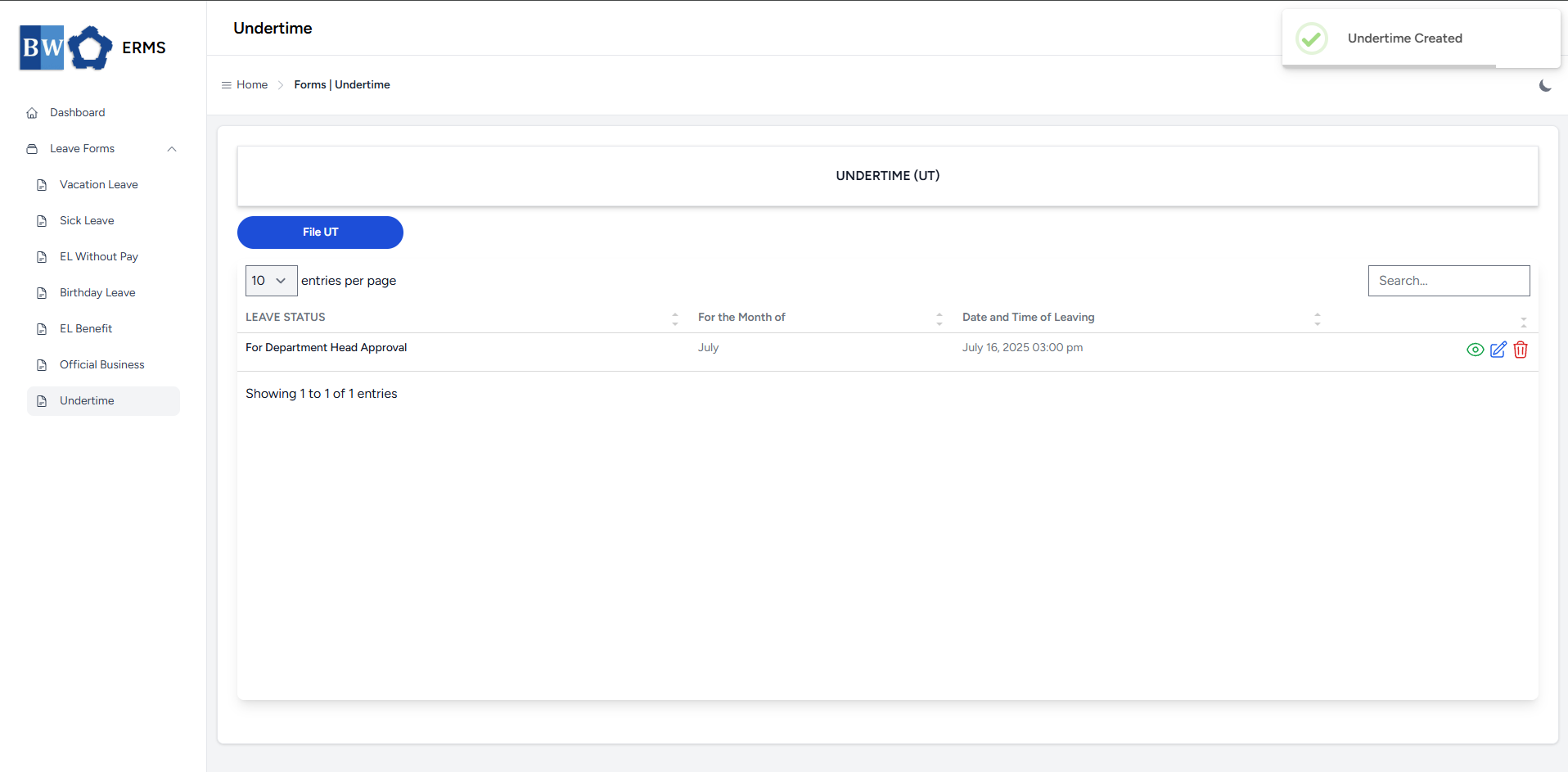
- After submitting, a notification will appear saying that the Undertime has been created. The filed leave will be added to the list.
[](https://kb.mgmfoods.com.ph/uploads/images/gallery/2025-07/tasimage.png)
- You can also use this page to check the status of your leave.
# Approver Managers/Supervisors Application
To access the Undertime page:
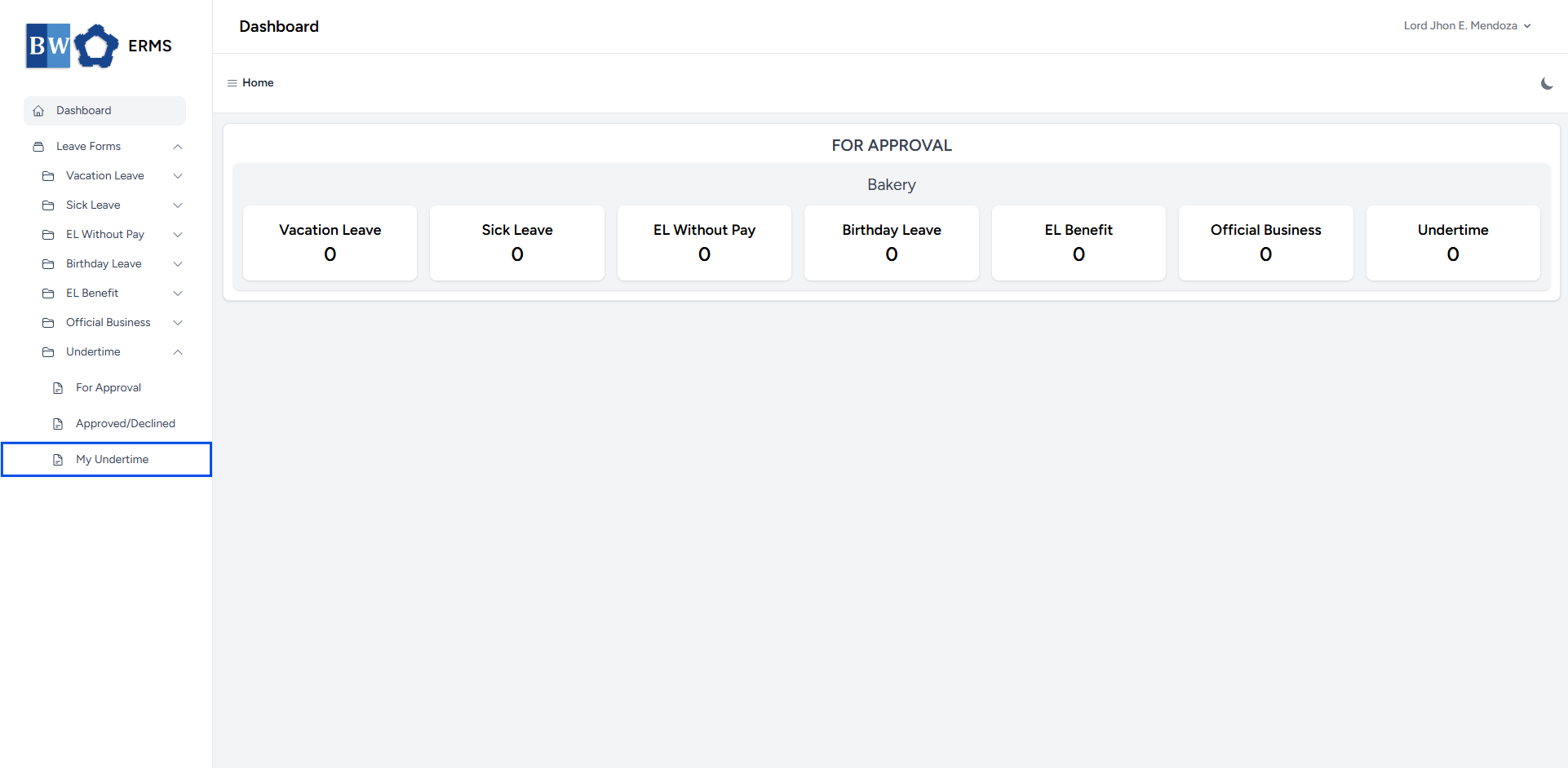
- In the **Sidebar**, click the **Leave Forms** dropdown.
- From the list that appears, select **Undertime**.
- Then, click **My Undertime** to view your filed undertime.
[](https://kb.mgmfoods.com.ph/uploads/images/gallery/2025-07/Mgwimage.png)
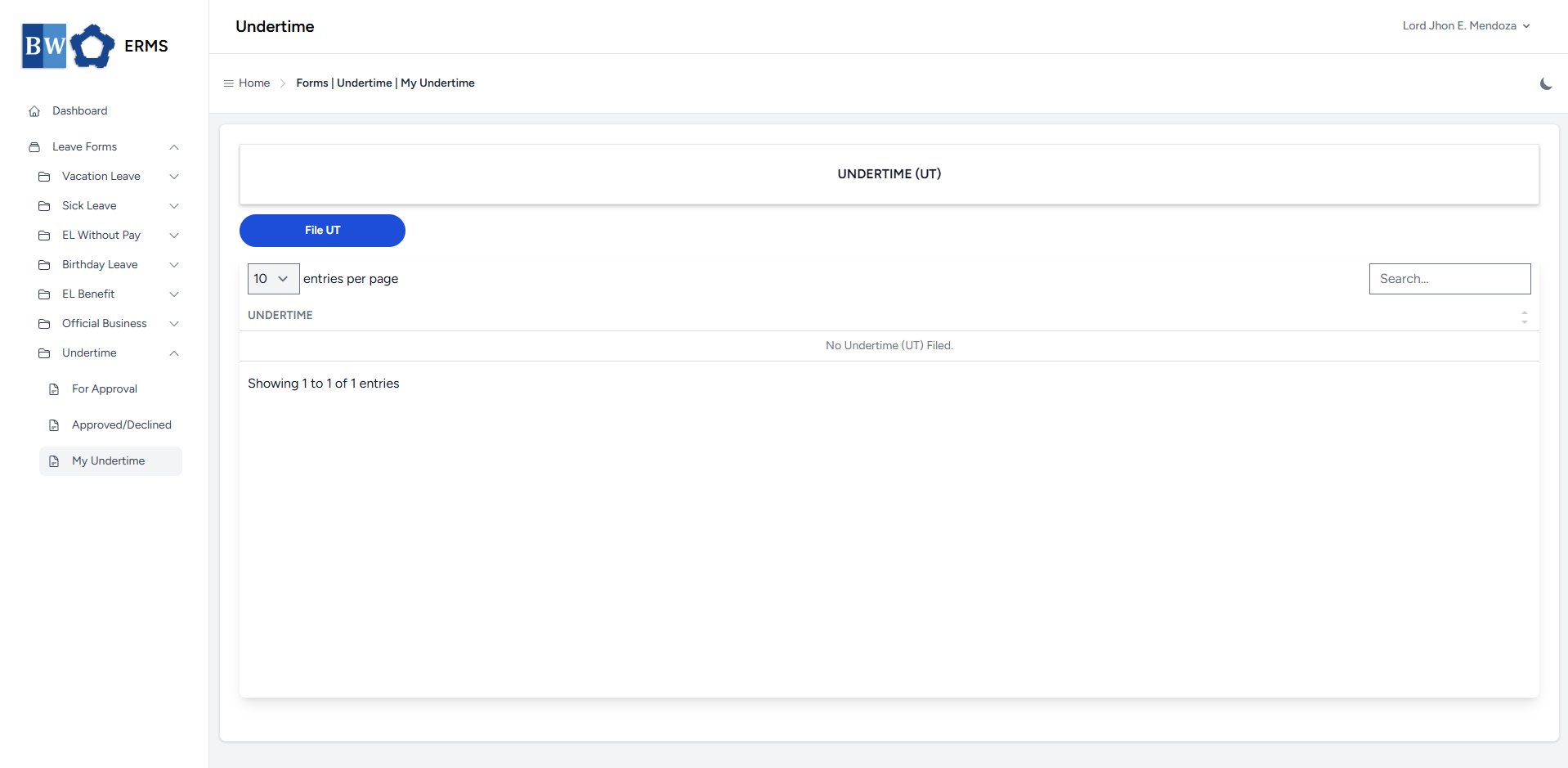
- It will open the **Undertime (My Undertime)** page.
[](https://kb.mgmfoods.com.ph/uploads/images/gallery/2025-07/vw3image.png)
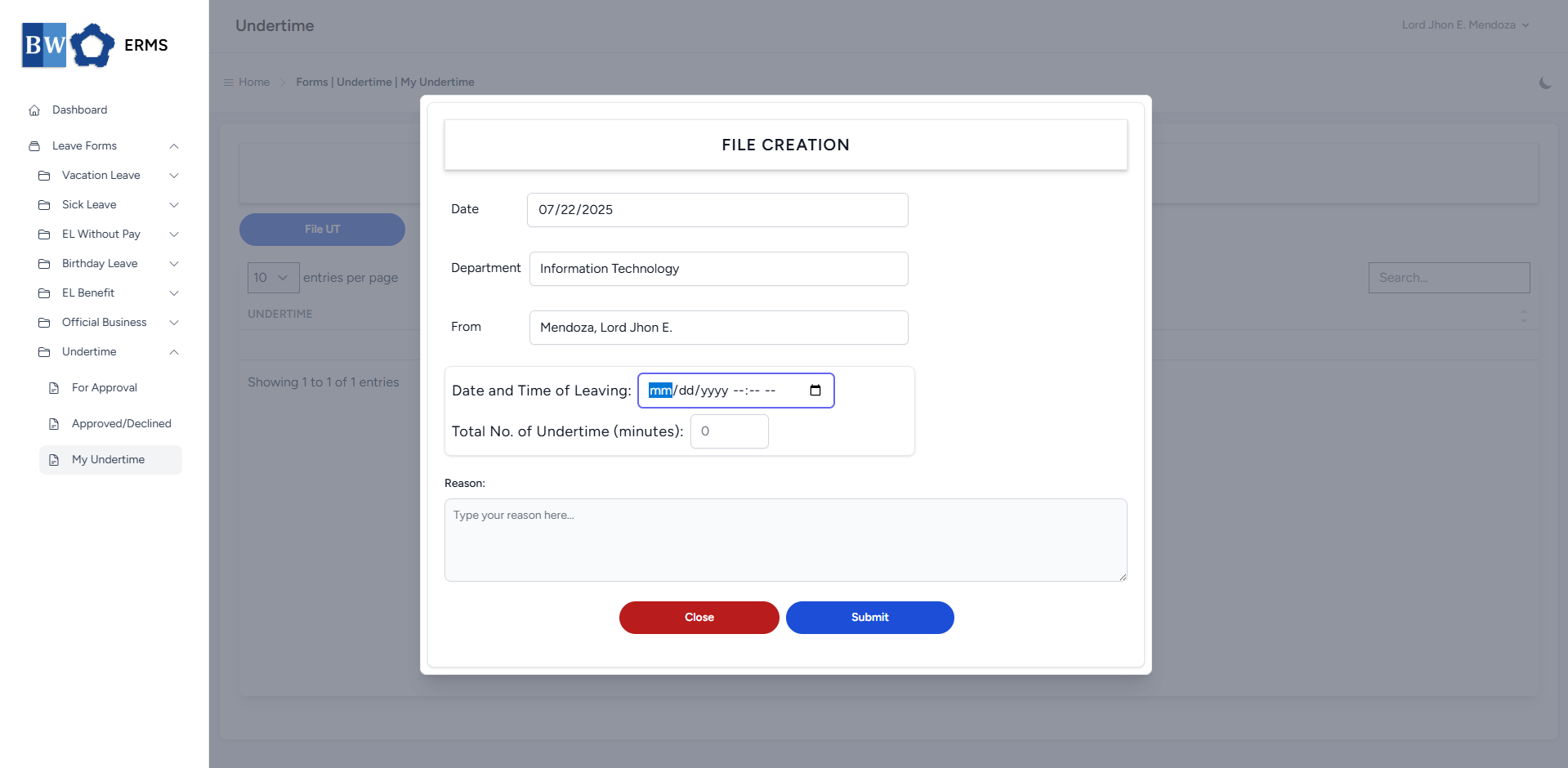
- On the **Undertime** **(My Undertime)** page, click the **File UT** button to open the form.
[](https://kb.mgmfoods.com.ph/uploads/images/gallery/2025-07/L1Fimage.png)
- Fill out the required fields, then click **Submit**.
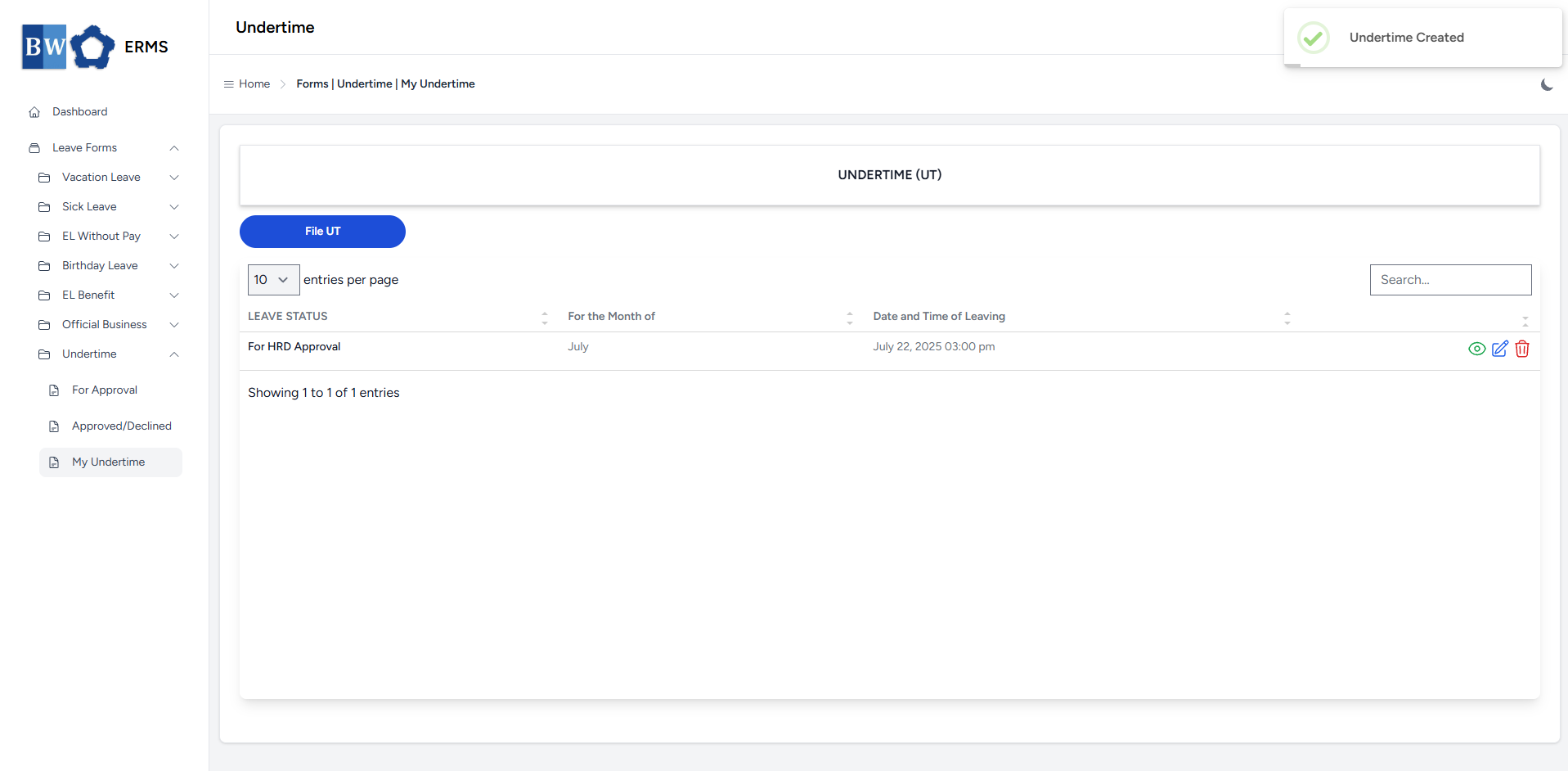
- After submitting, a notification will appear saying that the Undertime has been created. The filed leave will be added to the list
[](https://kb.mgmfoods.com.ph/uploads/images/gallery/2025-07/NBSimage.png)
- You can also use this page to check the status of your leave.