Sick Leave
This section provides a clear and complete guide on how to properly file for Sick Leave, including the necessary steps and requirements.
Employees & Non-Approver Managers/Supervisors Application
To access the Sick Leave page, you can do either of the following:
-
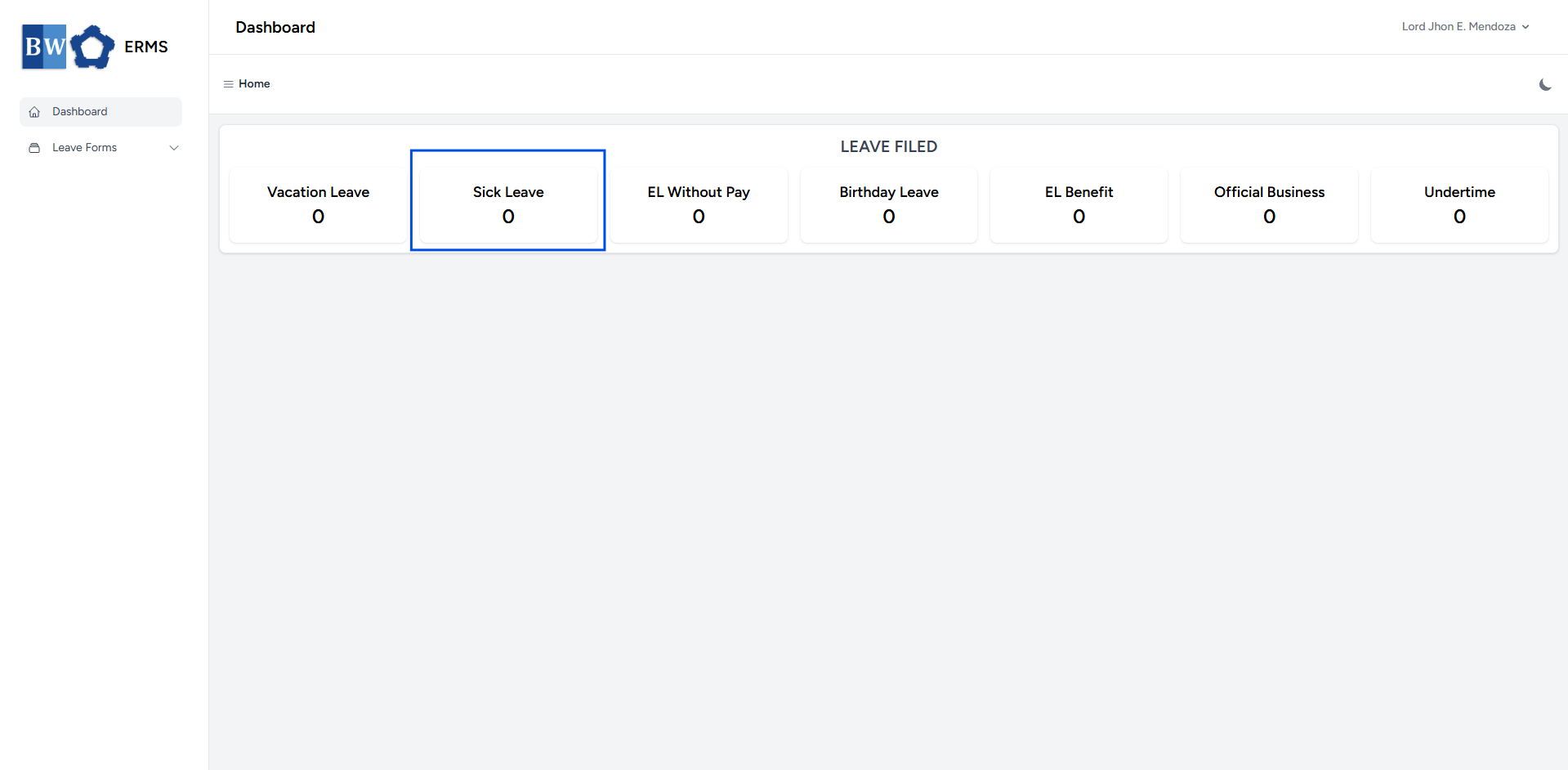
On your Dashboard, click Sick Leave under the Leave Filed section.
-
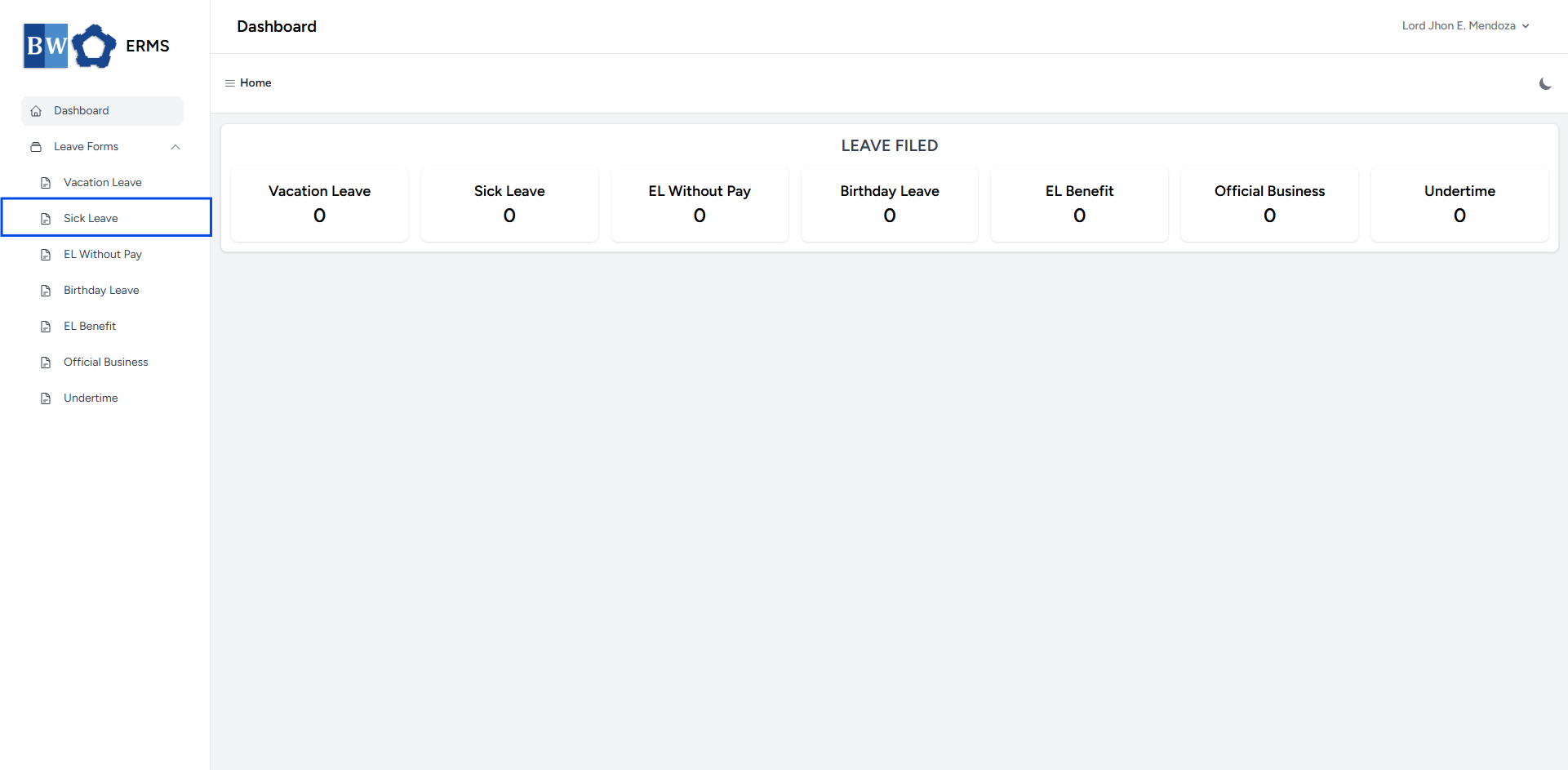
Or, click the Leave Forms dropdown in the sidebar, then select Sick Leave.
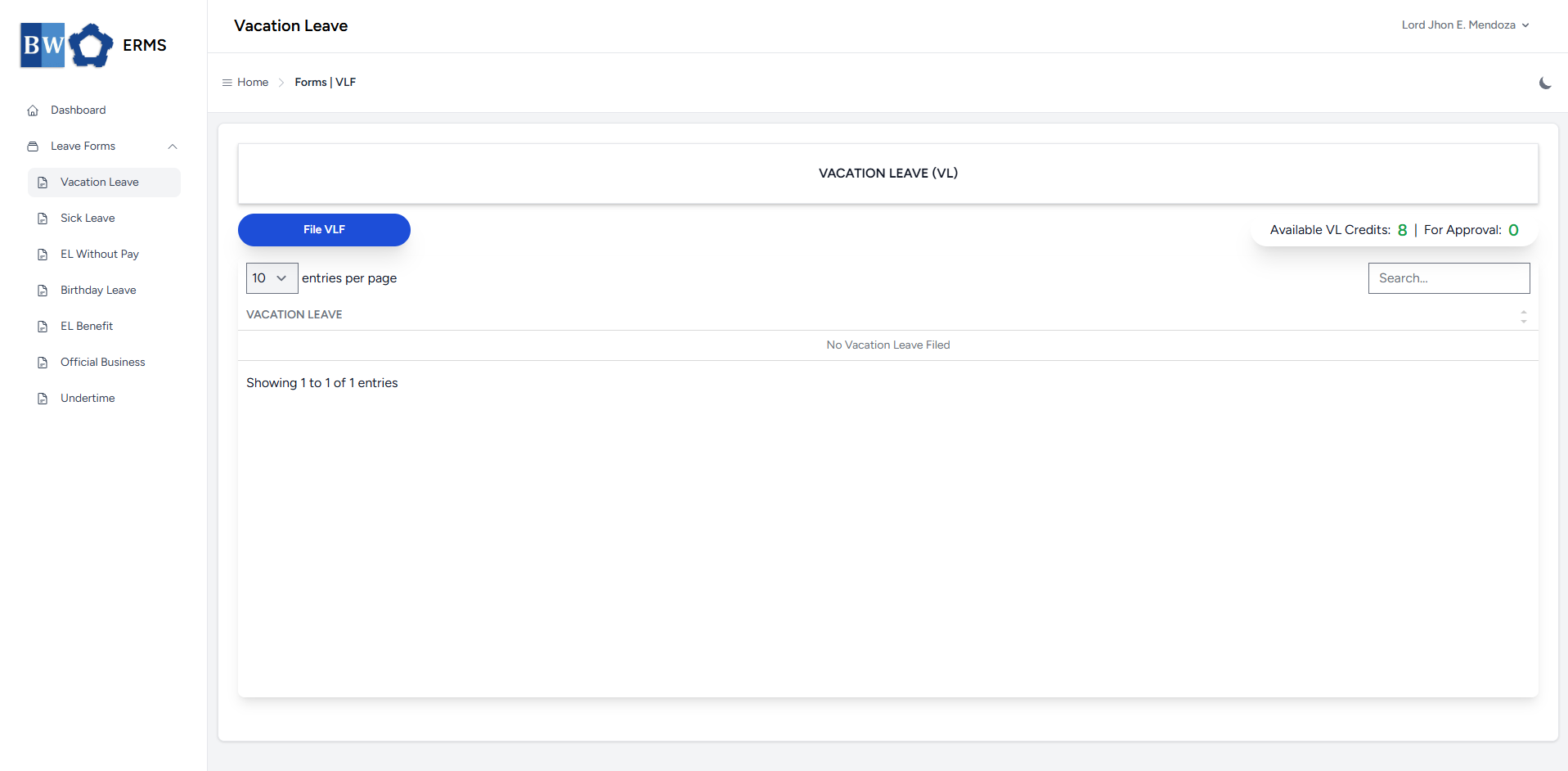
- It will open the Sick Leave page.
- On the Sick Leave page, click the File SLF button to open the form.
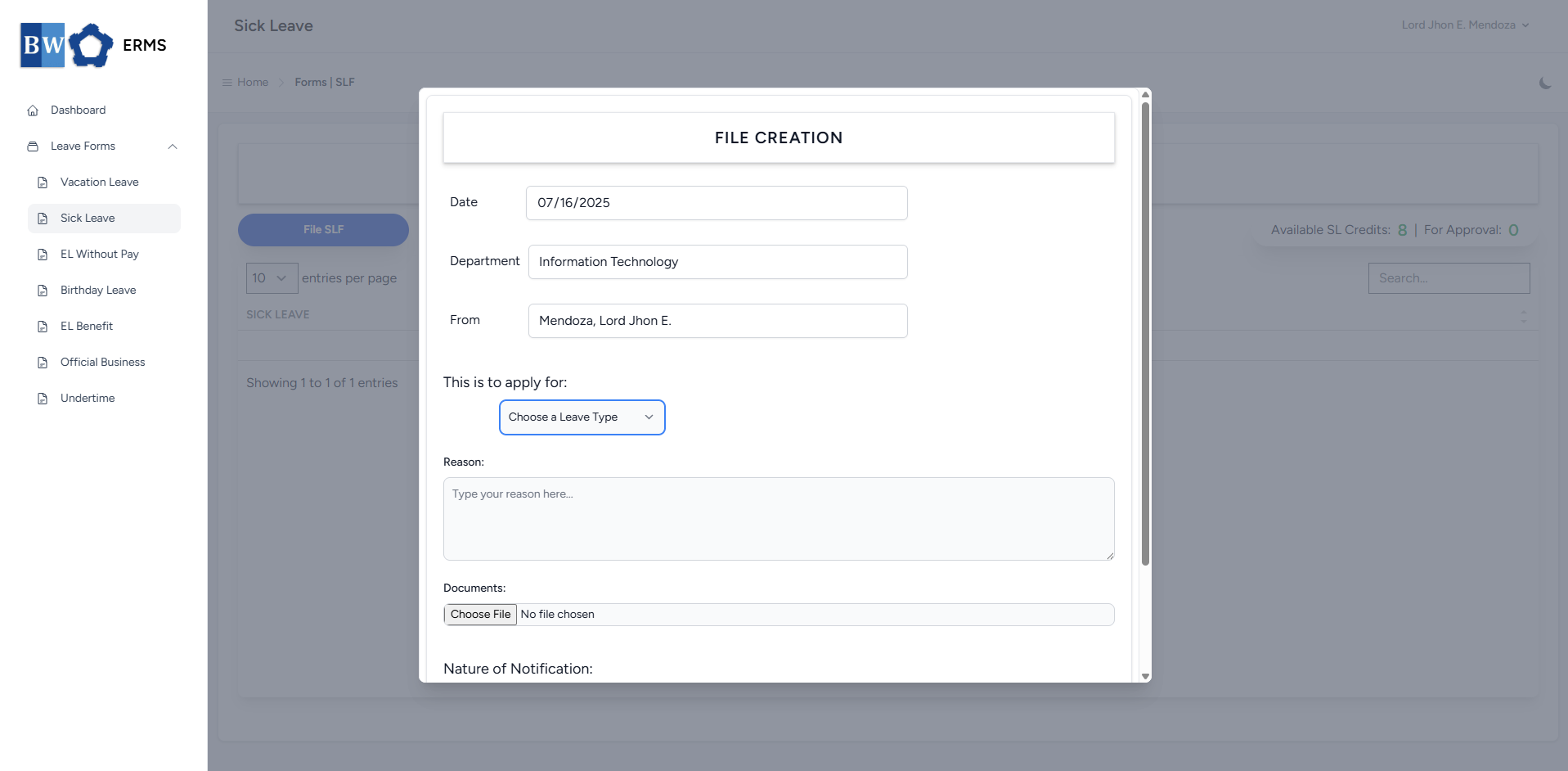
- Fill out the required fields, then click Submit.
- Note: You may leave the document blank.
- Note: You may leave the document blank.
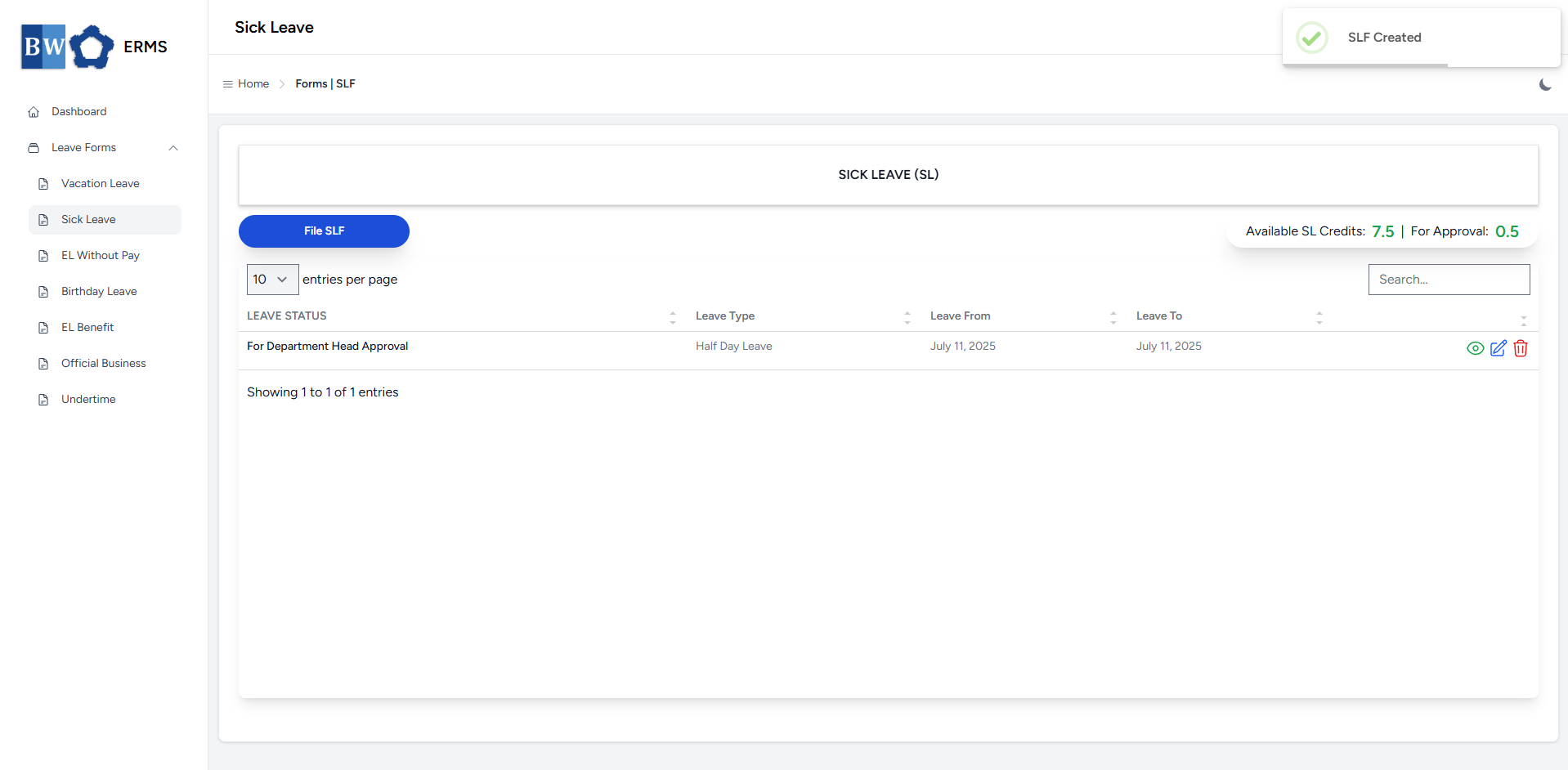
- After submitting, a notification will appear saying that the SLF has been created. The filed leave will be added to the list, and your SL Credits will be reduced based on the number of leave days you filed.
-
You can also use this page to check the status of your leave.
Approver Managers/Supervisors Application
To access the Sick Leave page:
-
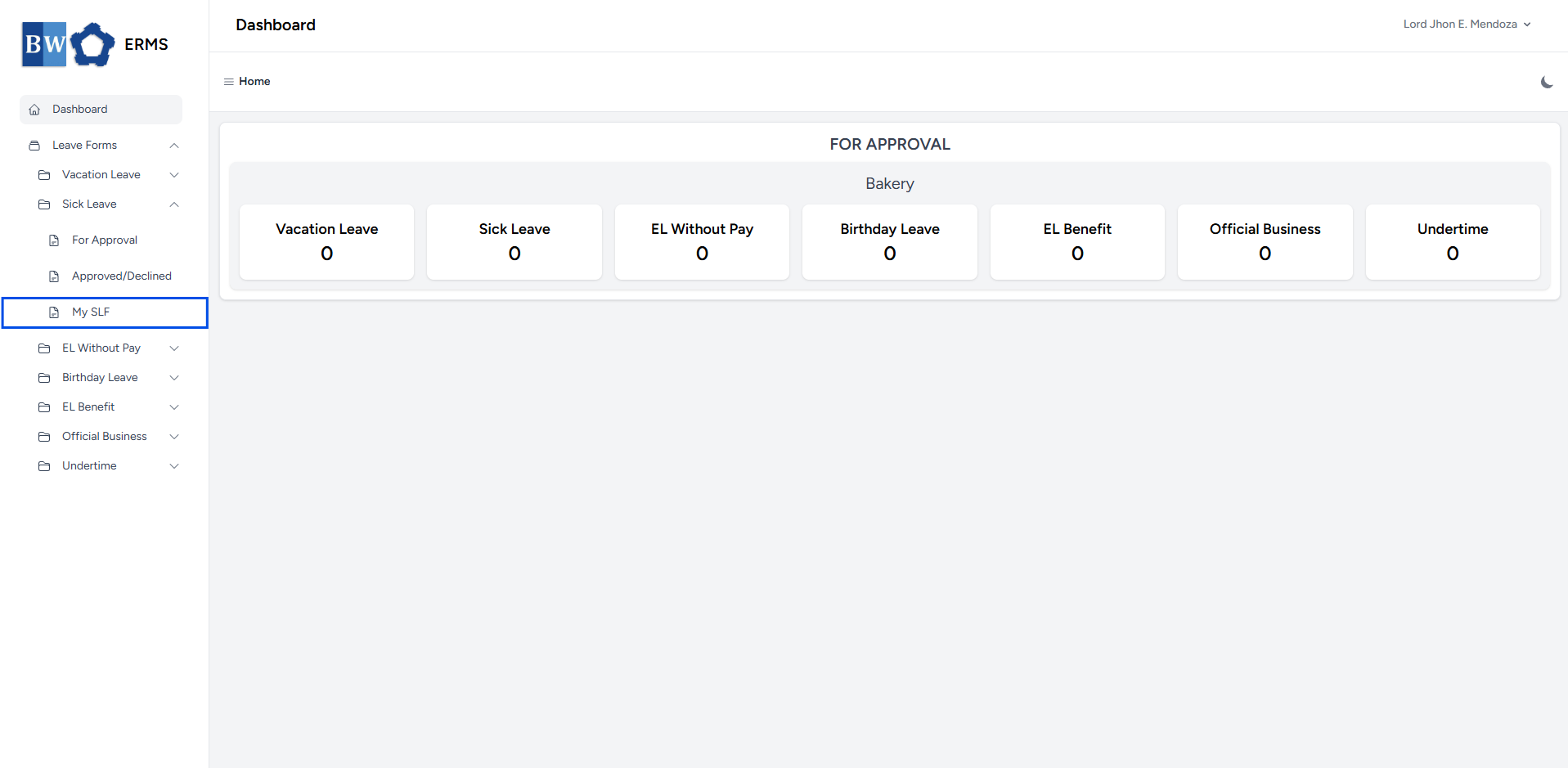
In the Sidebar, click the Leave Forms dropdown.
- From the list that appears, select Sick Leave.
- Then, click My SLF to view your filed sick leaves.
- It will open the Sick Leave (My SLF) page.
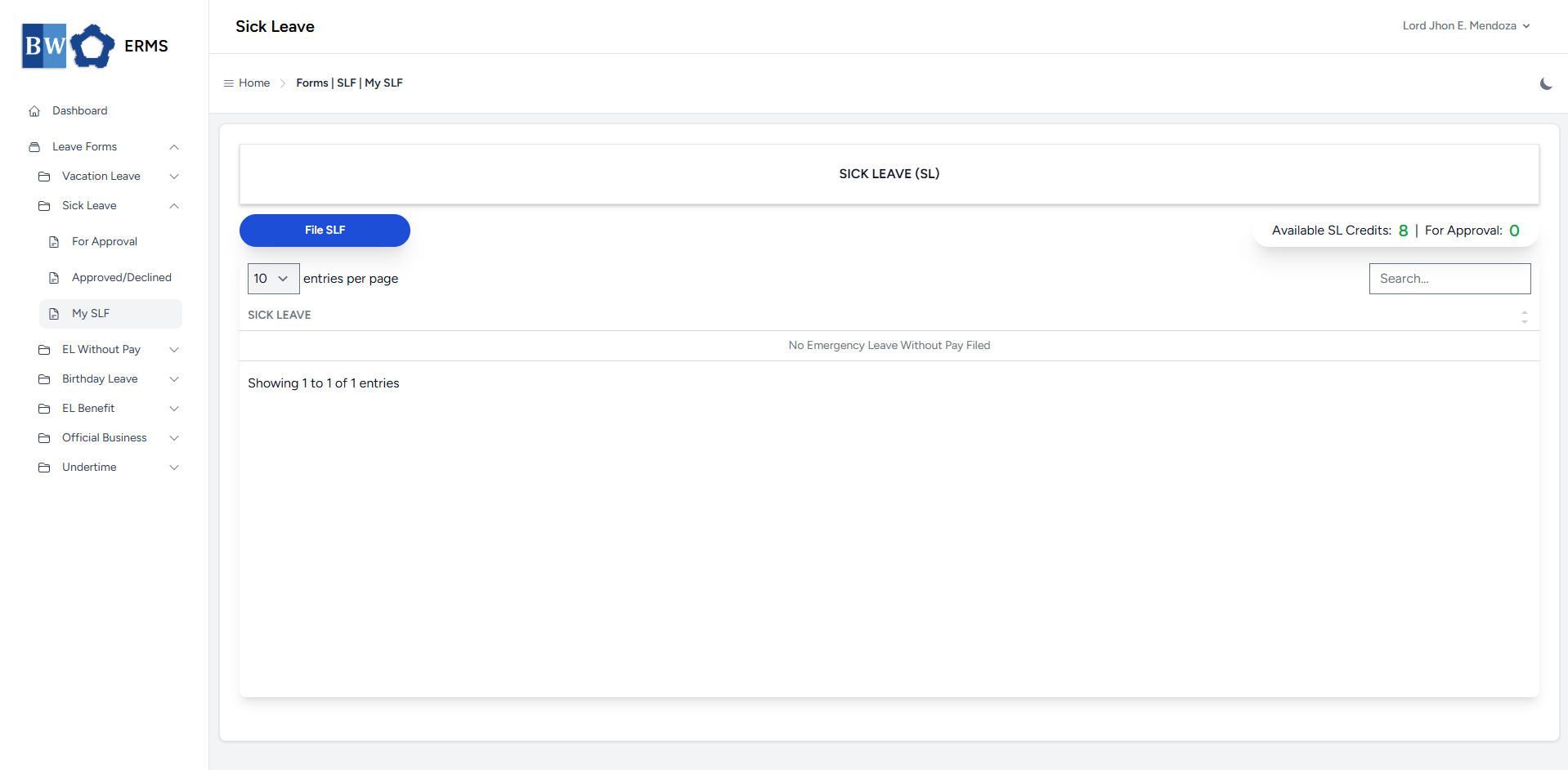
- On the Sick Leave (My SLF) page, click the File SLF button to open the form.
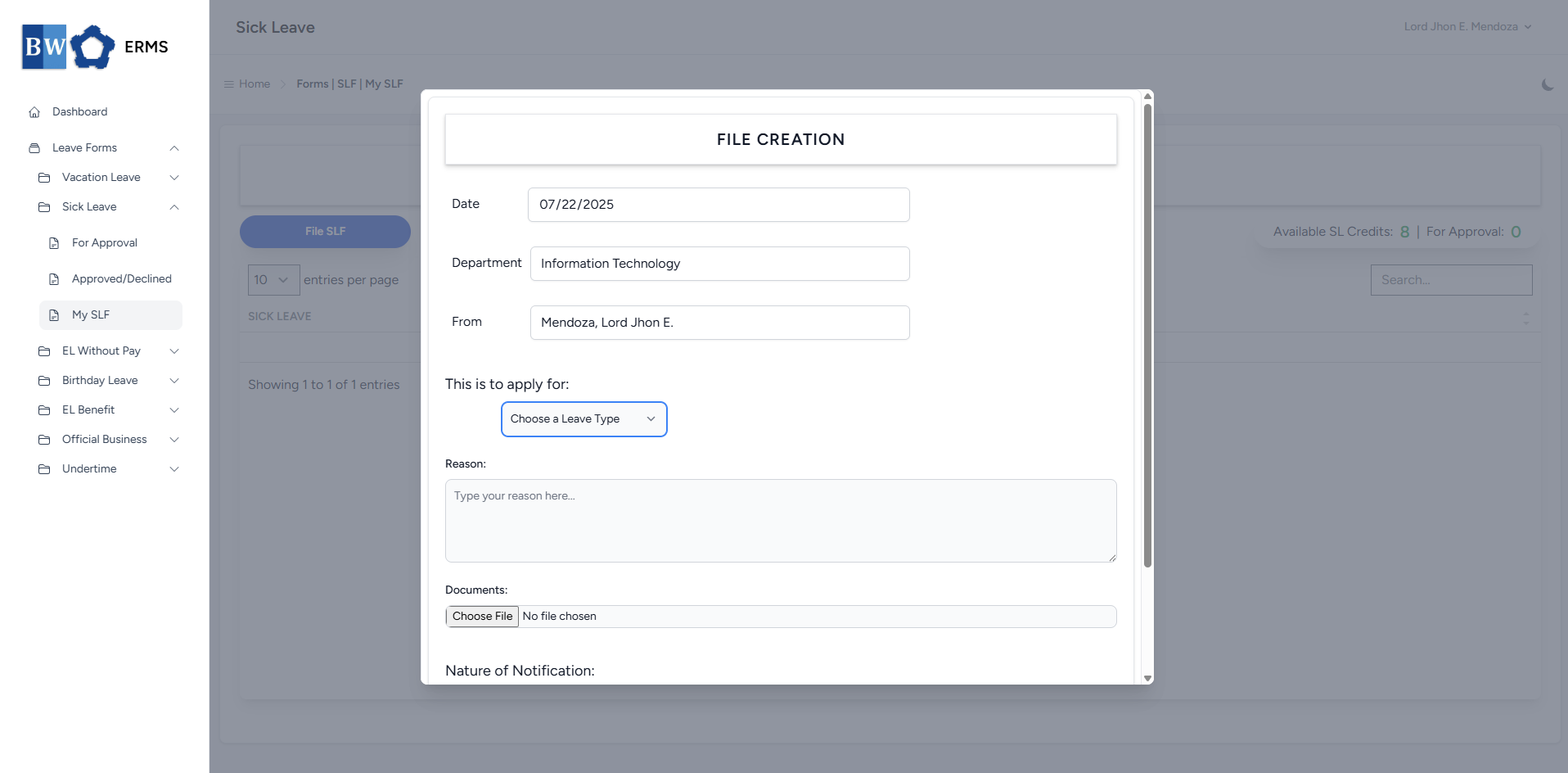
- Fill out the required fields, then click Submit.
- Note: You may leave the document blank.
- After submitting, a notification will appear saying that the SLF has been created. The filed leave will be added to the list, and your SL Credits will be reduced based on the number of leave days you filed.
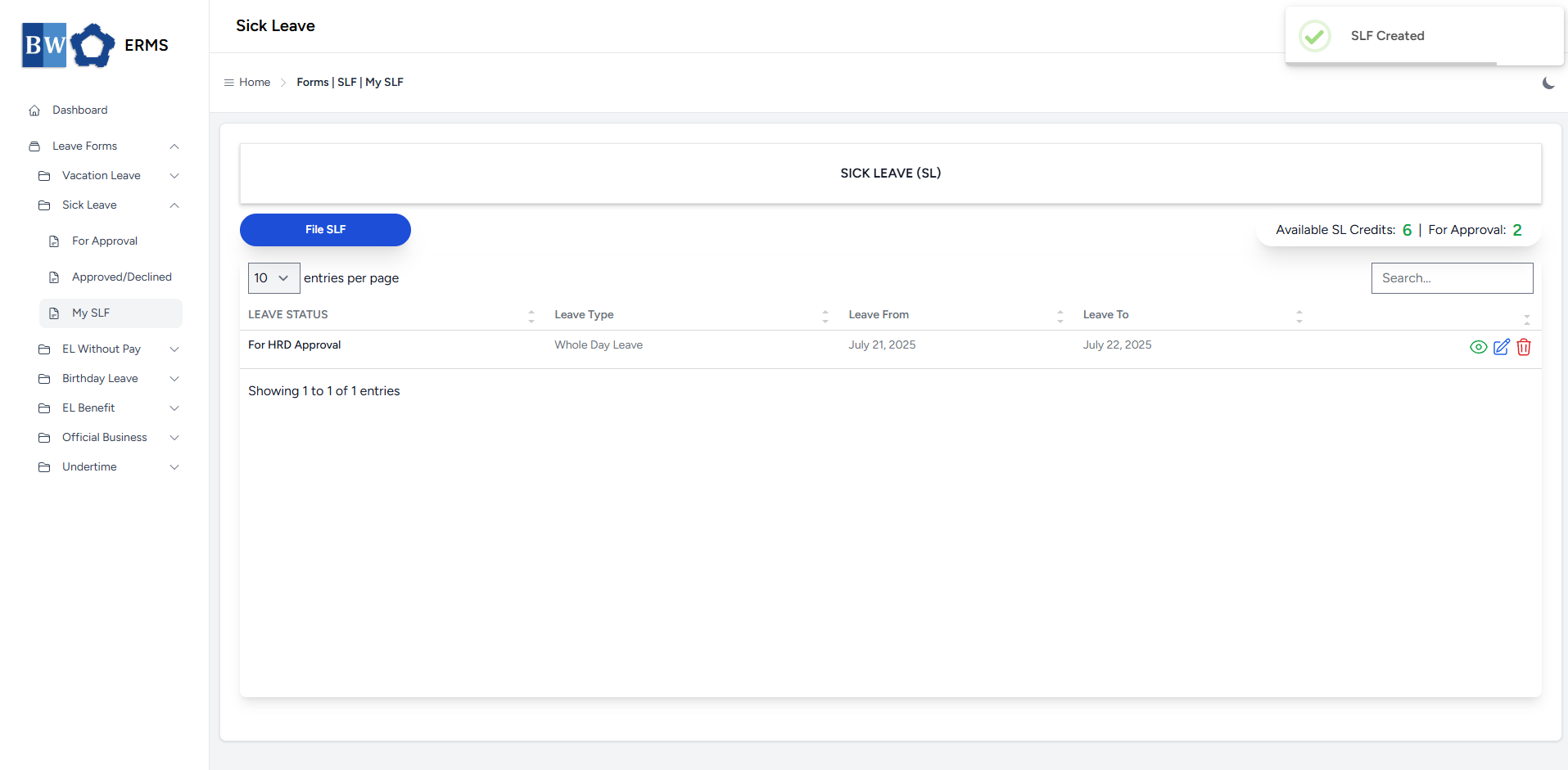
-
You can also use this page to check the status of your leave.