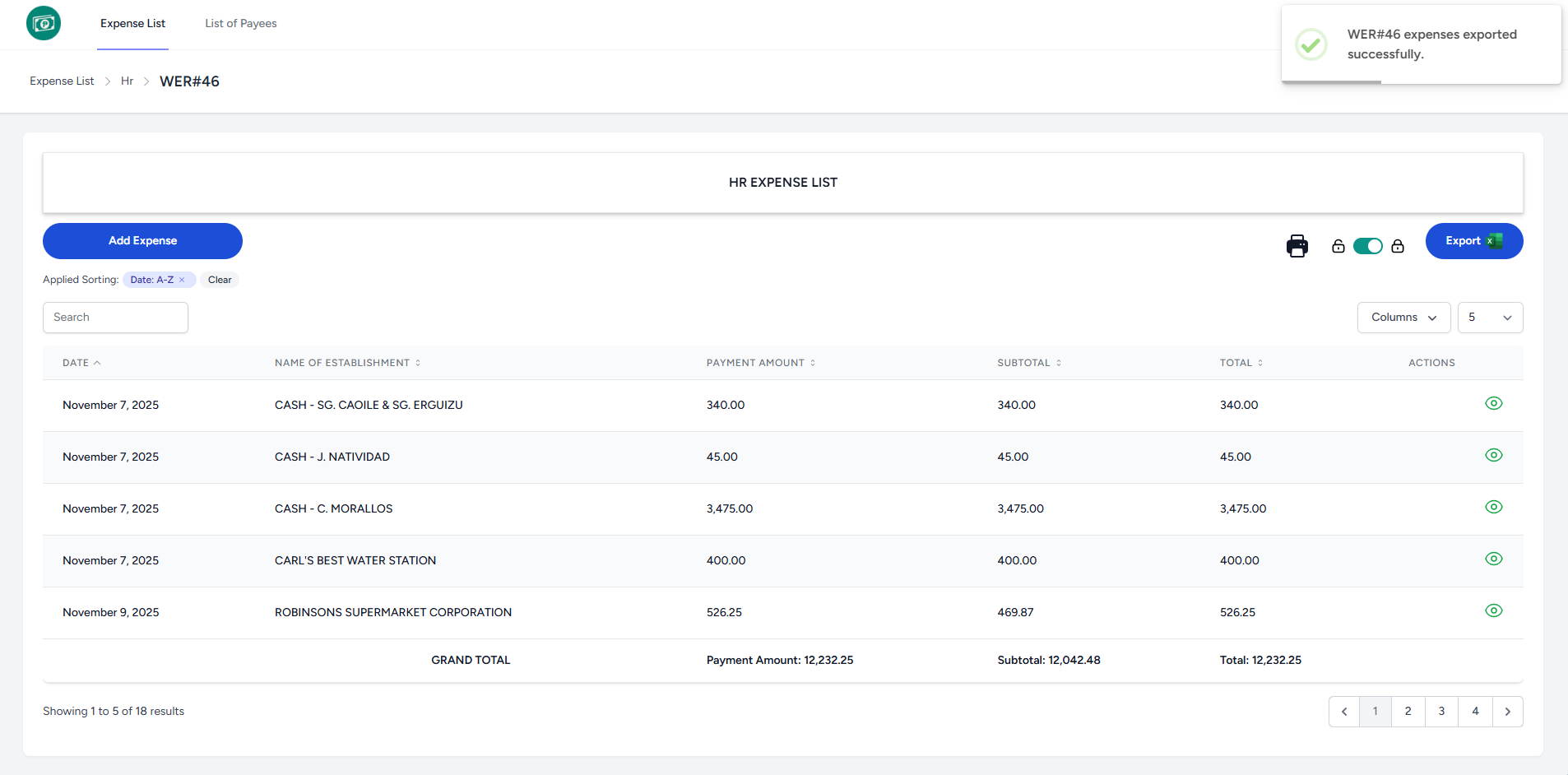
Expense List
Add Expense
To add a new Expense, go to the Expense List page:
- Once logged in, the system redirects you to the Expense List page.
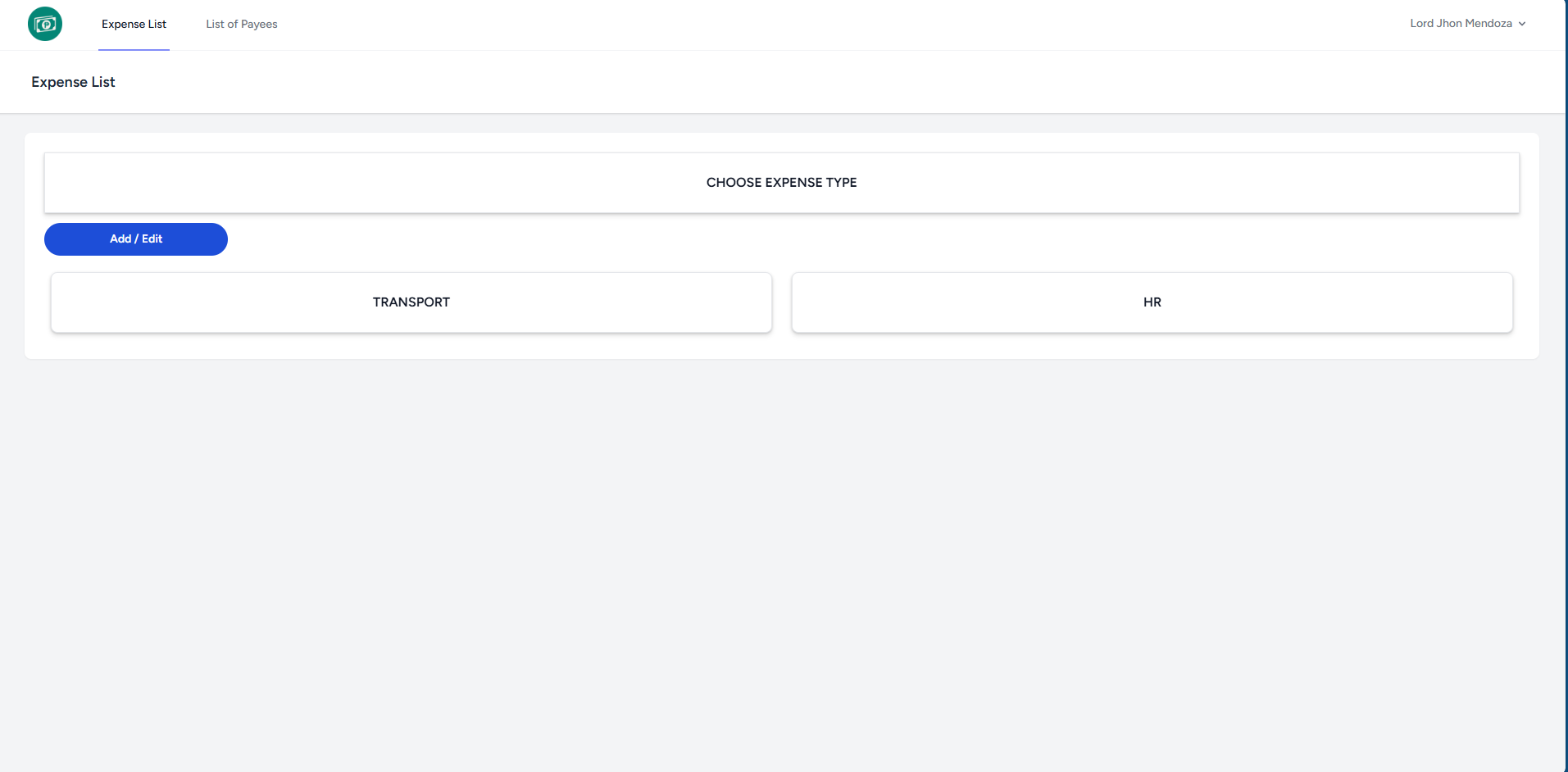
- Select an Expense Type to proceed to the WER List.
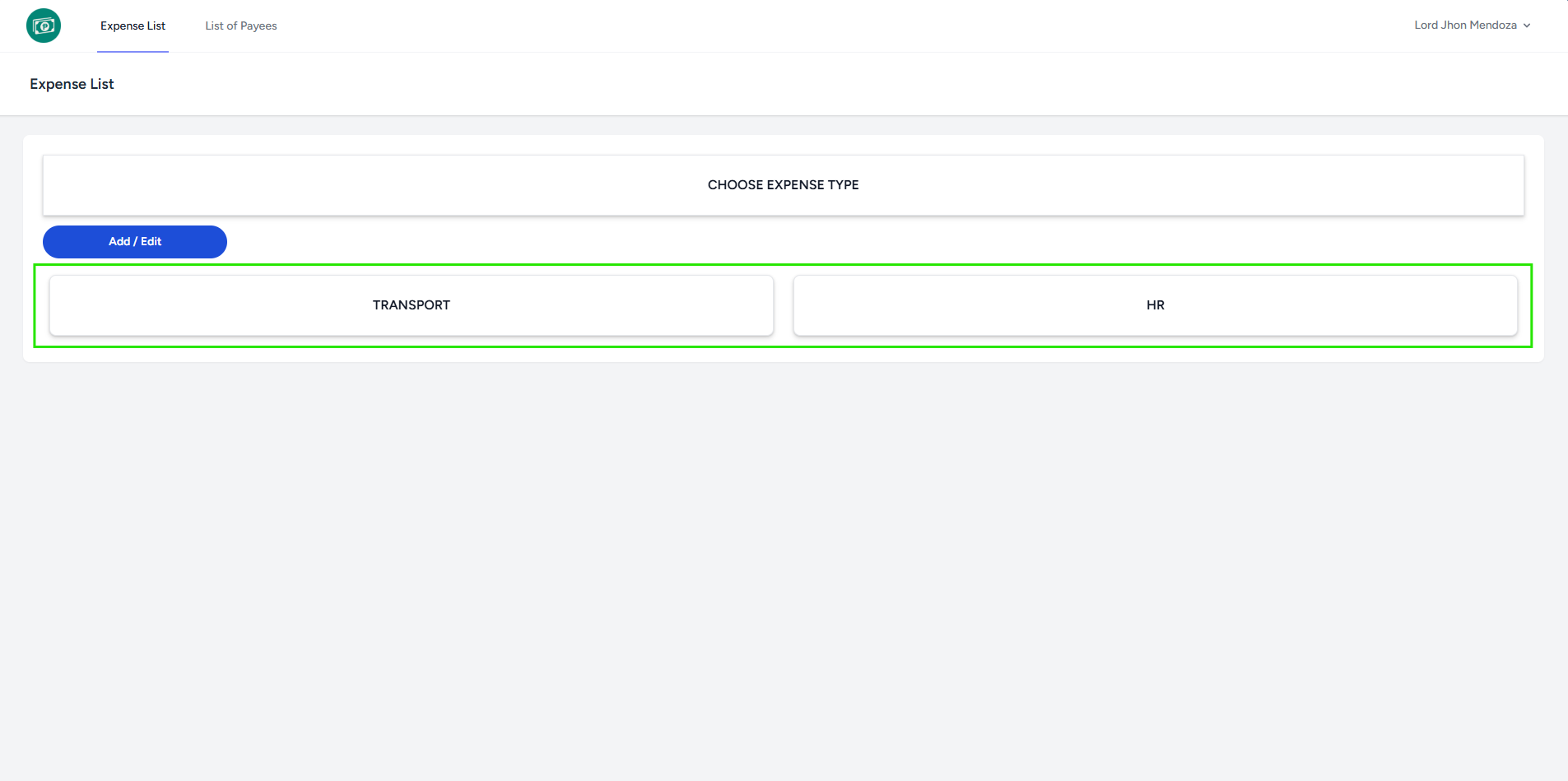
- The system redirects you to the WER List page of chosen Expense Type.
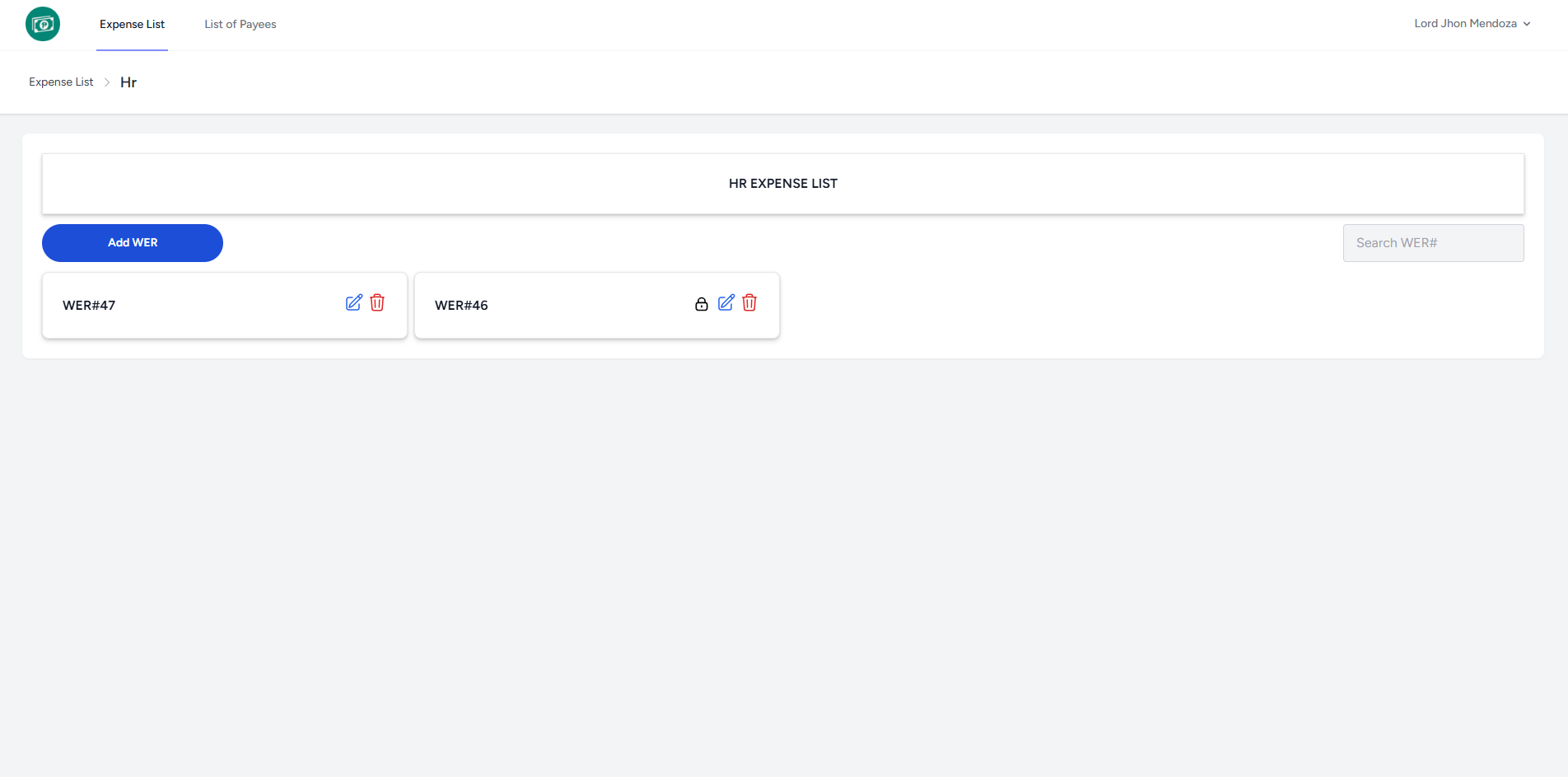
- Select a WER# to proceed to the Expense List.
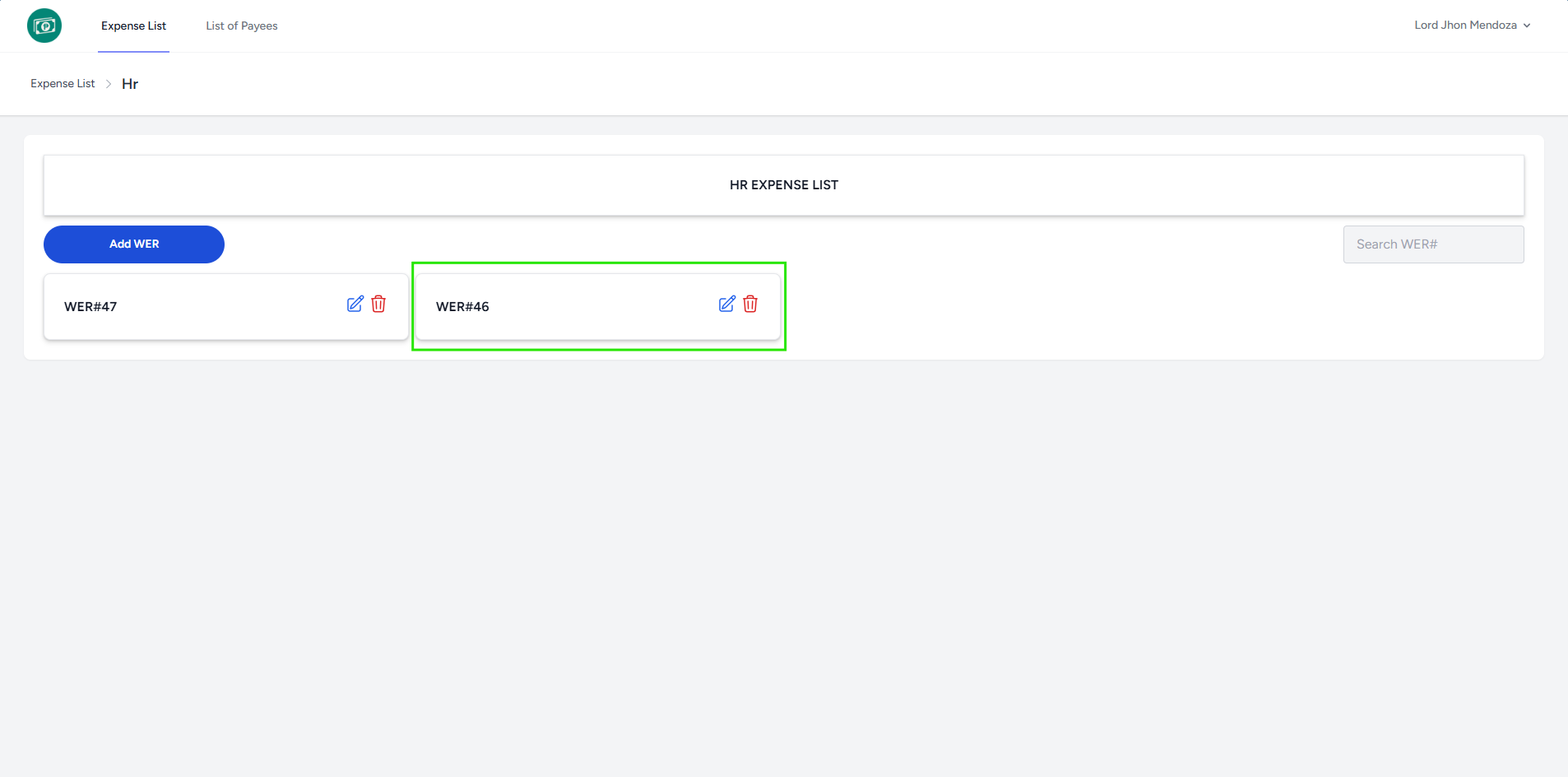
- Click Add Expense button to add.
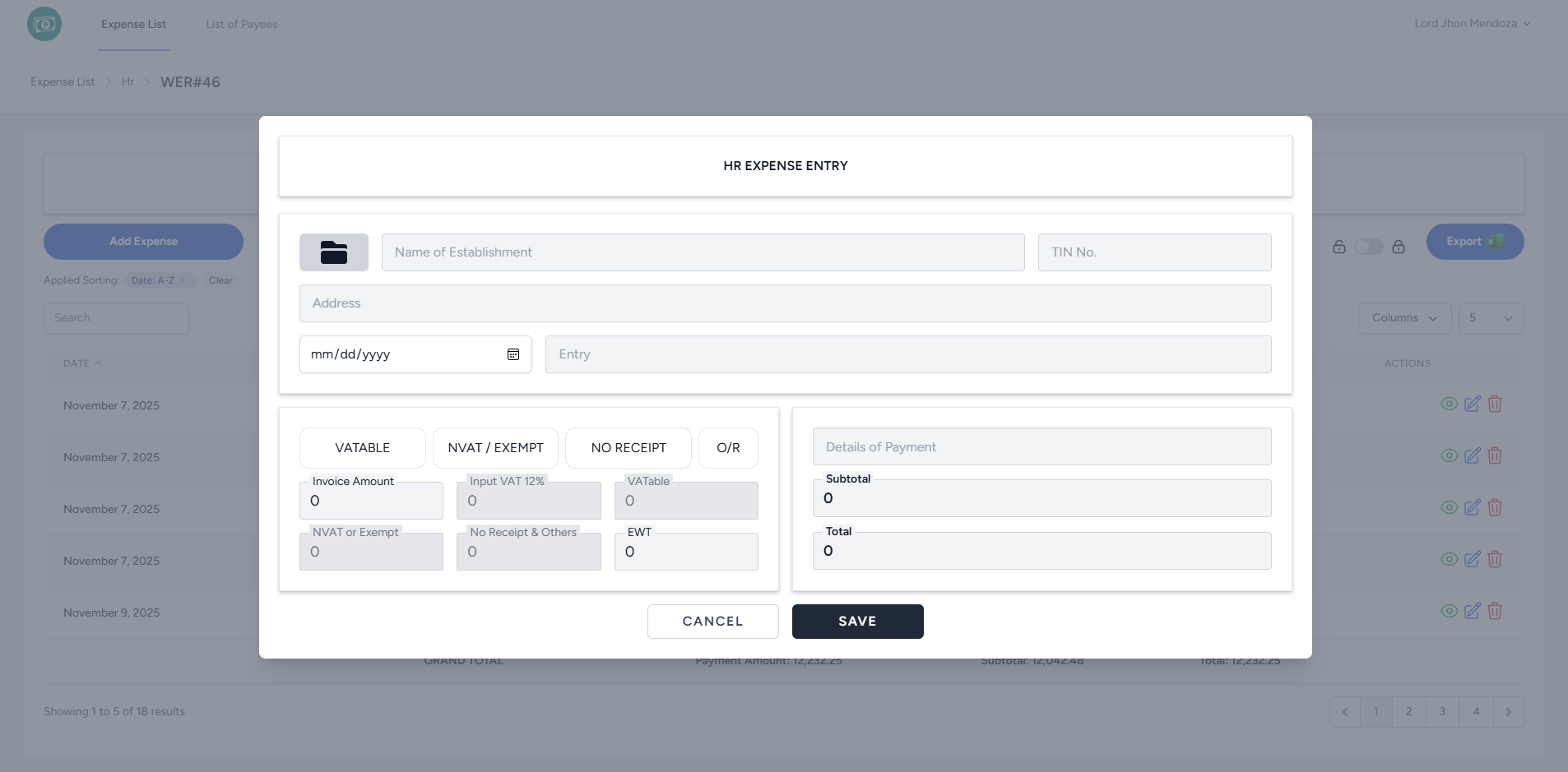
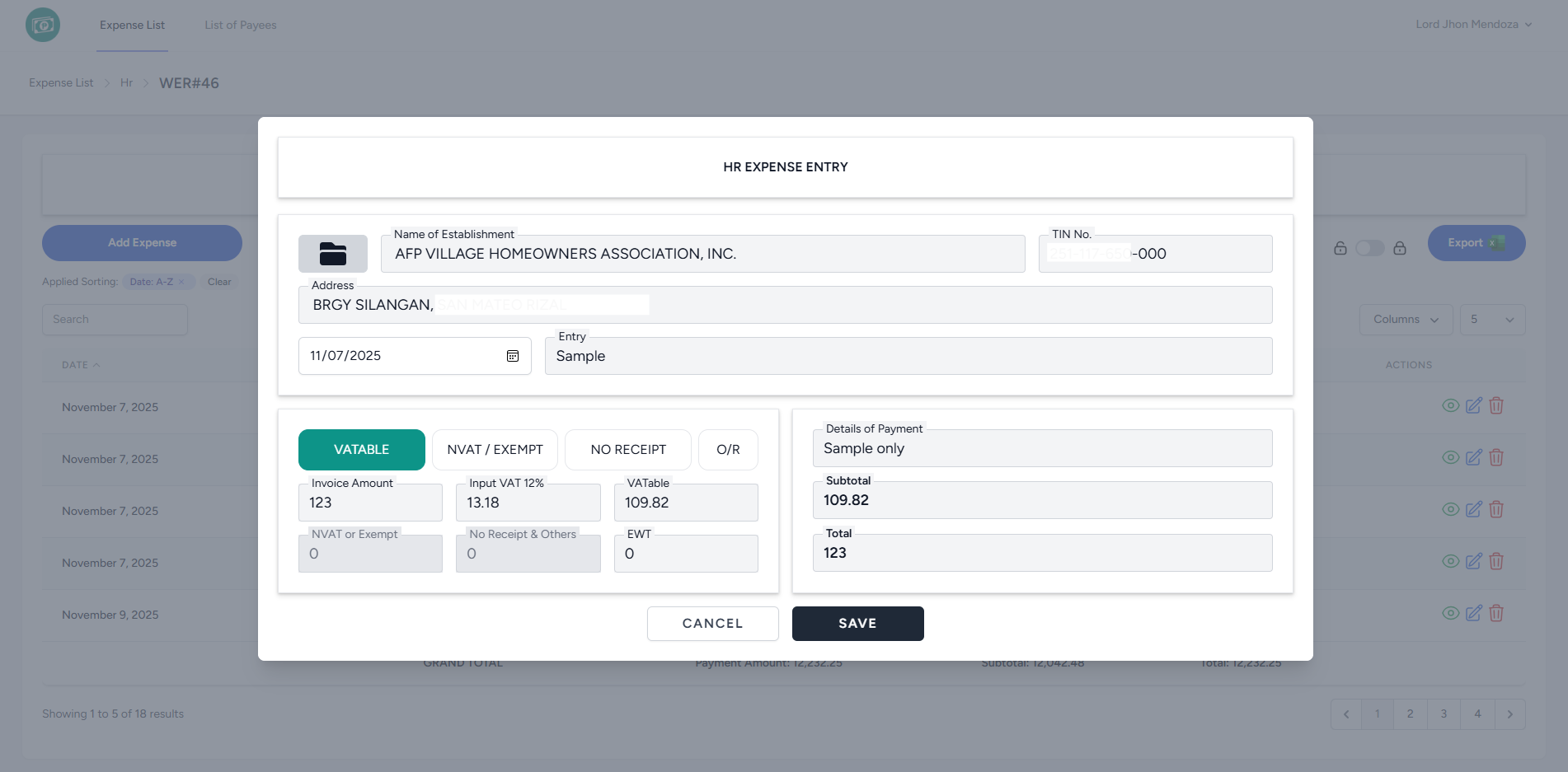
- Fill in the required fields, then click the Save button.
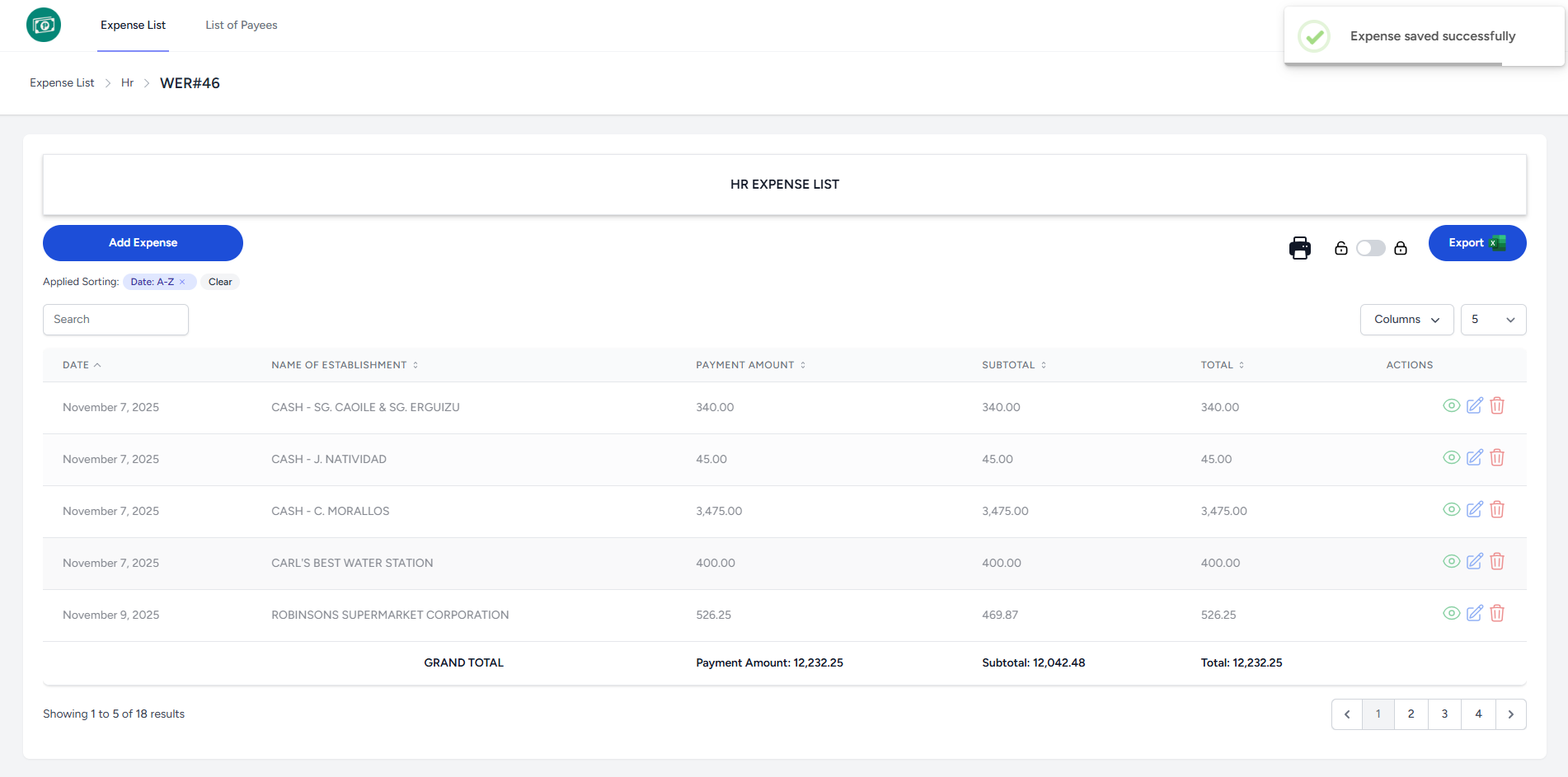
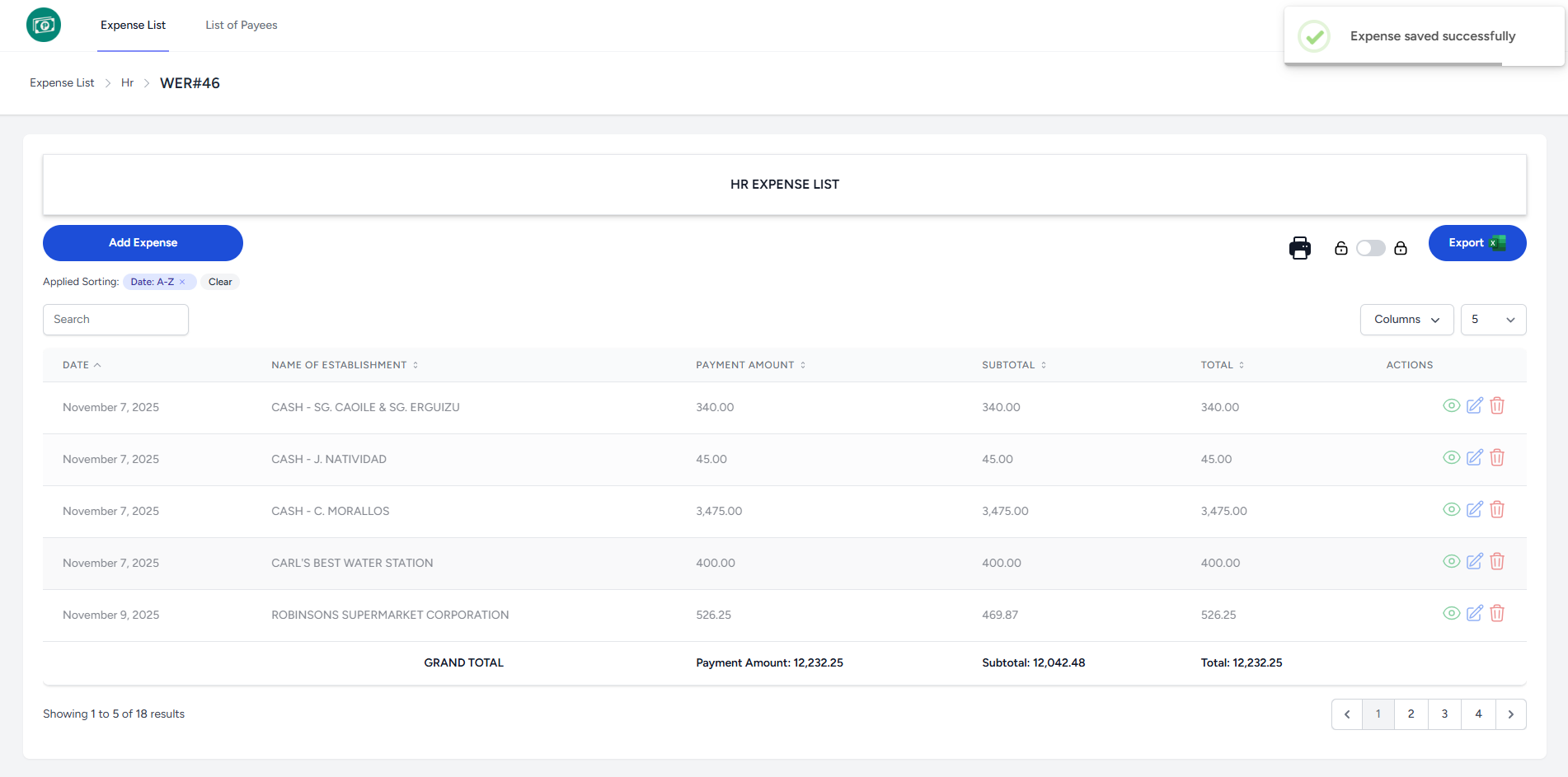
- The system displays a notification indicating that the Expense saved successfully and added to the list.
Edit Expense
To edit Expense, go to the Expense List page:
- Once logged in, the system redirects you to the Expense List page.
- Select an Expense Type to proceed to the WER List.
- The system redirects you to the WER List page of chosen Expense Type.
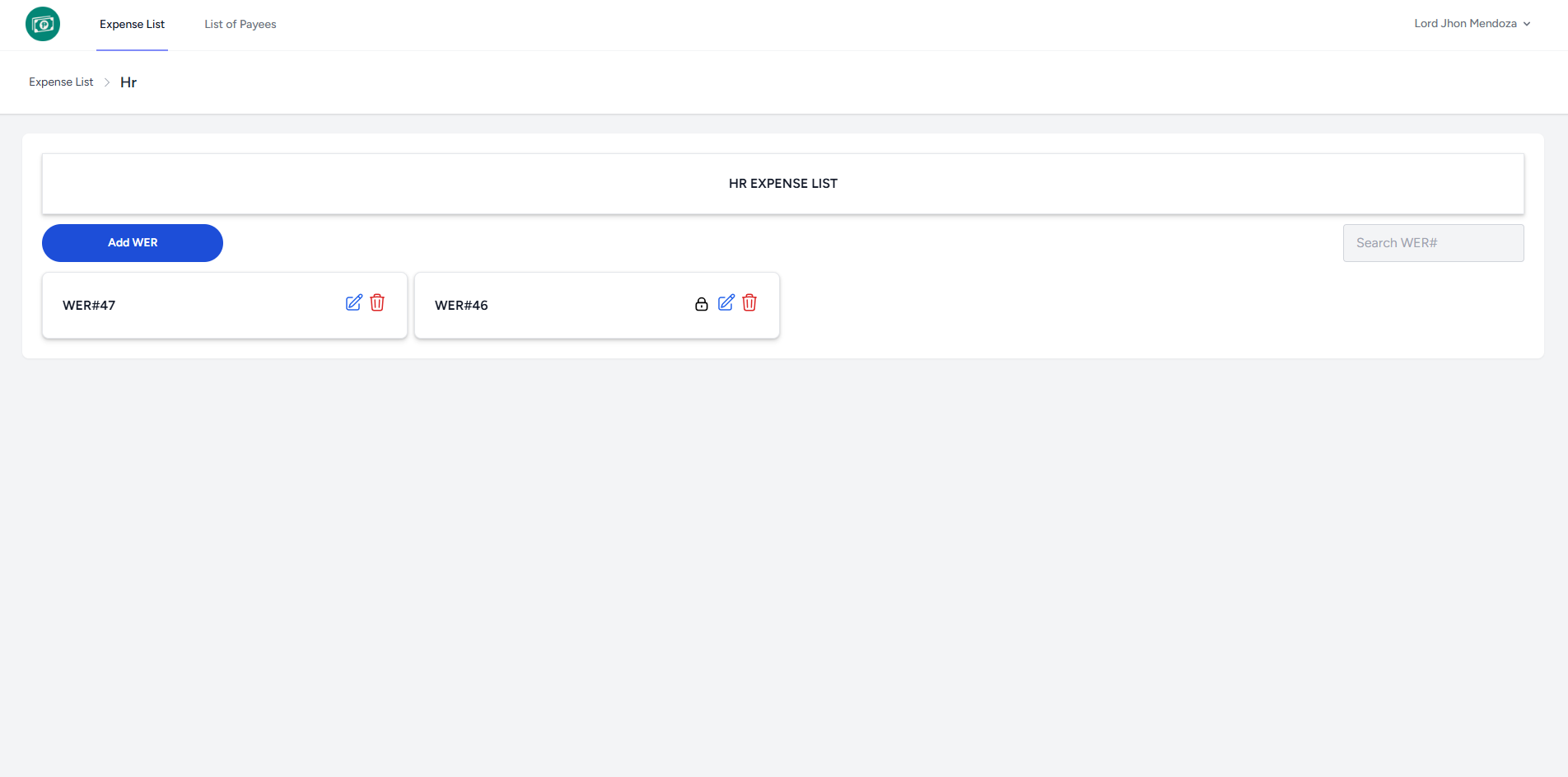
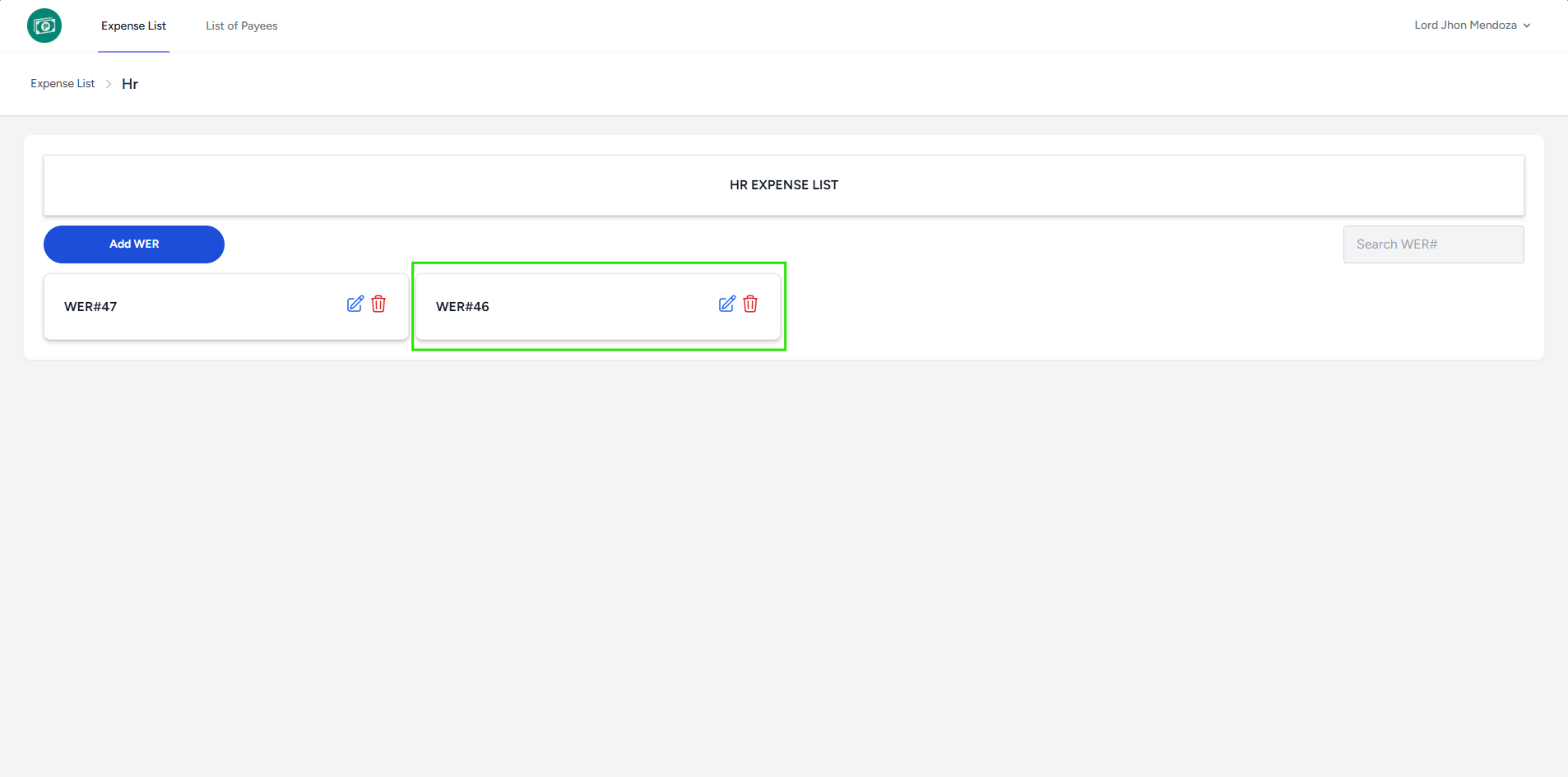
- Select a WER# to proceed to the Expense List.
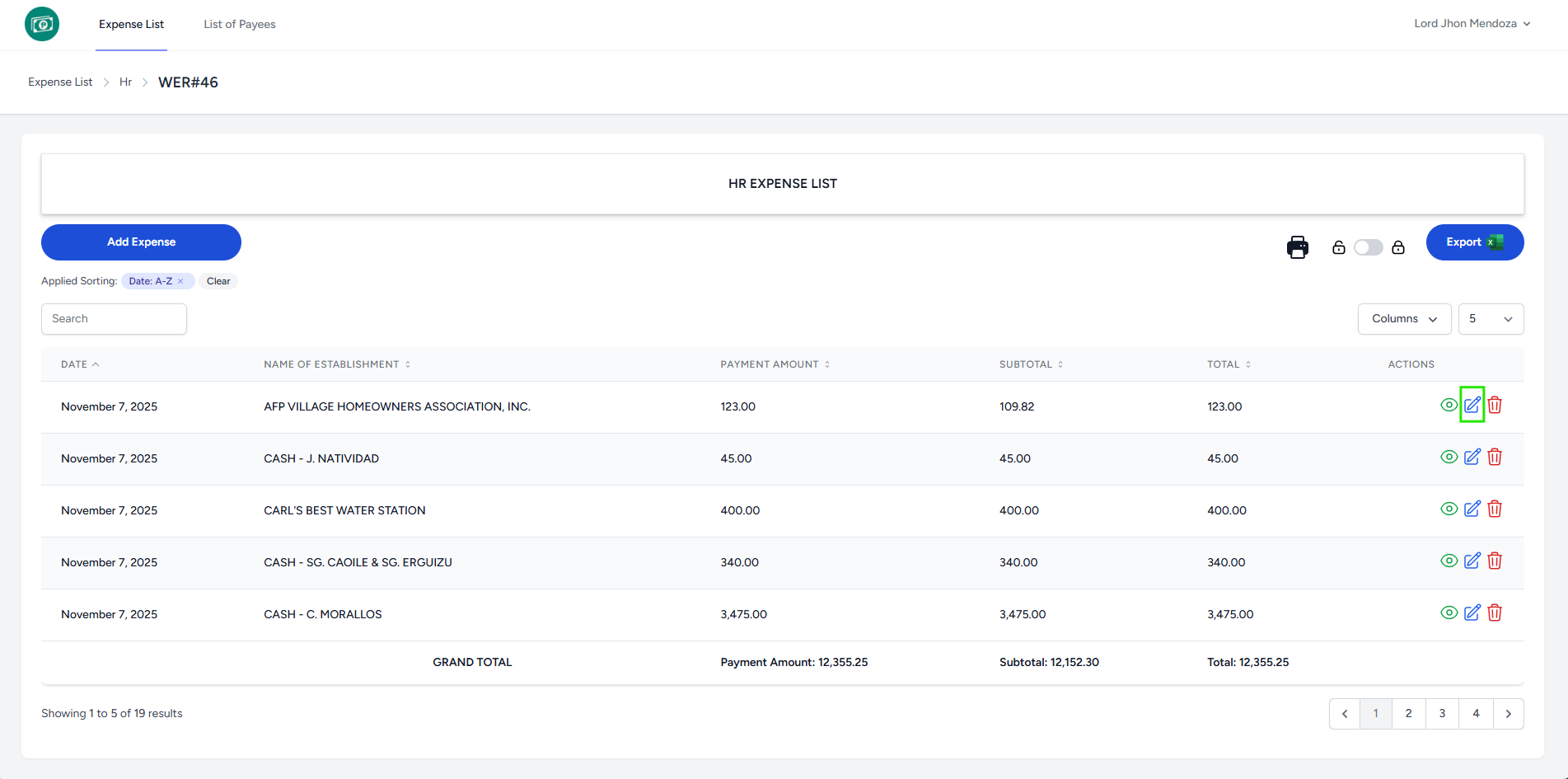
- Click Edit button to edit desired row.
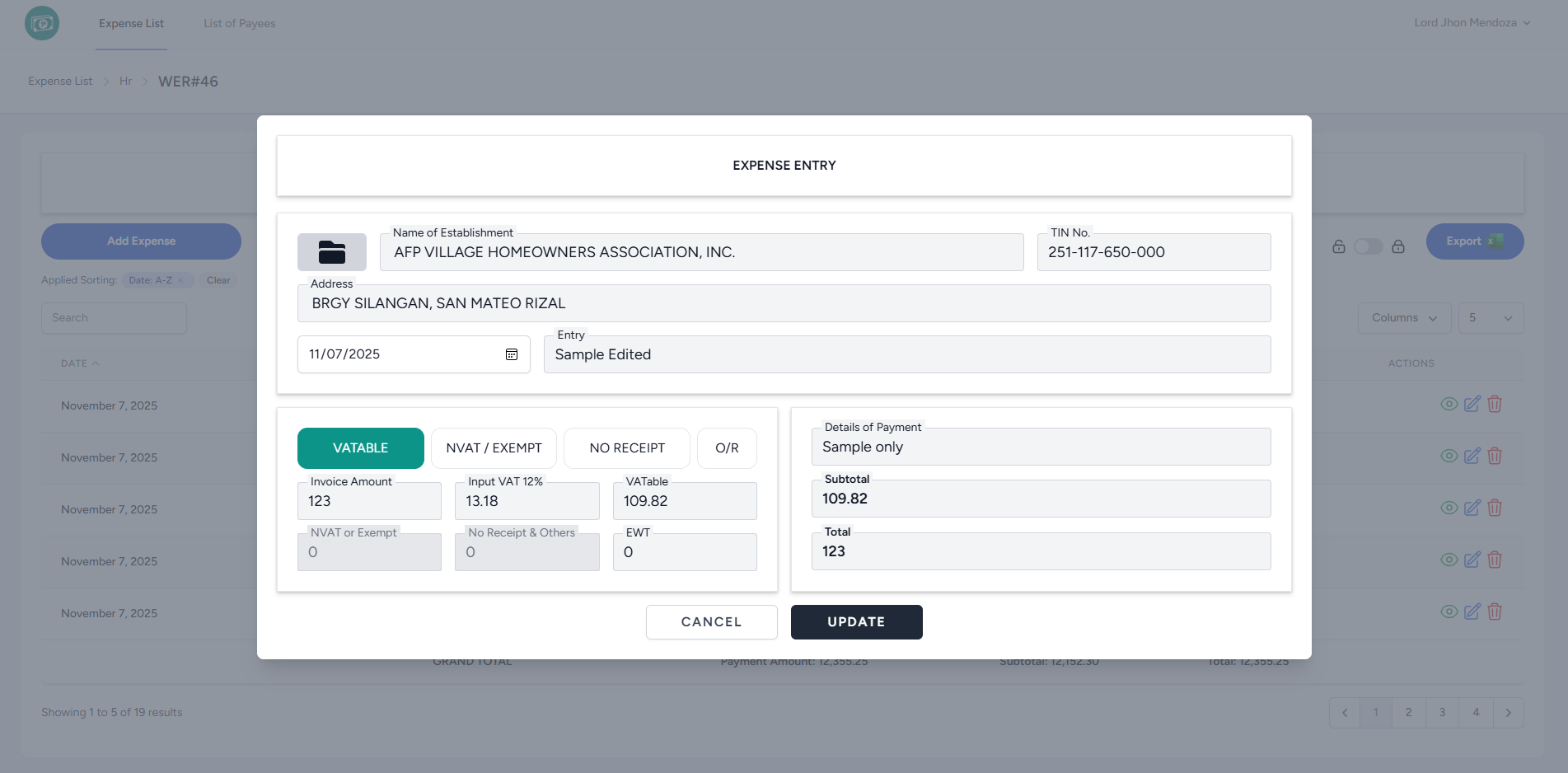
- Fill in the fields you wish to edit, then click the Update button.
- The system displays a notification indicating that the Expense saved successfully and added to the list.
Delete Expense
To delete Expense, go to the Expense List page:
- Once logged in, the system redirects you to the Expense List page.
- Select an Expense Type to proceed to the WER List.
- The system redirects you to the WER List page of chosen Expense Type.
- Select a WER# to proceed to the Expense List.
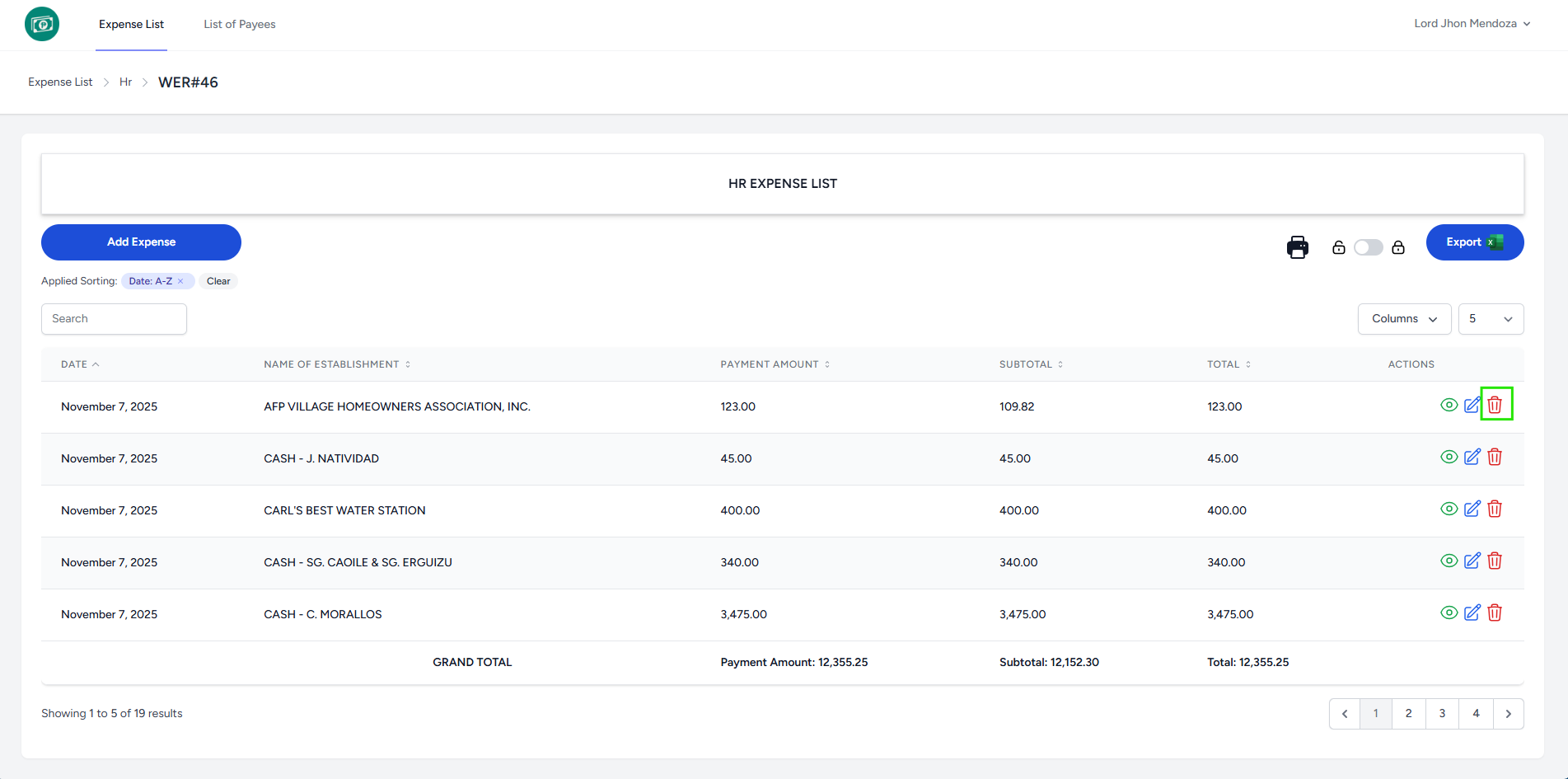
- Click Delete button to edit desired row.
- It will ask for confirmation to delete.
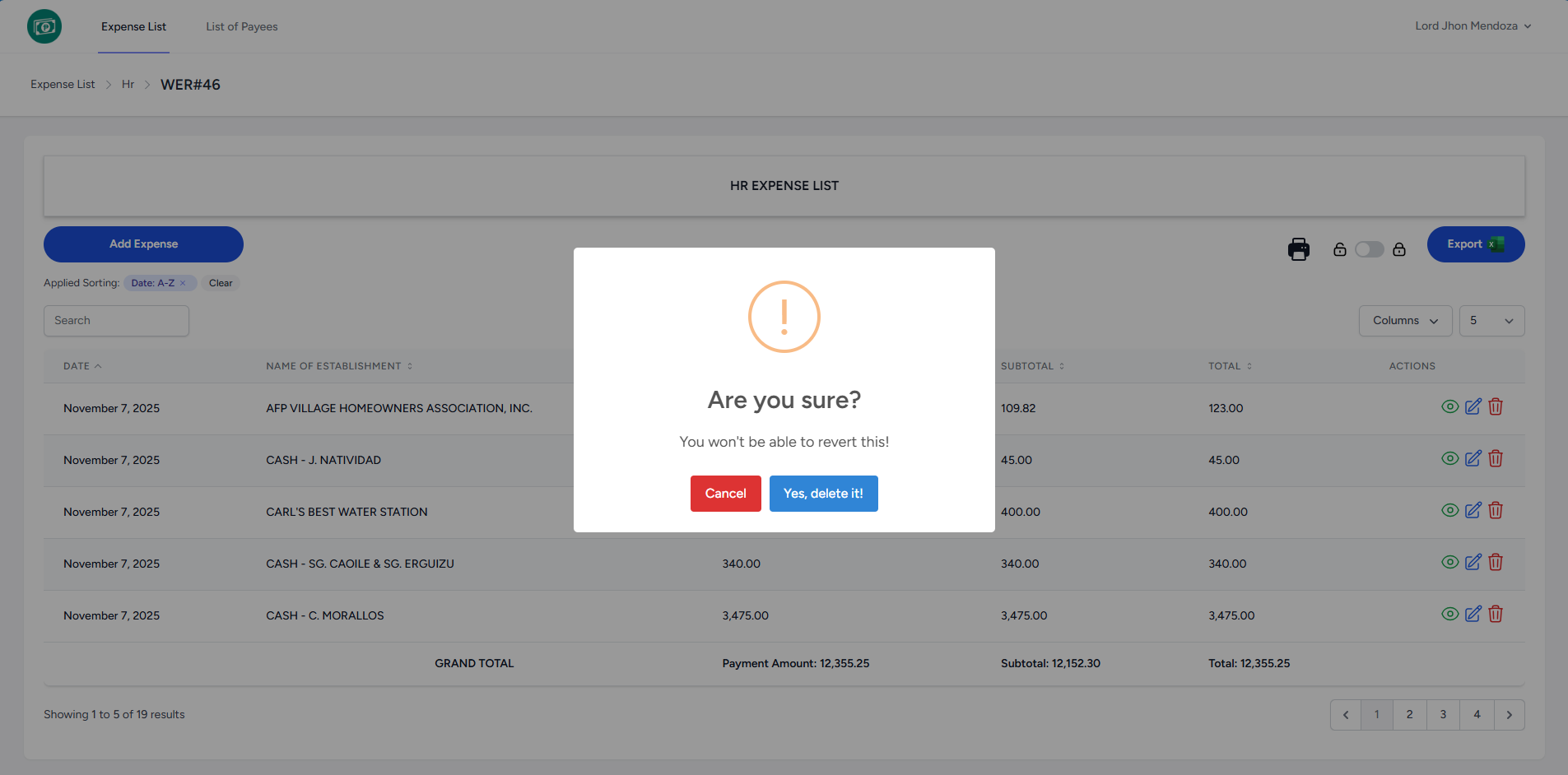
- Click Yes, delete it! button to delete the specific row.
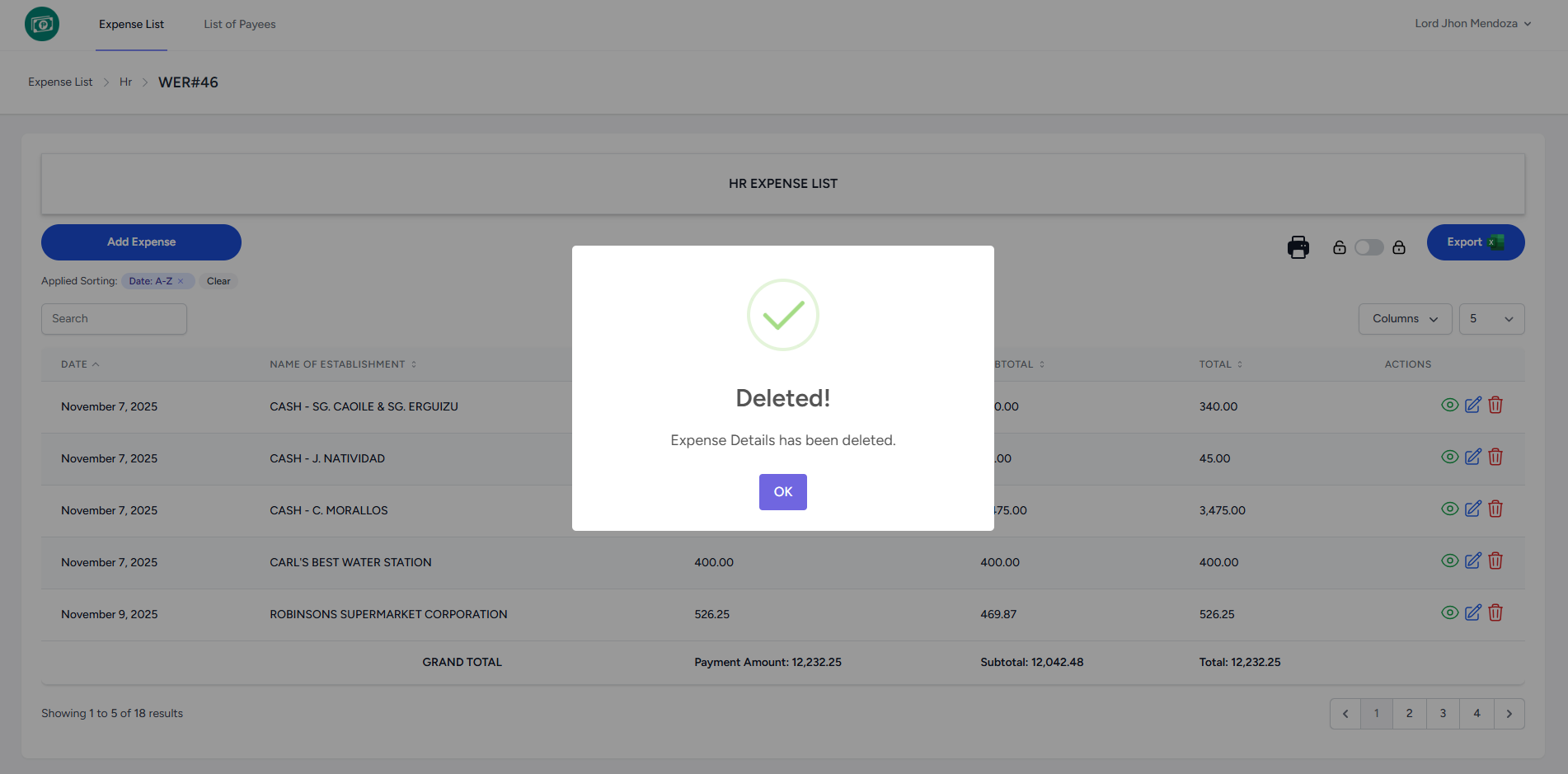
- The system displays a notification indicating that the Expense Details has been deleted and removed to the list.
Print Expense
To print Expense, go to the Expense List page:
- Once logged in, the system redirects you to the Expense List page.
- Select an Expense Type to proceed to the WER List.
- The system redirects you to the WER List page of chosen Expense Type.
- Select a WER# to proceed to the Expense List.
- Click Print icon to proceed in printing layout.
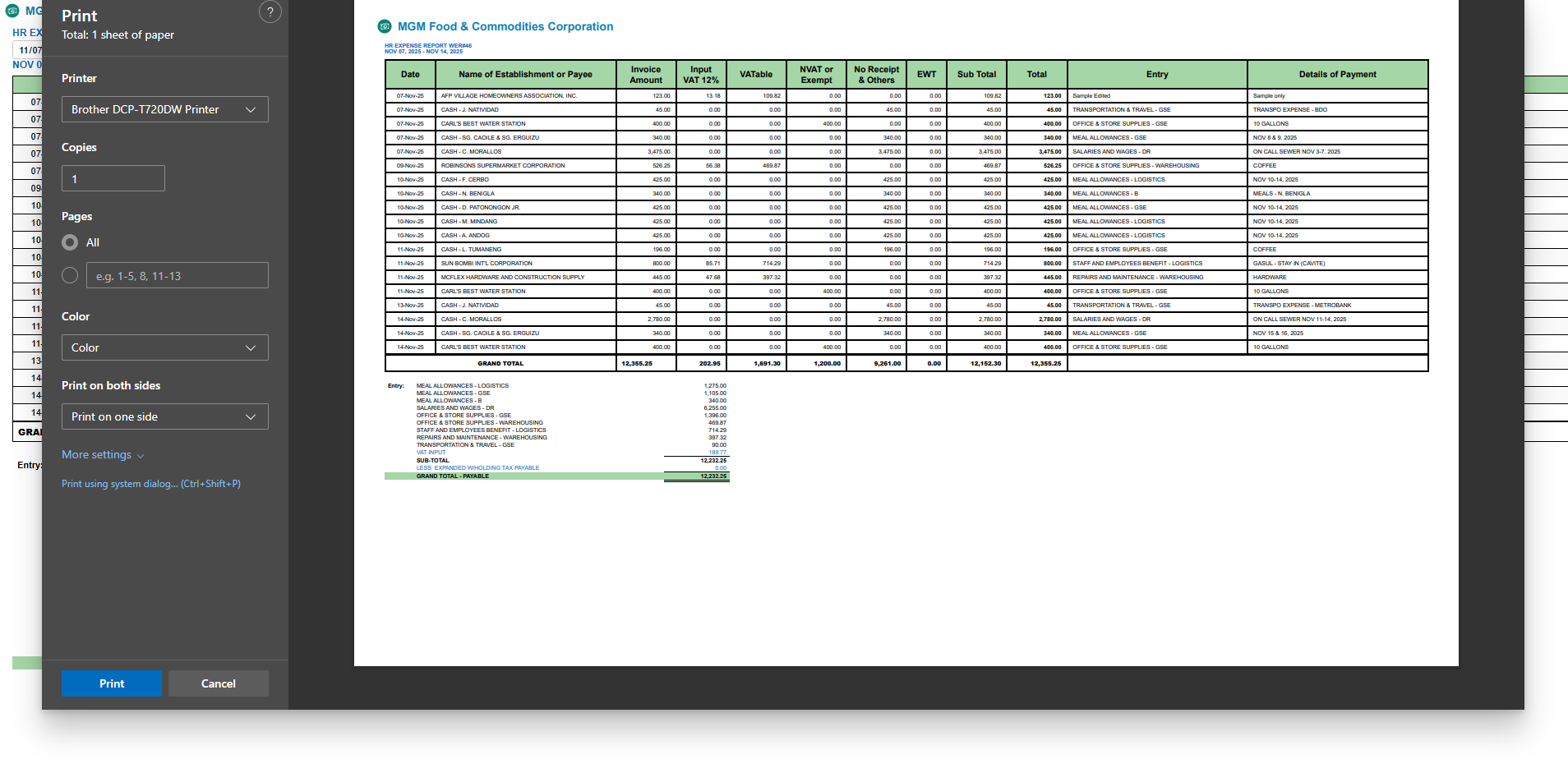
- You may customize the printing settings and paper size to match your desired output.
Export Expense
To export Expense to Excel, go to the Expense List page:
- Once logged in, the system redirects you to the Expense List page.
- Select an Expense Type to proceed to the WER List.
- The system redirects you to the WER List page of chosen Expense Type.
- Select a WER# to proceed to the Expense List.
- Click Export button to export to Excel file.
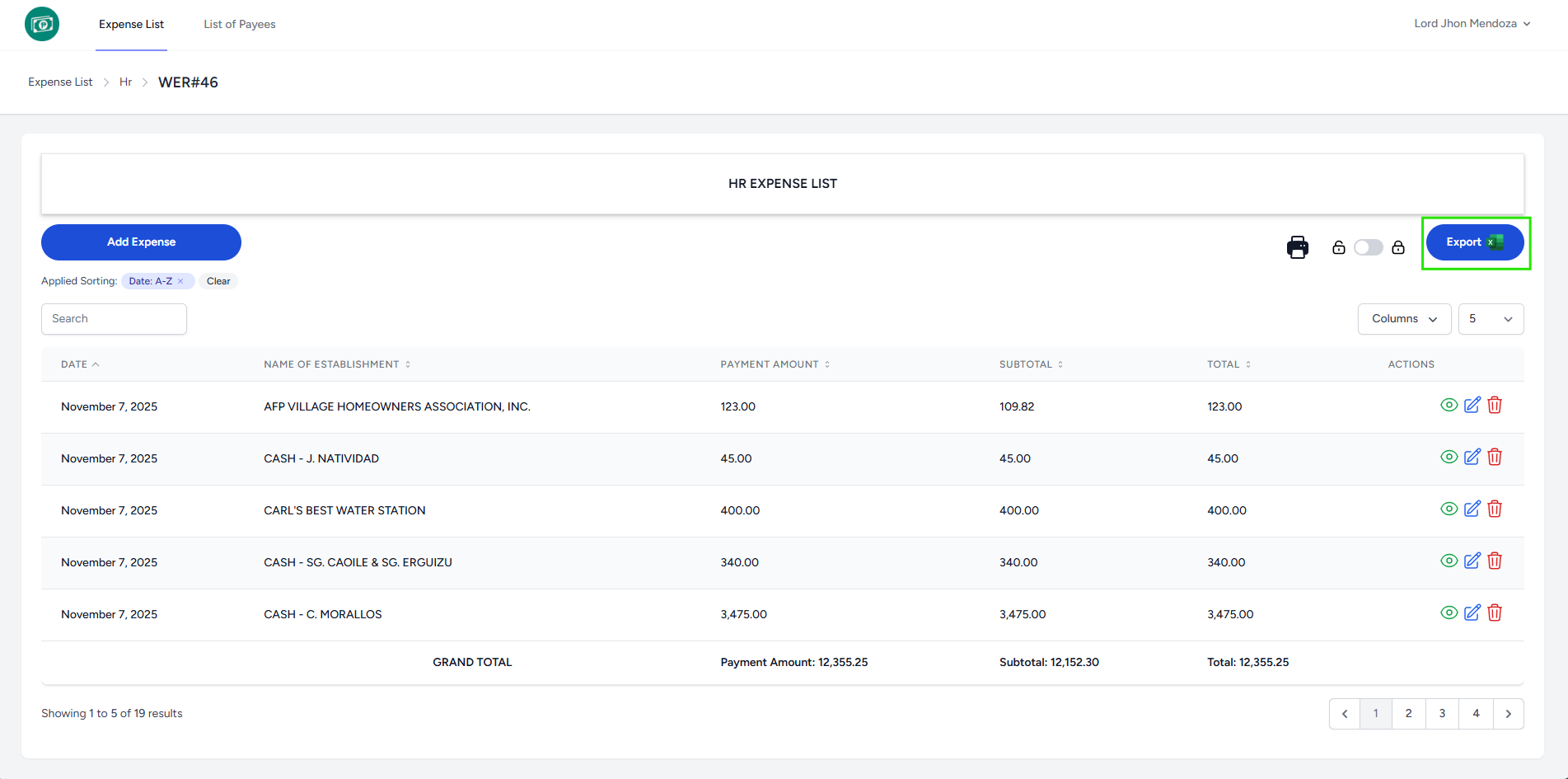
- The system displays a notification indicating that the WER# expenses exported successfully.
- It will download a XLS file
- It automatically locks the Expense List. You cannot add and edit the details of each row.