# How to use 'Add Expense' feature
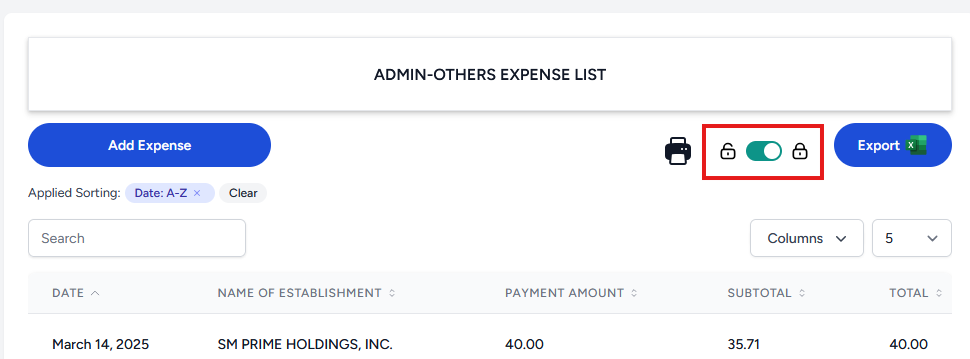
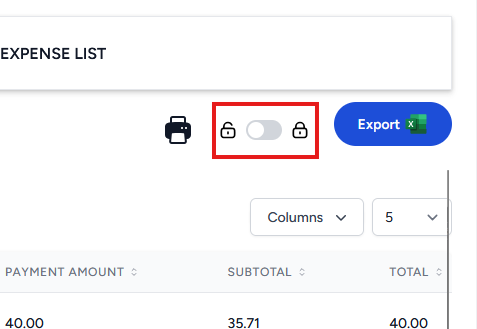
1. Ensure the selected expense list is unlocked. The toggle can be find on the right section of the page.
[](https://kb.mgmfoods.com.ph/uploads/images/gallery/2026-03/lsUimage.png)
**LOCKED**
[](https://kb.mgmfoods.com.ph/uploads/images/gallery/2026-03/9S3image.png)
**UNLOCKED**
2. Click on the "Add Expense" button on the left of the page. *(above the search field)*[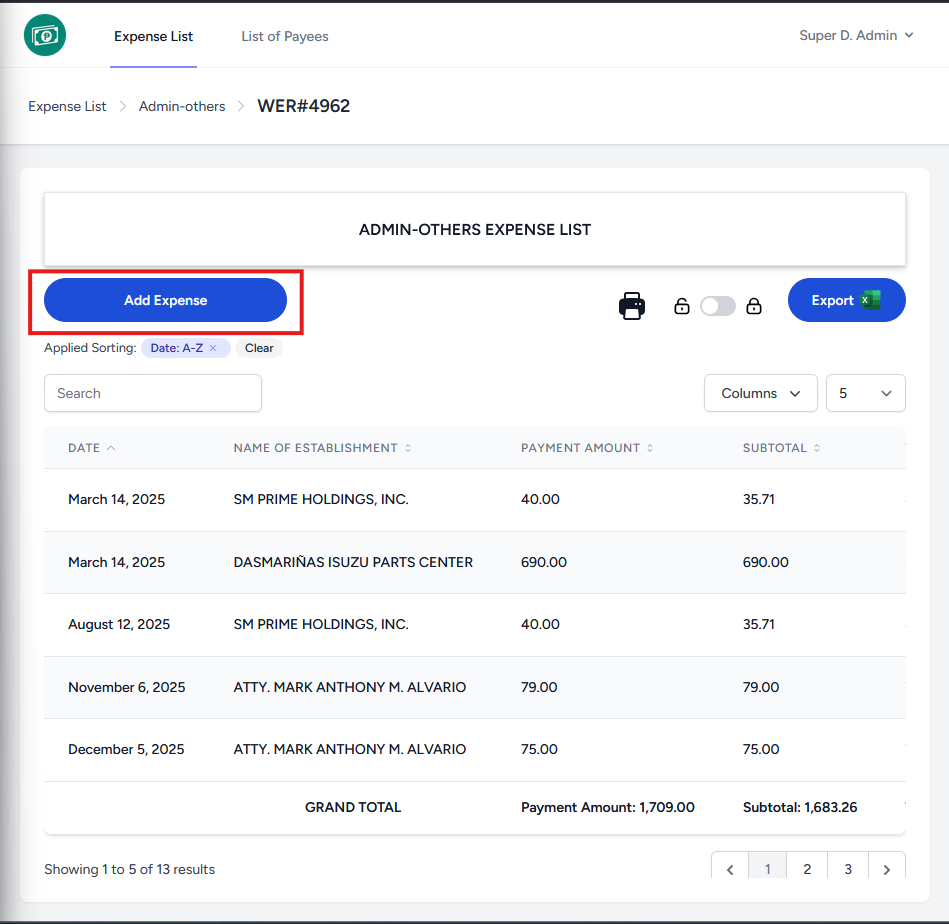](https://kb.mgmfoods.com.ph/uploads/images/gallery/2026-03/eDDimage.png)
3. Select the establishment using the folder icon on the upper left. [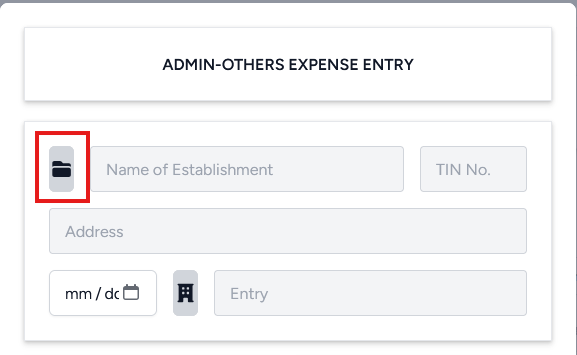](https://kb.mgmfoods.com.ph/uploads/images/gallery/2026-03/FbXimage.png)
4. You may search for the establishment using their name, TIN, or address using the search field in the upper left.
After selecting a row, the required fields will be filled out automatically. 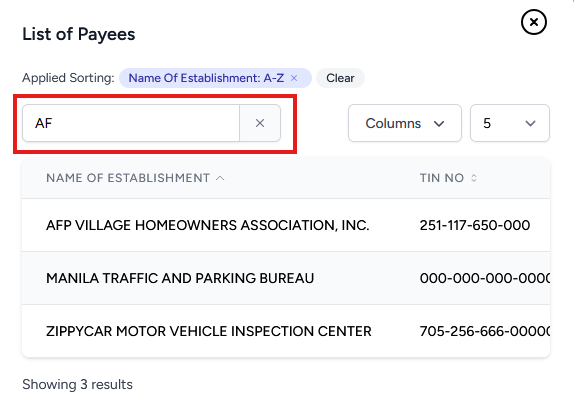[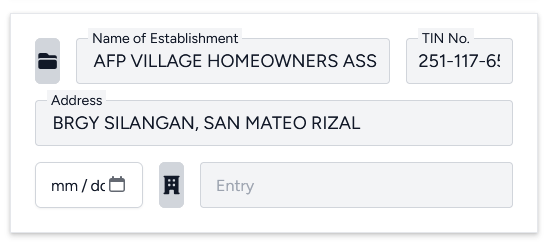](https://kb.mgmfoods.com.ph/uploads/images/gallery/2026-03/kYzimage.png)
5. Input the date using the date field below the Address field.
[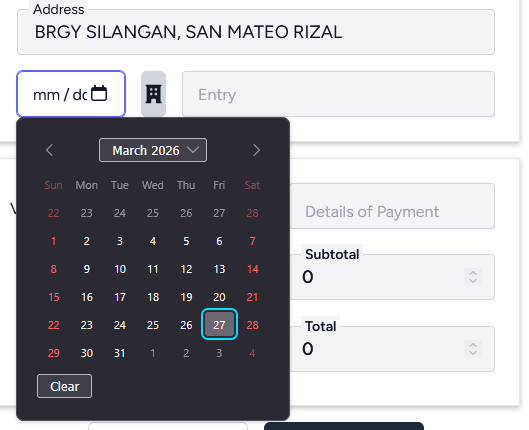](https://kb.mgmfoods.com.ph/uploads/images/gallery/2026-03/SBcimage.png)
6. Use the "building" button to select the chart of accounts.
[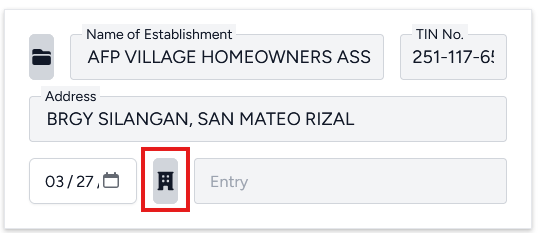](https://kb.mgmfoods.com.ph/uploads/images/gallery/2026-03/CgEimage.png)
7. You can use the search field in the top left of the new window to search for accounts using their name, account no., or chart no. Selecting a row will fill out the 'Entry' field automatically.
[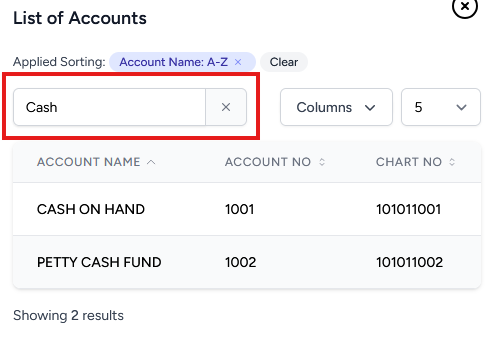](https://kb.mgmfoods.com.ph/uploads/images/gallery/2026-03/YH4image.png)[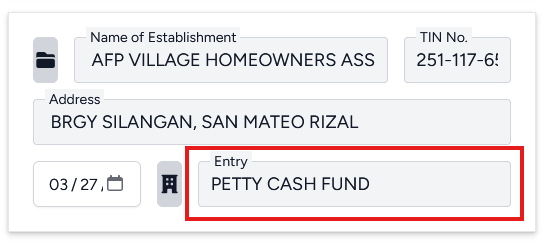](https://kb.mgmfoods.com.ph/uploads/images/gallery/2026-03/7Y1image.png)
8. Select an expense entry type using the four available option in the lower left corner of the 'Expense Entry' window. Once an entry type is selected, the 'Invoice Amount' field will be editable. [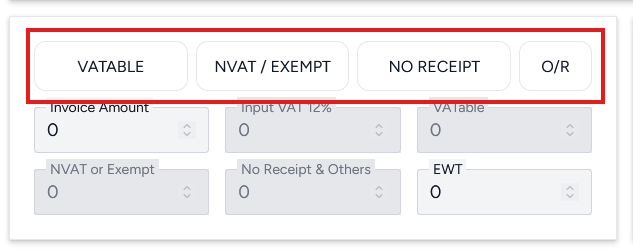](https://kb.mgmfoods.com.ph/uploads/images/gallery/2026-03/ngPimage.png)[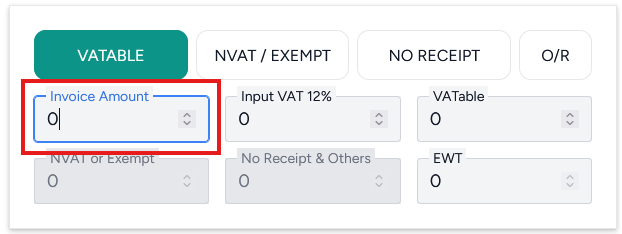](https://kb.mgmfoods.com.ph/uploads/images/gallery/2026-03/aDIimage.png)
9. Inputting the amount and pressing tab or click off of the 'Invoice Amount' field will generate the other required inputs based on the field.
[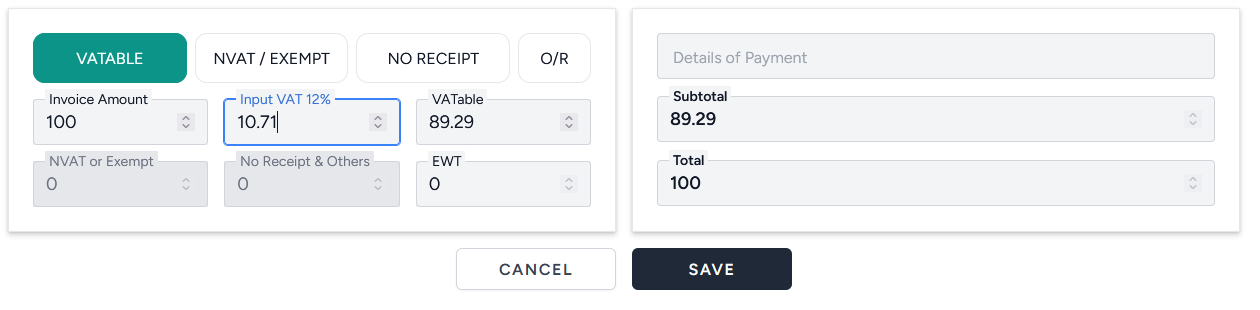](https://kb.mgmfoods.com.ph/uploads/images/gallery/2026-03/WPlimage.png)
*WARNING: do not enter spaces or non-numeric characters in these fields. This will break the form and require clicking off the form and restarting from step 1.*
10. Enter the description for the expense entry in the lower right section of the form.
[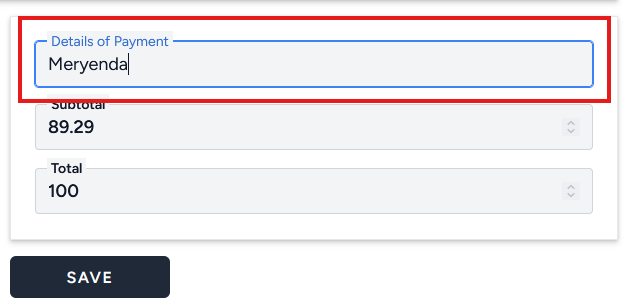](https://kb.mgmfoods.com.ph/uploads/images/gallery/2026-03/qoZimage.png)
11. Once satisfied, click on the 'Save' button on the lowest section of the form.
[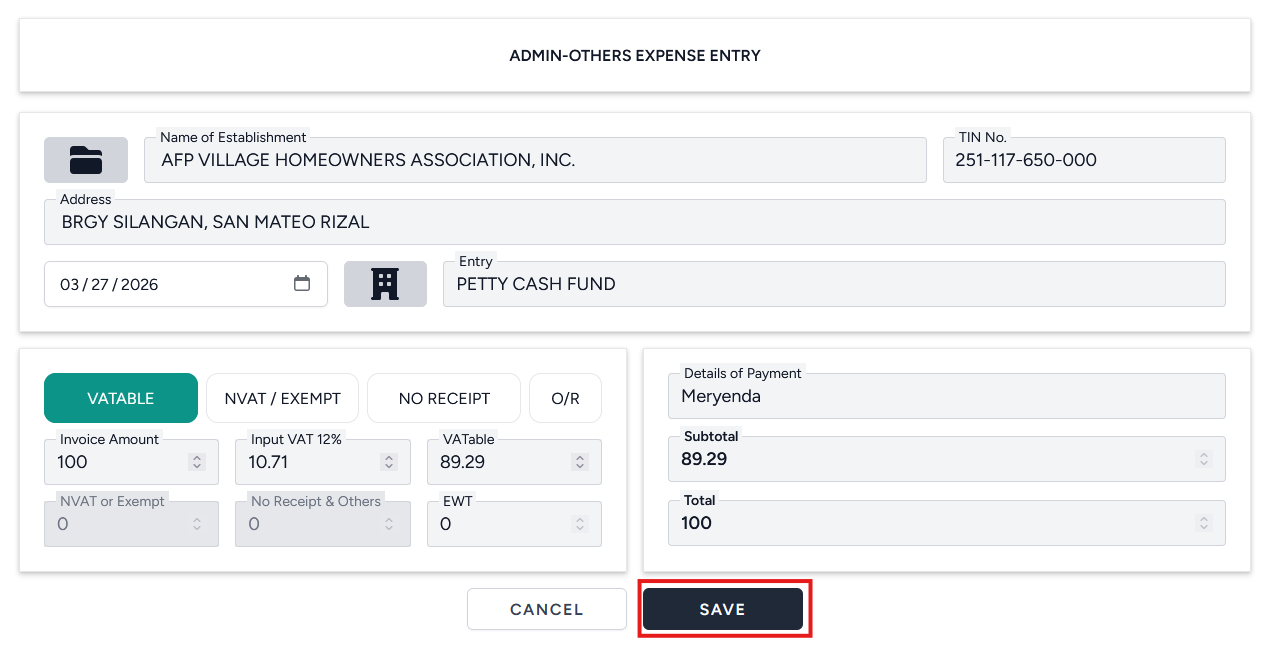](https://kb.mgmfoods.com.ph/uploads/images/gallery/2026-03/vQNimage.png)
A new entry will appear in the 'Expense List' window and the total amounts will be updated.
[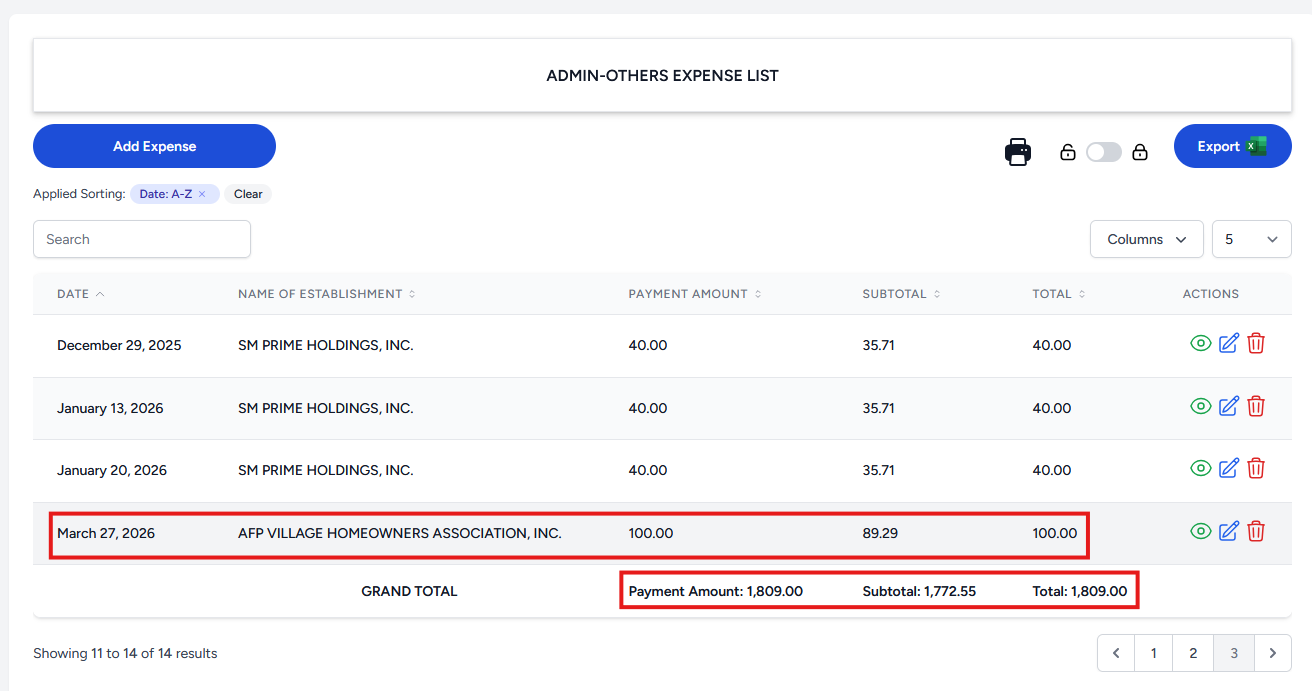](https://kb.mgmfoods.com.ph/uploads/images/gallery/2026-03/t2Jimage.png)
12. Make sure to re-lock the expense list. *See step 1.*